Krita, a powerful and free open-source painting application, offers robust animation tools, with onion skinning being a cornerstone feature for animators. Onion skinning allows users to see faint outlines of previous and subsequent frames overlaid on the current frame, facilitating smooth and accurate in-betweening. However, users sometimes encounter issues where this crucial feature doesn't function as expected. This guide delves into common troubleshooting steps for Krita's onion skin feature, drawing from user experiences and technical insights.
Understanding the Onion Skin Docker
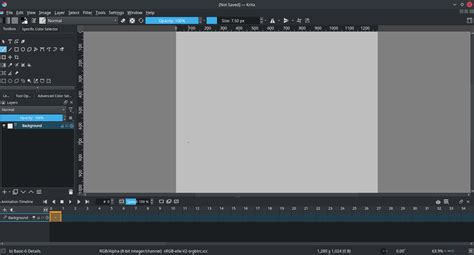
The Onion Skins docker in Krita is the central hub for controlling this feature. It presents a timeline-like interface where users can manage the visibility and opacity of surrounding frames. Each column represents a frame relative to the current one, with '0' being the current frame. The central '0' column is particularly important as it serves as the overall enable/disable switch and opacity control for all onion skins across all layers. When this central column is black, it indicates that onion skins are active.
Initial Setup and Common Misunderstandings
Many users, especially those new to Krita's animation features, may initially struggle with the onion skin setup. A common point of confusion arises from the central '0' column in the Onion Skins docker. If this column appears black, it signifies that onion skins are indeed enabled. The issue might not be that onion skinning is off, but rather how it's being perceived or configured.
A user might encounter a situation where the central '0' column is black, implying activation, yet the onion skins for other frames (-1, 1, -2, 2, etc.) appear blue instead of grey. Blue typically indicates that the onion skin for that specific frame is active and at full opacity, while grey signifies it's disabled. If the central '0' is black and the surrounding frames are blue, it means the overall onion skin functionality is on, and those specific frames are set to be visible. The problem might then stem from what the onion skinning is trying to display, rather than the feature itself being broken.
Resolving the "Onion Skin Not Showing" Issue
When the onion skin feature appears unresponsive, several factors could be at play. Re-downloading Krita, while a standard troubleshooting step, often doesn't resolve configuration-specific issues. The core functionality of onion skinning hasn't fundamentally changed between Krita versions, suggesting that the problem likely lies in the settings or the way the animation is constructed.
Adjusting Overall Opacity and Frame Opacity
A frequent solution involves interacting with the central '0' column in the Onion Skins docker. If this column is black, it's enabled. The issue might be related to the overall opacity level. Try clicking in the middle of the black area under frame '0'. This action should adjust the overall opacity, often setting it to around 50%. From there, you can slide the control up and down to achieve the desired overall opacity for all onion skins.
It's common practice to set the opacity for frames immediately surrounding the current one (e.g., -1 and 1 columns) to 100%, and frames further out (e.g., -2 and 2 columns) to a lower opacity, such as 70%, or any level that suits your workflow. This graduated opacity helps in distinguishing the current frame from the surrounding ones while still providing visual cues.
Layering and Artwork Complexity
Another significant reason onion skinning might appear to fail is related to how artwork is layered and the complexity of the content on previous frames. Onion skinning relies on detecting the opacity of pixels on other frames. If artwork is "baked" into a single keyframe or if elements are drawn directly over a solid background without separate layers, Krita might struggle to render the onion skin outlines accurately.
For instance, if you're animating lava flowing over a purple shape, and the lava lines are drawn directly onto the same layer as the purple shape, the onion skin might not be able to "see" the lava lines clearly on previous frames. This is because the underlying purple color obscures them.
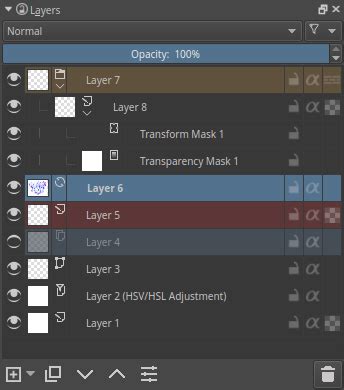
The recommended solution in such cases is to draw or animate complex elements on separate layers. In the lava example, animating the lava on a new layer positioned above the lamp or background layer would be ideal. This separation allows Krita's onion skinning to process the distinct elements of each frame more effectively. You can also consider nesting these elements within a graphic symbol and setting them to loop, which can further optimize animation and ensure proper onion skinning.
Version Compatibility and Tablet Information
While the core onion skinning functionality is consistent, it's always good practice to confirm the Krita versions being used. If you experienced issues with a newer version after a successful experience with an older one, noting the specific version numbers (e.g., Krita 5.0 vs. Krita 5.1) can be helpful for developers or support forums if the problem persists. Similarly, knowing the specific model of your digital drawing tablet can sometimes be relevant, as driver issues or tablet-specific settings can occasionally interfere with software functionality, though this is less common for core features like onion skinning.
Krita's Animation Features: Beyond Onion Skinning
Krita's commitment to providing a comprehensive animation suite is evident in its array of features, all offered free of charge. This dedication extends to ensuring that core tools like onion skinning are functional and intuitive.
Core Animation Capabilities
Krita's animation workspace is designed to streamline the 2D animation process. Key features include:
- Multiple Layers and Audio Support: Organize your animation with extensive layer management, and sync your visuals with imported audio tracks.
- Thousands of Frames: The timeline supports a vast number of frames, allowing for complex and lengthy animations.
- Playback Controls: Seamlessly play, pause, and scrub through your animation timeline to review your work at any stage.
- Onion Skinning Support: As discussed, this feature is integral for creating smooth in-betweens.
- Tweening: Adjust opacity and position changes automatically between keyframes.
- Frame Management: Easily change the start and end times of frames, adjust the frames per second (FPS), and duplicate or pull frames using dedicated shortcuts.
- Performance Tweaking: Options like the "drop-frame" setting help maintain smooth playback even with demanding animations.
FREE 2D Animation Software / How to use the Onion Skin in Krita
Productivity and Customization
Beyond animation-specific tools, Krita offers features that enhance overall productivity and user experience:
- Customizable Layout: Move and arrange dockers and panels to create a personalized workspace. Save these layouts for quick access.
- Shortcuts: Define custom shortcuts for frequently used tools and actions.
- Beautiful Brushes: Over 100 pre-loaded brushes offer a wide range of effects, with the ability to create and save your own. Brush stabilizers (including dynamic brush tools) help smooth out shaky lines.
- Vector & Text Tools: Built-in vector tools and a text tool, utilizing SVG format, are available for comic creation and adding text elements.
- Brush Engines: Explore over nine unique brush engines, each with extensive customization options, allowing for highly specialized brush creation.
- Wrap-around Mode: Create seamless textures and patterns with instant visual feedback as you paint.
- Resource Manager: Import and export brush and texture packs, and organize your resources with a tagging system.
- Drawing Assistants: Tools to aid with perspective and straight lines, helping to achieve perfect shapes.
- Layer Management: Beyond standard layers, Krita supports vector, filter, group, and file layers.
- Select & Transform Tools: Powerful selection tools with features like feathering and inverting selections.
- Full Color Management: Support for LCMS (ICC) and OpenColor IO (EXR) for integration into professional color pipelines.
- GPU Enhanced Performance: Increased canvas rotation and zooming speed with OpenGL or Direct3D enabled.
- PSD Support: Open PSD files, even those that may not be compatible with other software.
- HDR Painting: Krita is unique in its ability to author and edit High Dynamic Range (HDR) and scene-referred images.
- Python Scripting: An extensive API for extending Krita's functionality through custom widgets and scripts.
Krita's free and open-source nature, combined with its extensive feature set and active community, makes it a compelling choice for animators and digital artists alike. While occasional troubleshooting is part of using any complex software, understanding the nuances of features like onion skinning and employing logical problem-solving steps can help users overcome challenges and fully leverage Krita's powerful animation capabilities.