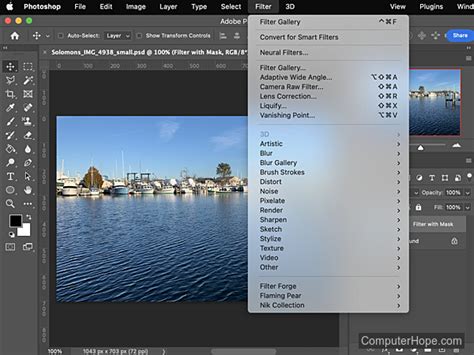
Adobe Photoshop, a cornerstone of digital image manipulation, offers a vast array of filters designed to transform and enhance your photographs. These powerful tools, accessible through the "Filter" menu, allow users to apply a wide spectrum of visual effects, ranging from subtle corrections to dramatic artistic transformations. Understanding how to effectively utilize these filters can significantly elevate the quality and creative potential of your images. This guide delves into the diverse world of Photoshop filters, exploring their categories, functionalities, and best practices for application, ensuring both novice and advanced users can leverage their power.
What Are Photoshop Filters and How Do They Work?
At their core, Photoshop filters are algorithms that alter the appearance of pixels within an image. They can be applied to an entire layer or to a specific selection within a layer, offering precise control over their impact. The primary purpose of filters is to modify how pixels look, enabling a broad spectrum of creative and corrective applications.
Filters operate on the active layer or layer mask within an active selection. It's crucial to note that certain filters have specific requirements regarding image modes and bit depths. For instance, filters do not function on Bitmap-mode or indexed-color images. While some filters necessitate RGB color mode and others require 16-bit or 32-bit images, all filters are compatible with standard 8-bit images.
A significant advantage of using filters in Photoshop CC (Creative Cloud desktop version) is their integration with Smart Objects. When a filter is applied to a Smart Object, it becomes a "Smart Filter." This non-destructive editing capability means that the original image data remains preserved, and the filter's settings can be modified or the filter can be removed entirely at any time without permanently altering the underlying pixels. Smart Filters are listed in the Layers panel below the Smart Object layer, offering a clear overview of applied effects.
Understanding Filter Categories and Their Applications
Photoshop's filters are thoughtfully organized into distinct categories, each offering a unique set of tools for image manipulation. This categorization aids users in quickly locating the desired effect.
Artistic Filters: Unleashing Creative Expression
The Artistic filter category is dedicated to simulating traditional art techniques and creating painterly effects. These filters are invaluable for adding a handcrafted feel to digital images, transforming photographs into stylized artworks.
- Colored Pencil: Mimics the look of drawing with colored pencils on a solid background, offering a vibrant and textured appearance.
- Cutout: Simplifies an image by reducing the number of colors and increasing the contrast, giving it a posterized or cutout effect, ideal for collages or typography.
- Dry Brush: Simulates the effect of a dry brush technique, blending oil and watercolor styles to create soft, textured strokes.
- Film Grain: Adds a grainy texture to an image, emulating the look of traditional film photography, which can be used for stylistic effect or to blend composite elements.
- Fresco: Creates a painterly effect that resembles a fresco painting, with visible brush strokes and textured surfaces.
- Neon Glow: Enhances edges with a neon-like glow, adding an artificial, vibrant illumination to specific areas of the image.
- Paint Daubs: Applies thick, visible brush strokes, giving the image a heavily painted appearance.
- Palette Knife: Simulates the use of a palette knife, creating thick, impasto-like strokes with distinct texture and color blending.
- Plastic Wrap: Gives an image a glossy, plastic-like sheen, softening details and creating a smooth, somewhat artificial look.
- Poster Edges: Simplifies an image by exaggerating edges and reducing tonal variations, creating a poster-like effect.
- Rough Pastels: Mimics the textured strokes of pastel chalk on a rough background, adding a tactile quality to the image.
- Smudge Stick: Blurs and smears pixels to create a smudged or blended effect, useful for softening transitions or creating a hazy atmosphere.
- Sponge: Applies a textured, absorbent look to the image, similar to using a sponge with paint, often used for retouching or creating abstract effects.
- Underpainting: Creates an effect that resembles the initial layers of paint applied in a traditional painting, with visible brushwork and simplified forms.
- Watercolor: Simulates the transparent and fluid nature of watercolor painting, simplifying details and creating soft, blended color areas.
Blur Filters: Softening and Refining Images
The Blur category encompasses a suite of filters designed to soften an image, reduce noise, or create specific depth-of-field effects. These filters are essential for both corrective and creative purposes.
- Average: Blurs an image by calculating the average color value of all pixels and applying it uniformly. This effectively creates a flat, monochromatic image.
- Blur: A basic filter that slightly softens an image.
- Blur More: Applies a stronger blur than the standard "Blur" filter.
- Box Blur: Blurs a selection by an adjustable amount using a uniform weighted average of pixels within a defined box kernel.
- Gaussian Blur: A widely used filter that blurs an image by applying a weighted average to pixels, following a bell-shaped curve. It's excellent for subtle softening and creating a sense of depth.
- Lens Blur: Simulates the bokeh effect of a camera lens, allowing you to control the depth of field and create realistic out-of-focus areas. It offers advanced control over aberrations and lens properties.
- Motion Blur: Creates the illusion of movement by blurring pixels in a specified direction and distance.
- Radial Blur: Blurs pixels radially, either around a central point (Spin) or outwards from it (Zoom), simulating spinning or zooming motion.
- Shape Blur: Blurs an image using a specified kernel shape, allowing for more controlled and stylized blur effects.
- Smart Blur: A more intelligent blur filter that blurs an image while attempting to preserve edges and detail. It searches for dissimilar pixels and applies blur accordingly.
- Surface Blur: Blurs an image while preserving edges by blurring only pixels that differ from the central pixel by a specified threshold. This is useful for smoothing skin tones or reducing noise without sacrificing sharpness.
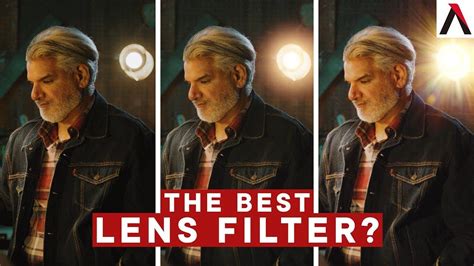
Blur Gallery Filters: Advanced Blurring Techniques
Building upon the standard blur filters, the Blur Gallery offers more sophisticated and specialized blurring tools. These allow for greater control over the blur's shape and application, often emulating traditional photographic techniques.
- Field Blur: Allows you to place multiple blur points on an image, each with its own blur intensity, offering granular control over selective blurring.
- Iris Blur: Creates an elliptical blur effect, allowing you to specify a central in-focus area and gradually blur outwards, mimicking the aperture of an iris.
- Tilt-Shift: Simulates the effect of a tilt-shift lens, creating a miniature world effect by blurring out the background and foreground while keeping a narrow strip in focus.
- Path Blur: Blurs an image along a defined path, offering unique motion effects and creative distortions.
- Spin Blur: Creates a circular blur effect, ideal for simulating radial motion or creating abstract patterns.
Brush Strokes Filters: Simulating Painting Techniques
These filters aim to replicate the appearance of various brush stroke techniques, adding texture and a hand-painted quality to images.
- Accented Edges: Enhances the edges of an image by drawing them with a colored stroke, creating a stylized, outlined effect.
- Angled Strokes: Applies strokes at an angle, creating a dynamic and textured appearance.
- Crosshatch: Simulates the look of crosshatching, a drawing technique using intersecting lines to create tone and shadow.
- Dark Strokes: Applies dark strokes to an image, creating a moody and dramatic effect.
- Ink Outlines: Outlines image details with dark lines, similar to ink drawings.
- Spatter: Mimics the effect of a spatter airbrush, distributing ink or paint in a spray-like pattern.
- Sprayed Strokes: Creates the effect of spray paint, with a textured and somewhat diffused application.
- Sumi-e: Replicates the minimalist brushwork of Sumi-e (Japanese ink painting), characterized by bold strokes and subtle gradients.
Distort Filters: Warping and Reshaping Pixels
The Distort category offers a range of filters that manipulate pixels by moving, stretching, and compressing them, leading to a variety of surreal and abstract effects.
- Diffuse Glow: Adds a soft, diffused glow to an image, making it appear as if it's illuminated from within.
- Displace: Warps an image based on the pixel data of a displacement map (another image file or channel), allowing for complex distortions.
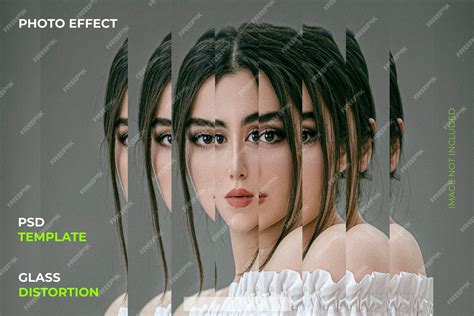
- Glass: Creates a glass-like effect by applying distortion and a refractive look, as if viewing the image through a pane of glass.
- Ocean Ripple: Simulates the effect of ripples on the surface of water, creating undulating distortions.
- Pinch: Squeezes the pixels towards the center of a selection, creating a concave distortion.
- Polar Coordinates: Converts a rectangular image into a circular or polar representation, useful for creating cylindrical or spherical effects.
- Ripple: Creates wavy distortions across an image, similar to ripples on water.
- Shear: Slants the image along a curve, allowing for controlled distortions.
- Spherize: Distorts an image to make it appear as if it's wrapped around a sphere, either inwards or outwards.
- Twirl: Rotates pixels around a central point, creating a swirling effect.
- Wave: Applies wavy distortions to an image, offering more control over the amplitude, frequency, and type of wave.
- ZigZag: Creates sharp, angular distortions, resembling a zigzag pattern.
Noise Filters: Managing and Adding Grain
Noise filters are used to add or reduce random pixel variations, commonly known as "noise" or "grain."
- Add Noise: Introduces random pixels (noise) into an image, which can be used to simulate film grain or to blend composite elements.
- Despeckle: Attempts to remove noise by blurring areas where significant color transitions occur.
- Dust & Scratches: Designed to remove imperfections like dust and scratches from an image, by blurring out small details.
- Median: Reduces noise by replacing each pixel's value with the median brightness value of the surrounding pixels. It's particularly effective at removing salt-and-pepper noise while preserving edges better than a simple blur.
- Reduce Noise: A more advanced filter for intelligently reducing noise and preserving image detail, offering controls for strength and preservation of details.
Pixelate Filters: Creating Blocky or Mosaic Effects
These filters break down an image into larger, distinct blocks or shapes, creating stylized, pixelated looks.
- Color Halftone: Simulates the effect of printing with a halftone screen, converting continuous tones into dots of varying sizes.
- Crystallize: Breaks an image into polygonal crystalline blocks, creating a mosaic-like effect.
- Facet: Applies a faceted effect, grouping similar colored pixels into larger blocks.
- Fragment: Creates a fragmented, shattered appearance by breaking the image into irregular pieces.
- Mezzotint: Simulates the mezzotint printing technique, creating a grainy, textured effect using random dots.
- Mosaic: Divides an image into rectangular tiles of a specified size, with each tile filled with the average color of the area it represents.
- Pointillize: Converts image areas into dots, similar to pointillism in painting.
Render Filters: Generating Textures and Lighting Effects
The Render category focuses on generating synthetic textures, patterns, and lighting effects.
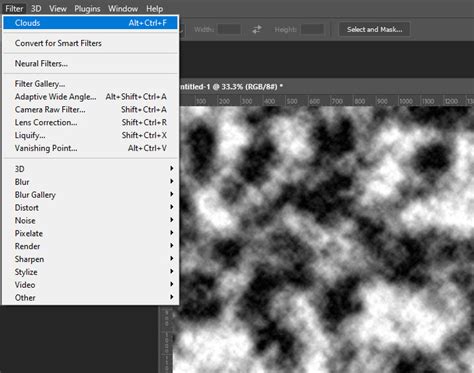
- Clouds: Generates a cloud-like pattern using the foreground and background colors, useful for creating skies or abstract backgrounds.
- Difference Clouds: Applies a cloud effect where the colors are inverted, creating a more ethereal or stormy appearance.
- Fibers: Creates the look of woven fibers using the foreground and background colors, with controls for variance and strength.
- Lens Flare: Simulates the effect of light reflecting within a camera lens, adding a realistic or stylized flare to an image.
- Lighting Effects: (Deprecated in recent versions, but historically significant) This filter allowed for the application of various light sources to an image, creating dramatic lighting and 3D effects. As of July 2024, Photoshop's legacy 3D features, including this filter, have been removed.
Sharpen Filters: Enhancing Detail and Clarity
Sharpen filters are used to increase the contrast along edges in an image, making details appear crisper and clearer. They are crucial for bringing out fine textures and improving overall image definition.
- Sharpen: A basic filter that slightly sharpens the image.
- Sharpen Edges: Specifically targets and sharpens the edges within an image, often resulting in a more controlled sharpening effect.
- Sharpen More: Applies a stronger sharpening effect than the standard "Sharpen" filter.
- Smart Sharpen: An advanced sharpening filter that offers precise control over sharpening amount, radius, and shadow/highlight details. It uses adaptive sharpening technology to minimize noise and halo effects, providing high-quality results. It also supports CMYK and sharpening of arbitrary channels.
- Unsharp Mask: The classic sharpening filter in Photoshop, it works by blurring the image slightly and then subtracting this blurred version from the original, enhancing edges. It offers controls for Amount, Radius, and Threshold.
Sketch Filters: Simulating Hand-Drawn and Textured Looks
These filters transform images to resemble various hand-drawn or sketched artwork.
- Bas Relief: Creates a raised or indented effect, giving the image a sculptural, bas-relief appearance.
- Chalk & Charcoal: Simulates the textured look of chalk and charcoal drawings.
- Charcoal: Mimics the effect of drawing with charcoal, producing soft, smudged lines and tonal variations.
- Chrome: Gives an image a polished, metallic, chrome-like surface, with highlights and shadows appearing as reflecting points.
- Conté Crayon: Replicates the appearance of drawings made with Conté crayons, known for their rich, textured lines.
- Graphic Pen: Creates a graphic, linework effect, as if drawn with a pen.
- Halftone Pattern: Converts image areas into a pattern of dots, similar to a newspaper print, but with more control over the pattern type and color.
- Note Paper: Gives an image a textured appearance, like it's drawn on note paper.
- Photocopy: Simulates the look of a photocopy, with high contrast and simplified details.
- Plaster: Creates a textured, plaster-like surface effect.
- Reticulation: Generates a network of fine lines or cracks, resembling a reticulated or cracked surface.
- Stamp: Simulates the effect of a rubber stamp, with bold outlines and simplified color areas.
- Torn Edges: Creates the illusion that the edges of the image are torn, adding a distressed look.
- Water Paper: Mimics the texture and appearance of watercolor paper, giving the image a slightly rough, absorbent quality.
Stylize Filters: Applying Dramatic and Abstract Effects
The Stylize category is home to filters that create dramatic, abstract, or artistic effects, often by exaggerating image features or applying unique transformations.
- Diffuse: Distributes colors within a selection, creating a soft, hazy, or diffused look.
- Emboss: Creates the illusion of depth by highlighting edges and casting shadows, making the image appear raised.
- Extrude: Pushes selected pixels out from the background, creating a 3D extrusion effect.
- Find Edges: Detects and highlights the edges of objects in an image, often resulting in a stark, linework appearance.
- Glowing Edges: Similar to Find Edges, but adds a neon-like glow to the detected edges, creating a vibrant illumination effect.
- Oil Paint: Transforms an image to resemble an oil painting, with visible brush strokes and texture. This filter offers controls for stylization, cleanliness, and scaling.
- Solarize: Inverts the brighter areas of an image, creating a surreal, posterized effect similar to overexposed photographic film.
- Tiles: Divides an image into a grid of tiles, with options to add grout lines between them, creating a mosaic or tiled appearance.
- Trace Contour: Finds the brightest areas in an image and outlines them with the original fill color, creating a contour map effect.
- Wind: Applies a wind-like effect, creating streaks and distortions that suggest movement.
Texture Filters: Adding Surface Qualities
Texture filters are used to apply simulated surface textures to an image, enhancing realism or creating artistic effects.
- Craquelure: Creates a network of fine cracks, resembling aged paint or pottery.
- Grain: Adds a photographic grain texture to an image, similar to film grain.
- Mosaic Tiles: Applies a mosaic tile texture, breaking the image into small, uniform squares.
- Patchwork: Creates a patchwork quilt effect by dividing the image into square or rectangular blocks.
- Stained Glass: Simulates the look of stained glass, with bold black lines separating colored areas.
- Texturizer: Applies a selected texture (such as canvas, sandstone, or a custom pattern) to an image, giving it a tangible surface quality.
Video Filters: For Motion Graphics and Older Formats
These filters are primarily designed for video post-production and older video formats.
- De-Interlace: Removes the interlacing artifacts found in older video footage, creating a smoother image.
- NTSC Colors: Constrains colors to the NTSC (National Television System Committee) broadcast standard, ensuring compatibility with television displays.
Other Filters: Miscellaneous and Advanced Tools
This category includes a variety of filters that don't fit neatly into other groups, offering specialized functionalities.
- Custom: Allows users to create and apply their own filters using convolution matrices. This provides ultimate control over pixel manipulation based on mathematical operations. Custom filters can be saved and reused.
- High Pass: A filter primarily used for sharpening. It detects edges and details by isolating areas of contrast, which can then be used in conjunction with blending modes to sharpen an image non-destructively.
- HSB/HSL: (Hue/Saturation/Brightness, Hue/Saturation/Lightness) These filters allow for precise adjustments to the hue, saturation, and brightness or lightness of an image or selected areas.
- Material Filter: (Potentially legacy or specific plugin) This filter might have been used for applying material-like textures or properties.
- Maximum: Expands white areas and shrinks black areas in an image, useful for mask manipulation or creating a "dilation" effect.
- Minimum: Shrinks white areas and expands black areas, useful for mask manipulation or creating an "erosion" effect.
- Offset: Shifts the pixels in an image by a specified amount horizontally and vertically. This filter is particularly useful for creating seamless patterns and textures by wrapping the image around.
Extended Filters: Powerful and Specialized Tools
Extended Filters are a collection of advanced filters that offer sophisticated image manipulation capabilities beyond the standard categories.
- Neural Filters: AI-powered filters that leverage machine learning to perform complex edits like skin smoothing, style transfer, colorization, and more, often with remarkable realism.
- Filter Gallery: A comprehensive interface that allows you to preview and apply multiple filters from various categories simultaneously, experimenting with different combinations and settings.
- Adaptive Wide Angle: Corrects distortion in wide-angle photographs, straightening lines and preserving perspective.
- Camera Raw Filter: A powerful filter that provides the extensive editing capabilities of Adobe Camera Raw directly within Photoshop, allowing for raw image processing and advanced adjustments.
- Lens Correction: Automatically corrects optical distortions, chromatic aberration, and vignetting caused by camera lenses.
- Liquify: An interactive tool for pushing, pulling, twisting, reflecting, and puckering image pixels, ideal for retouching portraits or creating artistic distortions.
- Vanishing Point: Allows for perspective-correct editing within a 3D plane, enabling you to clone, paint, and transform elements as if they were on the surface of a building or object.
Best Practices for Using Photoshop Filters
While Photoshop filters offer immense creative potential, their effective use hinges on purpose, restraint, and an understanding of their impact.
- Use Filters with Purpose: Filters should enhance your creative vision, not replace it. Understand why you are applying a particular filter and what effect you aim to achieve.
- Apply to Selected Areas: Instead of applying filters to the entire image, use masks or selections to target specific areas. This allows for more nuanced and controlled effects.
- Lower Filter Opacity: For subtle effects, reduce the opacity of the filter in layer blending options or by adjusting the filter's own opacity slider (if available).
- Combine Multiple Filters: Layering and combining different filters can lead to unique and complex visual styles that are not achievable with a single filter.
- Smart Objects are Your Friend: Always consider converting your layer to a Smart Object before applying filters. This ensures non-destructive editing, allowing you to revisit and modify filter settings at any time.
- Consider Your Output: Adjust filter settings based on your final output medium (web, print, etc.). What looks good on screen might need adjustment for print, and vice versa.
- Be Mindful of Limitations: Remember that some filters have restrictions regarding image mode, bit depth, or maximum pixel dimensions. If a filter is unavailable, check these settings.
- Third-Party Plug-ins: The Filter menu also accommodates third-party filters and plug-ins, expanding Photoshop's capabilities even further.
24 Hidden Photoshop Tricks Every Pro Must Know!
By understanding the diverse range of filters available in Adobe Photoshop and adhering to best practices, users can unlock a new level of creativity and precision in their image editing workflow. Whether for subtle enhancements or dramatic artistic transformations, Photoshop's filters are indispensable tools for any digital artist.