The frustration of a frozen application, particularly a powerful one like Adobe Photoshop, is a common experience for many creative professionals. When faced with the dreaded "scratch disk is full" error, your workflow grinds to a halt, leaving you scrambling for a solution. This error message, often appearing as "Could not complete your request because the scratch disks are full," signals a critical issue: the temporary storage space your demanding applications rely on has been exhausted. Understanding what a scratch disk is, why it fills up, and how to effectively manage it is paramount to maintaining a smooth and productive creative process on your Mac.
Understanding the Scratch Disk: More Than Just Temporary Storage
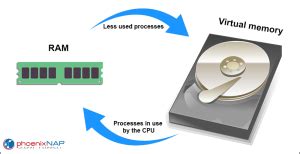
At its core, a scratch disk is a designated area on your hard drive or other storage device that applications like Adobe Photoshop, Premiere Pro, and Final Cut Pro utilize for temporary storage. It acts as virtual memory, supplementing your computer's Random Access Memory (RAM) when processing large files and complex tasks. When you're actively editing a video or manipulating intricate image layers, these applications generate a significant amount of temporary data. This data is written to and read from the scratch disk, allowing Photoshop to work faster than if it were solely reliant on accessing your RAM for every operation. Think of it like a digital notepad where the application jots down notes and calculations as it works. Once the final project is saved and the application is closed, these temporary notes are meant to be discarded. However, as these intensive programs are used for heavy projects, the data stored there can quickly build up, leading to the infamous "scratch disk full" error.
The Culprits Behind a Full Scratch Disk
The primary reason behind a "Photoshop scratch disk full" Mac error is a lack of sufficient free space on the drive designated as the scratch disk. While the concept is straightforward, the accumulation of temporary files and cache is a complex issue with several contributing factors.
- Accumulation of Temporary Files: Photoshop, in particular, generates temporary files during editing sessions as backups for your projects. These files, often with a ".tmp" extension or named "Photoshop Temp" followed by a string of numbers, are intended to be deleted upon closing the application. However, they can sometimes persist, especially if Photoshop crashes or is closed unexpectedly.
- Cache Build-up: Your Photoshop cache holds old drafts of your projects and helps high-resolution images load more quickly. While Photoshop automatically deletes your cache when you exit the program, it can occasionally miss some files. This cache is crucial for optimizing performance but can quickly consume valuable disk space if not managed.
- Insufficient RAM: When your Mac's RAM is heavily utilized by multiple applications or particularly demanding tasks within Photoshop, the application may over-rely on the scratch disk. This increased reliance can exacerbate the issue of a full scratch disk.
- System-Wide Storage Clutter: The root of the problem often extends beyond just Photoshop's temporary files. Your Mac's overall storage space can become cluttered with system junk, duplicate files, old downloads, and other unnecessary data. This general lack of available space directly impacts the scratch disk's ability to function effectively.
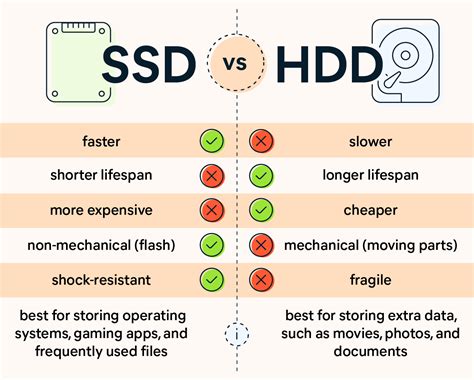
- Fragmented Drive (Less Common for SSDs): While less of a concern for modern Solid State Drives (SSDs), traditional Hard Disk Drives (HDDs) can become fragmented. Photoshop requires unfragmented space to work properly. A highly fragmented drive, even if it has sufficient total free space, might not provide the contiguous blocks of storage needed for scratch disk operations. It's important to note that defragmenting an SSD can actually harm your Mac, so this advice primarily applies to older mechanical hard drives.
Strategies for Clearing Your Scratch Disk: From Quick Fixes to Proactive Management
Dealing with a full scratch disk in Photoshop can be frustrating, especially when you're in the middle of an important project. Fortunately, there are several effective methods to clear your scratch disk and get everything back working smoothly. The best approach often involves a combination of immediate solutions and proactive management to prevent future occurrences.
Immediate Solutions: Tackling the Full Scratch Disk Now
When faced with the "scratch disk full" error, you need solutions that can quickly free up space.
Restart Photoshop and Your Mac: The simplest solution is often the most effective. Quitting Photoshop and restarting your computer can clear temporary files and free up RAM that was being held by the application. After restarting, reopen Photoshop and see if the error persists.
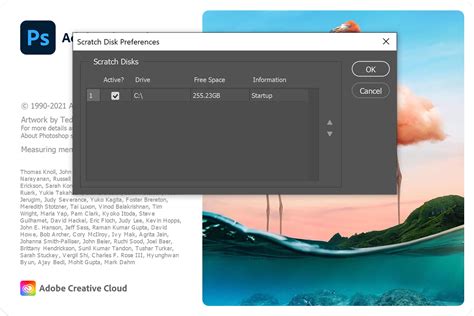
Change Photoshop's Scratch Disk Location: If you have multiple drives on your Mac, you can designate a different drive with more free space as your primary scratch disk.
- Open Photoshop.
- On Mac, go to
Photoshop > Preferences > Scratch Disks. - On Windows, go to
Edit > Preferences > Scratch Disks. - You will see a list of available drives and their free space. Select a drive with ample free space (Photoshop recommends a minimum of 6GB, but 20GB or more is ideal). You can prioritize drives by dragging them up or down in the list.
- Click "OK" and restart Photoshop for the changes to take effect.
- Important Note: If you choose to use an external drive as a scratch disk, it must be connected to your computer whenever you use Photoshop. For optimal performance, strongly consider using a fast external SSD.
Delete Temporary Photoshop Files: Manually locating and deleting temporary Photoshop files can free up significant space.
- Close Photoshop completely.
- Search your Finder for any files with the extension ".tmp".
- On Windows, you can also navigate to
C:\Users\Your Username\AppData\Local\Tempand delete files that have "temp" in their names. Be cautious and avoid deleting files that are currently in use by other running programs. - On Mac, you can also search for folders named "Photoshop Temp" followed by a string of numbers. These hidden files may appear as grayed-out folders in Finder.
Clear Photoshop's Cache: Clearing Photoshop's cache removes old drafts and temporary data, directly impacting scratch disk space.
- Open Photoshop.
- On Mac, go to
Photoshop > Preferences > Performance. - On Windows, go to
Edit > Preferences > Performance. - In the Performance settings window, you'll find a "Scratch Disks" section. You can also find options related to memory usage and cache. While there isn't a direct "clear cache" button here, clearing cache is often achieved by deleting temporary files as described above or by using dedicated cleaning tools.
- Note: Clearing Photoshop's cache will remove previous versions of projects, so ensure you have saved your current work beforehand.
Reset Photoshop Preferences: Sometimes, corrupted preferences can cause the "scratch disk full" error. Resetting Photoshop to its factory settings can resolve this.
- Close Photoshop.
- Press and hold
Command + Option + Shift(on Mac) orCtrl + Alt + Shift(on Windows) and then open Photoshop without releasing those keys. - You will see a dialog asking if you want to delete the settings file. Click "Yes" and reopen Photoshop.
- Caution: This action will also reset your color settings and other preferences to their original defaults, so you may need to reconfigure them.
Free Up Purgeable Space on Your Mac: macOS has a built-in feature to free up "purgeable space," which is essentially temporary files that the system can remove.
- Click the Apple menu and select "About This Mac."
- Go to the "Storage" tab.
- Click "Manage…"
- In the sidebar, select "Reduce Clutter" or a similar option. This tool analyzes your storage and offers suggestions for freeing up space, including temporary files.
How To Fix Scratch Disks are Full In Adobe Photoshop 2024 & 2025 | FAST & EASILY
Proactive Management: Preventing Future Scratch Disk Issues
While immediate fixes are essential, the best long-term strategy is to proactively manage your Mac's storage and Photoshop's resource usage.
Utilize Cleaning and Optimization Tools: Dedicated software can significantly simplify the process of clearing temporary files and optimizing your Mac.
- CleanMyMac: Features like "Space Lens" provide a visual overview of your Mac's storage, helping you identify large and unnecessary folders. The "Performance" module includes a "Free up purgeable space" feature that specifically targets temporary files stored on the scratch disk.
- Avast Cleanup for Mac: Regularly scans your computer for hidden junk, duplicate files, and clutter, helping to keep your system running optimally and clearing caches.
- AVG TuneUp: Offers automatic maintenance to keep your Mac clear of clutter and prevent junk files from building up. Its Photo Finder feature can also help tidy your photo library.
- Setapp: A subscription service offering a suite of productivity apps for Mac and iPhone, including tools that can assist with disk cleanup and optimization. Both Get Backup Pro and CleanMyMac are available through Setapp with a free trial.
Regularly Back Up Your Files: Backing up your files is crucial because sometimes cleaning up an app's cache or temporary files can inadvertently delete data you intended to keep. Tools like Get Backup Pro for Mac can automate this process.
Manage RAM Allocation in Photoshop: Proper allocation of RAM to Photoshop is vital for smooth operation.
- In Photoshop's Performance preferences, locate the "Memory Usage" section.
- Move the slider to the right to increase the RAM allowance for Photoshop. A common recommendation is to allocate around 70% of your available RAM to Photoshop, but ensure you leave enough for your operating system and other essential background applications.
- Close unnecessary background applications while using Photoshop to free up more RAM.
Optimize Your Storage Drive:
- Use SSDs: If you have an older Mac with a traditional HDD, consider upgrading to an SSD. SSDs offer significantly faster read and write speeds, which dramatically improves Photoshop's performance. Newer Macs primarily use SSDs, which are generally not user-replaceable.
- External SSDs: Using a fast external SSD as a scratch disk is highly recommended. They provide ample space and rapid data transfer, reducing the strain on your internal drive.
- Maintain Free Space: Aim to keep at least 20% of your scratch disk free at all times. This provides ample room for temporary files and prevents performance bottlenecks.
Manage Project Settings:
- Units and Resolution: When creating new documents, ensure you're using appropriate units and resolutions for your intended output. Using pixels for web designs (typically 72 pixels/inch) and inches or centimeters for print projects can help manage file sizes.
- Crop Tool: Using the crop tool with correct dimensions can also reduce the overall file size of your project.
Consider Hardware Upgrades: If you consistently encounter scratch disk issues despite implementing the above strategies, it might be time to consider upgrading your Mac's storage. For older Macs (around 2012 and earlier) with HDDs, replacing the drive with a larger SSD is a feasible option. For newer Macs with soldered SSDs, this is not an option, making external storage solutions even more critical.
By understanding the mechanics of scratch disks and adopting a proactive approach to storage management, you can effectively clear your scratch disk on Mac, prevent frustrating errors, and ensure your creative applications run at their peak performance. Regular maintenance, smart use of tools, and strategic hardware choices are key to a seamless workflow.