Adobe InDesign is an indispensable application for creative professionals, powering the creation of a vast array of professional documents, including posters, flyers, brochures, magazines, newspapers, presentations, books, and ebooks. The seamless workflow it offers, however, can be abruptly interrupted by unforeseen technical issues such as system crashes, power outages, or accidental deletions. When such events occur, the immediate concern for users is the potential loss of hours, or even days, of valuable work. Fortunately, InDesign incorporates an automatic recovery feature designed to safeguard your data against unexpected power or system failures. Understanding where and how to access these recovery files, as well as exploring alternative recovery methods, is crucial for minimizing data loss and resuming your creative endeavors without significant disruption.
Locating the Elusive InDesign Recovery Folder
One of the most common and frustrating challenges users face after a crash is locating the InDesign recovery folder. The program attempts to automatically save temporary versions of your open documents, especially if it detects an abnormal shutdown. However, the path to this folder is not always straightforward.
On Windows operating systems, the recovery files are typically stored within a hidden folder. The path often looks something like C:\Users\[YourUsername]\AppData\Local\Adobe\InDesign\[Version Number]\[Language Code]\Caches\InDesign Recovery. For instance, for InDesign CS2 on a Windows system, it might be C:\Documents and Settings\[YourUsername]\Application Data\Adobe\InDesign\Version 11.0\en_US\Caches\InDesign Recovery. It is important to note that the AppData folder is usually hidden by default, requiring users to enable "Show hidden files, folders, and drives" in their Folder Options to access it.
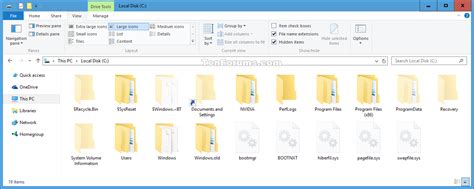
The user interface within InDesign itself provides a limited view of this path. If the path is too long to be fully displayed, you will only see a truncated version, such as "C:\User...ersion 11.0\en_US\Caches\InDesign Recovery". Unfortunately, hovering your mouse over this displayed path does not reveal the complete location. When you click the "Browse…" button in the preferences, an explorer window typically opens to the most recently accessed location, which is unlikely to be the actual recovery folder.
For users on macOS, the recovery files are generally found within the user's Library folder. The path often resembles ~/Library/Caches/Adobe InDesign/[Version Number]/en_US/Caches/InDesign Recovery. Similar to Windows, the Library folder on macOS is also hidden by default. To access it, you can hold down the Option key while clicking the "Go" menu in Finder, which will reveal the Library option.
Understanding InDesign's Auto-Recovery Mechanism
The automatic recovery feature in InDesign is designed to be a safety net. When the program closes unexpectedly, it attempts to save the current state of your open documents. Upon restarting InDesign, the application will typically scan for these recovery files. If it finds a viable recovery file for a document that was open at the time of the crash, it will prompt you to recover it. The recovered file will usually have "[Recovered]" appended to its title in the InDesign window.
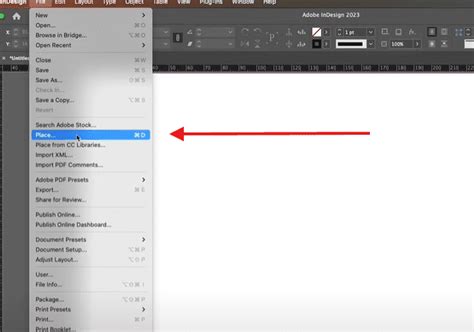
This auto-recovery function is most effective when you have not been able to save your work manually before the unexpected event. If you had recently saved the document, InDesign might offer to open the saved version or revert to a previously saved state. The ability to "place" one InDesign file within another, a feature noted as available in CS3 and later, can also be a form of manual recovery or backup if you have earlier versions of your document saved as separate files.
Manual Recovery and Troubleshooting Corrupted Files
In situations where InDesign does not automatically prompt for recovery, or if the recovered file is itself corrupted, manual intervention may be necessary. Sometimes, InDesign has an auto-repair mechanism that can detect and attempt to fix a corrupted document. If you try to open a saved file and it fails, or if InDesign indicates that the file cannot be found, it's possible that the primary .indd file is damaged.
In such cases, users have reported finding temporary files in the recovery folder with names like "DBTmp" followed by a series of numbers (e.g., "DBTmp4816335093890"). Attempting to open these files directly in InDesign might not work, as they are not standard .indd files. A more advanced troubleshooting step involves trying to "place" these DBtmp files into a new, blank InDesign document. Some users have also suggested placing "DBSharing" files alongside the "DBTmp" files within the InDesign Recovery folder as a potential method to help InDesign recognize them.
If InDesign consistently shuts down when you attempt to open a file, it strongly suggests file corruption. In this scenario, the hope of recovery directly through InDesign diminishes.
Alternative Data Recovery Solutions
When InDesign's built-in recovery options are insufficient, or if an InDesign file has been accidentally deleted rather than corrupted due to a crash, third-party data recovery software becomes a viable option. These tools are designed to scan storage devices for deleted files, even if they have been removed from the Recycle Bin.
Software like FastRecovery can be employed. The general process involves installing and launching the recovery software, then directing it to scan the drive where the InDesign files were originally stored. The software will then attempt to locate and list recoverable files. Many such tools offer a free trial with a limited recovery capacity (e.g., 500MB per try). To recover larger or multiple files, an upgrade to a paid version is typically required.
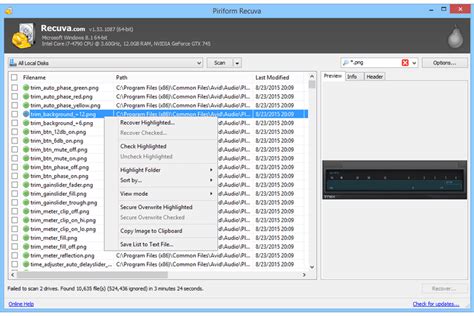
It's important to act quickly when dealing with accidental deletions. The longer a deleted file remains on a drive, the higher the chance that its data may be overwritten by new files, making recovery more difficult or impossible. Therefore, if you've accidentally deleted an important .indd file without a backup, ceasing all activity on that drive is a critical first step before attempting recovery with specialized software.
Best Practices for Preventing Data Loss
While recovery methods exist, the most effective strategy against data loss is proactive prevention. Establishing a robust backup routine is paramount for any InDesign user.
- Regular Saving: Make it a habit to save your work frequently. Utilize InDesign's auto-save feature and set a short interval for saving.
- Incremental Saves: Instead of overwriting your main file, save versions of your document incrementally (e.g., "MyDocumentv1.indd," "MyDocumentv2.indd"). This provides a trail of saved states.
- File Versioning: For critical projects, consider using software that offers file versioning or cloud storage solutions with built-in version history.
- External Backups: Regularly back up your InDesign files to an external hard drive, a network-attached storage (NAS) device, or a cloud backup service. This ensures that even if your primary drive fails, you have a copy of your work elsewhere.
- "Package" Feature: For projects involving linked images and fonts, use InDesign's "Package" feature (File > Package). This gathers all necessary assets into a single folder, which can also serve as a form of backup for your project's components.
How to package a file in Adobe InDesign - Graphic design tutorial
By understanding the intricacies of InDesign's recovery mechanisms, knowing where to look for temporary files, and implementing consistent backup strategies, you can significantly mitigate the risks associated with data loss and ensure your creative workflow remains uninterrupted.