Adobe Premiere Pro and Adobe Photoshop are powerful tools that, when used in conjunction, can significantly elevate the video editing process. This synergy allows for intricate visual enhancements, dynamic graphic integration, and precise frame-level manipulation, ultimately leading to more polished and professional video content. The ability to seamlessly transfer assets and leverage the unique strengths of each application opens up a world of creative possibilities for editors of all levels.
Leveraging Photoshop for Premiere Pro Assets
Photoshop's robust image manipulation capabilities can be directly applied to video projects within Premiere Pro. You can create and import various graphic elements from Photoshop into your Premiere Pro Timeline panel. This includes not only complete images but also individual layers within a Photoshop file. When you copy a layer based on a footage item from an After Effects composition and paste it into an Adobe Premiere Pro sequence, Premiere Pro intelligently converts these layers into clips within the sequence and simultaneously copies the source footage item to its Project panel. This efficient workflow ensures that all your imported assets are managed centrally.
Beyond individual layers, Photoshop facilitates the creation of specialized assets. You can copy nested compositions, Photoshop layers, solid-color layers, and even audio layers from After Effects and paste them into Premiere Pro. Adobe Premiere Pro demonstrates remarkable adaptability by converting nested compositions into nested sequences, and solid-color layers into color mattes. This conversion process preserves the integrity of your layered work, allowing for complex graphical elements to be integrated smoothly. For instance, a solid-color layer created in Photoshop can be used as a background or a matte within Premiere Pro, offering a controlled and consistent visual element.
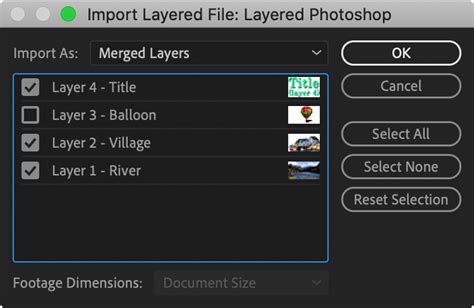
Furthermore, Photoshop excels at preparing still images for video. You can import any image file into Photoshop that the application supports. This allows for detailed retouching, color correction, and graphic design work before the image is ever placed in a video timeline. When you copy an entire image or any of its layers from Photoshop and paste them into the Adobe Premiere Pro Timeline panel, Premiere Pro treats them as distinct clips. This direct transfer capability is invaluable for creating titles, graphics, and masks. The ability to easily create a mask from a complex shape in Photoshop and then import it into Premiere Pro streamlines the compositing process significantly.
Advanced Frame-Level Editing with Photoshop
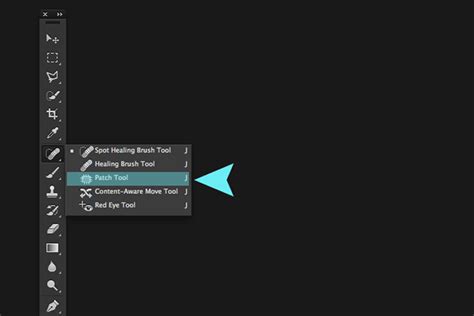
For editors needing to refine individual video frames, Photoshop offers unparalleled control. You can edit video frames using tools like the Patch tool, which is particularly useful for removing unwanted visual elements. When using the Patch tool, the changes you make are relative to the frame from which you initially sampled, ensuring a cohesive and natural-looking result. This is a powerful technique for cleaning up footage, removing blemishes, or correcting minor errors in a shot.
Beyond the Patch tool, Photoshop's array of paint tools can be employed to draw directly on individual frames. If you have dust or imperfections on a frame that automated tools can't handle, consider using the Photoshop paint tools for precise manual removal. This meticulous approach ensures a professional finish, especially for high-definition or cinematic footage where even minor flaws can be noticeable. The ability to draw on individual frames also extends to adding custom elements or effects directly onto the video content.
Photoshop also allows you to transform a video frame into elements for animation or compositing. By isolating specific parts of a frame, you can prepare them for further manipulation in After Effects or within Premiere Pro itself. This might involve extracting a character, an object, or a background element to be animated or composited onto other footage. The process typically involves selecting the desired area, refining the selection with tools like Select and Mask, and then exporting it as a separate layer or image.
Dynamic Linking: The Power of Adobe Dynamic Link
Adobe Dynamic Link is a groundbreaking feature that bridges the gap between Premiere Pro and After Effects, eliminating the need for intermediate rendering in many scenarios. It enables you to create dynamic links between new or existing compositions in After Effects and your Adobe Premiere Pro project. This means that changes made in After Effects are reflected in Premiere Pro in real-time, and vice versa, without the delay of rendering.
You can copy a layer based on a footage item from an After Effects composition and paste it into Premiere Pro. As mentioned earlier, Premiere Pro converts these layers into clips and copies the source footage. Similarly, you can copy nested compositions from After Effects and paste them into Premiere Pro, where they are converted into nested sequences. This is incredibly useful for complex animations or motion graphics created in After Effects that you want to integrate seamlessly into a larger video edit.
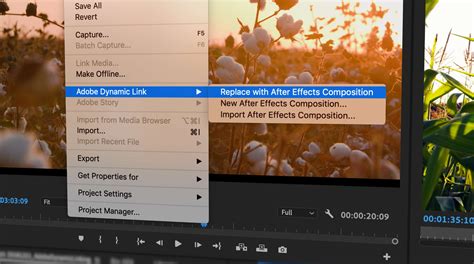
The benefits of Dynamic Link extend to various asset types. You can work with Photoshop layers, solid-color layers, and audio layers, all of which are intelligently handled by Premiere Pro upon pasting. Solid-color layers become color mattes, providing a flexible way to introduce graphic backgrounds or visual elements. Offline files, such as placeholder media or assets that are not yet finalized, can also be managed through this linking process.
When working with Dynamic Link, it's important to be aware of certain limitations. For instance, compositions with a bit depth greater than 16-bit are not supported. However, for the vast majority of video editing and motion graphics tasks, Dynamic Link operates flawlessly, offering a fluid and efficient workflow.
Integrating After Effects Compositions
After Effects compositions can be brought into Premiere Pro in several ways, with Dynamic Link being the most prominent. You can import an After Effects composition directly into Premiere Pro as a linked composition. This creates a reference to the After Effects file, and any modifications made in After Effects will update automatically in Premiere Pro. This is ideal for motion graphics, visual effects, or complex animations that are best handled in After Effects.
Alternatively, you can render an After Effects composition as a video file or image sequence and then import that rendered output into Premiere Pro. While this bypasses the real-time benefits of Dynamic Link, it can be a necessary step for very complex compositions or when delivering final output that doesn't require further dynamic linking. You can render it as a QuickTime movie or image sequence. Once rendered, you can import any of these back into Premiere Pro for further editing.
3 Essential Adobe After Effects to Premiere Workflows
The ability to copy and paste elements between these applications also applies to nested compositions. If you have a complex After Effects composition that itself contains other nested compositions, you can copy these nested structures and paste them into Premiere Pro. Premiere Pro will convert them into nested sequences, allowing you to maintain a hierarchical structure within your video project. This is particularly useful for organizing intricate motion graphics projects.
Refining and Enhancing Video Frames
Photoshop's advanced tools provide a powerful way to refine individual video frames. You can remove unwanted visual elements, draw on individual frames, or use Photoshop to prepare a frame into elements for animation or compositing. The Stamp tools, such as the Stamp tool and Pattern Stamp tool, can be used to clone pixels from one area of a frame to another, effectively covering up imperfections or unwanted objects.
The Healing Brush and Spot Healing Brush tools are also invaluable for frame-level retouching. These tools intelligently blend the sampled texture, color, and lighting of the surrounding pixels with the area you are painting over, making them ideal for removing blemishes, scars, or small distracting elements. The Patch tool, as mentioned earlier, offers a different approach to removing unwanted elements by allowing you to select an area and then drag that selection to a clean source area.
When you edit video frames using these tools, you are essentially creating a still image that is then re-integrated into your video timeline. If you are making extensive edits to a single frame, you might render it out as a still image and then re-import it. For more dynamic workflows, you can use Photoshop to prepare individual frames that are then used as assets within After Effects for animation or compositing.
Creating Graphics and Titles
The integration of Photoshop and Premiere Pro is fundamental for creating professional-looking titles and graphics. You can design titles, logos, and other graphic overlays in Photoshop with precise control over typography, color, and effects. Once created, these assets can be easily imported into Premiere Pro.
Photoshop's layer styles and blending modes offer a wide range of creative options for graphics. You can apply drop shadows, outer glows, bevels, and other effects directly in Photoshop, and these can be preserved when the layers are brought into Premiere Pro. Blending modes allow for sophisticated interactions between layers, enabling you to create complex visual compositions.

When you copy a Photoshop layer or a group of layers and paste them into Premiere Pro, they are converted into clips. This allows you to animate these graphics, add transitions, and sync them with your audio. For more advanced animation of Photoshop elements, you can import a Photoshop file directly into After Effects, which can then be linked to Premiere Pro via Dynamic Link. After Effects allows for keyframe animation of individual Photoshop layers, transforming static graphics into dynamic visual elements.
Masking and Compositing
Photoshop's sophisticated selection and masking tools make it easy to create masks from complex shapes. This is a critical step for compositing, where you need to isolate specific elements of an image or video for integration with other footage. Tools like the Pen Tool, Quick Selection Tool, and the powerful Select and Mask workspace allow for precise creation of masks, even around intricate details like hair or foliage.
Once a mask is created in Photoshop, you can copy the masked layer and paste it into Premiere Pro. Premiere Pro will recognize the transparency created by the mask, allowing you to composite the element onto your video background. This is essential for tasks such as placing a product on a new background, integrating a green screen subject into a different environment, or creating picture-in-picture effects.
For more complex masking scenarios, you can export the mask from Photoshop as a separate alpha channel or use the Photoshop file directly in After Effects. After Effects offers advanced masking and rotoscoping tools that can be used to refine masks or create them from scratch for video sequences. The ability to easily create a mask from a complex shape in Photoshop significantly speeds up the compositing workflow.
Beyond Static Images: Animating Photoshop Elements
While Photoshop is primarily an image editing tool, its integration with Premiere Pro and After Effects allows its elements to be animated. You can prepare individual layers in Photoshop, ensuring each element is on its own layer with appropriate naming. When you import this layered Photoshop file into Premiere Pro, each layer becomes a separate clip on the timeline. This allows you to animate the position, scale, and rotation of each graphic element independently using Premiere Pro's built-in transform properties.
For more sophisticated animation, such as animating masks, applying complex transformations, or creating dynamic effects, importing the Photoshop file into After Effects is the preferred method. After Effects can interpret the Photoshop layers, preserving their editability and allowing you to apply keyframes to virtually any property. This enables the creation of dynamic titles, animated infographics, and complex visual effects that originate from static Photoshop designs.
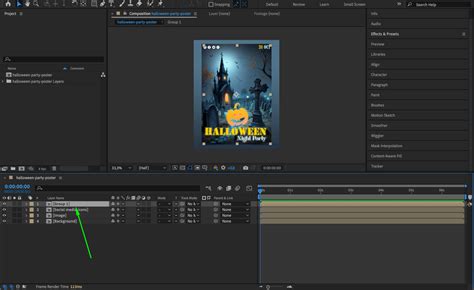
The workflow of designing in Photoshop, animating in After Effects, and editing in Premiere Pro, often enhanced by Adobe Dynamic Link, represents a powerful and efficient pipeline for modern video production. This interconnected ecosystem allows creatives to leverage the best tools for each stage of the process, from initial design to final assembly.
Handling Video Frames and Sequences
Premiere Pro is designed for video editing, but Photoshop can be used to refine individual frames, as discussed. If you need to make significant edits to a specific frame, you can export that frame from Premiere Pro as an image file. This file can then be opened and edited in Photoshop. After making your changes, you can re-import the modified frame back into Premiere Pro, replacing the original. For more advanced scenarios, you can render a section of your video as a QuickTime movie or image sequence from Premiere Pro, edit those frames in Photoshop, and then import them back for further editing.
When you copy a nested composition from After Effects and paste it into Premiere Pro, it is converted into a nested sequence. This means that the structure and content of the After Effects composition are preserved as a sequence within Premiere Pro, which can then be edited further. This is a crucial feature for managing complex projects where motion graphics or visual effects are built up in layers of compositions.
The process of copying layers, compositions, and other assets between Photoshop, After Effects, and Premiere Pro is designed to be intuitive and efficient. Premiere Pro intelligently converts and manages these imported items, ensuring that your project remains organized and that all assets are correctly linked. This includes handling mattes, stills, nested sequences, and offline files, providing a robust framework for complex video editing workflows.
File Format Considerations
Adobe Photoshop supports a wide range of file formats, making it versatile for importing and exporting assets. When you create graphics or edit frames in Photoshop, you can save them in formats that are easily compatible with Premiere Pro and After Effects. Common formats include PSD (Photoshop Document), which preserves layers and other editing information, and TIFF or PNG, which are excellent for graphics with transparency.
When importing assets into Premiere Pro, the software supports a vast array of video and audio codecs and formats. However, understanding the nuances of bit depth is important, especially when dealing with high-end color grading or complex visual effects. As noted, compositions with a bit depth greater than 16-bit are not supported for direct dynamic linking. For such high bit depth requirements, rendering to intermediate codecs that support higher bit depths might be necessary before importing into Premiere Pro.
The ability to render specific elements as QuickTime movies or image sequences from After Effects also provides flexibility. These rendered outputs can then be imported into Premiere Pro for final assembly and editing. This approach is often used for complex visual effects that require extensive rendering time or for creating assets that will be used across multiple projects. The entire ecosystem of Adobe Creative Cloud applications is designed to work together seamlessly, facilitating a fluid transfer of assets and information between Photoshop and Premiere Pro.