Adobe InDesign, a cornerstone for professional designers, offers unparalleled creative potential. However, its extensive features can, at times, lead to time-consuming workflows. This is precisely where the power of automation and scripting becomes indispensable. By integrating these tools, designers can significantly enhance productivity, streamline the creative process, and dedicate more time to innovation and refinement. Automation transforms InDesign from a mere design tool into a scalable production system, driven by rules, data, and sophisticated software. This approach is particularly critical for businesses experiencing product range expansion, frequent content updates, or the need for multi-channel publishing.
The Foundation: Understanding InDesign Scripting
Scripting in InDesign is a potent mechanism for automating a wide spectrum of tasks, ranging from simple, repetitive actions to the implementation of entirely new functionalities. The gateway to this power is the Scripts panel, accessible via Window > Utilities > Scripts. This panel allows users to execute scripts without ever leaving the InDesign environment.
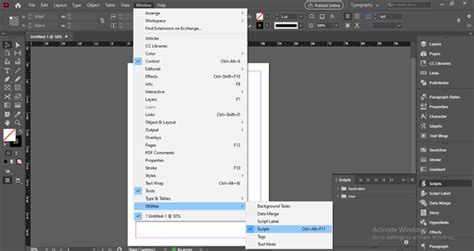
The Scripts panel is logically divided into two main categories: Application scripts, which are pre-supplied by Adobe and are immutable, and User scripts, which are custom-created by the user. Running a script is as straightforward as a double-click on the desired script within either category, initiating the automated operation.
For those venturing into automation, understanding the underlying principles of scripting is key. Scripts allow you to orchestrate a series of commands, enabling seamless execution of multi-step operations within InDesign. This capability is fundamental to batch processing files, applying consistent layout adjustments across multiple documents, importing and exporting data efficiently, and even developing custom dialog boxes for specialized tasks.
Scripting for Enhanced Efficiency: Common Use Cases
The applicability of scripting to InDesign workflows is vast. Any process that is repetitive and consumes significant time is a prime candidate for automation. For instance, setting margins, guides, or columns, adjusting images, or applying uniform formatting across documents can all be streamlined through scripting.
A typical scenario where scripting excels is in the creation of a series of documents that share a common layout but differ in content. Instead of manually configuring identical margins, columns, and guides for each document, a script can perform this task instantaneously. Similarly, a script can be devised to create a text frame, populate it with text, and subsequently apply a predefined paragraph style.
The complexity of scripting extends to more intricate tasks. For example, scripts can be employed to automatically generate data sheets, price books, e-catalogs, or even extensive product catalogs spanning hundreds of pages. When faced with the task of designing a multi-page document where each page contains multiple images requiring identical adjustments, a script can direct InDesign to apply these changes to every image, saving countless manual clicks and hours of labor. Another compelling use case involves importing content from external sources and applying specific formatting, a process that can be exceptionally tedious when performed manually.
Essential Scripting Tools and Utilities
Beyond the core scripting functionality, several utilities and community-contributed scripts enhance the automation landscape:
- Script Label Panel: This panel is invaluable for assigning descriptive labels to page items, such as text frames or shapes. These labels are crucial for scripts that need to precisely identify and manipulate specific objects within a document.
- Unicode Injector by Kris Coppieters: This script simplifies the insertion of one or more Unicode characters into InDesign text using convenient keyboard shortcuts.
- Insert Typographer Quote by Stefan Rakete: This script allows for the insertion of defined typographic quotes before and after selected text via keyboard shortcuts.
- Layer Cloner by Paolo Agostinetto: This versatile script facilitates the copying of an entire layer, along with its constituent elements, from one InDesign document to another.
- Get x-Height by Roland Dreger: This script aids in determining the x-height of a given text passage, a critical measurement for typographic consistency.
- End Notes to End of Book Notes by Peter Kahrel: This script converts end-of-document endnotes into end-of-book endnotes, simplifying the management of extensive documentation.
- Renumbering Endnote References by Peter Kahrel: This script generates endnotes whose references do not automatically update when endnotes are added or removed, offering manual control over reference numbering.
- Size Thing to Page by Olav Kvern: This script resizes the current selection, such as an image, to precisely match the dimensions of the InDesign page.
- Size Page to Thing by Olav Kvern: Conversely, this script resizes the InDesign page to match the dimensions of the current selection, such as an image.

Adobe actively supports the InDesign scripting community by maintaining a repository of open-source scripts on GitHub. Further information can be found in the ReadMe file associated with this repository. For those with questions or ideas to share, the Adobe InDesign Community forum provides a platform for engagement.
Beyond Scripting: IDML and InDesign Server for Advanced Automation
While scripting offers a powerful avenue for automation within the InDesign application, more robust and scalable solutions exist for complex publishing workflows. Adobe InDesign Markup Language (IDML) and Adobe InDesign Server represent these advanced capabilities, enabling programmatic creation, modification, and deconstruction of InDesign documents outside the direct context of the InDesign application.
InDesign Markup Language (IDML): An XML-Based Approach
IDML is an open, XML-based file format that empowers third-party developers and systems integrators to automate the generation and manipulation of InDesign content. Its XML foundation makes it compatible with standard XML editing tools, facilitating its integration into automated workflows.
IDML evolved from the InDesign Interchange (INX) format, which was introduced to enable document compatibility across different InDesign versions. However, INX was challenging to read and manipulate, as it was primarily designed for InDesign’s internal use. IDML addresses these limitations by providing an XML representation of InDesign documents that can be readily changed, assembled, and reassembled. This opens up possibilities for creating and managing InDesign files programmatically, independent of the InDesign application itself.
The benefits of IDML are significant:
- Flexibility and Ease of Use: As an XML format, IDML offers a more intuitive and adaptable method for building and implementing diverse publishing solutions.
- Roundtripping: IDML supports a "roundtrip" process, allowing seamless conversion between the native InDesign binary file format and IDML. This is crucial for workflows that involve both manual InDesign editing and automated processing.
- Programmatic Control: With IDML, developers can programmatically control virtually every aspect of an InDesign document, from content placement and formatting to structural modifications.
Adobe InDesign Server: Scalability for Enterprise Publishing
For scenarios demanding high levels of automation, scalability, and integration with enterprise systems, Adobe InDesign Server is the recommended solution. It is a robust, flexible, and scalable version of InDesign designed for server-based, automated publishing.
InDesign Server enables the creation of powerful automated workflows for publishing content across various systems and output media. It is particularly well-suited for:
- High-Volume Catalog Production: Generating product catalogs, price lists, and datasheets, especially for large product ranges or frequent updates.
- Multi-Channel Publishing: Creating content variations for different platforms, such as print, web, and mobile, from a single data source.
- Personalized Content: Dynamically generating personalized documents based on user data or specific market requirements.
- Integration with Enterprise Systems: Connecting with ERP, PIM, and DAM systems to pull product data and assets for automated document generation.
A common use case for InDesign Server involves producing a catalog for multiple markets. Imagine a catalog that needs to be localized into ten languages, with different currencies and product selections tailored to each market. Manual production would involve opening ten separate InDesign files, updating data, verifying accuracy, and exporting PDFs for each. InDesign Server automates this entire process, significantly reducing errors and accelerating time to market. It can also automate exports to various formats, including editable InDesign files for designers, high-resolution PDFs for print, and optimized PDFs for web distribution.
Bridging the Gap: Cloud-Based Automation Platforms
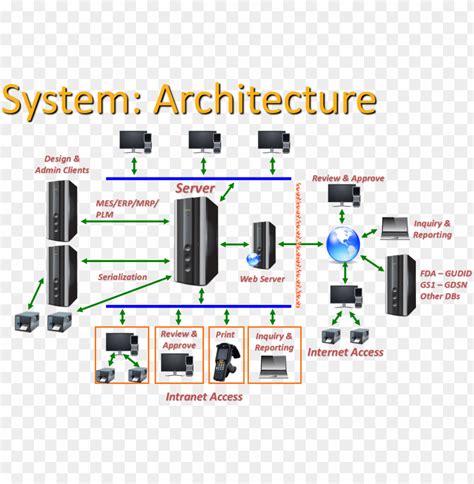
Purpose-built cloud-based automation platforms offer a modern approach to leveraging InDesign's capabilities for automated publishing. These platforms act as a bridge between product data and professionally designed documents, often working with existing InDesign templates.
Key features of these platforms include:
- Template Reusability: They allow users to utilize their existing InDesign templates without needing to rebuild them from scratch.
- Data Source Connectivity: Direct integration with data sources such as Excel, ERP, PIM, and DAM systems ensures that content is always up-to-date.
- Guided Interfaces: User-friendly interfaces enable non-designers, such as marketing and product teams, to generate documents without requiring InDesign expertise.
- Scalable Batch Processing: These platforms are designed to handle the generation of thousands of pages and accommodate frequent content updates without manual intervention.
These platforms streamline workflows for common use cases like:
- Product Catalogs and Price Lists: Automating the creation of comprehensive catalogs that can be adapted for different languages, currencies, and market-specific product assortments.
- Technical and Product Sheets: Generating standardized technical and product documentation for hundreds or thousands of SKUs.
- Retail Leaflets and Circulars: Facilitating rapid production of weekly or seasonal promotional materials.
The integration of InDesign automation, whether through scripting, IDML, InDesign Server, or cloud-based platforms, represents the professional standard for elevating productivity and efficiency. It empowers designers to harness the full potential of InDesign, transforming complex production needs into manageable, scalable, and highly efficient publishing systems.
Advanced Techniques and Considerations
Data-Driven Publishing with Data Merge and XML
InDesign offers built-in features that serve as foundational elements for data-driven publishing. Data Merge is a powerful tool that connects a CSV or text file to an InDesign layout, enabling the creation of multiple variations of a document. This is particularly useful for generating business cards, labels, or simple product sheets where each record from the data source populates the same template.
Extending the capabilities of Data Merge, XML Importing provides an additional layer of flexibility. This feature allows for the direct importation of XML data into InDesign. This enables the application of complex XML structures to layouts without the limitations of strictly CSV-formatted data. By leveraging XML, designers can achieve more sophisticated data integration and content structuring within their InDesign documents.
How to use Data Merge in Adobe InDesign
The Role of Styles and Libraries for Consistency
Maintaining consistency across documents and speeding up repetitive formatting tasks are critical aspects of efficient design. GREP styles, object styles, and libraries are indispensable tools in this regard.
- GREP Styles: These allow for the automatic application of character styles to text that matches specific patterns defined using GREP (Global Regular Expression Print). This is immensely useful for tasks like automatically formatting all phone numbers or email addresses in a consistent manner.
- Object Styles: Object styles enable the saving and application of formatting attributes to entire objects, such as text frames, graphic frames, or paths. This ensures that elements like image frames or text boxes maintain a uniform appearance throughout a document or across multiple documents.
- Libraries: InDesign Libraries act as repositories for reusable assets, including text, graphics, master pages, and styles. By storing frequently used elements in a library, designers can quickly drag and drop them into new documents, ensuring consistency and saving considerable time.
Leveraging the InDesign SDK and Community Resources
For developers looking to create custom solutions and extend InDesign’s functionality beyond what is available through standard scripting, the Adobe InDesign Software Development Kit (SDK) is the key. The SDK provides the necessary tools, documentation, and sample code to build plugins and extensions that can deeply integrate with InDesign.
The InDesign Community Script repository on GitHub is an invaluable resource for finding and contributing to a wide range of open-source scripts. This collaborative environment fosters innovation and provides readily available solutions for common automation challenges. Engaging with the Adobe InDesign Community forum is also highly recommended for seeking advice, sharing knowledge, and staying abreast of the latest developments in InDesign automation.
Scripting vs. Data Merge vs. InDesign Server: Choosing the Right Tool
The choice of automation tool depends heavily on the complexity of the task and the required scalability:
- Data Merge: Best suited for simpler, template-driven variations where each record fills the same layout. It's user-friendly and requires minimal technical expertise.
- Scripting (JavaScript, AppleScript): Offers more granular control and can handle more complex logic than Data Merge. However, script maintenance can become a challenge as requirements grow, especially if the codebase is intricate or understood by only a few individuals.
- InDesign Server and Cloud Platforms: These provide true scalability for enterprise-level publishing. They are designed to handle massive volumes of data and complex automated workflows, integrating seamlessly with backend systems. While they represent a significant investment, they are essential for organizations with demanding production needs.
The flexibility offered by InDesign's XML options, IDML, and its rich scripting support collectively create a powerful ecosystem for automating publishing workflows. This allows for content to be published efficiently across diverse systems and output media, ensuring that InDesign remains a formidable tool for mastering complicated processes with ease and precision.
tags: #adobe #indesign #automation