Experiencing a sudden loss of audio in DaVinci Resolve, particularly when you're under a time crunch, can be a significant disruption to your creative workflow. This issue, often manifesting as no audio in DaVinci Resolve 17, can arise from a variety of sources, ranging from simple system setting oversights to more intricate project configuration mismatches. Understanding how to diagnose and resolve these problems efficiently is crucial for any video post-production professional.
Initial System-Wide Audio Checks
The first crucial step in troubleshooting DaVinci Resolve audio problems is to determine if the issue is confined to the software itself or if it's a broader system-wide concern. Begin by checking if your operating system is producing sound outside of DaVinci Resolve. Play a sound file through your computer's native media player or a web browser to confirm that your audio output devices are functioning correctly.
If your system lacks sound, the problem likely lies with your audio hardware or operating system settings. Navigate to your computer's sound settings and meticulously verify that the correct audio devices are selected as the default playback devices. Ensure that speakers or headphones are properly connected and powered on. Double-check that the volume levels are not set to mute or an inaudibly low level. Often, a simple mute switch or a system volume set to zero can be the culprit behind a complete lack of sound, accounting for a significant percentage of audio playback failures. Once your system's audio is confirmed to be operational, restart DaVinci Resolve to ensure that any changes made to the system settings are properly recognized by the application.
Verifying Audio File Integrity
If your operating system is successfully playing audio, the next area to investigate is the audio associated with your video clip or audio file within DaVinci Resolve. It's essential to confirm that the source media itself contains audio. A straightforward method to achieve this is by playing the file outside of DaVinci Resolve using a different media player. If the file plays without audio in an external application, it indicates that the original footage or audio recording is the source of the problem. In such cases, the most efficient solution is to replace the problematic file with another that is known to have working audio.
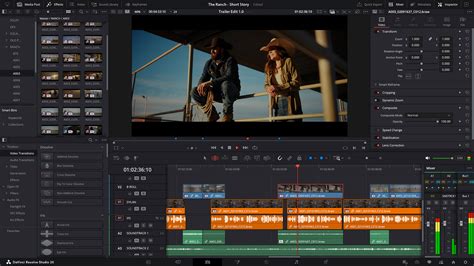
Within DaVinci Resolve, visual cues can also help diagnose audio file issues. Examine your timeline in the Edit or Fairlight page. Check if your audio track displays a waveform. The absence of a waveform, or a waveform that appears flat, suggests that DaVinci Resolve is not detecting any audio data within the file. Furthermore, observe the audio meters during playback. If the meters remain at zero and show no activity, it strongly indicates that no audio signal is being processed.
Checking Mute and Volume Levels in DaVinci Resolve
Even if a file contains audio data, it may still not play back due to internal settings within DaVinci Resolve. One common oversight is accidentally muting the audio track or setting its volume to zero. Locate the audio track in your timeline and examine its properties. Ensure that the mute button for that specific track is not activated. Similarly, check the volume level slider or control for the track. If the volume has been inadvertently turned down or muted, it will result in no audible sound. Sometimes, these settings can become mismatched or reset unexpectedly, particularly after software updates or project file corruption.
Understanding DaVinci Resolve's Audio Preferences and Device Settings
DaVinci Resolve offers granular control over audio device selection and configuration, which can be a source of no-audio issues if not set up correctly. Within DaVinci Resolve, navigate to the Preferences panel. Select the "System" tab to access audio device settings.
System vs. Manual Audio Device Selection
A key setting here is the "Use System Setting" option. When enabled, DaVinci Resolve attempts to use the audio output device designated as default by your operating system. While this often works seamlessly, it can sometimes lead to complications, especially with certain types of audio hardware, such as Bluetooth headsets. These devices may not always be recognized correctly by DaVinci Resolve when relying solely on system settings.
If you encounter issues with "Use System Setting," it is advisable to switch to "Manual" configuration. In manual mode, you can explicitly select the desired audio output device from a drop-down menu. This provides more direct control and can resolve conflicts or misidentifications that occur with automatic detection.
Assigning Output Channels
Crucially, after selecting your audio device in manual mode, you must ensure that the "Left" and "Right" output channels are correctly assigned to that device. Failure to do so, even after selecting the correct device, will still result in no sound being played. Before saving your preferences, confirm that the output assignments are accurate. This step is vital for ensuring that the audio signal from DaVinci Resolve is routed to your speakers or headphones as intended.
DaVinci Resolve Preferences – System Tab Performance Settings
Navigating Bus Assignments in DaVinci Resolve 17 and Later
DaVinci Resolve 17 introduced significant changes to its audio bus architecture. The former "Main Out" bus has been renamed simply "Bus 1." While new projects are typically configured automatically with correct settings, older projects or specific configurations might require manual adjustment. Understanding these bus assignments is key to resolving audio playback problems.
Locating and Assigning Bus Outputs
In the Edit or Fairlight tab, you can access track and bus information. Look for the "Index" menu, then navigate to "Tracks" and select "Bus 1 (B1)." Directly above the meter for your audio track, you should see "Bus 1" listed under "Bus Outputs." This indicates where the audio signal from your track is being routed.
To further ensure correct routing, you can access the "Patch Input/Output" menu via the Fairlight menu. Within this panel, under the "Source" drop-down menu, select "Bus Outputs." For the "Destination" drop-down menu, choose "Audio Outputs." This action allows you to visualize and confirm the patching between your internal audio buses and your system's physical audio outputs.
Ensuring Correct Bus 1 Patching
The critical step is to verify that "Bus 1 Left" and "Bus 1 Right" are correctly patched to your intended audio device. This ensures that the main audio output signal is directed to your speakers or headphones. If these connections are missing or incorrectly assigned, you will experience no sound.
Additionally, within the "Available Tracks" section, ensure that "Audio 1" (or the relevant audio track) is set to "B1" (Bus 1) in the "Bus Assign" settings. This confirms that the audio track is indeed being sent to the primary output bus for playback.
Diagnosing and Solving No Audio Issues
Effectively diagnosing the cause of no audio in DaVinci Resolve is paramount to resolving the issue swiftly. By systematically checking your system's sound capabilities, DaVinci Resolve's preferences, and the integrity and settings of your audio files, you can isolate the problem. Following the steps outlined-from verifying system audio to confirming bus assignments-provides a comprehensive approach to troubleshooting.
The frustration of encountering audio playback errors can significantly interrupt your creative flow, especially during demanding video post-production projects. By understanding the intricacies of DaVinci Resolve's audio routing and settings, you can proactively avoid these issues and maintain a smooth, uninterrupted editing process. For those seeking an even more streamlined workflow, consider exploring specialized hardware controllers like TourBox, which can integrate seamlessly with DaVinci Resolve, offering intuitive one-handed control and reducing the physical strain associated with prolonged editing sessions.
Some users may find that cloud-based post-production platforms, such as Postudio, offer an alternative. These platforms allow you to utilize DaVinci Resolve and other professional tools directly within a web browser, eliminating the need for local installations and potentially simplifying some technical configurations. This approach can be particularly beneficial for users with less robust local hardware or those who need to access their projects from multiple locations.