Accessing Adobe Photoshop and other Creative Cloud applications hinges on a successful login to your Adobe account. This process, while generally straightforward, can sometimes present challenges. Understanding how to manage your account, troubleshoot sign-in issues, and navigate different account types is crucial for a seamless creative workflow. This guide delves into common login problems, payment-related concerns, and the intricacies of Adobe account management, offering solutions and explanations to ensure you can access your tools and assets without interruption.
Understanding Adobe Account Types and Profiles
Adobe offers a layered approach to account management, distinguishing between individual, managed, and personal accounts, each with specific implications for how you access products and assets. Your organization can assign Adobe products on a managed or personal account.
A managed account, also known as a managed account, is an account created and managed by your owning organization. This is the account your employer or the entity that provides you with Adobe products will set up. For instance, your organization might create an Adobe account on a claimed domain, ensuring centralized control and management of licenses and services. Consider John, an employee of a software company, who also engages in freelance work for a small business, which we'll call Business 1. If Business 1 assigned him an Adobe Document Cloud plan, John would be using a managed account provided by Business 1 for that specific subscription. The files and assets stored in one account aren’t accessible from the other, meaning John's work for his primary employer and his freelance work for Business 1 would be segregated within their respective Adobe account structures.
A personal account is designed for situations where you want to use apps assigned to any organization except the owning organization. This distinction is important for users who might have multiple affiliations or use Adobe products for both work and personal projects. The ability to select the correct accounts and profiles for your desired apps and assets is paramount.
The Profile Chooser and Default Settings
Sign-in issues could be related to signing into the wrong Adobe account or profile. You might find yourself presented with a profile chooser, or in some cases, the unavailability of this chooser. One reason for the unavailability of the profile chooser is that you've set your default profile. To manage this, you can disable the "Select my profile automatically" option from your Adobe account settings. This is typically found within your Adobe account under "Account and Security," then "Sign-in and Security." By disabling this, you ensure that you are prompted to choose the correct profile each time you sign in, preventing accidental access to the wrong set of applications or assets.
To resolve sign-in problems effectively, it's often recommended to sign out of your current Adobe session. After signing out, consider the example of John and Business 1. You would then carefully select the appropriate account and profile to sign in with, ensuring you can find your desired apps and assets. This step is critical when you have multiple Adobe accounts or profiles associated with different organizations or purposes.
Troubleshooting Login and Payment Issues
When you encounter difficulties logging into your Adobe account, several factors could be at play, ranging from browser settings to account-specific configurations.
Browser Settings and Cache
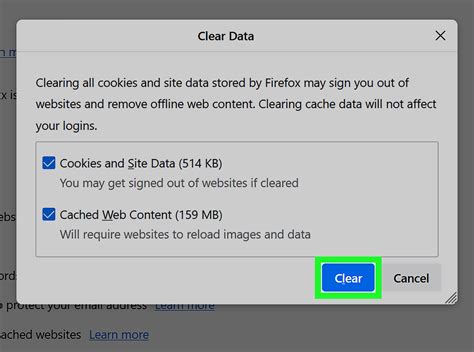
Browser settings can significantly impact your ability to sign in. Ensure that cookies are enabled in your browser. Cookies are small text files that websites store on your computer to remember your preferences and login status. If cookies are disabled, you might be repeatedly prompted to log in or experience outright login failures. Clearing your browser's cookies and cache is another common troubleshooting step. Over time, accumulated cache data can become corrupted, leading to unexpected behavior, including login problems. By clearing these, you ensure that your browser is accessing fresh website data.
"Stay Signed In" Functionality
The "Stay Signed In" option is a convenience feature designed to keep you logged into your Adobe account across sessions. By default, the "Stay Signed In" option is enabled, and Adobe ID or Enterprise ID users aren’t prompted to sign in multiple times. However, it's crucial to disable this setting when using a public or shared device. Using a public computer or a device shared with others poses a security risk if your account remains logged in. For Federated ID (SSO) users, this setting might behave differently, as Adobe honors their organization's settings in such cases.
Account and Profile Restrictions
In some instances, your organization might have implemented security measures that could affect your login experience. If you cannot sign in to your Adobe account or your user profile is disabled, your organization might have enabled domain enforcement or public IP address restriction. Domain enforcement ensures that only users from specific domains can access Adobe services, while IP address restrictions limit access to designated network locations. If you suspect these restrictions are the cause of your login issues, you will need to contact your organization's IT administrator for assistance.
Managing Subscriptions and Payment Details
Problems with accessing Adobe products can also stem from issues with your subscription status or payment information.
Failed or Missed Payments
If your original payment failed or you missed a payment, you can update your payment details by signing into your account. Adobe provides a clear process to reinitiate a payment. It's essential to address these issues promptly to avoid service interruption. You can typically find options to update your payment method and settle outstanding balances within the "Account" or "Billing" section of your Adobe profile.
Trial Period Conversions
Another common scenario leading to payment reminders or unexpected charges is the automatic conversion of a trial version to a regular subscription. You might have forgotten to cancel a trial version, which then converted to a regular subscription after the trial period concluded. Trial length can vary depending on the product and your region. A trial period begins as soon as you download the software. It's vital to be aware of the trial end dates for any Adobe software you download and to cancel before the period expires if you do not wish to continue with a paid subscription.
Account Security and Management
Maintaining the security of your Adobe account is paramount, and this includes managing your password and understanding account deletion policies.
Password Management
You can change your password using your Adobe ID or phone number. This is a standard security practice to protect your account from unauthorized access. If you've forgotten your password, the "Forgot Password" link on the sign-in page will guide you through the recovery process, typically involving an email or SMS verification.
Account Deletion Policies
The ability to delete your Adobe account comes with significant implications. You can delete only an individual account. You can’t delete an enterprise or federated account. When you delete your account, you lose access to Adobe products and services, including any files stored in the cloud. This is a permanent action, so it's essential to ensure you have backed up any critical data or transferred ownership of assets before proceeding with account deletion.
How to Protect a PDF From Editing Using Adobe Acrobat Pro DC [2025 Full Guide]
Advanced Concepts: Machine Learning in Adobe Services
Adobe services, including Photoshop, increasingly leverage machine learning to enhance functionality and user experience. While often beneficial, understanding its role and how to manage it, if desired, is important.
What is Machine Learning?
Machine learning (ML) is a subset of artificial intelligence (AI) that enables systems to learn from data, identify patterns, and make decisions with minimal human intervention. In the context of Adobe products, ML algorithms power features like content-aware fill in Photoshop, intelligent object selection, and personalized recommendations. These technologies analyze vast datasets to predict outcomes, automate complex tasks, and offer more intuitive creative tools.
How Machine Learning is Helpful
Machine learning significantly streamlines creative workflows. For example, it can automate repetitive tasks, such as background removal or image retouching, freeing up artists to focus on more conceptual aspects of their work. ML-powered features can also suggest edits, optimize image quality, and even generate new content based on existing data. This leads to increased efficiency, improved output quality, and the potential for innovative new creative possibilities.
Turning Off Machine Learning Features
While machine learning offers many advantages, some users may wish to disable certain ML-driven features for privacy reasons or to maintain complete manual control over their creative process. Adobe provides options within its software and account settings to manage these features. Learn how you can turn it off if you want. This might involve opting out of data sharing for ML model training or disabling specific AI-powered tools within the application's preferences. The exact steps can vary by product, but generally, you'll find these controls within the privacy or advanced settings menus.
By understanding these various aspects of Adobe Photoshop cloud login, account management, and the underlying technologies, users can navigate their Adobe experience with greater confidence and efficiency.