Capture One has long held a prestigious reputation for delivering exceptional image quality, often at a premium price point. This raises a crucial question for photographers: does Capture One truly live up to its acclaimed status, and is the added cost justifiable when compared to other editing software? This article delves into a comprehensive comparison, using Adobe Lightroom Classic as a benchmark, with a primary focus on Capture One Pro and its newer iteration, Capture One Studio.
Navigating the Interface: A Matter of Familiarity
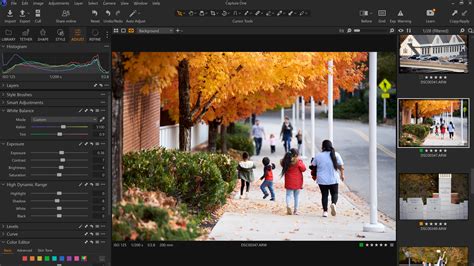
Upon first encountering Capture One Pro, its user interface presents a distinct departure from the familiar landscape of Lightroom. While both programs offer robust Digital Asset Management (DAM) capabilities, their presentation and operational methods differ significantly. The author, accustomed to Lightroom's layout, found Capture One's interface initially disorienting, requiring a period of adaptation. This subjective preference for Lightroom's layout stems largely from ingrained familiarity.
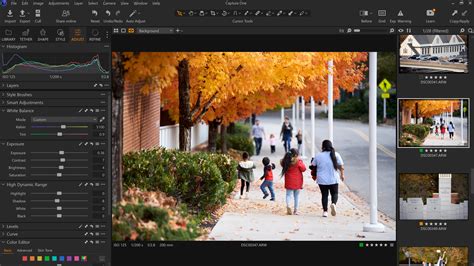
A more profound divergence lies in the behavior of adjustment sliders. For instance, Lightroom's contrast slider primarily achieves its effect by darkening the shadows, thereby increasing contrast. Capture One, conversely, tends to brighten and darken the tonal extremes of an image more evenly, perhaps with a slight emphasis on brightening. These nuanced differences in tool behavior can significantly influence the final image outcome and the user's editing workflow.
Image Quality: A Brand-by-Brand Analysis
The core of any RAW editing software lies in its ability to process and render raw image files. This comparison focuses on the image quality results derived from unedited raw files, acknowledging that all programs offer extensive adjustment capabilities. While unique features and proprietary algorithms contribute to a program's overall appeal, the fundamental rendering of raw data is paramount.
Nikon: A Shift in Perspective
Previously, Nikon users were advised that Lightroom offered satisfactory image quality. However, after testing Capture One, this assessment undergoes revision. At default settings, Capture One's raw previews for Nikon images exhibit bolder detail and sharper rendering compared to Lightroom. Furthermore, unadjusted images in Capture One display greater contrast, contributing to a darker overall preview appearance. Notably, even with these darker shadows, Capture One allowed for significant shadow recovery without introducing discernible noise.
The handling of global color adjustments also proved to be a strong suit for Capture One. In a landscape scenario, reducing the highlights slider revealed subtle blues in the sky that were previously washed out. Lightroom, in contrast, required a substantial increase in the Vibrance slider to achieve a similar effect. Portraiture also benefited, with skin tones appearing bright, vibrant, and accurate in Capture One, a marked improvement over the flatter, less accurate representation often seen in Lightroom's default settings.
OM System: Professional Endorsement and Highlight Recovery
The results from Capture One with OM System raw files were not surprising, given the software's adoption by several top professionals using this system. The primary reason cited is the superior visual quality of the resulting images. In Capture One, the overall exposure often aligns more closely with what is seen through the viewfinder, appearing brighter. A particularly impressive feat was the complete recovery of blown-out highlights in a sunlit shot, without them turning grey-an outcome requiring a mere 1.5-stop exposure reduction.
Conversely, shadow recovery demonstrated a surprising inverse relationship. While one might expect more challenges in the shadows, an extremely underexposed image required 2.46 stops of exposure adjustment in Lightroom to recover shadow details, whereas Capture One managed this with only two stops.
However, Lightroom did exhibit an advantage in a specific scenario involving an underexposed night shot. Faint red and blue reflections in the water, visible in heavily cropped images, were successfully recovered by Lightroom Classic. Capture One, on the other hand, failed to detect these colors, rendering only colorless tones even after adjustment.
A significant drawback for Lightroom, as previously reported, is its tendency to produce undesirable digital artifacts with OM System files at default settings. Over-sharpening is a common issue, with graininess persisting even after reducing sharpening to zero.
Sony: Color Nuances and Artifacts
The exposure discrepancies observed with OM System images in Lightroom were also apparent with Sony raw files. While Lightroom images tended to appear darker, Capture One rendered browns with a darker and more yellow hue. This resulted in a somewhat jaundiced appearance for a man's brown skin tone at default settings, though this was not observed with Caucasian models. This suggests that the combination of Sony cameras and Capture One might not be ideal for photographing people of color, at least at default settings.
Interestingly, when comparing a Caucasian climber's image, the subject appeared more yellow in Lightroom. Capture One generally produced brighter previews for Sony raw files than Lightroom Classic. Furthermore, Adobe's software exhibited a propensity for producing noticeable artifacts with images shot at ISO 400, which were absent in Capture One.
Fujifilm: Detail, Aberrations, and Color Palette
Fujifilm users may recall Lightroom's previous shortcomings with Fujifilm images, particularly a lack of detail in greens. Capture One excels in noise control, delivering excellent results. While chromatic aberrations were pronounced in default settings for a Fujifilm lens-the only one tested to show this significantly-they were effectively removed by enabling the lens correction panel. Crucially, this removal did not result in the thin halos that can sometimes appear with Adobe's programs. The colored fringing, though visible, could be quickly rectified. While tree details were not perfect, they were superior to what Lightroom offered.
Capture One rendered all colors with greater boldness and saturation compared to Lightroom. Grays also appeared slightly warmer, lending a richer quality to landscapes, though this warming effect was less pronounced than with Sony images.
Capture One Studio: A New Tier for Professionals
The introduction of Capture One Studio signifies a strategic expansion of Capture One's product line, catering to professional studio environments and collaborative workflows. This new tier builds upon the foundation of Capture One Pro, incorporating enhanced features and functionalities previously reserved for enterprise users, alongside entirely new studio-centric tools.
Key Features of Capture One Studio
Capture One Studio introduces several powerful tools designed to streamline professional shoots and team collaboration:
- Client Viewers: Allows for the creation of up to three independent viewer windows, enabling collaborators to observe the workflow without disrupting the primary editing process. These viewers can be configured to display pinned image variants, the currently selected primary variant, or the last image captured during tethering.
- AI Crop: This feature automates the composition alignment across images. It's integrated into the Crop Tool in Pro and offered as a dedicated tool with more extensive controls in Studio. Users can define subject position, constraints, and margins, applying these to new captures or batch-cropping existing images. Presets can be saved for quick switching.
- Multiple Compare Variants: In Capture One Studio, users can display up to 11 compare variants simultaneously in the viewer, facilitating direct comparison of different edits or captured images.
- Image Parent Folder Name and Image Grandparent Folder Name Tokens: These tokens are now available for batch renaming and exporting files, offering greater organizational flexibility and consistency.
- Guides Tool: This tool allows for precise definition of guide positions and colors, with the added benefit of guides following crops. Previously exclusive to Capture One Enterprise.
- Next Capture Metadata Tool: Automatically applies metadata to incoming captures, streamlining the process of adding essential information.
- Next Capture Keywords Tool: Similar to the metadata tool, this automatically applies keywords to new captures, saving time and ensuring consistent tagging.
- Next Capture Backup Tool: This feature provides automatic backups of all captured images during a tethered session to an alternative location. It includes a queue manager that allows users to pause and resume the backup process, even after closing and relaunching Capture One.
- Tool Locks: Specific tools can be locked to prevent accidental alterations during busy shoots, whether by changing camera settings or file naming conventions. A PIN code system ensures that only authorized personnel can unlock and modify critical capture properties.
Live for Studio: Enhancing On-Set Collaboration
Complementing Capture One Studio is Live for Studio, a free iPad companion app designed for enhanced on-set collaboration. This app operates on the same local network as Capture One Studio, eliminating the need for an internet connection. Users can share folders or albums from Capture One Studio, allowing anyone with an iPad to view, follow, rate, and color-tag images in real-time.
My Live Event Photography Workflow - Instant delivery to Impress Clients
Licensing and Pricing: A Consideration for Professionals
The pricing structure of Capture One has evolved, introducing Capture One Studio as a new tier alongside Capture One Pro. Capture One Studio is available as a single-user monthly or annual subscription with three device activations. For larger teams and companies, Capture One Studio for Teams offers a multi-user subscription managed through the sales department.
The cost of Capture One Studio is a significant factor, particularly when compared to Adobe's offerings. The lowest subscription price for Capture One Studio is $179 per year, approximately $60 more than the Adobe Photographer Plan. The Adobe plan, however, includes a broader suite of tools, such as Photoshop and its mobile cloud service.
This tiered approach, with certain features exclusive to Studio, has drawn criticism from some users. The argument is that features like advanced crop tools, guides, and next capture metadata/keywords are valuable for single professional photographers, not just large teams. The higher cost of Studio, therefore, becomes prohibitive for many individual professionals who could benefit from these time-saving tools.
Capture One vs. Lightroom: A Subjective Preference and Evolving Landscape
The debate between Capture One and Lightroom often boils down to subjective preference and specific workflow needs. While some users champion Capture One for its superior raw conversion, color rendering, and noise handling, others find Lightroom's interface more intuitive and its integration with Photoshop indispensable.
It's important to acknowledge that both programs are continuously evolving. Many features once exclusive to one program are now found in the other, blurring the lines of differentiation. For instance, Capture One's tethering capabilities are widely praised and are often considered superior to Lightroom's. Conversely, Lightroom's cataloging system and its integration within the broader Adobe ecosystem remain strong selling points.
The notion that Capture One Pro possesses elements of both Lightroom and Photoshop is a common observation. However, it is not designed to be a direct replacement for Photoshop. While Capture One offers advanced editing tools, Photoshop remains the industry standard for pixel-level manipulation, extensive retouching, and complex compositing. The integration between Capture One and Photoshop is excellent, allowing for a seamless workflow where users can leverage the strengths of both applications.
As editing tools within RAW processors like Capture One and Lightroom continue to improve, many users find they spend less time in Photoshop than they once did. The convenience of performing most edits within a single program, even with robust integration, can be a powerful draw.
Conclusion: Choosing the Right Tool for Your Workflow
The choice between Capture One Pro, Capture One Studio, and Adobe Lightroom Classic ultimately depends on individual needs, budget, and workflow. Capture One consistently delivers exceptional image quality, particularly with certain camera brands, and its advanced tools, especially in the Studio tier, cater to the demanding requirements of professional studios and collaborative environments.
Lightroom, while perhaps not always matching Capture One's raw rendering out-of-the-box, offers a more accessible entry point, a familiar interface for many, and a comprehensive ecosystem that includes Photoshop. The cost factor remains a significant consideration, with Adobe's subscription plans often providing more value for money when bundled with other Creative Cloud applications.
Ultimately, the "best" program is the one that best serves your creative vision and technical requirements. The real-world tests presented here highlight the strengths and weaknesses of each, empowering photographers to make an informed decision about which tool will best enhance their post-production workflow. The ongoing development of both Capture One and Lightroom ensures that this comparison will remain dynamic and relevant for years to come.