In the ever-evolving digital landscape, image formats play a crucial role in how we share, display, and utilize visual content. While the WebP format has gained traction for its impressive compression capabilities and high visual quality, its compatibility across all platforms and applications can sometimes be a hurdle. This is where the need to convert WebP to JPG arises. A quick conversion from the WebP file format to the universal JPG is all you need to take your photos offline and use them for other projects! By converting WebP images to JPG, your photos will be compatible with more apps, image viewers, browsers, and devices.
The Advantages of JPG for Broader Application
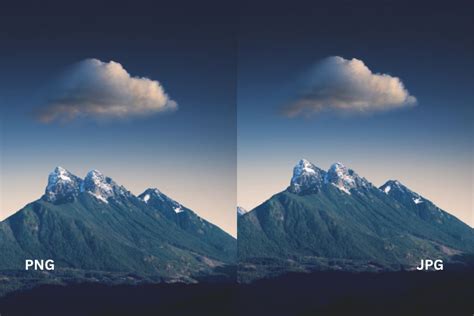
JPG, also known as JPEG (Joint Photographic Experts Group), is a universally recognized and widely supported image format. Its primary advantage lies in its robust compression algorithm, which significantly reduces file sizes without a drastic loss in perceived image quality. This makes JPG files ideal for a multitude of applications, from web display to print media. Almost all image-viewer programs and applications recognize and can open JPG files. Simply double-clicking the JPG file will usually result in its opening in your default image viewer, image editor, or web browser. JPG files open automatically on popular web browsers such as Chrome, Microsoft applications such as Microsoft Photos, and Mac OS applications such as Apple Preview.
The considerable compression that JPG offers is the reason for its wide use. This means that whether you’re viewing a photo on your phone, desktop, or an outdoor billboard, you’re less likely to encounter display issues. This universal compatibility ensures that your images can be seamlessly integrated into various projects without the need for specialized software or conversion tools on the recipient's end.
Understanding the WebP Format: A Modern Contender
WebP is a modern image format developed by Google, designed to provide superior compression for images on the web. It supports both lossy and lossless compression, offering smaller file sizes compared to traditional formats like JPG and PNG at similar visual quality. In fact, WebP can typically achieve file sizes that are 25-35% smaller than equivalent JPEG images at the same visual quality. This makes it an excellent choice for web performance optimization, speeding up page load times and improving SEO-driven image delivery.
However, the relatively newer nature of WebP means that not all software, older devices, or specific applications have native support for it. This is where the necessity for conversion becomes apparent, allowing users to leverage the benefits of WebP during the creation and editing process, and then convert to JPG for broader distribution and use.
The Most HATED Image Format
Effortless Conversion: Tools and Techniques
Fortunately, converting WebP images to JPG is a straightforward process, with numerous online tools and software available to facilitate this transformation. Many of these solutions are designed to be user-friendly, requiring minimal technical expertise.
Online Converters: Speed and Accessibility
Online converters offer a quick and convenient way to change image formats. Tools like Canva’s free WebP to JPG converter, AnyWebP, and Pixelied are prime examples. These platforms often boast a simple drag-and-drop interface, allowing users to upload their WebP files and download them as JPGs in mere seconds.
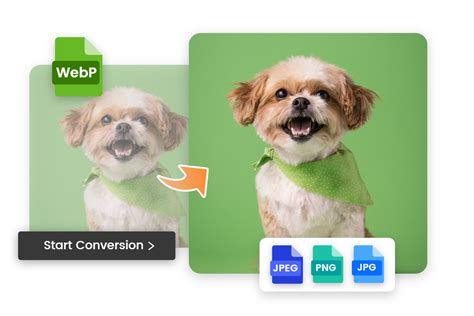
Using Canva’s free, easy-to-use WebP to JPG converter, you can change any WebP image into a high-res JPG file in seconds. The process is typically as simple as:
- Upload your WebP image: Simply drag and drop your WebP file into the designated area or click to select it from your device.
- Initiate conversion: Click on a "Convert" or "Start Conversion" button.
- Download as JPG: Once the conversion is complete, download the resulting JPG file.
Many of these online tools also offer batch processing capabilities, allowing you to convert multiple WebP files to JPG simultaneously. This is particularly useful for users who need to convert a large number of images, saving considerable time and effort. AnyWebP, for instance, handles all jobs involved with WebP conversion, from WebP to any other format or any format to WebP, and supports batch processing for hundreds of images at one time.
Preserving and Enhancing Image Quality
When converting WebP to JPG, the goal is often to maintain the original image quality while ensuring compatibility. Many converters prioritize this, offering high-resolution output. Some advanced platforms, like Canva Pro, even allow users to adjust the size and compression of the resulting JPG file to save space.
It's also worth noting that before converting, you can often enhance your images. Canva’s free online photo editor, for example, allows you to adjust brightness, saturation, contrast, and more. You can apply photo frames, exciting filters, or edit text. You can crop, flip, or rotate the image, or use premium features like Magic Switch to resize the image. This ability to refine your images before conversion adds another layer of utility to these tools.
For those concerned about potential quality degradation due to JPG's lossy compression, some converters offer options to set the image quality to 100% during the conversion process. This minimizes compression and ensures the closest possible fidelity to the original WebP image, though it may result in a larger file size than a highly compressed JPG.
WebP vs. JPG: A Comparative Overview
While the convenience of JPG is undeniable, understanding the nuances between WebP and JPG can help users make informed decisions about when to convert.
WebP:
- Pros: Superior compression (lossy and lossless), smaller file sizes at comparable quality, supports transparency and animation. Developed by Google for web optimization.
- Cons: Less universal compatibility compared to JPG, may not be supported by older software or devices.
JPG/JPEG:
- Pros: Extremely wide compatibility across devices, software, and browsers. Supports a vast range of colors. Efficient for photographic images due to lossy compression.
- Cons: Lossy compression can lead to noticeable quality degradation at high compression ratios. Does not support transparency or animation.
The choice between formats often depends on the intended use. For web development where performance is key, WebP is often preferred. However, for sharing photos with a broad audience, using them in print, or ensuring maximum compatibility with various applications, converting to JPG is the more practical approach.
Advanced Conversion and Privacy Considerations
Several tools emphasize their commitment to user privacy and data security. AnyWebP, for instance, operates entirely in the browser, meaning no files are uploaded to external servers. All conversion processes are done locally on the user's device, ensuring complete data privacy and offline capability after the initial page load. This client-side image processing technology, powered by modern browser APIs and JavaScript pipelines, means that all decoding, conversion, and encoding operations are executed locally, without any data being transmitted to or stored on any servers.
CloudConvert is another service that highlights its security, being ISO 27001 certified and having been trusted by users since 2012. They assure that no one will ever have access to your files.
When considering converters, look for features that align with your needs:
- 100% Free Online Tool: No signup, no file uploads, no hidden fees.
- Support for Multiple Formats: Ability to convert to and from various image types (JPG, PNG, BMP, GIF, TIFF, PDF, SVG, ICO, etc.).
- Batch Processing: Convert numerous files simultaneously.
- Offline Capability: Functionality without an active internet connection after initial load.
- Privacy Protection: Assurance that files are not uploaded, stored, or accessed by the service provider.
Beyond Conversion: Editing and Design Integration
The utility of image conversion tools often extends beyond mere format changes. Platforms like Canva and Pixelied integrate robust photo editing capabilities, allowing users to refine their images before or after conversion. This means you can not only convert your WebP to JPG but also crop, resize, remove backgrounds, add text, apply filters, and much more, all within the same platform.
Once you've converted your image to a .jpg file, you can use it in a wide array of digital and print projects, like posters, invitations, social media posts-any design under the sun. This seamless integration of conversion and editing streamlines the creative workflow, empowering users to produce professional-quality visuals efficiently.
The process of converting WebP to JPG is a fundamental step for anyone needing to ensure their images are universally accessible. Whether for personal projects, professional workflows, or simply sharing memories, the ability to adapt image formats with ease and confidence is an invaluable skill in today's digital world.