In the realm of digital imagery, understanding file formats is crucial for ensuring optimal quality, efficient storage, and seamless usability. At the forefront of image representation lies raster graphics, a fundamental method that underpins much of what we see on our screens and in print. Unlike their mathematically defined vector counterparts, raster images are composed of a grid of tiny colored squares, known as pixels. This article will delve into the intricacies of raster graphics, exploring their nature, the various file formats they employ, and the considerations for choosing the right format for your needs.
The Foundation of Raster Graphics: Pixels and Grids
At its core, a raster graphic, also referred to as a raster image or simply a raster, is a digital image constructed from a rectangular grid of pixels. Each pixel is a tiny, typically square, element that holds a specific color value. This fundamental strategy, known as the tessellation of a plane, divides a two-dimensional area into a grid of cells, with each cell representing a pixel. In digital photography, this plane is the visual field projected onto an image sensor; in computer art, it's a virtual canvas; and in geographic information systems (GIS), it's a projection of the Earth's surface.
Unlike vector graphics, which utilize mathematical equations to describe shapes and lines, raster images store the exact color of each pixel. This makes them exceptionally well-suited for photographs and images characterized by complex colors and intricate details. The printing and prepress industries often refer to raster graphics as "contones," short for "continuous tones," a nod to their ability to represent a broad spectrum of colors.
The origins of the term "raster" can be traced back to the Latin word "rastrum," meaning rake, derived from "radere," to scrape. This nomenclature stems from the raster scan employed by cathode-ray tube (CRT) video monitors, which draw images line by line by steering an electron beam. By association, "raster" can also refer to the grid of pixels itself.
Each raster grid has a defined pixel format, which dictates the data type for each number representing a pixel's value. Common pixel formats include binary, grayscale, palettized, and full-color. The "color depth" determines the fidelity of the colors represented, while the "color space" defines the range of color coverage, which is often less than the full spectrum of human color vision. Most modern color raster formats employ 24 bits, allocating 8 bits for each color channel (red, green, and blue), resulting in over 16 million distinct colors.
From Pixels to Files: Understanding Raster Data Structures
To store raster data in a file, the two-dimensional array of pixels must be serialized. The most common method is a "row-major format," where the cells of the first row are listed from left to right, followed by the second row, and so on. Crucially, to reconstruct the two-dimensional grid, a header section at the beginning of the file is essential. This header must contain at least the number of columns and the pixel data type (specifically, the number of bits or bytes per value) so that the reading software knows where each value ends and the next begins.
High-resolution raster grids, with their vast number of pixels, can consume significant storage space. This has driven the development of various compression techniques aimed at reducing file size. The most prevalent strategy involves identifying patterns or trends in pixel values and storing a parameterized representation of these patterns instead of the raw data. For instance, "Run Length Encoding" (RLE) detects repeated values and replaces them with the value and the count of its occurrences.
Some compression algorithms, such as RLE and LZW, are "lossless," meaning the original pixel values can be perfectly reconstructed from the compressed data. Others, like JPEG, employ "lossy" compression, where some data is discarded to achieve smaller file sizes, a trade-off that can lead to a reduction in image quality.
The Evolution of Raster Display and Output
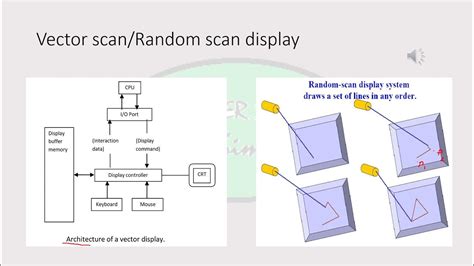
The principles of rasterization have a long history, evident in early mechanical televisions developed in the 1920s. Electronic televisions based on CRT displays utilize a raster scan, painting horizontal rasters from left to right and the raster lines from top to bottom. Even modern flat-panel displays, such as LED monitors, continue to employ a raster approach. In these systems, each on-screen pixel directly corresponds to a small number of bits in memory. The screen is refreshed by scanning through these pixels and coloring them according to the stored data, a process often handled by dedicated circuitry or graphics processing units.
While early drawing and precise design tasks often favored vector graphics produced by pen plotters in the 1970s and 1980s, almost all modern printers, including laser and inkjet, create printed images as raster grids.
In Geographic Information Systems (GIS), raster graphics play a vital role. Here, the raster grid is georeferenced, meaning each pixel (often termed a "cell" in GIS) represents a specific square region of geographic space. The value within each cell then represents a measurable property of that region, such as temperature, population density, land cover, or elevation.
Raster vs. Vector: Understanding the Key Differences
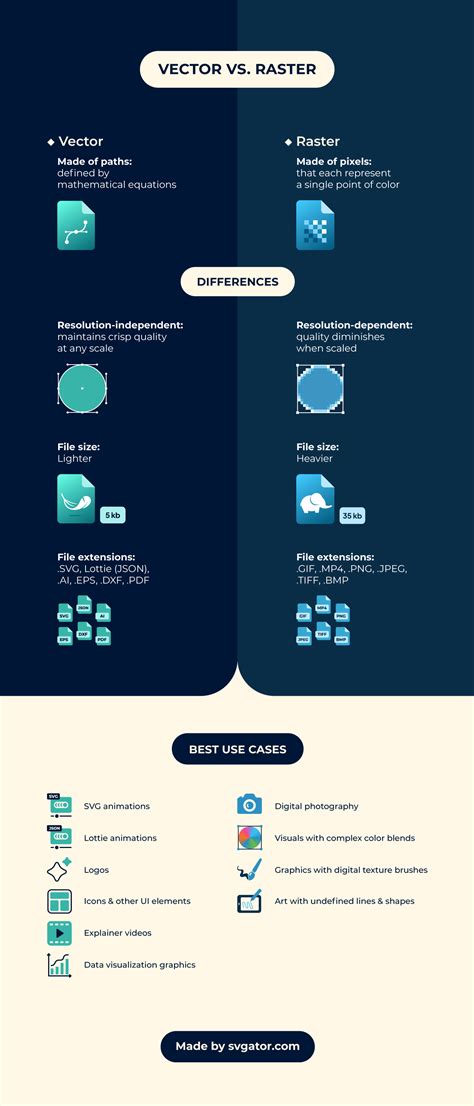
The fundamental distinction between raster and vector graphics lies in their underlying structure. Raster images are resolution-dependent; they cannot be scaled up to an arbitrary resolution without a noticeable loss of quality, often appearing pixelated or blurry. This is because their detail is tied to the fixed number of pixels. Conversely, vector graphics, defined by mathematical formulas, can be scaled infinitely without any degradation in quality. This makes vector formats ideal for logos, illustrations, and typography where resizing is a frequent requirement.
Raster graphics are generally more practical for handling photographs and photo-realistic images due to their ability to capture intricate details and continuous tones. Vector graphics, on the other hand, often excel in applications requiring precise lines and shapes, such as typesetting and graphic design.
Navigating the Landscape of Raster File Formats
The choice of a raster file format significantly impacts an image's quality, file size, and intended use. Here's a look at some of the most common and important raster file formats:
JPEG (Joint Photographic Experts Group)
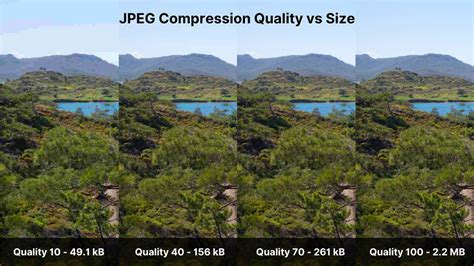
JPEG is arguably the most ubiquitous raster file format, especially for photographs and web use. Its primary strength lies in its powerful compression capabilities. JPEG employs "lossy" compression, meaning it discards some image data to achieve significantly smaller file sizes. This makes it ideal for web pages where faster loading times are critical. Users can adjust the compression level, balancing file size with image quality. While it supports a wide range of colors (24-bit, approximately 16.78 million colors) and professional color management through common color profiles, JPEG is unsuitable for low-detail graphics or images with limited color palettes. It also supports metadata standards like Exif, IPTC-IIM, and XMP for documentation.
PNG (Portable Network Graphics)
PNG is a popular "lossless" raster image format, meaning no image data is lost during compression. This makes it an excellent choice for graphics requiring sharp details, such as logos, icons, and illustrations, especially when transparency is needed. PNG supports transparency, a feature lacking in JPEG, and can handle various color depths, including those below 8-bit, which offers an advantage over JPEG for certain low-detail graphics. However, due to its lossless nature, PNG files are typically larger than JPEGs. It primarily supports RGB color profiles and does not natively support CMYK, which is commonly used in professional printing.
GIF (Graphics Interchange Format)
Developed in the late 1980s, GIF experienced a resurgence in popularity, largely due to its ability to store multiple images within a single file, enabling animations. Animated GIFs have become a staple for short clips and memes online. GIF supports up to 256 colors (8-bit) and single-color transparency. Its combination of low color depth and lossless compression results in small file sizes, making it efficient for web use. However, its limited color palette restricts its use for complex or highly detailed images.
TIFF (Tagged Image File Format)
TIFF is a high-quality, versatile format often used when no information can be lost. It supports lossless compression and is a common choice for professional photography, graphic design, and print media. TIFF files can accommodate 24-bit and even 48-bit color depths, leading to very large file sizes, especially for high-resolution scans. For this reason, it's ideal for archival purposes or when images need to be vectorized later, as its lossless nature preserves maximum detail. It's also widely used in scanning and desktop publishing applications.
BMP (Bitmap)
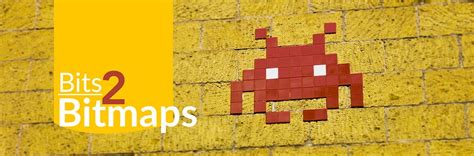
BMP, or Bitmap, is one of the simplest raster file formats. Files with the .bmp extension are typically Windows bitmaps, introduced with Windows 3.0. BMP files are usually saved uncompressed, resulting in very large file sizes that are generally unsuitable for internet applications. While virtually every device supports this format due to its simplicity, its large file size makes it less practical for most modern uses.
HEIF (High Efficiency Image File Format)
HEIF is a modern container format that offers a balance between high image quality and small file sizes. It utilizes more advanced compression algorithms, such as HEVC (High Efficiency Video Coding), which are more effective than those used in JPEG. This results in smaller file sizes for the same or better quality. HEIC is the common file extension for HEIF images encoded with HEVC. It's the default format for photos on Apple devices (iOS 11+ and macOS High Sierra+) and is also supported by Windows 10.
WebP
Developed by Google as an open-source format, WebP aims to replace JPEG, PNG, and GIF for web use. It offers both lossless and lossy compression, often achieving smaller file sizes than JPEG for the same quality or higher quality for the same size. WebP supports transparency and animations, similar to PNG and GIF, and also supports Exif and XMP metadata. While its adoption is growing, it's considered the future of web image formats.
PSD (Photoshop Document)
PSD is the proprietary native file format of Adobe Photoshop. It is designed for editing and stores all image and editing data, including layers, paths, and text, losslessly. PSD files can become very large due to this comprehensive data storage. It's an "editing format" rather than a final output format, meaning it's intended to be saved and worked on within Photoshop, and then flattened or exported to other formats for wider use.
XCF (eXperimental Computing Facility)
XCF is the native file format for the free and open-source image editor GIMP (GNU Image Manipulation Program). Similar to PSD, it stores all image and editing data losslessly in a single file, allowing for extensive editing capabilities. XCF files can also become quite large.
RAW Formats (e.g., DNG)
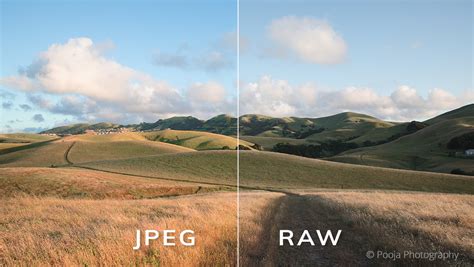
RAW files are unprocessed image data captured directly by a digital camera's sensor. They contain the most image information, offering maximum flexibility for post-processing, such as adjusting white balance, exposure, and color. Each camera manufacturer often has its own proprietary RAW format. Adobe developed the DNG (Digital Negative) format as an open standard to unify these proprietary formats, though it hasn't fully replaced them. RAW files are not ready for direct use and require conversion to formats like JPEG or TIFF.
Other Notable Formats
- EPS (Encapsulated PostScript): While often associated with vector graphics, EPS can also contain raster images. It's a format frequently used in the printing and prepress industries for its ability to embed fonts and vector data alongside raster elements.
- AI (Adobe Illustrator): Primarily a vector format, Adobe Illustrator files can also incorporate raster images.
- PDF (Portable Document Format): Developed by Adobe, PDF is a versatile format that can contain both vector and raster graphics, as well as text and other document elements. It's widely used for document exchange and printing.
- WebM: An open, royalty-free audio-video file format designed for the web, often used for animations and short video clips.
- AVIF (AV1 Image File Format): A newer, open-source image format that offers superior compression compared to JPEG and WebP, aiming for high quality at smaller file sizes.
Considerations for Choosing the Right Raster Format
How to Choose the Right Image File Format
Selecting the appropriate raster file format depends heavily on the intended use of the image. Several key questions can guide this decision:
- Scalability: Do you need to resize the image frequently without losing quality? If so, vector graphics are generally preferred, but if raster is necessary, consider formats like TIFF that preserve detail well.
- Quality vs. File Size: Are you prioritizing maximum image quality, or is a smaller file size for faster loading critical? Lossless formats like PNG and TIFF offer superior quality but larger files, while lossy formats like JPEG provide smaller files at the cost of some quality.
- Transparency: Does the image require a transparent background? PNG and GIF are the primary raster formats that support transparency.
- Animation: Is the image intended to be animated? GIF and WebP are the go-to formats for this purpose.
- Printing: For professional printing, formats like TIFF and PDF are often preferred due to their ability to handle high resolutions and color accuracy. For printing technologies that use dithering (halftoning), the printer's DPI setting needs to be significantly higher than the desired image PPI to ensure sufficient color depth without sacrificing resolution.
- Web Use: For general web images and photographs, JPEG offers a good balance of quality and file size. For graphics requiring transparency or sharp lines, PNG is a better choice. WebP is an increasingly viable option for all these scenarios.
- Archiving and Editing: For archival purposes or when extensive editing is anticipated, lossless formats like TIFF, PSD, or XCF are recommended to preserve the highest possible image data.
Understanding the strengths and weaknesses of each raster file format empowers you to make informed decisions, ensuring your digital images are optimized for their intended purpose, from breathtaking photographs to crisp web graphics and high-fidelity prints.