The Clone Stamp Tool is an indispensable instrument within Adobe Photoshop, offering a powerful means to meticulously replicate and repair image elements. This tutorial delves into the intricacies of this tool, guiding you through its settings, preferences, and advanced applications, revealing hidden tips that elevate your retouching and image manipulation skills.
Understanding the Fundamentals of the Clone Stamp Tool
At its core, the Clone Stamp Tool functions by sampling pixels from one area of an image and painting them onto another. The word 'clone' itself signifies the act of creating an identical copy. This fundamental principle allows for the removal of unwanted objects, the repair of damaged areas, and even the creative alteration of photographic content.
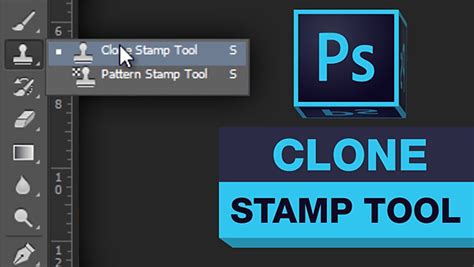
To begin using the Clone Stamp Tool, you first need to import your desired image into Photoshop. Once the image is open, locate the Clone Stamp Tool in the left-hand toolbar. Its icon resembles a rubber stamp, and its shortcut key is 'S'.
The primary mechanism for using the tool involves defining a source point and then painting that source onto a destination area. To establish a source point, hold down the Alt key on Windows or the Option key on a Mac. As you hold this key, your cursor will transform into a crosshair, indicating that you are ready to select your cloning source. Click on the area of the image you wish to copy pixels from. Once the source is defined, release the Alt or Option key. Now, move your cursor to the area where you want to apply the cloned content and begin painting. You will observe that the pixels from your chosen source point are being copied and painted onto your current cursor position.
It is crucial to understand that the size of the cloned content will match the size of your brush. If the flaws you are trying to correct are small, you may need to adjust the size of the Clone Stamp tool accordingly. The size slider is readily available in the options bar at the top of the Photoshop interface.
Navigating Clone Stamp Tool Settings and Preferences
The effectiveness of the Clone Stamp Tool is significantly enhanced by understanding its various settings and preferences. These can be accessed through the Options Bar at the top of the Photoshop window or via the Clone Source Dialog.
The Clone Source Dialog, accessible by navigating to Window > Clone Source, offers a more in-depth control over your cloning operations. Here, you will find options for Clone Source, Transformation options, and Overlay options. While Photoshop has the "Show Overlay" option checked by default, many users, including experienced professionals, prefer to keep it unchecked for a clearer view of their work.
Within the Clone Source Dialog, you can manage multiple clone sources, rotate, scale, and flip them. This advanced control is particularly useful when dealing with complex cloning tasks.
Brush Settings
A common misconception is that the Clone Stamp Tool is limited to using a soft round brush. However, this is far from the truth. The Clone Stamp Tool can utilize any custom brush that the regular Brush Tool can use. This includes textured brushes, hard-edged brushes, and even custom-designed brush presets. The choice of brush significantly impacts the blend and texture of the cloned area. For instance, using a textured brush can help to seamlessly integrate cloned elements into surfaces with natural textures, such as wood grain or fabric.
Opacity and Flow
Two critical settings that govern how the cloned pixels are applied are Opacity and Flow. Opacity controls the overall transparency of the cloned pixels, while Flow determines the rate at which paint is applied with each stroke. Lowering opacity is essential for subtle blending, especially when dealing with areas that have varying tones or textures. For example, when trying to recover detail in underexposed shadows, you might set the Clone Stamp tool's opacity to around 20%. This allows you to sample brighter parts of the image and gradually build up detail in the darker areas without creating harsh transitions.
Aligned vs. Unaligned Source
The Clone Stamp Tool offers two modes for how the source point behaves in relation to the brush: Aligned and Unaligned.
- Aligned: When the source is aligned, the offset between the source point and the brush remains constant. As you paint, the crosshairs at the source point move along with your brush. This is useful for cloning larger areas where you want to maintain a consistent relationship between the source and destination.
- Unaligned: In unaligned mode, the source point remains fixed. Each time you begin painting a new stroke, the cloning originates from that initial fixed source point. This is particularly helpful when you need to paint over an object and want to maintain the same source for multiple strokes, such as covering an electrical outlet on a wall where the wall texture is consistent.
Advanced Techniques and Hidden Tips
The Clone Stamp Tool's capabilities extend far beyond simple object removal. It can be employed for sophisticated retouching, blending, and even creative manipulation.
Working on New Layers
A fundamental best practice when using the Clone Stamp Tool is to work on new layers. This is crucial for non-destructive editing. By creating a new layer and setting the Clone Stamp Tool's sample setting to "Current & Below" or "All Layers," you can perform your cloning operations without permanently altering the original image data. This allows for greater flexibility, enabling you to transform, adjust, or even delete the cloned elements later without affecting the base image.
To transform a cloned selection after it has been applied to a new layer, you can select the layer and press Command+T (Mac) or Control+T (Windows). This will bring up the Free Transform bounding box, allowing you to scale, rotate, or warp the cloned content. Right-clicking on the layer in the Layers panel also provides access to transformation options.
Blending Exposures and Tones
The Clone Stamp Tool is exceptionally useful for blending areas with different exposures or tones. For instance, if a photograph of a mountain peak is surrounded by swirling clouds, and the mist only lingers on one side, you can use the Clone Stamp Tool to extend the mist. You would sample the existing mist and carefully brush it over the areas where you want to create the illusion of more cloud cover.
Similarly, in high dynamic range scenes, such as backlit shots, you might encounter underexposed shadows with no recoverable detail. By adjusting the Clone Stamp tool's opacity to a low percentage (e.g., 20%) and sampling from brighter parts of the image, you can gradually paint over the pure black areas, introducing subtle detail and improving the overall tonal balance. The reverse is also true for overexposed highlights; you can sample surrounding areas with detail and use the Clone Stamp Tool to paint over the blown-out regions.
Extending Elements and Filling Gaps
The Clone Stamp Tool excels at extending existing elements or filling in gaps. For example, if a photograph of a mountain has noticeable white edges due to overexposure or artifacting, you can use the Clone Stamp Tool to paint over these edges with pixels sampled from the darker mountain. To ensure that only the brighter white edges are affected and the darker mountain remains untouched, you can set the Clone Stamp tool's mode to "Darken." This mode will only apply pixels that are darker than the underlying pixels.
Using Custom Brushes for Specific Effects
As mentioned earlier, the Clone Stamp Tool's versatility is amplified by its ability to use any custom brush. This opens up a world of possibilities for achieving specific textures and effects. For instance, when cloning to repair an area with a distinct texture, like rough bark or a patterned fabric, using a brush that mimics that texture can lead to a much more seamless and believable result.
The Power of Layer Masks with Cloning
While the Clone Stamp Tool is powerful on its own, its effectiveness is amplified when used in conjunction with layer masks. After using the Clone Stamp Tool to cover an area, you can refine the transition between the cloned area and the surrounding image using a layer mask. For example, when blending a cloned mountain into a sky, a layer mask allows for precise control over where the cloned pixels are visible, enabling a natural transition. Using a soft white brush on the layer mask can feather the edges of the cloned area, making it blend seamlessly.
Undo and History Panel
If you make a mistake while cloning, Photoshop's History panel is your best friend. You can step back through your actions and undo unwanted cloning. Currently, there is no direct way to clear the cloning source in Photoshop itself; however, by using the History panel, you can effectively revert to a state before the problematic cloning occurred.
Enhancing Workflow with External Tools
For those who frequently utilize the Clone Stamp Tool and other Photoshop features, external hardware can significantly streamline the workflow. Devices like the TourBox offer dedicated controls that allow for seamless adjustment of tool parameters. With a TourBox, you can easily access the Clone Stamp Tool with a single press and use its knobs and dials to adjust settings such as brush size, opacity, hardness, and flow with just one hand. This level of control can make repetitive tasks like adjusting brush size during cloning much more efficient and intuitive.
Clone Stamp Tool - Toolbar Explained & Demonstrated [Photoshop Tutorial for Beginners]
Case Studies: Real-World Applications
The true power of the Clone Stamp Tool is best understood through practical examples.
Example 1: Removing Distracting Elements from a Landscape
Imagine a photograph of a famous snow-capped mountain in Pakistan. The original image might have distracting elements like unwanted people or man-made structures. To rectify this, the first step is often to duplicate the background layer (Command+J or Control+J). Then, using the Clone Stamp Tool, you can brush over the areas to be removed. For instance, if there are people walking near the mountain and cloud line, you would sample from the surrounding ground or sky and paint over them. The process might not require extreme precision initially, as layer masks can be used later to refine the transitions. A white brush with 0% hardness on a layer mask can carefully brush along the boundaries to ensure a smooth integration.
A personal anecdote recounts using the Clone Stamp tool to remove distracting walkers from a photograph taken at the East Portal of Coloradoâs Moffat Tunnel. The photographer had only one frame of film left and captured a train emerging from the tunnel, but two people were in the frame. Using Photoshop Elements 2.0, the photographer straightened the image, cloned out the walkers using the gravelly ground as a source, and even removed poles and wires, while also opening up shadows. This demonstrates the tool's ability to rescue otherwise unusable shots.
Example 2: Recovering Detail in Underexposed Shadows
When shooting scenes with a high dynamic range, such as backlit shots, underexposed shadows can appear as pure black, devoid of any detail. Even attempts to brighten them in post-processing yield no results. In such cases, the Clone Stamp tool, with an opacity set around 20%, can be used to sample brighter parts of the image (e.g., tree roots with some light on them) and then carefully brushed over the pure black areas in the shadows. This gradual application of sampled detail can bring back subtle textures and tones.
Example 3: Restoring Overexposed Highlights
Conversely, highlight areas can be overexposed and completely blown out, losing all detail. Similar to shadow recovery, the Clone Stamp Tool can be used to sample surrounding clouds or sky with visible detail and then brush over the blown-out highlight areas. This process requires careful sampling and blending to ensure the cloned areas match the surrounding tones and textures.
Example 4: Correcting Edge Artifacts and Color Casts
Noticeable white edges on a mountain, often a result of overexposure or lens flare, can be corrected using the Clone Stamp Tool. By setting the blend mode to "Darken," you can sample pixels from the darker mountain and paint over the white edges. The "Darken" mode ensures that only the brighter white pixels are affected, preserving the integrity of the darker mountain.
Example 5: Removing Unwanted Objects and Blending Complex Textures
In a photograph of a black bear, inconvenient wall outlets might mar the background. Using a small, feathered brush and sampling a spot on the wall directly above each outlet, one can paint over the outlets. It's important to ensure there's enough room to move the brush without accidentally cloning the outlet itself. If the wall has subtle color variations due to lighting, resampling directly above each outlet is necessary to ensure the work remains invisible. The key lesson here is that good retouching is invisible to even the expert eye.
At an awards event, a photographer forgot their monopod, which was in plain sight on a table, obstructing a shot of a speaker. Using the Clone Stamp tool, the monopod was removed, and the tablecloth beneath it was rebuilt. This involved constant resampling to blend the ripples and shadows believably. Where there was a fold, the photographer focused on the crosshairs at the source rather than the painting area to steer the cloning realistically along the fold. This kind of work can be very tedious but rewarding.
A more complex job involved restoring an image of New Shorehamâs Statue of Rebecca at the Well. This required multiple layers, content-aware fill, and extensive clone stamping to achieve a convincing result. Removing a car and a sign, along with their shadows, involved a combination of content-aware fill and cloning. Dealing with trees and the skyline necessitated the use of the clone stamp and/or the healing brush in replace mode. Even the bush on the lawn required repair of obvious cloning. This highlights the importance of saving all layers to easily remedy mistakes.
Example 6: Recreating Patchy Snow
An image of a snow-covered landscape might suffer from patchy snow, making it appear unnatural. Recreating consistent snow cover can be a patient endeavor. It often starts with sourcing from very small areas, but as the cloning progresses, the available source areas grow larger. It's crucial to continuously move the source point to avoid repetitive pixels, which are a dead giveaway of cloning.
Key Lessons for Effective Cloning
Throughout these examples and techniques, several key lessons emerge for mastering the Clone Stamp Tool:
- Work Non-Destructively: Always duplicate your background layer or work on new layers. This allows for easy correction and experimentation.
- Resample Frequently: For seamless results, especially in areas with varying tones or textures, resample your source point often.
- Pay Attention to Texture and Detail: Use brushes that match the texture of the area you are cloning from and into.
- Blend Invisibly: The ultimate goal of retouching is to make the cloned work undetectable. If you can see your edits, they need further refinement.
- Combine Tools: The Clone Stamp Tool is powerful, but it often works best in conjunction with other Photoshop tools like the Healing Brush, Spot Healing Brush, and Layer Masks.
- Patience is Key: Complex cloning tasks can be very tedious and time-consuming. Persistence and attention to detail are essential.
Assignment: Practice Makes Perfect
To solidify your understanding and hone your skills, take on an assignment: Find a picture in your files or take a new one that has a distracting element you'd like to seamlessly remove. Duplicate your background layer (Command+J or Control+J). Then, using the Clone Stamp Tool and the techniques discussed, attempt to remove the distracting element. Don't be discouraged if it's not perfect on the first try; mastering the Clone Stamp Tool is a journey that requires practice and patience. For instance, consider an image of a prehistoric creature like the Stylinodon mirus, which lived some 45 million years ago. If the image appears to have damage, such as a mark on its snout, the Clone Stamp tool can be used to attempt to fix such damage. This might not be an easy job, but it can be accomplished 100% with the clone tool.