In the ever-evolving digital landscape, image formats play a crucial role in web performance, design flexibility, and overall user experience. While WebP has emerged as a modern, efficient format championed for its superior compression capabilities, the need to convert WebP files to PNG remains prevalent. This transition is often driven by the universal compatibility, lossless quality, and robust transparency support that PNG offers. Whether you are a web developer optimizing site speed, a graphic designer requiring precise image manipulation, or a content creator aiming for broad accessibility, understanding how to efficiently convert WebP to PNG in bulk is an invaluable skill. This comprehensive guide will delve into the intricacies of this conversion process, exploring the benefits, methods, and tools available to ensure your images are always in the most suitable format for your needs.
Understanding the Nuances: WebP vs. PNG
Before diving into the conversion process, it's essential to grasp the fundamental differences and strengths of both WebP and PNG.
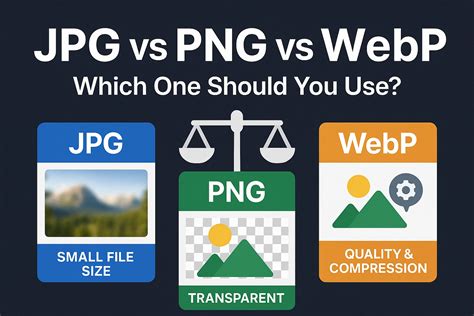
WebP, developed by Google, is a contemporary image format designed to offer significantly smaller file sizes compared to traditional formats like JPEG and PNG, without a perceptible degradation in image quality. It supports both lossy and lossless compression, as well as transparency and animation. The primary advantage of WebP lies in its ability to enhance web page loading speeds, a critical factor for user engagement and search engine optimization (SEO). WebP images could achieve a smaller size than the traditional JPEG files without degrading image quality. That's why it is time to use WebP format as there is nothing else lossy compression formats could beat WebP.
On the other hand, PNG (Portable Network Graphics) is a raster-based file type that compresses images for portability. PNG images can have RGB or RGBA colors and support transparency, which makes them perfect for use in icons, or graphic designs. PNG is a lossless raster format with universal support. Generally, PNG files will open in your operating system’s default image viewer. PNG files are also easily viewable on all web browsers. Alternative programs such as GIMP or Adobe Photoshop are useful for opening and editing PNG files. PNG files are a bit larger than other file types, so exercise caution when adding them to a web page.
While WebP excels in compression and web performance, PNG remains the go-to format for specific applications due to its unparalleled compatibility and flawless transparency. PNG preserves every pixel: no compression artifacts, unlike JPG. PNG supports alpha transparency, which is perfect for images that require transparent backgrounds. PNG works in all image editors, browsers, and operating systems. PNG images are suitable for high-quality printing and graphic design workflows. PNG is the preferred format for image editing as it doesn't degrade with repeated saves.
Key Differences Summarized:
- Compression: WebP offers more advanced compression, leading to smaller file sizes. PNG provides lossless compression, ensuring perfect pixel reproduction.
- Compatibility: PNG boasts near-universal compatibility across all devices, browsers, and software. WebP compatibility is widespread but not as absolute as PNG.
- Transparency: Both formats support transparency. PNG's transparency support is often considered more robust and universally handled.
- Use Cases: WebP is ideal for web optimization and speed. PNG is preferred for graphics, logos, icons, images requiring precise detail, and situations demanding maximum compatibility and flawless transparency.
The Necessity of Bulk WebP to PNG Conversion
In scenarios where a collection of WebP images needs to be prepared for broader use, converting them individually can be an incredibly tedious and time-consuming process. This is where bulk conversion tools become indispensable.
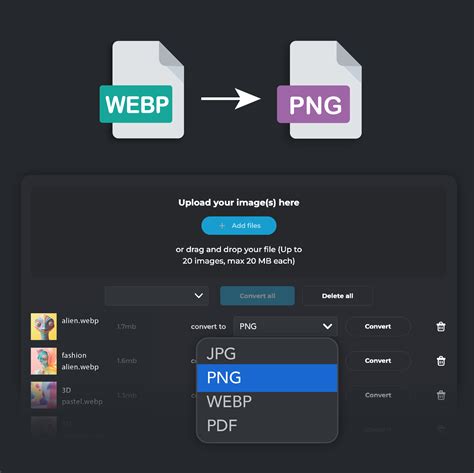
There are several compelling reasons why converting WebP to PNG in bulk is often necessary:
- Universal Accessibility: Many older devices, software applications, or specific platforms may not fully support the WebP format. Converting to PNG ensures that your images are accessible to the widest possible audience without compatibility issues.
- Editing Workflows: For graphic designers and image editors, PNG is often the preferred format. Its lossless nature and robust transparency support make it ideal for layering, complex edits, and ensuring that no quality is lost during iterative saving processes. Working with a batch of PNG files streamlines these workflows.
- Print and High-Quality Graphics: While WebP is excellent for web, PNG is often preferred for print-ready graphics and high-resolution images where absolute fidelity to the original is paramount.
- Platform Requirements: Some content management systems (CMS), social media platforms, or design software might have specific format requirements, often favoring PNG for its reliability.
- Consistency: Maintaining a consistent image format across a project or website can be crucial for aesthetic and functional reasons. If a project primarily uses PNG, batch converting any WebP assets ensures this uniformity.
If you are the site owner and you have thousands of images waiting for converting to WebP. It will be tedious to convert them one by one. Use AnyWebP for time-saving. Drag and drop all of these images and click 'Start All' to convert these images to WebP immediately. The whole process is fast, reliable, and professional.
Leveraging Online Tools for Efficient Conversion
The digital realm offers a plethora of online tools designed to facilitate the bulk conversion of WebP to PNG. These web-based applications provide a convenient, often free, and accessible solution without the need for software installation.
Key Features of Reputable Online Converters:
- Batch Processing: The cornerstone of efficient conversion, allowing users to upload and convert multiple files simultaneously. Users can upload multiple image files at once and convert them simultaneously. Batch processing is handled entirely on the client side, ensuring fast performance, offline capability, and complete privacy protection.
- User-Friendly Interface: Simple drag-and-drop functionality or clear "upload" buttons make the process intuitive for users of all technical skill levels. Simply upload your WebP files and click the convert button.
- No Software Installation: Accessible from any web browser on any operating system, eliminating the need for downloads or installations. Our WebP to PNG converter is free and works on any web browser.
- Security and Privacy: Reputable services prioritize user data protection, often employing encryption and ensuring files are automatically deleted after a short period. We guarantee file security and privacy. Files are protected with 256-bit SSL encryption and automatically delete after a few hours. All conversion processes are done in the browser. No data will be uploaded.
- Preservation of Quality: Tools that offer lossless conversion ensure that the integrity of the original image is maintained. Yes, PIXLR ensures that your image quality is maintained during conversion.
- Additional Editing Options: Some platforms integrate basic editing tools, allowing for minor adjustments like cropping or resizing post-conversion.
Popular Online Conversion Platforms:
Several platforms stand out for their robust WebP to PNG bulk conversion capabilities:
AnyWebP: This tool enables batch conversion of WebP to JPG, PNG, or ICO. It handles all jobs involved with WebP conversion, from WebP to any or any to WebP. AnyWebP is a free, browser-based WebP image converter that enables two-way image format conversion. It allows users to convert WebP files to JPG, PNG, BMP, and GIF, and convert JPG, PNG, BMP, and GIF images to WebP. All processing is performed locally in the browser using client-side technology, with no file uploads, no server processing, and no data storage. AnyWebP uses client-side image processing technology powered by modern browser APIs and JavaScript pipelines. All image decoding, conversion, and encoding operations are executed locally on the user's device. No images are transmitted to external servers, making the conversion process fully offline-capable after initial page load and ensuring complete data privacy. Yes, AnyWebP supports batch image conversion. Users can upload multiple image files at once and convert them simultaneously. Batch processing is handled entirely on the client side, ensuring fast performance, offline capability, and complete privacy protection. Yes. AnyWebP is designed with a privacy-first architecture. All image processing is performed locally in the browser. No files are uploaded, no data is transmitted to servers, no tracking systems are used, and no user data is stored. This ensures full data sovereignty and secure image conversion. Yes. After the initial page load, AnyWebP can operate in offline mode. All conversion processes are executed locally on the device, allowing users to convert images without an active internet connection. Yes. AnyWebP is 100% free to use. There are no subscriptions, no paywalls, no registration requirements, and no usage limits. All features, including batch conversion and offline processing, are available without cost. AnyWebP works on all modern browsers and operating systems, including Windows, macOS, Linux, iOS, and Android.
PIXLR: PIXLR offers a free online tool for WebP to PNG conversion. It allows users to upload their WebP files, click "Convert," and then download the converted PNGs. For multiple files, a "Download all" option is available. PIXLR ensures that image quality is maintained during conversion and offers PNG's alpha transparency support. PIXLR offers WebP to PNG conversion completely free.
Pixelied: This platform provides a fast and easy WebP to PNG converter that can handle bulk conversions. Pixelied's user interface is simple, requiring no downloads or installations. It boasts over 100 image file conversion options and includes a comprehensive photo editing toolkit for post-conversion adjustments. Pixelied can efficiently bulk convert WebP files over to PNG within seconds - thanks to its unique and convenient batch conversion feature. Say goodbye to slow image conversion processes that limit your files to one photo at a time. You can simply download all of your files either one by one or simultaneously - it’s up to you.
FreeConvert: FreeConvert offers an online WebP to PNG converter that is 100% free, requires no signup, and has no conversion limits. It supports batch processing and ensures file security and privacy through 256-bit SSL encryption. Files are automatically deleted after a few hours.
BulkImagePro: This tool is designed for fast, efficient, and free bulk conversion of WebP to PNG. It can convert up to 50 WebP files in seconds, operates entirely in the browser (no software needed), and ensures security and privacy by processing files locally. It supports lossless compression and transparency.
How to Convert WebP to PNG in Bulk for FREE (Windows or Mac)
Desktop Software for Advanced Control and Offline Conversion
While online tools are highly convenient, desktop software offers a greater degree of control, advanced features, and the assurance of offline processing, which can be critical for sensitive files.
Advantages of Desktop Software:
- Offline Operation: Crucial for users who deal with confidential images or have unreliable internet connections. All conversion processes are performed locally on the user's device.
- Advanced Settings: Desktop applications often provide more granular control over conversion parameters, such as specific compression levels, color profiles, and resolution adjustments.
- Batch Processing Power: Designed to handle very large batches of files efficiently, often with more robust error handling and processing capabilities than web-based tools.
- Integration with Operating System: Some software offers features like right-click conversion directly from file explorers for seamless workflow integration.
- No File Size/Number Limits: Unlike some free online tools, desktop software typically imposes fewer restrictions on the number or size of files that can be converted.
Leading Desktop Conversion Solutions:
reaConverter Lite: This free, downloadable software is a powerful tool for batch image conversion, including WebP to PNG. It works fully offline, allows for fine-tuning of resolution and quality settings, and offers right-click conversion directly from Windows Explorer. reaConverter Lite is quick to download, easy to install, and ready to launch in seconds. This lightweight, standalone software is highly efficient at handling a wide range of batch image conversions. Plus, it lets you apply essential image editing options - such as resizing, rotating, or adjusting quality - during the conversion process. reaConverter Lite is completely free to use! It offers powerful batch image conversion, right-click integration, and support for popular formats, all without requiring an internet connection.
ImageMagick: For users comfortable with command-line interfaces, ImageMagick is a free and open-source software suite that provides powerful image manipulation capabilities, including batch conversion. It's highly versatile but requires a steeper learning curve.
XnConvert: XnConvert is a free batch image converter that supports a wide array of formats, including WebP and PNG. It offers a user-friendly interface with options for resizing, cropping, adding watermarks, and adjusting image properties during the conversion process.
Step-by-Step Guide to Bulk Conversion (Online Tool Example)
Let's illustrate the process using a typical online bulk converter. The steps are generally similar across most platforms.
- Choose a Converter: Select a reputable online tool like AnyWebP, PIXLR, Pixelied, or FreeConvert.
- Upload WebP Files: Navigate to the converter's website. Look for an "Upload," "Add Files," or "Choose Files" button. You can also often drag and drop your WebP files directly into the designated area on the webpage. For bulk conversion, select all the WebP files you wish to convert.
- Select Output Format: Ensure that "PNG" is selected as the desired output format. Some tools may offer additional options, such as compression level or quality settings. For PNG, you might choose a lossless option or a specific compression level if available. Choose a compression level to reduce output PNG file size.
- Initiate Conversion: Click the "Convert," "Start Conversion," or a similar button. The tool will then process your uploaded files.
- Download Converted Files: Once the conversion is complete, you will typically see a list of your converted PNG files. There will usually be a "Download," "Download All," or "Download ZIP" button to save your PNG images to your computer. If you are converting multiple files, click on ‘Download All’.
Best Practices for WebP to PNG Conversion
To ensure the most effective and efficient conversion process, consider these best practices:
- Organize Your Files: Before uploading, gather all your WebP files into a single folder. This makes the uploading process smoother and ensures you don't miss any files.
- Check Compression Levels: While PNG is lossless by default, some tools might offer compression settings. For maximum quality, opt for the highest quality or lossless setting. If file size is a critical concern and absolute pixel perfection isn't mandatory for certain images, you might explore slightly lower compression options if available, though this is less common for PNG.
- Verify Transparency: If your WebP images have transparent backgrounds, always double-check that transparency is preserved after conversion to PNG. Most reputable tools handle this correctly. PNG supports alpha transparency, which is perfect for images that require transparent backgrounds.
- Test a Small Batch First: If you are converting a very large number of files or using a new tool, it's wise to test the process with a small batch of images first. This allows you to verify the quality, transparency, and overall outcome before committing to a large-scale conversion.
- Consider File Size: PNG files are generally larger than WebP files. Be mindful of this when planning storage or web page loading times. While PNG offers lossless quality, it's not as efficient for web delivery as WebP.
- Security First: Always opt for tools that clearly state their security and privacy policies. Avoid uploading sensitive images to untrusted platforms. Our robust security framework ensures that your data is always safe, whether you're converting an image, video, or document.
Conclusion: Seamlessly Transitioning Your Image Assets
The ability to efficiently convert WebP files to PNG in bulk is a practical necessity in today's digital environment. Whether you choose the convenience of online tools or the advanced control of desktop software, the objective remains the same: to transform your images into a universally compatible, high-quality format. By understanding the strengths of each file type and leveraging the right tools, you can ensure your visual assets are always optimized for their intended purpose, be it for web performance, graphic design, or broad accessibility. The journey from WebP to PNG is more than just a format change; it's about ensuring your images perform optimally across the diverse digital landscape.