DaVinci Resolve is rapidly becoming the go-to video editing software for content creators, whether you're piecing together quick social media clips or embarking on the ambitious production of a feature film or documentary. Its powerful capabilities and professional-grade toolset have made it a favorite across various platforms. For Linux users, the prospect of harnessing this industry-standard software presents a unique set of challenges and rewards. DaVinci Resolve was one of the first large professional video editing applications to offer native support for Linux, a move that was met with enthusiasm but also revealed the platform's specific environmental requirements.
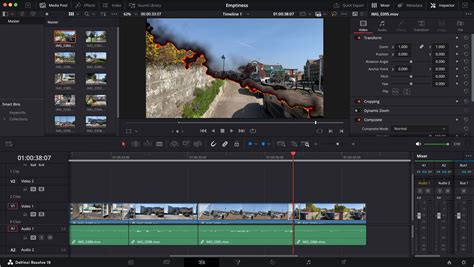
Navigating DaVinci Resolve's Linux Ecosystem
Historically, DaVinci Resolve's Linux compatibility was quite stringent, demanding specific versions of Linux distributions and meticulously configured graphics card drivers. This approach proved impractical for many users who already had established desktop environments like Ubuntu Linux. Furthermore, early support was primarily focused on NVIDIA GPUs and their proprietary drivers, which, while performant, limited options for users with different hardware.
The landscape has evolved, and while challenges remain, a more accessible path to using DaVinci Resolve on Linux is emerging. This tutorial aims to guide you through the intricacies of setting up and optimizing DaVinci Resolve for your Linux workflow, addressing common hurdles and providing practical solutions.
Hardware and Driver Considerations: The GPU Imperative
The performance and stability of DaVinci Resolve are intrinsically linked to your system's graphics processing unit (GPU) and its drivers. For users with NVIDIA GPUs, proprietary drivers are generally recommended for optimal performance. These drivers offer robust CUDA support, which DaVinci Resolve leverages for accelerated rendering and processing.
For users with AMD GPUs, the situation is more nuanced. DaVinci Resolve for AMD utilizes OpenCL to accelerate video features, particularly during rendering. While AMD's efforts with ROCm, their open-source compute and AI stack for Linux, have faced criticism, it's important to note that ROCm does provide stable and supported GPU OpenCL drivers and libraries for AMD RDNA, RDNA 2, and RDNA 3 consumer cards. The official instructions for installing the latest version of ROCm on Ubuntu can be found via their documentation. The installer now includes configuration options tailored for various use cases beyond just AI/ML, with HIP, graphics, and OpenCL being the most relevant for desktop media editing.
It's crucial to ensure your chosen GPU drivers are correctly installed and compatible with the version of DaVinci Resolve you intend to use. Outdated or improperly configured drivers are a common source of crashes and performance issues.
Installation Pathways: From Distribution to Deployment
Installing DaVinci Resolve on Linux is not always a straightforward process, and the method of installation can significantly impact your experience. While Blackmagic Design officially supports CentOS and Rocky Linux, and even provides an ISO for Rocky Linux 8, many users opt for more popular distributions like Ubuntu, Fedora, or Arch Linux.
Distribution-Specific Approaches
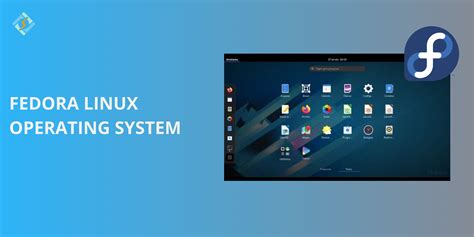
Fedora (NVIDIA): Fedora, being a Red Hat-based distribution, often offers a smoother experience for NVIDIA users. The key is to ensure RPM Fusion is enabled and that you have the correct NVIDIA drivers, including the CUDA driver, installed. The process typically involves downloading the DaVinci Resolve installer from Blackmagic Design, making it executable, and running it.
Debian/Ubuntu (NVIDIA): For Debian-based systems like Ubuntu, a popular method involves using a script like
makeresolvedeb. This script converts the official DaVinci Resolve.runinstaller into a.debpackage, which can then be installed usingdpkg. This approach can streamline the installation and better integrate Resolve into the system's package management. You'll need to ensure you have the necessary dependencies, including NVIDIA drivers and OpenCL ICD.Arch Linux (NVIDIA and AMD): Arch Linux, known for its rolling release model and the Arch User Repository (AUR), offers flexible installation options. For AMD GPUs, installing
amdgpu-pro-libglandopencl-amdfrom the AUR is a common starting point. For NVIDIA,nvidia,nvidia-utils, andopencl-nvidiaare typically installed. DaVinci Resolve itself can then be installed from the AUR, often asdavinci-resolvefor the free version ordavinci-resolve-studiofor the paid version. A critical step for AMD users on Arch often involves launching Resolve with theproglcommand or modifying the.desktopfile to include it, ensuring proper OpenCL driver integration.
The Distrobox Solution
A growing number of users are finding success by employing Distrobox. Distrobox allows you to run a separate Linux distribution within a container on your host system. This is particularly useful because DaVinci Resolve can be quite particular about its environment. By creating a Distrobox container with a recommended distribution (like an older Ubuntu version or even Rocky Linux), you can isolate Resolve and its dependencies, potentially avoiding conflicts with your host system's libraries. Projects like "DavinciBox" on GitHub leverage Distrobox to create pre-configured containers specifically tailored for DaVinci Resolve, simplifying the setup process considerably.

Overcoming Common Challenges and Library Conflicts
One of the most persistent issues when installing DaVinci Resolve on Linux revolves around linked libraries. DaVinci Resolve bundles many of its own libraries within its installation directory (often under /opt/resolve/libs). However, it may still attempt to use system libraries, leading to version conflicts or incompatibilities.
Library Management Strategies
- Relocating Bundled Libraries: A common workaround involves moving the libraries that DaVinci Resolve bundles with its installation out of its path. This forces the application to use the system's installed libraries instead. While this can resolve some startup issues, it's a delicate process and may introduce new problems if the system libraries are not compatible.
- Using Older Libraries: In some cases, newer versions of distributions might have updated libraries that conflict with DaVinci Resolve. Users have reported success by manually installing older versions of specific libraries or by using tools that can manage library versions within a project or container. For instance, even on newer Ubuntu versions, older libraries from previous releases might still function correctly.
- AppImage: While not officially supported for DaVinci Resolve, the AppImage format is a universal package format that bundles applications with their dependencies. Some community efforts may explore creating AppImages for Resolve, which could simplify deployment by including all necessary libraries within a single executable file.
Audio and Video Codec Woes
The free version of DaVinci Resolve on Linux has notoriously limited video codec support compared to its Windows and macOS counterparts. This means that many common video formats, especially those using compressed codecs, may not import correctly.
Supported Codecs: DNxHD and ProRes are two codecs that are known to work reliably on Linux with DaVinci Resolve. For other formats, you'll likely need to transcode them before importing.
Transcoding with FFmpeg: The powerful command-line tool
ffmpegis your best friend for handling codec issues. You can useffmpegto convert problematic video files into formats that DaVinci Resolve can understand. For batch conversions, you can combineffmpegwith shell scripting or tools like GNU Parallel for efficiency.Linux – How to Use FFmpeg to Convert Videos
AAC Audio Issues: Even the paid Studio version of DaVinci Resolve can encounter problems with importing AAC audio on Linux. This often requires manual conversion of the audio track to a more compatible format, such as Apple Lossless Audio Codec (ALAC) or FLAC.
H.264 Export Limitations: A significant limitation on Linux is the inability to export to H.264 directly from DaVinci Resolve. This means that features like integrated social media exports are non-functional. Manual transcoding after rendering is a necessary step for common social media platforms.
The AV1 Alternative
The reign of H.264 and H.265 (HEVC) as dominant video codecs has been a long one, but it has also led to licensing complexities and proprietary control. For those looking to embrace open and royalty-free solutions, AV1 is emerging as a powerful alternative. DaVinci Resolve's Studio version offers support for AV1, and its integration with software encoders like SVT-AV1, or hardware encoders via NVAPI, can provide efficient compression. Supporting and utilizing AV1 is a way to contribute to a more open video ecosystem.
User Interface and Workflow Tweaks
Beyond installation and technical hurdles, users often encounter smaller but significant issues related to the user interface and workflow on Linux.
UI Scaling and Readability
The DaVinci Resolve user interface is notoriously dark, with gray text on a gray background, which some users find difficult to read, especially in brightly lit environments. While the UI can be scaled to 100%, 150%, or 200%, changing this setting can sometimes be cumbersome, especially if you have a high-resolution display. Environment variables can be used to influence UI scaling, and some users have found success by adjusting system-level display scaling and then overriding it for Resolve.
Timeline Navigation Quirks
DaVinci Resolve's default keyboard modifier bindings for timeline zooming and scrolling can be unintuitive for some users. Disabling "2D scroll" in the User settings can remap the vertical mouse wheel to timeline scrolling, but this sacrifices the horizontal scroll function. Workarounds involving utilities like evsieve or IMWheel can help remap mouse wheel behavior for better timeline control, though these may require additional configuration.
Wayland and X11 Considerations
DaVinci Resolve's compatibility with Wayland, the modern display server protocol, can be inconsistent. Many users report that window decorations are invisible in Wayland sessions, forcing them to revert to X11 or XWayland for a functional graphical experience. The file picker also often fails to utilize XDG portals, leading to a less integrated file selection process.
Scripting and Automation
DaVinci Resolve supports scripting, which can be a powerful tool for automating repetitive tasks. The free version allows scripts to be launched only from within Resolve itself, while the Studio version enables external scripting. This can be particularly useful for tasks like batch file conversion or custom workflow integrations.
Licensing and DRM
For users of the Studio version, activating the license can sometimes be problematic on Linux. DaVinci Resolve employs a system that checks for unique identifiers on the machine, including the network card's MAC address and the system's machine-id. While theoretically designed to prevent unauthorized use, these checks can sometimes interfere with legitimate activations, especially in virtualized or network-configured environments. Minimizing network calls during activation and ensuring the machine-id is correctly set can help.
Troubleshooting Common Issues
- Crashing on Startup: If DaVinci Resolve crashes immediately upon launch, it's often due to missing libraries, incompatible GPU drivers, or issues with the bundled libraries. Examining the
ResolveDebug.txtlog file located in~/.local/share/DaVinciResolve/logs/can provide clues. - "Another instance is already running" Error: This can occur if a previous instance of Resolve didn't shut down cleanly. You may need to kill the lingering process using a system monitor or by running
pkill resolvein the terminal. Lock files in/tmpcan also cause this, and removing them may resolve the issue. - GPU Driver Errors: The message "The GPU failed to perform image processing because of an error" is a common indicator of GPU driver issues. Ensure your drivers are up-to-date and correctly installed. For NVIDIA cards in "on-demand" mode, you might need to explicitly select the GPU.
- Font Rendering Issues: DaVinci Resolve primarily looks for fonts in system-wide directories (
/usr/share/fontsand/usr/local/share/fonts). If your custom fonts aren't appearing, ensure they are installed in one of these locations, or create symbolic links to them.
Linux – How to Use FFmpeg to Convert Videos
The Path Forward: A Rewarding Workflow
Despite the initial learning curve and the occasional troubleshooting required, successfully installing and configuring DaVinci Resolve on Linux can lead to a highly rewarding and efficient video editing workflow. The platform's growing support, coupled with community-driven solutions and powerful tools like Distrobox and FFmpeg, makes it an increasingly viable and attractive option for content creators. By understanding the specific requirements and employing the strategies outlined in this tutorial, you can unlock the full potential of this professional-grade video editor on your Linux system and join the ranks of those creating stunning visuals on their preferred operating system.