In the dynamic world of video content creation, removing the background from videos has become a crucial aspect. This process opens up a realm of possibilities, allowing creators to enhance the visual appeal of their content. Traditionally, achieving this effect often involved the cumbersome and logistically challenging use of green screens. However, the advent of artificial intelligence has significantly impacted the field of video editing, offering more accessible and efficient solutions. PowerDirector stands out as a leading application in this domain, empowering video editors of all experience levels to create stunning content effortlessly. This tutorial will guide you through the process of removing backgrounds using PowerDirector, a process made remarkably simple by its cutting-edge AI technology.
The Power of AI in Video Background Removal
The evolution of video editing software has been dramatically shaped by advancements in artificial intelligence. AI-powered tools have revolutionized tasks that were once complex and time-consuming. For background removal, this means that instead of meticulously masking every frame or relying on physical green screens, software can now intelligently identify and isolate subjects within a video. This technology not only simplifies the process but also opens up creative avenues previously inaccessible to many.
Traditional Methods vs. AI-Powered Solutions
Removing backgrounds traditionally required the use of green screens, posing logistical challenges and limitations. This involved setting up a specific colored backdrop, often green or blue, and then using editing software to key out that color, making it transparent. This method demanded proper lighting to ensure even color saturation and could still result in edge artifacts or spill from the green screen onto the subject.
The advent of AI has significantly impacted the field of video editing by offering a more streamlined and versatile approach. AI-powered video background removal tools leverage machine learning algorithms trained on vast datasets of images and videos. These algorithms can recognize and differentiate between subjects and backgrounds with remarkable accuracy, even without a uniform colored background. This eliminates the need for specialized equipment and provides greater flexibility in shooting locations and conditions.

Introducing PowerDirector: Your Top Choice for Background Removal
When it comes to video background removal, PowerDirector emerges as our top choice. This application is recognized as the best free video background remover due to its user-friendly interface and cutting-edge AI technology. With PowerDirector, you can quickly remove your video background with just one tap. This app is amazing for creating custom videos. It’s packed with fun features, such as adding text, graphics, stickers, and overlays to your videos, making it a comprehensive tool for content creators.
PowerDirector empowers video editors of all experience levels to create stunning content effortlessly. Its intuitive design ensures that even beginners can achieve professional-looking results. The application's AI technology allows users to easily remove video backgrounds in a single tap of the finger, making the entire process incredibly quick.
Key Features of PowerDirector for Background Removal
- One-Tap Background Removal: The core AI feature allows for instantaneous background removal around the human subject.
- User-Friendly Interface: Designed for ease of use, making it accessible for all skill levels.
- Versatile Editing Tools: Beyond background removal, it offers features for adding text, graphics, stickers, and overlays.
- Cross-Platform Availability: Downloadable on both the App Store (iOS) and Google Play Store (Android).
- Free to Use: PowerDirector is a completely free app, removing a significant barrier to entry for aspiring video editors.
Step-by-Step Guide: Removing Backgrounds with PowerDirector
Are you ready to learn how to remove a background from a video? If so, we’re here to help. The process is designed to be straightforward, leveraging PowerDirector's intuitive interface.
Step 1: Download and Install PowerDirector
The first step to take when you want to remove a background from a video is to download PowerDirector. You can download it in the App Store for iOS devices or the Google Play Store for Android devices. Ensure you have a stable internet connection for the download and installation process.
Step 2: Import Your Video
Once you’ve opened PowerDirector, import the video you shot from your album. Navigate to your device's media library and select the video clip you wish to edit.
Step 3: Access the Cutout Tool
The method for accessing the Cutout tool varies slightly between iOS and Android versions of PowerDirector.
- For iOS users: Your uploaded video clip will automatically be the main track. Tap on the clip to select it, and then slide your finger to the right along the editing timeline or options bar to find and select the "Cutout" tool.
- For Android users: After adding the background to the main track, for the first layer, you can add the video clip with the background you want to remove. Tap on the clip to select it, and then slide your finger to the right along the editing timeline or options bar to find and choose the "Cutout" tool.
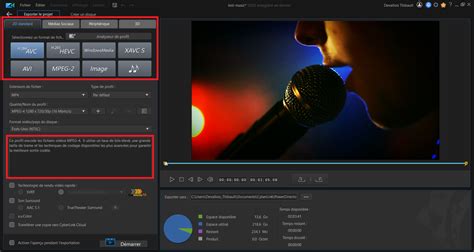
Step 4: Remove the Background
With the Cutout tool selected, PowerDirector's AI will automatically process the video. The background will automatically be cut out around the human subject. This process is designed to be highly efficient, often completing in a matter of seconds depending on the video's length and complexity.
Step 5: Apply New Backgrounds (Optional)
Now that you’ve removed your unwanted background, you can apply different backgrounds to your video. PowerDirector offers a library of stock backgrounds, or you can import your own images or videos to use as a new backdrop. This is where the creative possibilities truly open up. You can place your subject in exotic locations, on a stage, or even against abstract designs.
Step 6: Save and Share Your Video
Once you’re satisfied with your edited video, it’s time to save your work. PowerDirector allows you to export your video in various resolutions and formats. After saving, you can upload your newly enhanced video to your social media platforms or share it with friends and colleagues.
Exploring Other Background Removal Options
While PowerDirector is a leading choice, it's helpful to be aware of other applications that offer similar functionalities. Each app has its unique strengths and may appeal to different users based on their specific needs and preferences.
Vivid Glam: AI Technology and Beautification
Vivid Glam harnesses the latest AI technology, making it a top choice for flawless video background removal. But Vivid Glam isn’t just about background removal; it’s also highly regarded as a leading beautification app. This dual functionality makes it a compelling option for creators who want to enhance both the setting and the appearance of their subjects.
CapCut: A Versatile Editing Suite
CapCut is another popular app option to remove a video background. With this app, you can not only remove video backgrounds but also add text and effects to your video, making it a versatile tool for quick edits and social media content. Its user-friendly interface and extensive library of effects contribute to its popularity.
Media.io: A Simple Yet Powerful Solution
Media.io provides a simple yet powerful solution for removing backgrounds from videos. It is often praised for its straightforward approach, making it accessible for users who prefer a no-fuss editing experience.
Video Background Remover (Android): Dedicated Functionality
Video Background Remover is an app available on Android that allows you to easily remove the background from a video or photo, with or without a green screen. Simply upload your video, and the app will take care of the rest. This app focuses specifically on background removal, offering a dedicated tool for this particular task.
Frequently Asked Questions About Video Background Removal
To further clarify the process and capabilities of background removal, let's address some common questions.
Is Background Removal Suitable for All Types of Videos?
Yes, background removal is suitable for a wide range of video types. It is particularly effective for videos featuring a clear subject, such as interviews, vlogs, product demonstrations, and even green screen footage. However, the effectiveness can depend on the complexity of the background and the clarity of the subject. Videos with very busy or similar-colored backgrounds to the subject might present more challenges.
Do AI-powered Video Background Removal Tools Work in Real-time?
While the processing time may vary based on the complexity of the video, some tools like PowerDirector offer near real-time background removal. The AI processes the video quickly, and for shorter clips, the results can appear almost instantaneous. For longer or more complex videos, there might be a short processing period, but it's significantly faster than traditional manual methods.
Can I Remove Video Backgrounds with an App?
Absolutely. As demonstrated with PowerDirector and other mentioned applications like CapCut and Vivid Glam, removing video backgrounds with a mobile app is not only possible but has become increasingly easy and effective due to advancements in AI technology.
How To Remove Video Backgrounds For Free?
PowerDirector stands out as a top choice for removing video backgrounds for free. Its core AI background removal feature is available without any cost, making professional-level editing accessible to everyone. Other free apps and online tools also exist, though they may have limitations in features or quality.
What Is the Easiest Way To Remove Video Backgrounds?
The easiest way to remove video backgrounds is by using an AI-powered application like PowerDirector. These tools automate the complex masking process, allowing for background removal with minimal user input, often with just a single tap.
Can Background Removal Be Undone If I'm Not Satisfied with the Results?
Yes, most video background removers, including PowerDirector, allow users to preview and make adjustments before finalizing the edited video. You can typically revert to the original footage or make further refinements. For example, in PhotoDirector (a related application from CyberLink, the makers of PowerDirector), you can tap "None" or the return icon to get the original footage if you're not satisfied with the results of an edit. This non-destructive editing approach ensures you can experiment and achieve the best outcome.
tags: #powerdirector #remove #background