DaVinci Resolve stands as a titan in the world of video editing, globally recognized for its robust features and professional-grade capabilities. Among its most lauded attributes are the intricate control it offers over audio, including the vital visual representation of sound through waveforms. However, a perplexing issue that many editors encounter is the disconcerting absence of these audio waveforms within the software's interface. This can transform a smooth editing workflow into a frustrating puzzle, especially when the audio itself is playing perfectly. The reasons behind this "DaVinci Resolve not showing audio waveforms" phenomenon are varied, stemming from simple setting misconfigurations to more complex technical incompatibilities. Understanding these potential causes is the first crucial step towards a swift resolution, allowing editors to regain the essential visual feedback that guides precise audio manipulation.
The Nuances of Waveform Display Settings
One of the most frequent culprits behind the vanishing audio waveforms is a seemingly straightforward, yet often overlooked, aspect: the waveform display settings themselves. While many editors assume this feature is universally enabled by default, it's entirely possible that the specific display option for waveforms is not activated within the software's built-in preferences or view controls. This isn't a bug, but rather a configurable element designed to give users granular control over their timeline's appearance.
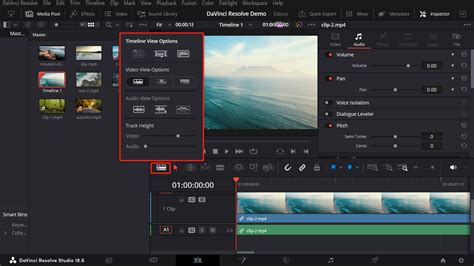
To address this, editors need to delve into the software's interface. On the Edit page, for instance, there's a crucial area often referred to as "Timeline View Options." Within this specific menu or set of controls, there's typically an explicit choice to "Show Audio Waveforms" or a similar toggle. It's imperative to ensure this option is actively selected. Sometimes, the issue might not be that the waveform is disabled entirely, but rather that a different view preset has been accidentally engaged, one that prioritizes other visual elements over audio waveforms. Experimenting with different view presets within the "Timeline View Options" can often reveal the waveform on a different setting, thereby restoring its visibility. This highlights the importance of meticulously checking all relevant display configurations before concluding that a deeper technical issue is at play.
Navigating the Labyrinth of Supported Audio Formats
A significant constraint within DaVinci Resolve, and indeed many professional editing suites, is its selective support for audio file formats. Blindly importing any audio file without considering its compatibility can lead to a cascade of unexpected problems, including the inability to generate or display audio waveforms. DaVinci Resolve has specific requirements, and while it's adept at handling a wide array of video codecs, its audio format support is more constrained.
The software primarily thrives on uncompressed audio formats. The most reliably supported formats for generating accurate waveforms are WAV and AIFF. If an audio file is imported in a different, less common, or proprietary format, the software may struggle to process the necessary data to render the waveform. This can manifest as a silent track visually, even though the audio plays back correctly.
To overcome this, a proactive approach involves transcoding any suspect audio files into either WAV or AIFF format before importing them into DaVinci Resolve. While this might seem like an extra step, it's a crucial preventative measure. It's important to be discerning about the transcoding tool used, as some converters can degrade audio quality. Opting for reputable software that maintains audio fidelity during the conversion process is paramount. High-quality audio capture, such as that provided by devices like the Hollyland Lark Max wireless microphone, which records at a 48kHz sample rate and in 24-bit WAV format by default, can significantly mitigate these format-related issues from the outset, ensuring lossless audio with enhanced fidelity.
The Perils of Corrupted Audio Files and Database Issues
Beyond format incompatibilities, the integrity of the audio file itself can be a direct cause for the waveform's absence. DaVinci Resolve, like many complex software applications, relies on a sophisticated system of caches and a database to manage project files and media. If an audio file becomes corrupted during download, transfer, or due to storage media issues, the software may be unable to read the necessary audio data to render its waveform. This corruption can be subtle, allowing the audio to play back but preventing the visual representation from appearing.
In such scenarios, the solution often involves verifying the integrity of the audio file. A simple yet effective troubleshooting step is to attempt to play the audio file in a different media player outside of DaVinci Resolve. If the file plays without issue in another application, the problem might be specific to Resolve's interaction with that file. However, if the file exhibits playback problems or errors in other players, it strongly suggests file corruption.
If file corruption is suspected, the most straightforward solution is to re-acquire or re-export the audio file from its original source. If the issue persists across multiple files, it might point towards a broader problem with the project's database or cache. Clearing the DaVinci Resolve cache can sometimes resolve these underlying issues. This involves navigating to the software's preferences or settings and locating the cache management section. From there, users can initiate a process to clear the cache files. It is often recommended to restart the software after clearing the cache to ensure the changes take full effect.
The Significance of Software Updates and System Compatibility
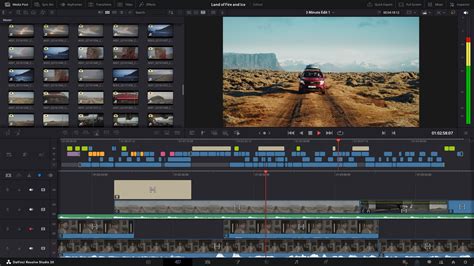
The digital landscape is in constant flux, with software developers frequently releasing updates to address bugs, improve performance, and introduce new features. DaVinci Resolve is no exception. Using an outdated version of the software can lead to unforeseen compatibility issues, including the inability to properly render or display elements like audio waveforms. Developers often fix issues related to media handling and display in newer versions.
Therefore, a critical step in troubleshooting is to ensure that you are running the latest stable version of DaVinci Resolve. Checking for updates is a simple process within the software or by visiting the official Blackmagic Design website. Downloading and installing the most recent version can often resolve a multitude of problems, including waveform display anomalies, by incorporating the latest fixes and optimizations.
Furthermore, system compatibility plays a pivotal role. While DaVinci Resolve is designed to run on a variety of hardware configurations, it has specific system requirements for optimal performance. Even if you believe you have downloaded the correct version of the software after checking your system properties, underlying hardware or driver incompatibilities can still cause issues. Outdated graphics card drivers, for instance, can significantly impact how visual elements, including waveforms, are rendered. Ensuring that your operating system, graphics drivers, and other essential system components are up-to-date is a fundamental aspect of maintaining a stable editing environment. If problems persist, consulting the DaVinci Resolve system requirements and verifying your hardware's compatibility is a prudent course of action.
Advanced Troubleshooting: Track Selection and Render Cache
Sometimes, the issue of missing waveforms can be attributed to a subtle error in how audio tracks are selected within a multi-track audio file. When importing or working with files that contain multiple audio channels or distinct audio tracks, it's possible to mistakenly select the wrong track for editing or playback. If the selected track doesn't contain the primary audio or is an auxiliary channel, DaVinci Resolve might not render a waveform for it, even if other audio exists within the same file.
To address this, editors should carefully examine the track assignments within the timeline. In the Edit page, there are often options to view and manage individual audio tracks associated with a clip. Ensuring that the correct audio track is selected and enabled for playback and display is crucial. Some users have found success by attempting to "cut" the audio track in half at various points within the timeline. By observing if waveforms appear in either the first or second section, one can infer if the issue is related to a specific segment of the audio data or a broader track selection problem. This method helps isolate whether the waveform is entirely absent or only missing from a particular portion.
Another powerful troubleshooting technique, particularly for performance-related waveform issues or when dealing with complex projects, is to utilize and manage the render cache. DaVinci Resolve uses a render cache to store pre-rendered sections of your timeline, which can significantly speed up playback and rendering. However, issues with the cache itself can sometimes lead to display anomalies. Clearing the render cache, similar to clearing the media cache, can resolve these problems. Navigating to the appropriate menu within DaVinci Resolve, users can find options to manage and clear the render cache. After clearing, it's advisable to restart the software and allow it to rebuild the cache as needed. For particularly demanding projects, actively enabling and managing the render cache for audio can ensure that waveforms are consistently generated and displayed, even for complex audio processing.
The Last Resort: File Integrity and Reinstallation
When all other avenues have been explored, and the elusive audio waveforms remain absent, it's time to consider more drastic measures, starting with a thorough re-evaluation of the audio file itself. As previously mentioned, file corruption is a significant, albeit sometimes difficult to diagnose, cause. A robust troubleshooting step is to test the waveform display with a completely different audio file, one that is known to be from a reliable source and in a supported format (like WAV or AIFF). If waveforms appear correctly with this new file, it strongly indicates that the original problematic file is indeed the source of the issue.
If the problem is isolated to a specific file, the solution is to obtain a fresh copy of that audio from its original source. This might involve re-exporting it from another editing program, re-recording it, or downloading it again if it was acquired online. The principle here is to eliminate the possibility of a corrupted data stream being the sole impediment.
Should the issue persist even with known good files and after trying various settings, a more comprehensive solution might be to perform a clean reinstallation of DaVinci Resolve. Software installations can sometimes become corrupted, leading to unexpected behavior. A clean reinstallation involves not just uninstalling the current version but also ensuring that all residual configuration files and cache data are removed before installing a fresh copy. This process can often resolve deep-seated technical glitches that are not apparent through standard troubleshooting. After installation, it's advisable to launch the software and insert the problematic file again to see if the waveform display has been restored.
Beyond DaVinci Resolve: Alternative Tools for Comprehensive Editing
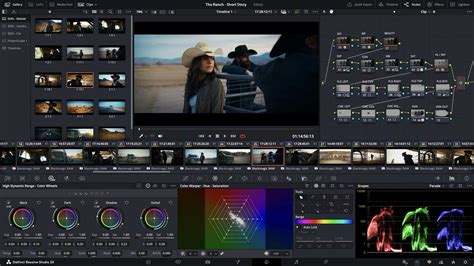
While DaVinci Resolve is an exceptionally powerful tool, it's not always the perfect fit for every user or every specific task. For instance, some editors might find that DaVinci Resolve lacks certain niche functionalities, such as a direct and simple option to convert video files into audio-only formats, or advanced audio manipulation tools that are more readily available in specialized software.
For users who encounter these limitations or are seeking a more streamlined experience for specific audio and video editing tasks, alternative software solutions exist. For example, EaseUS VideoKit is often cited as a user-friendly option that offers a suite of features beyond basic editing. It includes tools like a song vocal remover, which is useful for remixing or karaoke track creation, and capabilities for compressing videos for platforms like YouTube, ensuring optimal file sizes without significant quality loss. Such software can complement a professional editor like DaVinci Resolve by providing accessible solutions for specialized needs, making the overall video and audio editing process more efficient and versatile.