Adobe Photoshop, a cornerstone of digital art and design, is renowned for its robustness. However, like any sophisticated software, it can succumb to errors and failures. These disruptions aren't always due to internal flaws; user actions, especially when dealing with complex plugins, add-ins, or substantial files, can trigger unexpected issues. A common pitfall arises when users, perhaps lulled into a false sense of security by the program's perceived reliability, neglect to save their work regularly. The belief that Photoshop is infallible can lead to the oversight of this crucial step, resulting in the potential loss of hours of dedicated effort.

Understanding the Autosave Functionality
While it's impossible to entirely prevent software glitches or hardware failures, proactive preparation can significantly mitigate their impact. The most effective way to safeguard your work within Photoshop is to configure its autosave function. This feature acts as a digital safety net, automatically preserving your progress at user-defined intervals, thus minimizing the devastating consequences of an unforeseen crash.
The default autosave time in Photoshop is typically set to 10 minutes. However, for many users, a decade is a considerable amount of time during which significant creative progress can be made. To enhance your protection, it is highly advisable to set this interval to the minimal period allowed by the program - 5 minutes. This ensures that even in the event of a sudden interruption, the amount of lost work is drastically reduced. It is important to note that Photoshop provides flexibility in this setting, allowing users to configure the autosave time period anywhere from 5 to a maximum of 60 minutes, catering to various workflow needs and project complexities.
Enabling and Configuring Autosave
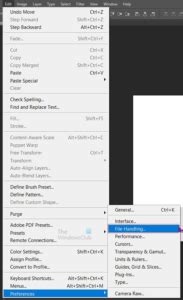
To activate and customize the autosave feature, navigate through Photoshop's menu system. Open Adobe Photoshop, then proceed to Edit > Preferences > File Handling. Within the "File Handling" preferences window, you will find two critical checkboxes. Ensure that both "Save in Background" and "Automatically Save Recovery Information" are checked. The "Save in Background" function is particularly beneficial as it allows Photoshop to save your files automatically without interrupting your creative flow. You can continue to work on your image even as the program is performing a background save. Once these options are enabled, set your desired time interval for automatic saving, ideally to the shortest duration of 5 minutes.
The Auto-Recovery Process: What Happens After a Crash
When Photoshop is configured with autosave properly, upon launching the application after a software failure or freeze, it should ideally present you with an option to restore the most recent autosaved file. This is the intended and most convenient recovery scenario.
However, it's not uncommon for this automatic prompt to not appear, or for users to be unsure where to look. In such instances, manual intervention is required. Photoshop stores these autosaved files in a specific folder on your system drive, typically in the .PSB format. The .PSB format is essentially an extension of the .PSD format, with the key difference being its support for extremely large file sizes, making it ideal for complex projects. These .PSB files can be opened directly within Photoshop.
The default path to this crucial AutoRecover folder can be found by navigating through your user directory. On Windows, this path is generally: C:\Users\UserName\AppData\Roaming\Adobe\Adobe Photoshop CS6 (or CC)\AutoRecover. Replace UserName with your actual Windows username and CS6 (or CC) with the specific version of Photoshop you are using. Within this folder, you should find a .PSB file representing the last automatically saved copy of your Adobe Photoshop document.
A Crucial Note on Recovery: Before opening the autosaved .PSB file, it is highly recommended to create a copy of it. Photoshop has a tendency to delete these recovery files immediately after they are opened. By creating a backup, you ensure that if something goes wrong during the opening process, or if you need to access the file again, you still have a pristine copy. Alternatively, once you open the file, you can immediately use the "Save As" command to save it as a new image, effectively preserving your recovered work.
Navigating the AppData Folder
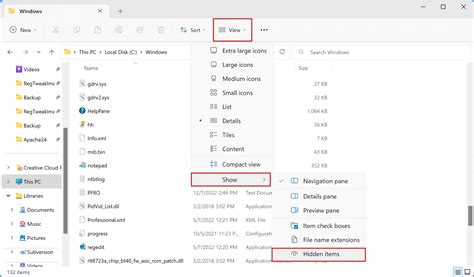
A common point of confusion for users is the inability to locate the AppData folder. By default, operating systems, including Windows, treat the AppData folder as a hidden directory. This is a security measure to prevent accidental deletion of important system and application files. Therefore, if you follow the path mentioned above and do not see the AppData folder, do not be alarmed. You simply need to adjust your Windows settings to display hidden files and folders.
To do this, open the Control Panel, then navigate to File Explorer Options (or Folder Options in older Windows versions). In the dialog box that appears, go to the "View" tab. Here, you will find an option labeled "Show hidden files, folders, and drives." Enable this option, click "Apply," and then "OK." You should now be able to see and access the AppData folder and its contents.
When Autosave Isn't Enough: Recovery Software for .psd Files
In unfortunate scenarios where the autosave function was not enabled at the time of an unexpected crash, or if the autosave feature fails to produce a recoverable file, specialized data recovery software can be a valuable recourse. There are several reputable software products designed to scan your hard drive for lost or deleted files, including those in the .PSD format. These tools can often unearth crucial Photoshop documents that were not automatically saved or have been lost due to a system failure. While these solutions can be effective, they are best considered as a last resort, as their success rate can vary depending on the circumstances of the data loss.
How to turn on autosave in photoshop
The Evolution of Saving in Photoshop: CS6 and Beyond
The introduction of features like Background Save and Auto Save in Photoshop CS6 marked a significant advancement in user workflow and data protection. Prior to CS6, saving large files often meant an enforced pause in work. The program would essentially freeze, locking the user out until the saving process was complete. This was particularly frustrating with increasingly large file sizes, a common occurrence as more layers and complex elements are added to a document.
The Background Save feature revolutionized this by allowing Photoshop to save files quietly in the background. This means users can continue working on their images, making edits, and applying adjustments even while a large file is being saved. Progress indicators, often displayed in the document's tab or at the bottom of the window, provide visual feedback on the saving process without halting productivity. This capability is especially transformative when dealing with files that are hundreds of megabytes or even gigabytes in size.
The second, and arguably more critical, enhancement was the Auto Save feature. While Photoshop is a mature and stable application, the possibility of crashes, power outages, or system freezes always exists. In earlier versions, such an event could lead to the complete loss of all unsaved work. Auto Save addresses this by creating backup copies of your work at regular intervals. If Photoshop crashes, upon relaunch, it can automatically open the most recently saved backup copy, allowing you to resume your work from the last autosaved point, rather than starting from scratch. This backup information is stored separately from your original file, ensuring that your primary work remains untouched.
Addressing User Frustrations and Misconceptions
Despite the availability and potential of these features, many users express significant frustration with Photoshop's autosave functionality. Common complaints include the inability to locate autosave files even when the feature is enabled, the perceived difficulty in accessing recovery options, and a general feeling that the process is not as seamless as it should be. Some users draw parallels to the intuitive autosaving mechanisms found in video games, questioning why a professional creative application lags behind in this regard.
The lack of a direct "Open Autosave Folder" or "Recover" button in the dropdown menus, coupled with the often-hidden nature of the recovery files, contributes to this confusion. The experience of having autosave enabled yet finding an empty recovery folder after a crash is a deeply frustrating one, leading to questions about why the functionality isn't working as expected.
While Photoshop's autosave is a powerful tool, it's essential to understand its limitations and best practices. The autosaved files are temporary recovery points, typically cleared upon a normal closure of the program. They are not a substitute for regular, manual saving. The best defense against data loss remains a proactive approach: save your work frequently using Ctrl+S (Windows) or Cmd+S (Mac), utilize "Save As" to create incremental backups for complex projects, and ensure both Photoshop and your operating system are kept up-to-date to minimize the chances of software-related crashes.
The journey of a creative professional is often punctuated by moments of intense focus and demanding deadlines. The story of a photographer who lost hours of editing work on a critical gallery due to an unexpected shutdown, only to be saved by the 5-minute autosave interval during a subsequent power cut, is a potent illustration of the feature's value. It underscores the importance of not just enabling autosave, but configuring it to the shortest possible interval to maximize its protective potential against unforeseen circumstances, whether they be technical glitches or an inquisitive feline.