Editing photos one by one is tedious, especially when working with hundreds of images from events, vacations, or product shoots. Whether you’re a professional photographer or a hobbyist, knowing how to edit a batch of photos at once can save hours of work. Batch editing refers to applying the same adjustments (e.g., exposure, color correction, filters) to multiple photos simultaneously. This approach is a game-changer for anyone working with large volumes of photos, significantly cutting down editing time and improving workflow efficiency.
The Power of Batch Editing
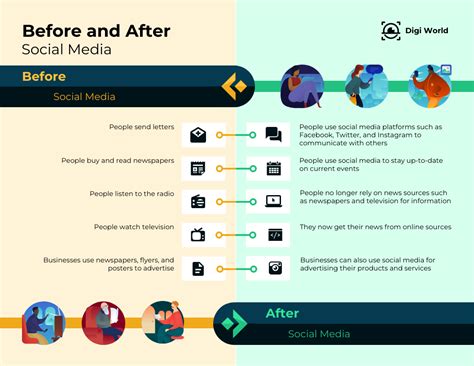
In an era where visuals dictate the pace of commerce and creativity, the ability to efficiently process large numbers of images is paramount. Batch editing allows users to apply the same action, edit, or effect to several images simultaneously. This is particularly beneficial for content creators and photo editors who often have numerous images to alter and beautify for a single project. Ultimately, batch editing is an excellent tool to cut down your editing time, potentially reducing your workflow by up to 70%.
Saving Time and Effort
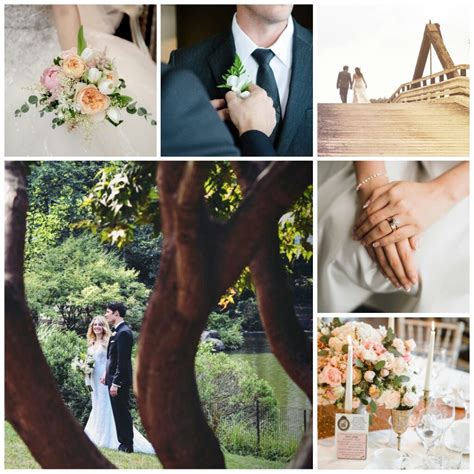
Editing photos individually can be an incredibly time-consuming process. Imagine the hours spent adjusting exposure, white balance, saturation, and applying filters to hundreds of photos from a wedding, a large event, or a product catalog. Pixlr's innovative Batch Editor is designed to tackle this very challenge. With this feature, users can now apply modifications and adjustments to hundreds of images at once, saving you the time and effort of editing them one by one. This means more time for creative work, client interaction, or simply enjoying your photography.
Consistency for Branding and Online Presence
In the realm of branding and online presence, consistency is key. To stand out and leave a long-lasting impression on your audience, both your personal and professional branding must exude consistency, meaning all visual elements should be within the same style. Pixlr’s Batch Editor helps guarantee that every picture you post on your social media feed is not only beautified but also asserts your unique personality and brand identity. This ensures a cohesive and professional look across all your platforms.
Enhancing Product Photography for E-commerce
Online sellers and small business owners constantly face the challenge of posting high-quality images of their products. First impressions are often a deciding factor in online shopping, making it crucial to have the right set of images that can truly capture the attention of the target demographic. Pixlr’s Batch Editor is an invaluable tool for this purpose. Users can apply the same ratio by cropping and resizing hundreds of their product images with just one click. This ensures a uniform and professional presentation of products, which can significantly impact sales.
Furthermore, the AI-powered Batch Editor allows you to upload all your product images and use the Resize feature to create uniform dimensions for your e-commerce platform. You can adjust sharpness and contrast to make product details stand out, and enhance colors to reflect the true appearance of your items. Using the Auto fix for a quick enhancement and exporting images in WebP format can optimize loading speed without compromising quality, a critical factor for online retail.
Standardizing Real Estate Imagery
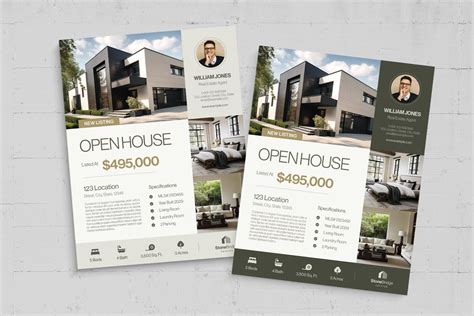
The real estate industry also benefits greatly from batch editing. Realtors are often expected to post standardized, high-quality images of properties to gain the trust of potential clients. Beautiful, wide-angled pictures are essential in attracting more buyers. When these images are edited in the same way, it ensures a consistent and professional look, fostering a sense of security and stability for potential buyers. Pixlr’s Batch Editor simplifies this process, allowing realtors to maintain a high standard across all their property listings.
How to Use Pixlr's Batch Editor
Getting started with Pixlr's Batch Editor is straightforward. The tool is accessible online, meaning you don't need to download any software.
Access Pixlr E: Navigate to the Pixlr website and select Pixlr E.
Locate Batch Edit: Once on Pixlr E's homepage, you will find the "Batch Edit" option located under the "Open Image" button. Click on it.
Upload Your Images: You will be directed to the batch editing page. Here, you can choose the images you wish to include in your batch. Pixlr allows you to upload a significant number of photos, often up to 100 at a time, making it efficient for large projects.
Apply Edits: Pixlr offers a wide selection of editing choices that are available for batch editing.
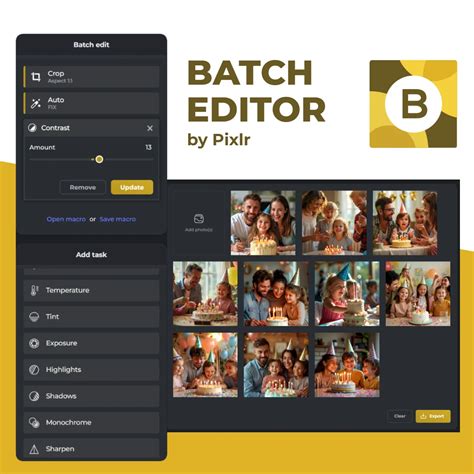
- Cropping and Resizing: With the Crop tool, you can apply a preferred ratio to all your images in just one click. The Resize option allows you to adjust the images according to a customized height or width you set, or fit them to a provided size ratio. This is perfect for ensuring all images meet specific platform requirements, like 1:1 for Instagram posts or 9:16 for stories.
- Adjustments: You can adjust brightness to lighten or darken your images and balance the lighting perfectly with exposure adjustments. For enhancing your batch of images, take a look at the variety of tools Pixlr has to offer. You can also enhance colors, adjust lighting, and add effects with just a few clicks. Want sharper, clearer photos? Just use the slider to enhance clarity and sharpness. Need a smoother look? You can even add a soft, artistic blur or give your photos a vintage feel with a touch of grain.
- Effects and Aesthetics: To give your batch of images a whole new look, you can turn to the various effects Pixlr offers. For a melancholic undertone, try using the Monochrome effect. The Glamour effect, true to its name, gives an ethereal glow to elements within the image, making it look more sophisticated. If you'd like to give your images some additional elements or give them a certain look, you can rely on these functions by Pixlr. For instance, to achieve certain aesthetics, you may want to add some blurriness to the images, for which you can use the Blur tool and adjust it accordingly. You can also frame your photos in style with the border option.
- Auto Fix: For a quick enhancement, the Auto fix feature can automatically improve your images.
Advanced Features and Professional Application
Pixlr’s Batch Editor is not just for basic adjustments; it offers professional-grade tools that can significantly enhance your workflow.
Saving and Reusing Macros
A key feature that enhances the workflow for professionals, especially wedding photographers dealing with thousands of photos, is the ability to save and reuse macros. Once you have applied a series of adjustments that create your desired look, you can save these settings as a "macro" or preset. This ensures that each image in your batch maintains the same high quality and stylistic consistency. The next time you have a similar project, you can simply upload new images and apply the saved preset in one click.
To save your settings, once you are satisfied with your edits, look for an option to "Save Macro" or "Save Preset." This will store your adjustments, allowing you to import and apply them to future batches of photos effortlessly.
Tailored for Specific Industries
- Wedding Photographers: Pixlr’s Batch Photo Editor is perfect for professional wedding photographers who need to deal with thousands of photos after every event. The ability to save and reuse macros ensures each image has the same high quality and artistic vision.
- Social Media Managers: Social media managers produce a lot of content regularly. Pixlr’s Batch Photo Editor simplifies this process by allowing them to apply consistent edits across multiple posts, ensuring brand consistency and saving valuable time.
- E-commerce Sellers and Small Business Owners: As mentioned, these users can upload product images in bulk, resize them for uniformity, adjust sharpness and contrast, and enhance colors. Saving presets for product photography ensures a consistent brand image.
- Content Creators: Whether for blogs, websites, or marketing materials, content creators can use the Batch Editor to quickly process and stylize images, maintaining a consistent visual theme across their projects.
The AI-Powered Advantage
Pixlr's latest iteration includes an AI-powered Batch Editor, which further streamlines the editing process. This advanced tool can edit more than 100 images at once with ease. Users can utilize sliders to adjust clarity, colors, and effects, achieving professional results quickly. The AI assists in making intelligent adjustments, ensuring that even complex edits are applied uniformly and effectively across the entire batch.
Exporting Your Edited Images
Once you are satisfied with your batch edits, you can proceed to export your images. Pixlr allows you to choose the format that you desire, offering a range of options including JPG, PNG, and WEBP. This flexibility ensures that your edited photos are ready for any platform or purpose, from web use to print. Using formats like WebP can also help optimize loading speeds for web content without compromising on image quality.
Pixlr’s Batch Photo Editor is a testament to the power of modern editing software, offering a free, online, and professional-grade solution for anyone looking to improve their photo editing efficiency and output. With its intuitive interface, comprehensive toolset, and AI enhancements, it truly is a game-changer for managing and refining large volumes of visual content.