Canva, a widely recognized and accessible graphic design platform, has continuously evolved to meet the demands of its user base. Among the most anticipated and requested features was the implementation of a robust eyedropper tool. This tutorial delves into the intricacies of using Canva's eyedropper tool, explaining its functionality, benefits, and how it integrates with your design workflow. We will explore the underlying technology that enables this feature and address common user inquiries, ensuring a thorough understanding for both novice and experienced designers.
The Evolution of Color Selection in Digital Design
The ability to precisely select and apply colors has always been a cornerstone of effective visual design. Historically, designers relied on color palettes, HEX codes, RGB values, or manual color selection, which could be time-consuming and often led to inconsistencies. The desire for a more intuitive and efficient method of color acquisition has been a long-standing request within the design community. For web applications, directly implementing such a feature presented unique challenges, particularly concerning security and privacy.
Understanding the Eyedropper Tool's Functionality
The eyedropper tool, a staple in many traditional graphic design software, allows users to sample a color from any point on their screen and apply it to their design elements. In Canva, this functionality has been seamlessly integrated, empowering users to effortlessly match colors within their designs to specific elements, photographs, or even external content displayed on their screen.
The process is straightforward:
- Select the Element: First, click on the element within your Canva design whose color you wish to change. This could be text, a background, a shape, a border, a frame, a chart, or a gradient.
- Access the Color Panel: Locate and click on the color tile or color preview pane associated with that element. This is typically found on the editor toolbar, often appearing as a colored square or a paint roller icon for applying colors between elements.
- Initiate the Eyedropper: Within the color panel, you will find an option to "Add a new color" or a dedicated eyedropper icon. Clicking this will activate the eyedropper tool.
- Sample the Color: As you move your cursor over your design or other visible content on your screen, a magnifying glass will appear, indicating the precise pixel color that will be sampled. Hover over the desired color and click to select it.
This newfound ability to pick a color from any part of your design or external source significantly streamlines the process of maintaining color consistency across various design assets.
Behind the Scenes: The EyeDropper API
The implementation of the eyedropper tool in web applications like Canva is made possible by a new web API known as the EyeDropper API. This API was proposed and implemented to address the long-standing user request for a native color-picking tool within browsers. Previously, achieving this functionality often required more complex workarounds or was limited to desktop applications.
The EyeDropper API allows a web application to sample a color from the user's screen. However, its usage is intentionally restricted to user activation, such as within a click event handler. This security measure prevents malicious websites from surreptitiously capturing screen colors without explicit user consent. The API aims to provide a simple interface: the user only wants to give one pixel of color, and the API facilitates this.

Navigating Browser and App Compatibility
It's important to note that the availability of the eyedropper tool can vary depending on the browser and operating system. Currently, the EyeDropper API is supported by major browsers like Google Chrome and Microsoft Edge. This means that users can leverage the eyedropper tool directly within these browsers when accessing Canva.
Furthermore, Canva offers a dedicated computer app, and the eyedropper functionality is also available within this application, providing a consistent experience across platforms. However, it's worth mentioning that browser support can be a dynamic landscape, and compatibility on mobile devices has not been a primary focus for this API to date. Always ensure your browser is updated to the latest version to benefit from the most current API support.
Addressing Security and Privacy Concerns
The development and implementation of the EyeDropper API involved careful consideration of security and privacy concerns. A significant obstacle in bringing such a feature to the web platform was ensuring that it could not be exploited to gain unauthorized access to user information.
By default, when web resources are loaded, they often come with user cookies attached, which can contain sensitive information. The EyeDropper API is designed to mitigate these risks. It operates by allowing the user to select a color from the screen, but it is designed not to access or transmit any information from other origins beyond the color data itself. The API's implementation requires explicit user action, preventing covert screen scraping. The security and privacy considerations were a large obstacle, but the team implemented safeguards to ensure responsible usage.
Enhancing Your Design Workflow with the Eyedropper
The integration of the eyedropper tool into Canva offers several practical benefits for designers:
- Color Consistency: Effortlessly match colors from existing branding materials, photographs, or other design elements to ensure a cohesive look and feel across all your creations.
- Efficient Workflow: Reduce the time spent searching for specific color codes or manually trying to replicate shades. The eyedropper tool provides an immediate and accurate solution.
- Inspiration to Design: If you see a color you love in an image, on a website, or anywhere on your screen, you can now easily incorporate it into your Canva designs.
Example Scenario:
Imagine you are designing social media graphics for a dance club. You have a club logo with a specific shade of blue. Using the eyedropper tool, you can open a design, select a text element or shape, and then use the eyedropper to click on the blue in your club's logo displayed elsewhere on your screen. This ensures your social media posts perfectly match your club's branding colors.
The Improved Color Panel
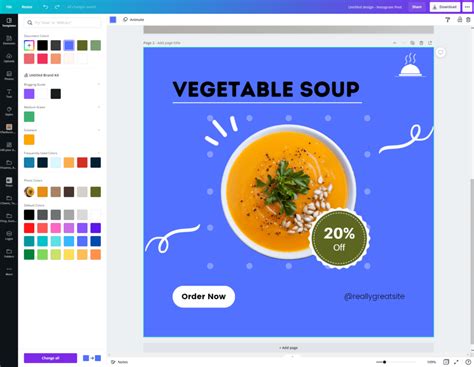
In addition to the eyedropper, Canva has also enhanced its Color Panel. The improved Color Panel now displays a wider array of default colors, and importantly, shows their display names when you hover over them. This makes it easier to identify and select specific colors. The only exception to this naming convention is for colors within Brand Kits. Brand Kits allow users to name and add their specific palette colors when creating the kit, offering a personalized and organized approach to brand colors.
For users who frequently work with charts and need to apply the same colors across multiple chart elements, Canva offers a convenient solution. Selecting the paint roller icon on the editor toolbar allows you to easily copy and apply colors between charts, further streamlining your design process.
Tips for Effective Eyedropper Usage
- Zoom In: For very precise color selection, especially in detailed images, consider zooming in on the area you want to sample. This helps ensure you are picking the exact shade you intend.
- External Content: Remember that the eyedropper can sample colors from any visible content on your screen, not just within your current Canva design. This is incredibly useful for matching colors from websites, photos opened in other applications, or even screenshots.
- Brand Consistency: If you manage multiple brands or projects, utilize Canva's Brand Kits. By saving your brand colors and using the eyedropper to sample from your saved Brand Kit colors, you maintain perfect brand integrity.
How To Use Color Picker in Canva (Eye Dropper Tool)
A Collaborative Effort: The Web Platform and User Feedback
The journey to implementing the EyeDropper API was a collaborative effort involving browser developers, web platform contributors, and the user community. The initial feedback from web app developers, such as those at Canva, was crucial in testing the API and providing insights into its real-world application. The challenge of implementing this amazing new web API for a web app like Canva was significant, with security and privacy concerns being paramount. However, the successful integration demonstrates the power of this new tool and the ongoing evolution of web technologies to meet user needs. The team proposed and implemented the new EyeDropper API to enhance the web platform and clarify requirements, and the positive reception highlights its value.
Conclusion: A Powerful Addition to Your Design Arsenal
The eyedropper tool represents a significant enhancement to the Canva user experience. By enabling precise and intuitive color selection, it empowers designers to create more cohesive, professional, and visually appealing designs with greater efficiency. Whether you're coordinating colors for a personal project, a business brand, or a non-profit organization, this tool is invaluable. Embrace the power of the eyedropper and elevate your Canva designs to new heights.
If you are new to Canva, the platform offers a user-friendly interface that makes graphic design accessible to everyone, regardless of prior experience. The continuous addition of features like the eyedropper tool underscores Canva's commitment to providing a comprehensive and evolving design solution. You can explore Canva further by visiting their website or trying out Canva Pro for an expanded set of features.
tags: #eyedropper #tool #canva