Adobe InDesign, a cornerstone of the Adobe Creative Cloud, stands as the industry standard for page layout design. While its origins are deeply rooted in print media, its capabilities extend significantly into the realm of web design, particularly in the creation of mock-ups and prototypes. For aspiring graphic designers and web developers looking to enhance their skill sets, understanding InDesign is an invaluable step. This article delves into the core functionalities of InDesign, explores why video tutorials are an effective learning method, and curates a selection of resources to guide you through the process, from fundamental concepts to advanced techniques.
What is Adobe InDesign?
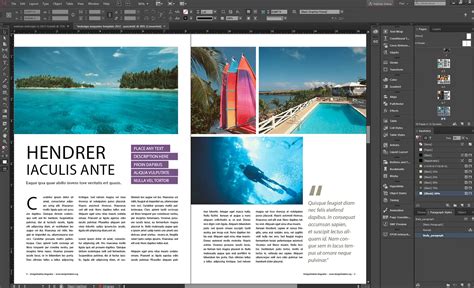
Released in 1999, Adobe InDesign has evolved into an indispensable tool within the Adobe Creative Cloud suite. Alongside Photoshop and Illustrator, it forms a powerful trinity of creative design software utilized across diverse industries, from publishing to graphic design. Initially engineered to streamline the creation of page layouts for books and magazines, InDesign's versatility has expanded its application to numerous creative endeavors, including the conceptualization of web page designs. Its seamless integration with other Adobe Creative Cloud applications allows designers to craft compelling and vibrant page layouts, blending text, graphics, and interactive elements.
Unlike its sister programs, Illustrator and Photoshop, InDesign’s primary function is the meticulous construction of page layouts. Designers leverage InDesign to build prototype layouts for a wide array of projects, including brochures, magazines, and crucially for this discussion, web pages. The software provides robust tools for populating these layouts with graphics, text, and even interactive components, making it a powerful tool for web designers seeking to visualize their ideas before committing to code. Users can refine text, manipulate colors, and strategically place images to ensure their designs effectively communicate their intended message. Furthermore, InDesign facilitates the efficient creation of templates and the replication of pages, significantly streamlining the multi-page design process.
Beyond professional applications, InDesign offers numerous benefits for individuals aiming to create visually striking posters, infographics, or flyers for personal projects or community initiatives. The development of strong visual design skills through InDesign empowers users to convey information in memorable and impactful ways, fostering effective communication with a broader audience. Small businesses, independent commercial ventures like Etsy shops, and even local bands can greatly benefit from staff members trained in InDesign, as the software empowers non-professionals to produce professional-grade graphic page layouts.
The deep integration of InDesign with the broader Adobe Creative Cloud ecosystem is a significant advantage. Users already familiar with Photoshop or Illustrator can seamlessly incorporate their work into InDesign layouts. Photos edited in Photoshop or illustrations created in Illustrator can be effortlessly imported and placed within an InDesign document. This interoperability extends to tools like Adobe XD, enabling the creation of sophisticated web layout prototypes. This interconnectedness amplifies the functionality of all Adobe Creative Cloud applications, offering a cohesive and powerful design workflow.
Why Video Tutorials Are Essential for Learning InDesign
Video tutorials have emerged as a highly effective method for aspiring designers to familiarize themselves with Adobe InDesign. One of the initial hurdles when encountering any new design software is navigating its interface. Video tutorials excel at guiding users through the various aspects of the InDesign workspace, demystifying icons, menus, and toolbars. This visual, step-by-step approach allows learners to grasp the fundamental interactions with the software at their own pace.
Given that Adobe InDesign is part of the Adobe Creative Cloud subscription service, which can represent a significant financial commitment, tutorials offer a low-risk entry point. Aspiring designers who may not have access to institutional licenses can use tutorials to evaluate the program's suitability for their needs before subscribing. The accessibility and often free nature of these resources make them an ideal starting point.
A significant advantage of video tutorials is the control they afford learners over their educational journey. Unlike traditional classroom settings, tutorials can be paused, rewound, and replayed, allowing students to thoroughly understand complex concepts or revisit specific steps as many times as necessary. This flexibility is particularly beneficial for individuals with busy schedules or those who prefer a more self-directed learning style. The vast array of video content available online also allows for easy switching between different instructors and learning styles, ensuring that learners can find resources that best match their preferences.
Furthermore, video tutorials empower learners to dictate the duration and intensity of their study sessions. Students are not bound by a predetermined curriculum pace; they can dedicate as much or as little time as they need to each lesson, making it easier to integrate learning into their existing routines. This is especially helpful for those who require a slower learning pace or who cannot commit to fixed class schedules.
Types of InDesign Video Tutorials
The landscape of InDesign video tutorials is diverse, catering to a wide spectrum of learning needs and preferences. Some tutorials function as comprehensive, large-scale introductory lectures, often spanning 90 minutes or more. These extended videos are akin to asynchronous online college courses, providing a holistic overview of the software. They are frequently produced by professional training providers, such as Noble Desktop, aiming to replicate the immersive experience of a live training session and serve as excellent onboarding resources for more in-depth, hands-on training.
Noble Desktop, for instance, offers a range of free online graphic design and InDesign courses that serve as introductory lessons. Their blog and dedicated YouTube playlist feature free introductory videos that cover both general graphic design principles and specific InDesign functionalities. These resources are highly recommended for beginners seeking to gain a foundational understanding of the program. Noble’s videos typically cover essential InDesign operations, including interface navigation, the process of adding text and images to a layout, and the procedures for exporting and preparing simple layouts for publication.
Free Course: Adobe InDesign for Beginners
In contrast, other video tutorials take the form of curated collections of shorter videos, each focusing on a specific topic. These bite-sized tutorials, often lasting between ten to fifteen minutes, delve into individual InDesign features such as creating text wraps, utilizing the shape tool, or exploring beginner-friendly tips and tricks. The advantage of these concise tutorials lies in their narrow focus, enabling learners to quickly find and access information on a particular challenge or skill they wish to acquire. This format is particularly beneficial for learners who prefer a more modular approach to skill acquisition, observing expert techniques to replicate rather than engaging in extended theoretical instruction.
The Value of Learning InDesign
Learning Adobe InDesign offers significant advantages for creatives and aspiring graphic designers looking to refine their page layout design process. The software equips users with the tools to construct visually dynamic layouts using text, shapes, and sophisticated color modification options. It is an ideal solution for anyone involved in designing print advertisements, magazine and newspaper layouts, infographics, posters, or brochures. Whether you are a seasoned professional or an amateur enthusiast, mastering InDesign can elevate the quality and impact of your printed graphic designs.
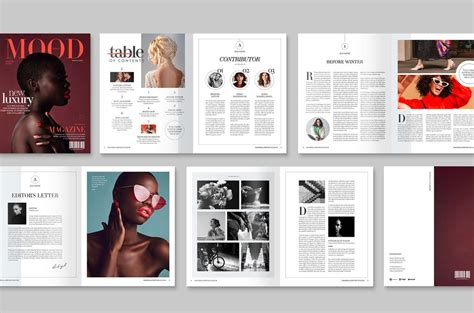
Furthermore, as an integral component of the Adobe Creative Cloud, proficiency in InDesign enhances a user's overall skill set within the Adobe ecosystem. Learning InDesign is often complemented by training in programs like Photoshop or Illustrator due to their close integration. This synergy means that developing InDesign skills can not only improve your command of existing Adobe software but also simplify the learning curve for new programs. Consequently, acquiring InDesign expertise extends beyond mastering page layout; it can unlock pathways to developing proficiency in areas such as photo editing, vector graphics design, and web interface design.
The Learning Curve: InDesign's Accessibility and Mastery
Adobe InDesign is generally considered relatively easy to learn, but challenging to master. New users can quickly become proficient with its basic features, enabling them to experiment with the program's design tools after just a few hours of dedicated training. However, achieving a high level of expertise and executing more complex designs necessitates advanced training, which can be both time-consuming and demanding.
Similar to most creative design software, there are no formal prerequisites for learning InDesign. However, a foundational understanding of the computer system on which InDesign will be used is recommended. It's also important to note that InDesign does not have a tablet or mobile version. For individuals aspiring to use InDesign professionally, it is advisable to familiarize themselves with fundamental graphic design principles, such as composition theory, and to stay abreast of current trends within the graphic design industry to better understand client expectations and project requirements.
While Adobe provides a free trial period for new InDesign users, ongoing access requires a monthly subscription fee as part of the Adobe Creative Cloud. Adobe offers various pricing plans, typically ranging from approximately $20.99 per month for single-application access to around $54.99 per month for the complete Creative Cloud suite.
Hands-On InDesign Training with Noble Desktop
Noble Desktop provides a comprehensive suite of training options for individuals seeking to learn Adobe InDesign. Their offerings range from introductory courses, such as "InDesign in a Day," to immersive, career-focused programs like the Graphic Design Certificate. These courses are delivered by experienced instructors who possess extensive backgrounds in both teaching and professional graphic design. A key benefit of Noble's courses is the option to retake the program free of charge within one year of initial enrollment, allowing students to reinforce their skills or gain additional practice with challenging aspects of the software.
The Adobe InDesign Bootcamp at Noble Desktop emphasizes hands-on experience, incorporating exercises that simulate real-world projects undertaken by professional graphic designers. Participants learn to create layouts using InDesign's text, color, and graphic tools, master techniques for importing formats and styles to expedite layout creation, and utilize parent pages for the efficient development of complex, multi-page documents like brochures and magazines. This bootcamp is particularly well-suited for students aiming to master InDesign's advanced features within a professional context, preparing them for its application in their careers and providing tangible proof of their in-depth training.
Noble's Graphic Design Certificate program extends this InDesign training by integrating it with career-oriented instruction in Photoshop and Illustrator. The curriculum covers the foundational principles of graphic design, including composition philosophies, color theory, and typography. Students then learn to leverage Illustrator and Photoshop to generate digital illustrations and assets that can be seamlessly imported into InDesign for the completion of page layouts. By unifying these programs, the Graphic Design Certificate aims to transform novice users into proficient designers, equipping them with the skills necessary to pursue new career opportunities.
InDesign for Web Developers: Bridging the Gap
While InDesign is primarily known for print design, its tools and methodologies share significant parallels with web development practices. Understanding these connections can empower web-based developers to leverage InDesign for creating sophisticated mock-ups and prototypes.
Folder Structure and Document Setup
Just as in web development, organizing your project from the outset in InDesign is crucial for a smooth workflow. When creating a new document, you define its dimensions (height and width) and its intended purpose. For print-based materials, setting the "Intent" to "Print" is standard. However, if the file is destined for an eBook or digital publication, selecting "Web" is appropriate. For documents intended for both print and digital use, choosing "Print" is often recommended to ensure accurate color representation.
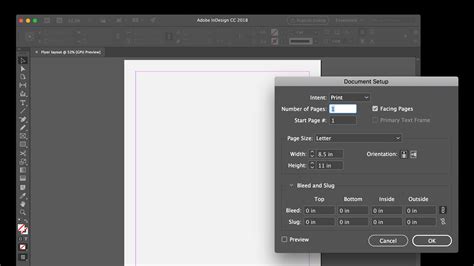
It's important to distinguish InDesign's margins from those in web design. In InDesign, margins act as guidelines on the page and do not inherently affect the positioning or behavior of objects. In web design, margins are integral to the CSS box model, directly influencing the spacing around elements.
Core InDesign Tools and Web Equivalents
The primary toolset in InDesign, like in Photoshop and Illustrator, is typically located on the left side of the workspace. However, the interaction with and construction of objects differ slightly. InDesign relies on "containers" for placing images, vector objects, and textual content.
While vector objects can be imported directly, they are most commonly placed within content boxes that are then positioned within the layout. This mirrors the web design principle of creating Document Object Models (DOMs) that contain elements like images or text, and then arranging them within the page structure. A key distinction is that web elements are often positioned relative to their structural hierarchy (unless explicitly styled with absolute positioning), whereas InDesign objects are typically assigned an X and Y coordinate based on the page itself, defaulting to the top-left corner, similar to absolute positioning in CSS.
Given this object-based approach, the Selection Tool is paramount. It grants control over an object's position and size, and it's also used to select an object for property modification. This contrasts with Photoshop, where editing often involves manipulating individual layers. To alter an object's color in InDesign, for instance, you must first select it with the Selection Tool and then adjust its properties through various color-changing methods.
Content boxes can be created using several tools:
- The Type Tool creates boxes specifically for text.
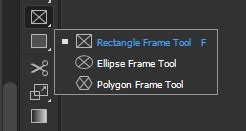
- The Rectangle Frame Tool is designed for placing images or linked resources.
- The Rectangle Tool is a general-purpose shape tool not tied to a specific content type.
These frame types provide flexibility in building layouts. While both Rectangle and Rectangle Frame tools exist, many designers accustomed to older software predominantly use the Frame tool. The Frame tool displays a placeholder (an "x"), whereas the Rectangle tool offers a cleaner workspace without affecting the final output.
Contextual Bars and Option Panes
InDesign utilizes context-sensitive toolbars and option panes, much like Photoshop and Illustrator, to facilitate quick editing. When an object or tool is selected, a toolbar appears at the top, offering relevant options. A multitude of panes are also available on the right side of the workspace, providing granular control over an object's properties. It's crucial to remember that these panes only affect selected objects.
Style Sheets: A Precursor to CSS
The concept of defining a set of instructions to style content, fundamental to CSS in web design, originated in desktop publishing applications like InDesign. In InDesign, this functionality is realized through Object Styles, Paragraph Styles, and Character Styles. While table-related styles also exist, they are beyond the scope of this introductory overview.
InDesign styles function similarly to web CSS but with a key difference: you cannot apply multiple style sheets of the same type to a single element. For example, a paragraph cannot have two distinct paragraph styles applied. However, a character style can be applied to content within a paragraph that already possesses a paragraph style.
Object Style Sheets
To create an Object Style, draw a content box (e.g., using the Rectangle tool). With the box selected, modify its properties-such as borders, backgrounds, and corner effects-analogous to styling a div element in HTML/CSS. Once you've applied desired attributes like a background color, drop shadow, and rounded corners, you can save this configuration as a new "Object Style" within the Object Style pane (Window → Styles → Object Styles). You can name this style (akin to a class name) and later apply it to other objects.
Paragraph Style Sheets
After creating an object style, select the Text tool and click within the styled box to add content. Using the Paragraph pane (Window → Type & Tables → Paragraph), you can modify properties that would correspond to a <p> tag in HTML. Note that certain character-level attributes like font size and weight are not directly adjustable here; they are controlled by Character Styles.
Paragraph Styles, accessed via the Paragraph Style pane (Window → Styles → Paragraph Styles), offer comprehensive control over text. Within this pane, you can define "Basic Character Formats," including font size, weight, and spacing, effectively embedding character-level properties within the paragraph style. Once created, a paragraph style is applied by placing the cursor in the desired paragraph or selecting a portion of the text, then clicking the style's name.
Character Style Sheets
To style specific portions of text within a paragraph, use the Type tool to highlight the desired characters. The Character pane (Window → Type & Tables → Character) allows you to adjust properties like font family, italics, or bold.
Similar to other styles, these modifications can be saved as a "Character Style" within the Character Styles pane (Window → Styles → Character Styles). This is comparable to applying a <span> tag in HTML to style a segment of text independently of its parent paragraph.
CSS vs. InDesign Styles: Key Differences
The core distinction lies in the application of multiple styles. CSS allows for the combination of multiple classes on a single HTML element (e.g., <div class="orange_box rounded"></div>). In InDesign, attributes of a given type (object, paragraph, or character) are consolidated within a single style. Higher-level styles are inherently overridden by child elements; for instance, character styles take precedence over paragraph styles, which in turn are overridden by object styles. However, the inability to apply multiple styles of the same type to a single object is a significant divergence.
Manual overrides are possible in InDesign, mirroring the concept of inline styles in HTML. For example, a paragraph style might specify a font size of 11 points and a leading (line height) of 14 points, but you could manually adjust the leading to 16 points via the Character pane. This would result in a comparable HTML output like <p class="standard_body"></p>, which, while functional, is often considered poor practice in web development. Nevertheless, this flexibility allows for precise customization when needed.
After understanding these foundational concepts, experiment by applying your existing knowledge of Photoshop or Flash. Position elements, modify their colors and fonts, and construct layouts for projects you've already conceptualized.
Curated InDesign Video Tutorials for All Levels
The following curated list of video tutorials offers a comprehensive pathway for learning InDesign, catering to beginners and professionals alike, with a focus on applications relevant to web design and general graphic creation.
InDesign Tutorials for Beginners
Adobe InDesign Tutorial for Beginners (Comprehensive): This extensive tutorial, often exceeding two hours, provides a thorough introduction to InDesign for individuals with no prior experience. It guides viewers through creating a four-page brochure, covering essential skills such as interface navigation, text manipulation, using Adobe Fonts, and incorporating images. The video is helpfully segmented, allowing users to jump to specific sections.
What is InDesign? (Short Explainer): For newcomers, this brief tutorial offers a clear and concise explanation of InDesign's purpose, its primary users, and its time-saving features. It provides a quick overview of the software's utility.
Adobe's Official InDesign Getting Started Series: This collection of short tutorials from Adobe itself is designed to equip beginners with the fundamental knowledge required to start working in InDesign. It includes videos on creating and saving documents, navigating the workspace, adding and formatting text, and working with graphics.
Essential InDesign Tools in 5 Minutes: For those seeking a quick overview, this five-minute tutorial focuses on the primary tools in InDesign, explaining their functions to help beginners feel less overwhelmed by the software's extensive feature set.
Master Pages for Design Consistency: This tutorial explains the fundamental concept of master pages, demonstrating how elements placed on a master page are applied to all subsequent pages. It highlights their utility in ensuring design consistency and streamlining workflows for multi-page documents.
Working with Graphics in InDesign: This four-step guide covers the basics of incorporating and manipulating graphics within InDesign. It teaches how to add, move, resize, and fit graphics, as well as how to implement text wrapping around objects.
Fundamentals of Print Design in InDesign: InDesign is a powerful tool for various print projects, including flyers, brochures, stationery, business cards, and more. This tutorial provides essential knowledge for those looking to get started with print design using the software.
Beginner's Guide to Typography in InDesign: This seven-minute tutorial offers a foundational lesson on typography within InDesign. It presents five key tips for creating engaging layouts and compositions using type, with the instructor also offering a more in-depth series for those seeking further detail.
Setting Up Print Bleed in InDesign: For print designs that extend to the edge of the page, understanding and implementing print bleed is crucial to avoid unattractive white margins. This tutorial demonstrates how to set up print bleeds and include crop marks for professional finishing.
Digital Design Essentials in InDesign: This short tutorial explores fundamental concepts for using InDesign in digital design contexts, offering a starting point for web-related applications.
Tips for Using InDesign Tools
Best InDesign Updates from Adobe Max 2023: For users who may have been away from InDesign, this video summarizes the most impactful updates announced at Adobe Max 2023, including changes to copy-paste functionality, auto-styling, graphic format support, document preview, and spread page duplication.
Share for Review Feature in InDesign: This tutorial provides a quick tour of the "Share for Review" feature, demonstrating how to share files for client feedback and markup directly within InDesign, streamlining the review process without the need for PDF exports.
10 Essential InDesign Keyboard Shortcuts: Mastering keyboard shortcuts can significantly boost productivity. This tutorial highlights ten key shortcuts that can save considerable time and effort when working in InDesign.
5 Key Tips for Working with Images in InDesign CC: In this recording of a live session, Adobe evangelist Terry White shares five critical tips for effectively managing and utilizing images within InDesign. (Note: The initial minutes may involve introductory remarks).
How to Wrap Text Around an Image Edge: This concise tutorial from Type Twice demonstrates how to use the text wrap tool to wrap text precisely around the edge of an image in InDesign.
Subject Aware Text Wrap in Adobe InDesign: Introduced in 2020, Subject Aware Text Wrap is a powerful feature that intelligently wraps text around the subject of an image. This tutorial explains how this game-changing functionality works.
5 Amazing Things You Can Do in Adobe InDesign: Adobe expert Terry White and graphic designer Dave Clayton share inspiring InDesign projects and reveal practical tricks and tips gathered from Adobe events and their own professional experience.
Building Complex Documents and Layouts
Magazine Layout in Adobe InDesign (and Photoshop) Tutorial: This in-depth tutorial guides users through the process of creating a magazine layout using both InDesign and Photoshop, highlighting how to leverage the strengths of each program for optimal results.
Creating a Three-Page Magazine Spread: Building upon magazine layout skills, this 22-minute video focuses specifically on constructing a cohesive three-page magazine spread, covering all necessary steps and considerations.
Designing a Magazine Cover from Start to Finish: This course from Envato Tuts details the entire process of designing a magazine cover in InDesign. It covers the anatomy of a cover, utilizing templates, selecting cover images, and choosing appropriate fonts for a custom design.
How to Design a Modern Poster: This video tutorial by Will Patterson walks through the creation of a modern, abstract poster, offering valuable insights for both beginners and experienced designers.
How to Create a Book in Adobe InDesign: Adobe Evangelist Terry White demonstrates the setup process for creating a book in InDesign, applicable to both print and eBook formats, ensuring a correct and efficient start to the project.
Binding Your Own Book: This tutorial by Karen Lewis explains the practical steps involved in binding a self-promotional book, from setting up page spreads and cover templates in InDesign to the essential tools and techniques required for the binding process.
Creating a Calendar in InDesign: This tutorial by magazine designer Jo Gulliver demonstrates how to design and edit a calendar using Scott Selberg’s Calendar Wizard script, allowing for fully customized calendar layouts.
Making Cube Calendars: Once 2D calendars are mastered, this tutorial by Jo Gulliver explores the creation of 3D cube calendars by manipulating cube nets within InDesign.
Designing a Restaurant Menu: This 90-minute video covers the creation of restaurant menus, both from templates and from scratch. It's an excellent exercise for learning layout principles, establishing hierarchy, and mastering essential InDesign tools.
How to Make a Booklet in InDesign: This tutorial emphasizes the importance of proper booklet file setup in InDesign, showcasing editorial design tools that facilitate cohesive, productive, and effective publication design.
InDesign Tutorials for Professionals
Advanced InDesign Tips and Tricks: This 90-minute session with Adobe expert Tony Harmer offers a wealth of ideas, inspiration, tips, and techniques for advanced InDesign projects, showcasing the software's full potential.
Special Finishes for Print Design: This guide by Jo Gulliver explores how special finishes like varnishes, foil blocking, embossing, and die cutting can elevate print designs. It covers setting up artwork in InDesign for these processes and provides best practice guidance.
Adding Rich, Interactive Features to Fixed Layouts: This tutorial demonstrates how to imbue EPUB documents with dynamic and engaging interactive features in InDesign, including slideshows, animation triggers, and hyperlinks. It also highlights the utility of the EPUB Interactivity Preview panel.
Creating a Realistic Neon Text Effect: In just 10 minutes, this tutorial shows how to achieve a convincing neon text effect, a skill easily transferable to other design applications for adding a retro flair.
Creating Convincing Reflections: While shiny graphics may not suit every project, they are effective in certain contexts, such as sports branding. This tutorial addresses the techniques for creating realistic reflections in InDesign.
By engaging with these diverse resources, learners can systematically build their expertise in Adobe InDesign, unlocking its potential for both print and digital design applications, including the creation of sophisticated web design mock-ups and prototypes.