GIFs, those ubiquitous animated snippets, have become an integral part of digital communication. From memes and reaction posts to marketing content and presentations, they offer a dynamic and engaging way to convey messages. However, a common challenge arises when the background of a GIF doesn't align with the intended design or layout. This is where the need for a GIF background remover becomes apparent. Removing the background from a GIF can transform a cluttered animation into a sleek, professional element that seamlessly integrates into any project, enhancing its visual appeal and versatility.
Understanding the Magic of Transparent GIFs
A GIF with a transparent background is a powerful design tool. It allows the animation to blend effortlessly with any backdrop, be it a solid color, an image, or another design element. This versatility makes transparent GIFs ideal for modern digital design, where layering and seamless integration are key. Unlike GIFs with solid backgrounds, which can appear jarring and limit design flexibility, transparent GIFs offer a clean, professional look. They are lightweight, universally supported, and can be easily layered without distracting edges or clutter. This adaptability is crucial for various applications, including creating memes, marketing content, social media posts, and presentations.
Why is Removing GIF Backgrounds Tricky?
The inherent nature of GIFs presents unique challenges when it comes to background removal. A GIF is not a single static image; it's a sequence of multiple frames that play in succession to create an animation. This means that any background removal process must be applied consistently across all frames to maintain the illusion of continuous motion.
GIFs were introduced by CompuServe in 1987, originally designed for static images with compression. Looping animation support came later in 1995. While GIFs remain popular for memes, reactions, marketing, and simple online animations, they come with certain limitations:
- Limited Color Palette: Each frame can only use 256 colors, which can result in less smooth quality compared to photos or videos.
- Binary Transparency: Transparency in GIFs is all or nothing. A pixel is either fully visible or completely invisible. Unlike PNGs, GIFs cannot have soft, faded edges.
- Frame-by-Frame Editing: Because a GIF is made of many frames, like a flipbook, removing a background typically requires working on every single frame, not just one. This can be a time-consuming and complex process, especially for beginners.
Manual editing of animated GIFs requires advanced software and significant time, as each frame would need to be meticulously edited separately. This is where specialized tools, such as a GIF background remover, become invaluable.
GIF Background Removers: Your Solution to Transparency
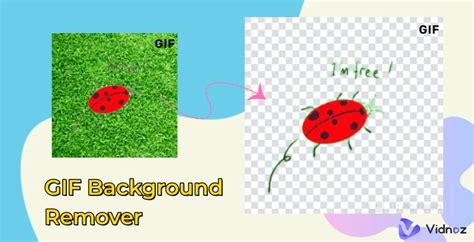
A GIF background remover is a browser-based program designed to delete the background color from all frames of a GIF. Whether your GIF is animated (multi-frame) or static (single-frame), these tools loop through each frame, identifying and removing the specified background color. Once the background is deleted, you can download the transparent GIF immediately.
How These Tools Work
The core functionality of a GIF background remover involves selecting the color to be removed. You can often input a specific color name (e.g., "yellow") or a hexadecimal color value (e.g., "#0000ff" for blue). The program then scans the pixels of each frame, matching the specified color for removal.
For backgrounds with varying shades of the same color, many tools offer a "shade matching" option. This allows you to specify a percentage (from 0% to 100%) to define how closely other shades should match the target color for removal. A percentage of 0% means only the exact color is matched, while a higher percentage will remove similar color tonalities.
To further refine the process, some removers include features like:
- "Remove Outer Background": This crucial option ensures that only the background is deleted, even if the target color appears within the subject itself (e.g., in clothing folds, hair, or decorative elements). This prevents unintended removal of parts of your subject.
- "Alpha Channel Preview": This in-browser feature visually highlights the areas that will be removed using black and white pixels, allowing you to see exactly what will become transparent.
- "Animation Preview": This lets you compare the original GIF with its background to the output GIF with the background removed, giving you a clear view of the transformation.
- Frame Examination: Many tools allow you to disable animation and specify a particular frame number for detailed inspection.
Some advanced removers also provide options related to GIF frame delays, sizes, and counts, offering more control over the final output.
Popular Online Tools for GIF Background Removal
The market offers a variety of online tools, each with its own strengths, making it easier than ever to achieve transparent GIFs without extensive editing experience.
1. Zight
Zight is a browser-based program that acts as a GIF background remover. It allows users to upload their GIF files via drag-and-drop or by selecting them from their device. Zight then quickly loads and analyzes each frame. The tool automatically detects and removes the background using intelligent edge detection. For users who need more precise control, Zight also offers manual transparency adjustments. Zight is part of a suite of free tools for screen recording, screenshots, GIFs, and webcam capture, aiming to boost user productivity.
- Key Features: Browser-based, drag-and-drop upload, automatic background detection, manual transparency adjustments, part of a productivity suite.
2. Adobe Express GIF Background Remover
Adobe Express provides a user-friendly GIF background remover designed to make animations cleaner and more versatile. It allows users to place their GIFs on different colors, designs, or images without distracting edges. The tool is designed to preserve the animation's resolution and requires no prior editing experience. Adobe Express offers a free plan with access to dozens of Quick Action tools, templates, and photo editing features, including its PNG background remover.
- Key Features: One-click background removal, preserves animation resolution, no editing experience required, free plan available.
3. VEED.IO
VEED.IO is an online video editor that also offers a powerful GIF background remover. You can upload a GIF or record a video directly using their webcam recorder. VEED's tool allows you to remove the background in one click and replace it with an image or video of your choice. If you don't have a replacement background, VEED offers an online library of stock media. The process is straightforward: upload or record, select the video on the timeline, toggle "Remove Background," and export. VEED is an all-in-one editor that can be used straight from the browser, eliminating the need for software installation.
- Key Features: One-click background removal, option to replace background with image/video or stock media, all-in-one online video editor, no sign-up required for basic use.
GIF Background Remover | NO GREEN SCREEN!
4. Online GIF Tools
For GIFs with a solid background color (like white, black, or green), Online GIF Tools offers a simple, browser-based solution that doesn't require sign-ups or installations. This tool works by identifying and removing a single color throughout all frames. It's particularly effective when the subject and background have clearly distinct colors.
- Key Features: Removes a single background color, adjustable tolerance for similar shades, frame-by-frame preview before download, browser-based, no installation needed.
5. EZGIF.com
EZGIF.com is a highly popular online editor for GIFs, featuring a dedicated background removal tool. Its simple interface makes it easy for beginners to use. The tool allows users to select a background color and turn it transparent. EZGIF also supports various formats and offers optimization and resizing options after background removal. It can handle large GIF files (up to 200MB) and operates entirely online.
- Key Features: Simple "replace color with transparency" option, handles large files (up to 200MB), works online, supports format conversion and optimization.
6. FlexClip
FlexClip takes a slightly different approach by first converting the GIF into a video. This method can be particularly useful for GIFs with complex backgrounds. Once converted, you can use FlexClip's background removal tool to clean up the animation. After the background is removed, the video can be converted back into a GIF with a transparent background, resulting in a neat and clear output.
- Key Features: Converts GIF to video for smoother editing, automatically removes detailed or complex backgrounds, allows export back as a GIF.
7. Media.io
Media.io offers an AI-powered automatic background removal tool for GIFs, providing a higher degree of accuracy, especially for complex edges or similar colors. While it might take longer than other tools, the precision is often worth the wait. For users who prefer more manual control, Media.io also offers a brush tool for erasing backgrounds manually, with adjustable brush sizes for precision. It can convert your GIF to MP4 for editing and then back to GIF.
- Key Features: AI-powered automatic removal, manual brush-based removal, adjustable brush size, converts GIF to video for editing, high accuracy.
8. Unscreen
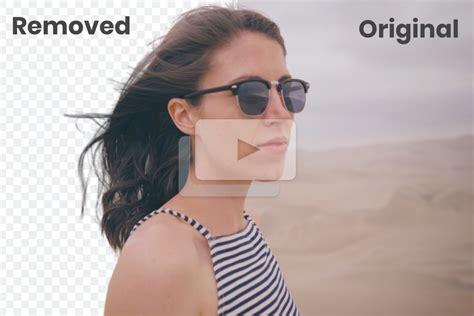
Unscreen is a straightforward option for fast, zero-effort background removal. It uses an AI feature to remove the background immediately after you upload your GIF. This makes it one of the best choices for beginners or anyone seeking a simple solution without extra steps. Unscreen also supports short video clips in addition to GIFs.
- Key Features: Automatic background removal with one upload, works on both GIFs and videos, transparent export option, simple to use.
Advanced Editing with Professional Software
While online tools offer convenience and speed, professional software like Adobe Photoshop and Adobe Premiere Pro provide more control and higher quality results, albeit with a steeper learning curve.
Removing GIF Backgrounds in Adobe Photoshop
Photoshop is a powerful tool for editing images, videos, and GIFs, capable of producing professional-quality results. Since a GIF is composed of multiple frames, Photoshop allows you to open it as layers, enabling you to remove the background from each frame individually and then re-export it with a transparent background.
Steps to follow:
- Open your GIF in Photoshop: Go to
File > Openand select your GIF. It will load with frames in the Timeline panel and corresponding layers in the Layers panel. - Select the first frame and its layer.
- Isolate the subject: Use selection tools like
Select Subject(for complex images) or theMagic Wandtool (for solid backgrounds) to select the area you want to keep. - Add a Layer Mask: Click the
Add Layer Maskbutton at the bottom of the Layers panel. This will hide the background without deleting it, preserving the original pixels. - Repeat for each frame/layer: Go through each frame and its associated layer, repeating the selection and masking process.
- Export the GIF: Navigate to
File > Export > Save for Web (Legacy). Choose the GIF format, ensure theTransparencyoption is checked, and clickSave.
- Key Features: Opens GIFs as editable frames and layers, advanced selection tools, non-destructive layer masks, supports transparent GIF export, professional-quality results.
Removing GIF Backgrounds in Adobe Premiere Pro
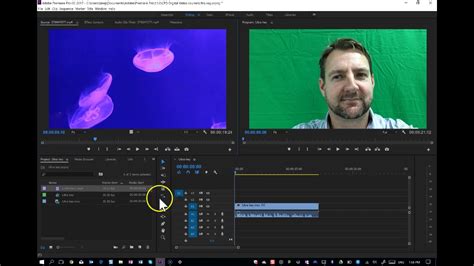
Adobe Premiere Pro is primarily a video editing software, but it can be used to remove backgrounds from GIFs by treating them as video clips. However, Premiere Pro does not allow direct export of transparent GIFs.
Steps to follow:
- Import your GIF: Premiere Pro will automatically convert it into a video sequence.
- Drag the GIF to the timeline.
- Apply Ultra Key: Go to
Effects > Video Effects > Keying > Ultra Keyand apply it to your GIF layer. - Select the background color: Use the Eyedropper tool to click on the background color you want to remove (e.g., green, black, or white).
- Refine settings: Adjust parameters like Matte Generation, Transparency, and Shadow to fine-tune the keying effect.
- Export with an Alpha Channel: Go to
File > Export > Media. ChooseQuickTimeas the format, enableRender at Maximum DepthandInclude Alpha Channel. - Convert to GIF: Use another tool like Photoshop or EZGIF to convert the exported video with an alpha channel into a transparent GIF.
- Key Features: Imports GIFs as editable video clips, Ultra Key effect for solid-color removal, supports exporting with an alpha channel, requires conversion to GIF in a secondary tool.
Simplifying with Mobile and Desktop Apps
For users who prefer mobile editing or more integrated desktop experiences, several applications offer GIF background removal capabilities.
Removing GIF Backgrounds in CapCut
CapCut is a popular and user-friendly tool for editing videos and GIFs, available as a mobile app and a desktop version. While it doesn't directly remove backgrounds from GIFs, it offers a workaround by converting GIFs into videos first.
Steps to follow:
- Open CapCut: Start a new project in the app or browser version.
- Upload your GIF: CapCut will automatically convert it into a video.
- Use the Background Remover: Select the video layer and choose the
Remove Backgroundoption from the editing tools. - Preview and Export: Wait for the tool to process the video and preview the result. Once satisfied, export the video.
- Convert back to GIF: Use an online tool like Photoshop, EZGIF, or another GIF maker to convert the video with the removed background back into a GIF.
- Key Features: Simple one-click
Remove Backgroundoption, works on mobile and online, converts GIFs to videos for easier editing, fast results.
Using Canva for Transparent GIFs
While Canva doesn't have a dedicated one-click GIF background remover, you can achieve transparent GIFs by leveraging its video editing tools, especially if you have Canva Pro.
Steps to follow:
- Convert GIF to Video: Upload your GIF to Canva. It will be treated as a video clip.
- Apply Background Remover: Go to
Edit videoand select theBackground Removertool. This will process the video and remove the background. - Refine and Re-upload (Optional): If needed, re-upload the edited video into a new Canva project to apply the background remover again for a cleaner result.
- Export as Transparent GIF: Download the final video with the transparent background as a GIF.
- Key Features: Transforms GIF into video for editing, one-click background removal within video editing options, supports re-importing for cleaner results, allows transparent GIF export.
Bonus Tip: Pixelbin for Image Background Removal
While not exclusively for GIFs, Pixelbin's AI background remover is an excellent tool for image manipulation and can be a valuable asset in a workflow that involves converting GIFs to static images for specific edits. Pixelbin excels at handling fine details like hair or fur and supports background replacement with AI-generated designs.
- Key Features: Supports multiple image formats, bulk background removal, API integration, high-resolution output, background replacement options, available on mobile and integrates with tools like Figma.
Beyond Removal: Changing Your GIF's Background
Once the background of your GIF has been successfully removed, you often have the option to replace it with something new. Tools like Unscreen make this process straightforward. After removing the background, you can select a "Change Background" option and choose from colors, images, or videos to create a completely new look for your animation. This is particularly useful for branding purposes or when you want to create a GIF that fits a specific theme or campaign.
Conclusion: Embrace the Power of Transparency
Removing the background from a GIF might initially seem daunting, but with the array of available tools, it has become an accessible process for users of all skill levels. Online editors like Unscreen, VEED.IO, and EZGIF.com are perfect for quick edits and beginners, offering fast and free solutions. For those seeking more control and professional-grade results, software like Adobe Photoshop provides extensive editing capabilities. Applications like CapCut and Canva offer user-friendly mobile and desktop experiences, bridging the gap between simple online tools and complex professional software. By mastering GIF background removal, you can unlock a new level of creativity and professionalism in your digital content, ensuring your animations are not just eye-catching but also perfectly integrated into any design.
tags: #gif #transparent #background #remover