Lightroom Classic, a powerful tool for photographers, organizes and manages vast libraries of images. As your photographic journey progresses, you might find yourself with multiple Lightroom catalogs. This can arise from various scenarios: separating yearly archives, maintaining distinct work and personal libraries, or even testing new features in a separate catalog. While having multiple catalogs can serve specific purposes, the desire to consolidate them into a single, manageable library often arises. Merging Lightroom catalogs, especially those with overlapping images and differing develop histories, can seem like a daunting task. However, understanding Lightroom's catalog system and its approach to handling duplicates is key to a successful and seamless consolidation.
The Foundation: Understanding Lightroom Catalogs
At its core, a Lightroom Classic catalog is a database that meticulously tracks the location of your photos and all the associated information about them. When you edit photos, rate them, add keywords, organize them into collections, or perform any other action within Lightroom Classic, these changes are not directly applied to the image files themselves but are stored within the catalog database. This non-destructive workflow is a cornerstone of Lightroom's power, allowing for extensive manipulation without altering the original files.
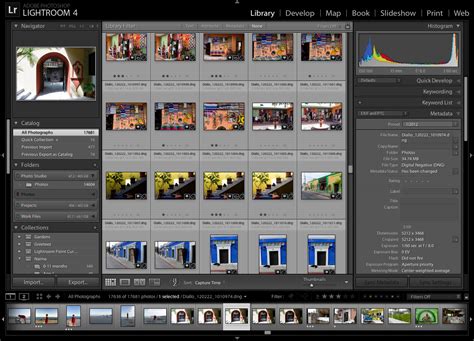
The catalog stores critical data, including:
- File Locations: The precise path on your hard drive or external storage where each image file resides.
- Metadata: Information such as camera settings, date and time of capture, camera model, lens used, and any keywords, ratings, or color labels you've assigned.
- Develop History: A detailed record of every adjustment made to an image in the Develop module. This includes the sequence of edits, the specific parameters used, and the ability to revert to any previous state or create "snapshots" of different editing iterations.
- Collection Organization: How your images are grouped into collections and collection sets for thematic or project-based organization.
- Previews: Smart previews and standard previews that Lightroom generates to enable quick browsing and editing without needing to access the original, full-resolution files constantly.
It's crucial to remember that backing up your catalog does not back up the actual photo files. The catalog is a pointer system; if the original image files are moved or deleted outside of Lightroom, the catalog will no longer be able to locate them, marking them as "missing." Therefore, a robust backup strategy should always include both your catalog files and your image assets.
Why Consolidate? The Case for a Single Catalog
While there are valid reasons to maintain multiple catalogs, such as strict separation of professional and personal work, or for wedding photographers managing numerous client archives, a single, master catalog is often the most efficient and streamlined approach for most users.
Reasons to consolidate include:
- Simplified Workflow: Managing one catalog eliminates the need to switch between different databases, reducing confusion and saving time.
- Unified Search and Organization: A single catalog allows for comprehensive searching across your entire library, making it easier to find specific images regardless of when or where they were shot.
- Reduced Redundancy: Merging catalogs can help identify and eliminate duplicate images that may have accumulated over time.
- Easier Backups: Backing up and managing a single catalog and its associated image files is far simpler than juggling multiple.
- Performance: While very large catalogs can impact performance, a well-managed single catalog is often more efficient than many smaller, fragmented ones.
A strong recommendation from experienced users, particularly those with backgrounds in large-scale enterprise computing, is to use a single catalog unless there is a "compelling" valid reason to use more than one. Reasons like "one catalog per year" are generally not considered valid justifications. Valid reasons might include a clear separation between professional and personal archives, or a dedicated catalog for testing new software features.
The Mechanics of Merging Catalogs: Handling Duplicates and Develop Histories
The primary challenge when merging catalogs, especially those with overlapping images, lies in how Lightroom Classic handles differing develop histories for the same physical file. Lightroom Classic is designed to prevent data loss in these situations by employing a sophisticated virtual copy system.
When you import a catalog into another, and Lightroom detects that an image already exists in the destination catalog, it compares the develop history of the duplicate image.
- Identical Develop History: If the develop history for the image in both catalogs is identical, Lightroom simply imports the metadata and links it to the existing image in the destination catalog. No new image file is created.
- Differing Develop Histories: This is where the virtual copy concept comes into play. If an image has been processed differently in two separate catalogs, Lightroom Classic will:
- Designate the existing version in the "master" catalog as the primary image.
- Import the differing develop history from the catalog being merged.
- Crucially, it creates a virtual copy of the original image. This virtual copy points to the same physical file but contains the new set of develop settings and history from the imported catalog.

This means you never lose any develop history when merging catalogs. The "master copy" and one or more "virtual copies" refer to the development history and your image count reflects these, not necessarily multiple copies of the actual file on your hard drive. A master copy and a virtual copy both point to the same physical file on your filesystem. Files are a filesystem object, and a folder is a filesystem location description. Virtual copies are copies of the develop history, not the file itself. The folder pane shows you the filesystem location of the file, while the grid view shows you the develop history associated with files in the filesystem.
This mechanism is fundamental to Lightroom's design. For instance, if you import a raw file into your catalog and place it into two different collections (e.g., "Final Short Selection" and "Long Selection"), you can apply different processing to the image within each collection without two identical pictures appearing in your folder view. The folder section accurately reflects the number of raw files on your computer, while your perceived image count in the grid view can be higher due to these virtual copies representing different editing states.
When merging catalogs with differing develop histories, Lightroom designates the history found on the master catalog as a virtual copy and the history on the imported catalog as the (new) master copy. You never lose any develop history when merging catalogs.
The "Import from Another Catalog" Process
The primary method for merging catalogs in Lightroom Classic is through the "Import from Another Catalog" function. Here's a step-by-step breakdown:
- Prepare Your Catalogs: Before merging, it's highly recommended to back up both your source and destination catalogs.
- Open the Master Catalog: Launch Lightroom Classic and open the catalog you intend to be your primary, master catalog.
- Initiate Import: Navigate to
File > Import from Another Catalog. - Select Source Catalog: Browse to and select the catalog you wish to merge from.
- Review Import Options: Lightroom will present you with options, often including:
- "Metadata and develop settings only": This option updates changed photos in your main catalog with new metadata and develop module settings from the imported catalog.
- "Metadata, develop settings, and negative files": This is a more comprehensive option that updates existing photos and potentially imports associated "negative" files (though this is less common with modern RAW workflows).
- "Don't import new photos": This option will ignore any new photos present in the source catalog and only import metadata and develop settings for existing images.
- "Preserve old settings as a virtual copy": This is a critical option when dealing with duplicate images that have different develop histories. When Lightroom finds a duplicate photo (like it will in your case), checking this box tells Lightroom Classic to save the current versions in the main catalog as Virtual Copies, preserving all original edits.
- Import: Once you've reviewed and selected your desired options, click "Import."
The "Import from Another Catalog" function imports images and everything associated with those images, not the catalog file itself. This is why creating a new catalog and then importing from an old one can often be used to correct catalog corruption.
How to Merge Two Lightroom Catalogs [2026 Full Guide]
Addressing Specific Merging Challenges
Missing Collections and Collection Sets
A common issue encountered when importing older catalogs, particularly those from earlier versions of Lightroom (like Lightroom 3), is the potential for missing collections or collection sets. This can occur because collections are only imported with an imported catalog if they contain at least one image that is successfully imported. If a collection appears empty at the time of catalog import, it might not be included.
One user reported issues where, after updating a Lightroom 3 catalog to LR 13 and then importing it into a new catalog, several collections were missing, and pictures were left outside any collection. Interestingly, clicking within the original catalog on some collection sets indicated they had no pictures, but clicking on the collection inside the set would reveal them. Moving such a collection outside its set and then back again would resolve the issue, making the collection set display its contents.
The underlying cause for this misbehavior has been identified as a potentially "too many layers" of collection sets, creating a long path (e.g., Backup->Me->Work->Events->2008->20080928 Opening Ceremony). Moving to a flatter structure (e.g., Work->Events->2008->20080928 Opening Ceremony) can resolve this. By simplifying the hierarchy, the collection sets begin to correctly indicate their contents, and subsequent imports into new catalogs retain all collection sets.
Overlapping Photos with Different Edits
As discussed, Lightroom's virtual copy system is designed to handle this. When merging, ensure you utilize the "Preserve old settings as a virtual copy" option when prompted, or understand that Lightroom will automatically create a virtual copy to house the differing develop history from the imported catalog. This ensures you retain all your editing work.
Keyword and Metadata Discrepancies
When merging catalogs that have been used separately for a long time, you might encounter situations where keywords or other metadata exist for a photo in one catalog but are absent in another. The "Import from Another Catalog" process aims to consolidate this metadata. However, if there are significant discrepancies, you might need to manually review and reapply keywords or metadata to specific images after the merge.
The "Metadata and develop settings only" import option is particularly useful here, as it can help update existing photos with new metadata from the imported catalog.
Catalog Corruption and Older Versions
Older catalogs, especially those that have undergone multiple version upgrades, can sometimes develop corruption. If you encounter persistent issues when importing an older catalog, a troubleshooting step is to open the old catalog in its original, compatible version of Lightroom, export it as a new catalog, and then import this newly exported catalog into the latest version of Lightroom Classic. This process can sometimes clean up minor corruption.
Lightroom catalogs are not backward compatible. If you are having trouble upgrading a catalog, open the old catalog in your previous version of Lightroom Classic and export it as a new catalog. You can then import the exported catalog into the new version of Lightroom Classic.
Best Practices for Managing Catalogs and Merging
- Regular Backups: This cannot be stressed enough. Back up your catalogs regularly, and ensure your image files are also backed up. Consider compressing your catalog backups using tools like 7zip, as they are highly compressible.
- "Automatically Write Changes into XMP": For added security, enable this setting (
Edit > Catalog Settings > Metadata > Automatically write changes into XMP). This saves your edits into small .xmp sidecar files alongside your images, providing an extra layer of protection against catalog corruption. While these .xmp files don't store the full edit history, they do store the most recent state of the image and snapshots, offering a crucial safety net. .xmp files are tiny, typically only 1-2 KB, so they don't significantly impact storage space. - Understand File Management: Always move your photos from within Lightroom Classic using the Folders panel rather than directly in Finder or Windows Explorer. Moving files externally can cause Lightroom to lose track of them, marking them as missing.
- Consolidate When Possible: Unless you have a strong, documented reason for using multiple catalogs, aim for a single master catalog. This simplifies your workflow and enhances your ability to manage your entire photo library.
- Test Merges: If you have a very large or complex catalog to merge, consider creating a smaller test catalog with a representative sample of images and collections to perform a test merge. This can help you identify potential issues before committing to a full merge.
- Catalog Location: Be mindful of where you store your catalog. Avoid locations used by cloud syncing services like Microsoft OneDrive or Apple iCloud Drive, as this can lead to issues with catalog synchronization and potentially data loss. It's often recommended to store catalogs on internal or dedicated external drives.
- External Drives: If you use an external drive for your photos and catalog (e.g., between a desktop and laptop), ensure both the catalog and the photos are on the same drive and connected when you use Lightroom.
Renaming and Moving Catalogs
Lightroom Classic allows you to rename your catalog. Starting with recent versions, you can select File > Rename Catalog and type the new name. When renaming from within the application, you typically do not need to manually rename associated files like .lrcat-data, previews, and smart previews files, as the application handles this.
You can also move your catalog to a different location, whether on your internal hard drive, an external disk, or another computer. When moving a catalog between different operating systems (Windows to Mac or vice versa), copy your catalog, .lrcat-data file, preview files, and image files from the original computer onto an external drive. After the move, you may need to help Lightroom Classic locate the catalog if it can't find it automatically.
Exporting Folders as Catalogs
For more granular control, you can export specific folders as separate catalogs. In the Folders panel of the Library module, right-click (or Control-click on macOS) on the folder you wish to export and select the export option. This can be useful for isolating specific projects or subsets of your library.
Merging catalogs is a powerful way to consolidate your photographic work, ensuring all your edits and organizational structures are housed in one place. By understanding the underlying principles of Lightroom's catalog system and approaching the merge process with careful planning and the right techniques, you can effectively unify your photo library and streamline your workflow for years to come.