A green screen allows creators to bring to life any scene they can possibly imagine. The best part is how easy green screen removal has become in recent years. There are so many incredible NLEs (non-linear editors) that make keying green screen footage a breeze. Programs such as Adobe’s Premiere Pro allow for green-screen video to be taken care of with a simple click of a button. However, one of the best programs to remove green screens is completely free. Blackmagic’s DaVinci Resolve is such a powerful video editing software, and green screen integration within the platform is a video editor’s dream, especially considering how amazing Resolve already is with its slew of color grading features. Plus, when combined with robust captioning and transcription software like Simon Says, you have everything you need for an optimal workflow.
In this post, we’ll go over how to work with a green screen in DaVinci Resolve for both macOS and Windows devices, as well as tips and tricks to speed up your post-production workflow.
The Art and Science of Green Screening
Utilizing green screens can be an amazing tool, but it’s important that you use the effect in moderation. Ever hear the anecdote “too much of a good thing”? Well, this definitely applies to green screen. Too much of the effect can start to become something of a crutch and even take viewers out of your work, especially if it’s done poorly. You never want a distracting green screen. This is especially important if you’re a filmmaker. For a filmmaker, selling the audience on their work is crucial. Using green screens sparingly is usually the best outcome for selling your story.

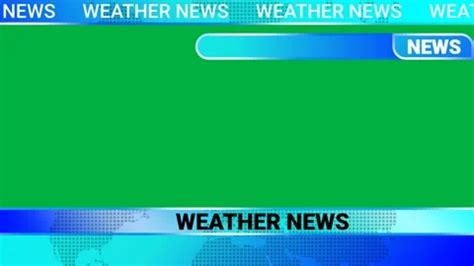
The concept of chroma keying is one of the oldest visual effects still in use today. Outside of film and television, you likely see it every time you watch the news or a weather report, as they also use chroma keying to composite the weather information behind the anchor. In film and television, green screens are primarily used to composite actors into entirely new locations or to make a visual effects artist’s job easier if rotoscoping is required. However, green screens serve more purposes beyond that. Green screens are essential when filming computer or mobile phone screens, since the glare from a screen can prevent filmmakers from accurately showing its content or crew reflections might appear. Additionally, if the information displayed on the device needs VFX, a green screen lets filmmakers and visual effects artists add the correct display content later.
The magic of chroma keying in DaVinci Resolve truly shines when it comes to switching out backgrounds. Whether you're filming a dreamy music video or an action-packed sci-fi movie, DaVinci Resolve makes swapping backgrounds as easy as a walk in the park. Simply disconnect the current background clip and connect a new one. Voila! This effortless switch not only enhances the visual appeal of your project but also adds depth to your storytelling.
Green Screen vs. Blue Screen: Choosing the Right Backdrop
Green and blue screens are the most common backdrops in VFX (visual effects) because they’re the farthest colors away from human skin tones. This means that they’re the two easiest colors to key out. Blue is technically the farthest away from our skin tones but is more common in everyday objects, which can make keying a nightmare. The green color used for green screens, however, is far less prevalent in most objects. Blue screens are best used for dimly lit environments since the vibrance from the green reflects light and bounces onto subjects more. Like most things in media, there are a variety of different use cases for both backdrops. You just need to know which one works best for the environment that you’re in. It’s a huge time-saver when you move on to post-production.
While green is the go-to color for chroma keying due to its contrast with human skin tones, it's by no means your only option. Whether you're working with a blue screen, white backdrop, or any other color, the process remains the same. Simply select the color you want to key out using the picker tool in the Delta Keyer. Remember, mastering green screen and chroma key techniques in DaVinci Resolve isn't just about learning the software. It's also about using high-quality digital assets to bring your vision to life.
Importing and Preparing Your Green Screen Footage
Importing green screen footage in Resolve is as easy as going to File > Import > Media. This can also be done by clicking COMMAND+I on Mac or CTRL+I on Windows. You’ll then need to drag your footage into a new or existing timeline in the edit tab. From here, there are three main ways to remove your green screen.
Something to note is how you’ll want your timeline to be set up. You’ll want your backdrop placed underneath your green-screened footage. It’ll be hidden initially under the timeline, but once you chroma key the green out, your backdrop will finally appear.
To do this, create a new video track, place the green screen clip on track 2, and then place your background underneath on track 1.
Method 1: Chroma Keying with the 3D Keyer Tool (Edit Page)
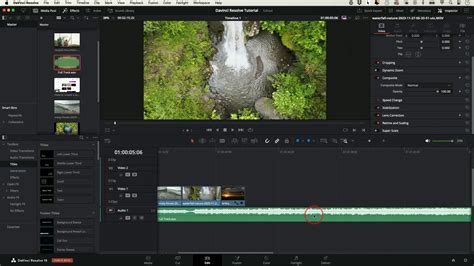
The first method of removing the green screen in Resolve is by using a simple Open FX effect called 3D Keyer. To get there, you’ll need to click on the Effects button in the top left-hand corner of the screen.
You’ll then want to go to the Open FX drop-down menu on the lower half of the screen and find Resolve FX Key. Under here should be an effect called 3D Keyer. Drag this effect onto your clip in the timeline. If you right-click on this effect, you can also add it to your favorites.
Clicking on the magic wand icon (effects) will bring you to the 3D Keyer effect that’s been applied to your clip. Before doing anything else, you’ll need to go to the drop-down menu on the left-hand side of your playhead and select Open FX Overlay. NOTHING will happen if you don’t do this first.
You’ll then want to click on the eye-dropper tool in your effects panel and select the portions of green that you want to key out. You can remove colors by selecting the negative eye-dropper tool and add colors by adding the positive eye-dropper tool. Dragging and clicking over the area of green will turn it white with a blue line indicating where your mouse is. Once you let go, your background will appear behind your green.
You’ll often need to make adjustments to the compositing and behaviors of the key. The 3D keyer gives you a few different options to play with. Turning the Despill slider up will get rid of the ugly green found around the edges of your video. Below the Despill are a few more options that you can play with that help improve the overall key. What you need will be entirely dependent on how the footage was lit. Changing settings such as black clip and white clip under matte finesse is a great way to dial in your key.
Step-by-Step Guide for 3D Keyer:
- Apply the 3D Keyer effect: Open the Effects Control Panel > OpenFX and search for 3D Keyer. Drag it to your green screen video clip and open the Inspector.
- Enable OpenFX Overlay: In the Timeline Viewer, click the Effect icon and change the setting from Transform to OpenFX Overlay.
- Use the Eyedropper Tool: In the Inspector, ensure the eyedropper tool has the pick function active. Set the eyedropper over the green in the preview monitor and click. Your background should appear.
- Fine-tune the Key: Adjust parameters in the Inspector panel. The DaVinci Resolve manual by Blackmagic Design offers pointers:
- Increase Clean Black to fill in "holes" in the background.
- Increase Clean White to close holes in the foreground.
- Use Blur Radius and In/Out Ratio to blur and adjust the key's edge.
Method 2: Chroma Keying with the Qualifier Tool (Color Page)
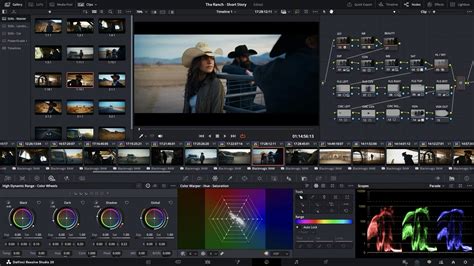
Another method of removing the green screen is by going inside the Color tab found at the bottom of the screen. Using the color page will bring you to a node-based workspace. You’ll want to go to the Qualifier tab, turning your cursor into an eye-dropper tool. Click on the green you want to key out. Nothing will happen at first. Click on the Invert button at the top of the Color tab. Then, right-click in the node tab and select add alpha output. Connecting the blue dot of your clip to the blue dot of the alpha output tab will remove the green from your image. You can edit your key by clicking the add or subtract eye-dropper and using the Hue, Saturation, and Luminance slider. Using Pre-Filter, Clean Black, Clean White, Black Clip, and White Clip will remove the spill from your footage and help you further get a better key.
Step-by-Step Guide for Qualifier Tool:
- Clip Preparation: Ensure your green screen footage is on a higher track than your background footage. Switch to the Color page.
- Select the Background Color: Navigate to the Qualifier tab, select the eyedropper tool, and click on the green background in your video clip.
- Mask Refinement: Click and drag to adjust the selection. Activate the overlay by clicking the "Highlight" button to better see variances. Use the "Picker+" option to add more green shades or manually adjust the selection. You can also adjust the color zone selector's width.
- Add Alpha Output: Right-click in the node tree and select "Add Alpha Output." Connect the blue square at the end of the node to the blue circle.
- Invert the Mask: If the mask appears inverted, click the 'Invert' button.
- Key Clean-Up: Use the "Picker+" tool to select more of the available green. Play around with settings like "In Out Ratio" to refine the matte and remove fringing.
Method 3: Chroma Keying with the Delta Keyer (Fusion Page)
The last way to remove the green screen on your footage is by using Fusion. This is the one option that works for those still using DaVinci Resolve 16. Think of Fusion as being akin to Adobe After Effects. This program is built into DaVinci Resolve though and can be accessed by clicking on the Fusion tab at the bottom of the screen. Clicking Shift + Space Bar will bring up your Fusion toolbar. Typing in “delta keyer” will bring up your keying tool. Connect the delta keyer to the media in and the media out.
You’ll then want to click on the greyed-out square next to Background-color. Doing this will bring up a color wheel. Click on the green you want to key out. This will give you a keyed-out image that can be adjusted using the sliders on the right-hand side. Your background image will not be visible until you return back to the edit page. Once the settings are to your liking, go back to the Edit tab. The image below your footage will now be visible.
The Delta Keyer offers advanced functionality compared to the Chroma Keyer, which is covered in the next section. It has additional integration with a clean plate for improved accuracy and extensive options for refining the key, such as pre-matte adjustments, spill settings, and edge handling. As such, this makes the Delta Keyer better suited for challenging keying situations with uneven lighting or complex edges.
The First 10 Nodes YOU Need To Know | DaVinci Resolve Fusion Basics
Step-by-Step Guide for Delta Keyer:
- Add the Delta Keyer in Fusion: Select the green screen clip, then click over to the Fusion tab. In the node structure, select Add Tool > Matte > Delta Keyer.
- Select Your Green Screen Color: Select the Delta Keyer node. In the Inspector, choose the eyedropper tool, hover it over the green on the preview monitor, and click to select your color.
- Refining the Key: The Delta Keyer offers options for refining the key, such as changing the soft range, erode, blur, and threshold.
Method 4: Chroma Keying with the Chroma Keyer (Fusion Page)
The third method is the Chroma Keyer, a tool similar to the Delta Keyer but works differently. The Chroma Keyer is a simple tool for quickly removing a specific color, making it efficient for straightforward keying tasks (with limited control over fine details).
To access the Chroma Keyer, right-click within the node structure, select Tool > Matte, and choose Chroma Keyer. Like the Delta Keyer, you must use the eyedropper tool in the Inspector to select the green screen. Once the key is selected, there is a range of parameters available to refine the key.
Although we have covered both tools, I recommend using them only if you’re already working within the Fusion page. The 3D Keyer and Qualifier tools available in the Edit and Color pages are generally more efficient when you’re already working inside those pages in DaVinci Resolve.
Step-by-Step Guide for Chroma Keyer:
- Add the Chroma Keyer in Fusion: Right-click within the node structure, select Tool > Matte, and choose Chroma Keyer.
- Select Your Green Screen Color: Use the eyedropper tool in the Inspector to select the green screen.
- Refine the Key: Adjust the available parameters to refine the key.
Optimizing Your Workflow with DaVinci Resolve
DaVinci Resolve is not just one of the best free tools for green screen footage but one of the best tools overall. Using Fusion, the Color Tab, and the 3D Keyer Tool are quick and easy ways to key out your green footage. Resolve provides you with so many options for working with your video clips. Creating films, social media videos, and commercials has never been easier. Using green screens can add so much production value to your content, but just remember to use it sparingly. The use of VFX can add a lot of time during the post-production process, so it’s best to know when to utilize it. In the world of post-production, every second saved is an absolute gift.
There’s never such a thing as too fast in the world of post-production. Anything that can be done to speed up the process is essential. The small tips and tricks that we covered are essential when editing content for the sake of efficiency. The more time saved as a video editor the better. That’s why third-party extensions and plugins that help boost efficiency are so important in DaVinci Resolve and other NLEs.
With Simon Says, you can transcribe footage natively within Resolve in 100 languages. With its versatile capabilities, DaVinci Resolve eliminates the need to move out of the program when keying green screens. You can remove a green screen in DaVinci Resolve in four ways, each offering different difficulty levels.
The key to a good chroma key is a well-lit green screen and careful color selection. Remember, mastering green screen and chroma key techniques in DaVinci Resolve isn't just about learning the software. It's about understanding the principles, practicing the techniques, and letting your creativity shine.