Adobe Illustrator, a cornerstone of vector graphics, offers powerful tools for manipulating artwork. Among these, the Eraser Tool stands out as a fundamental yet often underutilized asset for designers. Unlike pixel-based manipulation in raster programs like Photoshop, erasing in Illustrator operates on vector paths and shapes, a distinction that dictates its unique functionality and application. Understanding this core difference is paramount to effectively leveraging the Eraser Tool, ensuring that designers can achieve precise modifications without compromising the scalability and integrity of their vector creations. This guide delves into the intricacies of the Eraser Tool, alongside its complementary companions, the Scissors Tool and Knife Tool, providing a thorough tutorial for users of all levels.
Accessing and Understanding the Eraser Tool
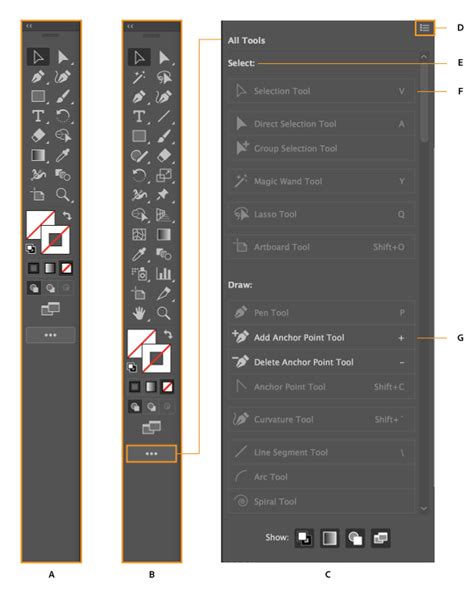
The Eraser Tool is readily accessible through two convenient methods. The quickest way to activate it is by pressing the keyboard shortcut Shift + E. Alternatively, you can locate and click on the Eraser Tool icon directly from the left-hand toolbar. The icon typically depicts a small eraser and is often positioned near other transformation tools, making it easy to find.
Before commencing any erasing, it is crucial to identify the specific shapes or paths you intend to modify. Illustrator allows you to work on a single object or select multiple objects to erase across them simultaneously. Once the tool is active, you can adjust its size to suit the task at hand. Positioning your cursor over the desired area and clicking and dragging will reveal the erasing action in real-time. Upon releasing the mouse button, Illustrator finalizes the operation.
The Mechanics of Erasing Vector Paths and Shapes
When the Eraser Tool is applied to a path, such as those created with the Pencil or Pen Tool, it doesn't simply delete it. Instead, it breaks the path into separate segments. This action is visually indicated by the appearance of new anchor points at the locations where the erasing occurred. These newly formed segments can then be edited independently, offering a high degree of control over the path's structure.
For closed shapes like circles, rectangles, or polygons, using the Eraser Tool creates an opening in the shape. If multiple objects are selected prior to erasing, the tool will affect all selected objects along the path of your drag, effectively cutting through them in unison.
Advanced Eraser Tool Options and Customization
For more nuanced control, the Eraser Tool's detailed options can be accessed by double-clicking its icon in the toolbar. This opens a dialog box where several parameters can be adjusted:
- Size: This controls the overall dimensions of your eraser brush, ranging from a fine 1 pt to a broad 500+ pt.
- Angle: This parameter determines the orientation of the eraser shape. It becomes particularly useful when the Roundness is set to less than 100%, creating an elliptical eraser that can be rotated from 0° to 360° for specific effects.
- Roundness: This setting dictates how circular or elliptical the eraser shape is.
For users equipped with graphics tablets, the Eraser Tool offers enhanced functionality through pressure sensitivity and tilt sensitivity. Enabling these features can significantly refine the erasing experience, allowing for more natural and responsive control over the brush size and opacity based on how the stylus is used. Setting up custom brush dynamics for graphics tablet users can further elevate the precision and artistic potential of the Eraser Tool.
Complementary Tools: Scissors and Knife
The Eraser Tool is often used in conjunction with other powerful path-editing tools found within the same fly-out menu, namely the Scissors Tool and the Knife Tool.
The Scissors Tool: Precision Cutting at Anchor Points
The Scissors Tool is a precision instrument designed for cutting vector paths at specific anchor points. You can utilize it to cut at existing anchor points or to create new ones by simply clicking on a path.
To activate the Scissors Tool, you can press the C key on your keyboard or select it directly from the toolbar, usually found within the Eraser Tool's fly-out menu.
Workflow with the Scissors Tool:
- Identify the target: Locate the path or shape you wish to modify.
- Make the cut: Click on the path exactly where you want the cut to begin. This can be an existing anchor point or any point along the path.
- Make a second cut: Click at the point where you want the cut to end.
- Select and delete: Switch to the Selection Tool (V) and click on the path segment you want to remove. Press the Delete key to remove it.
The Scissors Tool excels at creating clean openings in closed shapes, a task that can be challenging with the Eraser Tool alone. It is also adept at cutting compound paths into separate, editable shapes. When paths intersect, the Scissors Tool can precisely cut at the exact intersection point.

The Knife Tool: Freeform Division of Shapes
The Knife Tool, another option within the Eraser Tool's fly-out menu, is used to create custom cuts across shapes and paths. Unlike the Scissors Tool, which operates at specific points, the Knife Tool allows for freehand slicing.
Workflow with the Knife Tool:
- Select the shape: Before using the Knife Tool, select the shape you intend to cut using the Direct Selection Tool.
- Perform the cut: Click and drag the Knife Tool across the path or shape to create your desired cut.
- Separate and edit: Similar to the Eraser Tool, the Knife Tool can create new shapes or segments. Using the Selection Tool (V), you can then select and delete unwanted portions.
The Knife Tool is particularly useful for dividing complex shapes or creating unique subdivisions within existing artwork. It can be used to create lines and shapes, offering a versatile approach to dividing artwork.
Practical Applications and Workflow Considerations
These tools are invaluable for various design tasks, especially when preparing artwork for specific applications like Live Paint in Illustrator. Live Paint allows for intuitive coloring of artwork where intersecting lines and segments create distinct areas that can be filled independently. To effectively utilize Live Paint, artwork often needs to be composed of open lines and segments rather than closed, continuous paths that might prevent color filling.
Example Scenario: Preparing a Rocket Sketch for Live Paint
Imagine a scenario where you have a sketch of a rocket that you intend to color using Live Paint. The sketch might have overlapping lines and closed shapes that would hinder the Live Paint functionality. Here's how the Eraser, Scissors, and Knife tools can be employed:
- Initial Cleanup: Zoom in on the sketch. The Eraser Tool can be used to remove unwanted sections. For instance, dragging the Eraser Tool across a portion of a line will erase it, creating a shape on each side. You can then select the unwanted segment with the Selection Tool (V) and delete it.
- Opening Closed Shapes: If a shape is closed off and you need it to be an open line for Live Paint, the Scissors Tool is ideal. Click on one anchor point of the path, then click on another anchor point to create a break. You can then select and delete the unwanted segment.
- Custom Cuts: For more complex divisions, the Knife Tool can be used to draw a custom cut across a path, effectively dividing it into separate pieces. Again, the Selection Tool is used to isolate and delete the unwanted parts.
- Ensuring Open Lines: The goal is to ensure that all lines that should be paintable are open, allowing Live Paint to recognize them as distinct areas. For example, when preparing the rocket's body, you might use the Scissors Tool to cut specific segments of the outline, ensuring that they can be filled individually.
Adobe Illustrator – Live Paint Tool Tutorial
Advanced Techniques and Common Challenges
When working with these tools, certain techniques and challenges may arise:
- Layer Management: Before erasing, it's wise to lock or hide layers you don't want to affect. This prevents accidental modifications to other elements of your design.
- Isolation Mode: To focus on erasing within a specific group of objects without affecting others, you can enter Isolation Mode. This is typically achieved by double-clicking a group.
- Maintaining Stroke Styles: A common challenge is maintaining stroke styles after erasing. After an erasing operation, you may need to reapply or adjust stroke styles using the Stroke Panel to ensure visual consistency.
- Compound Paths: Erasing compound paths can sometimes yield unpredictable results. Entering Isolation Mode for the compound path before erasing can help manage these situations.
Expert Insights from Lalit M. S. Adhikari
Lalit M. S. Adhikari, a seasoned Digital Nomad and Educator since 2009, emphasizes the fundamental nature of erasing in Adobe Illustrator. With extensive experience in design education, graphic design, and animation, Adhikari has guided over 500 students and authored more than 200 educational articles. His insights highlight that "understanding this concept [vector vs. pixel erasing] is crucial because it explains why certain erasing methods work better for specific situations." This guide, regularly updated, aims to reflect the latest information on Adobe tools and design best practices, drawing upon such expertise to provide a comprehensive learning experience. Adhikari's approach focuses on the step-by-step process of creating and refining images, underscoring the combined power of the eraser tool, knife tool, and scissors tool for achieving desired outcomes.
The effective use of the Eraser Tool, Scissors Tool, and Knife Tool transforms them from simple deletion utilities into sophisticated instruments for shaping and refining vector artwork. By mastering their functionalities and understanding their interplay, designers can unlock new levels of precision and creative control within Adobe Illustrator.