When preparing digital artwork for the tangible world of print, understanding and executing the conversion from RGB to CMYK is not just a technical step; it's a crucial process that directly impacts the final appearance of your project. While digital screens glow with the vibrant light of RGB (Red, Green, Blue), the physical act of printing relies on the subtractive nature of CMYK (Cyan, Magenta, Yellow, and Key/Black) inks. This fundamental difference necessitates a careful transformation to ensure that the colors you see on your monitor translate as closely as possible to the printed page.
Understanding Color Modes: RGB vs. CMYK
Color mode refers to the system by which colors are represented and organized within a digital or printed image. This concept is paramount in design and printing because it dictates how colors are mixed and displayed, directly influencing the accuracy and aesthetic of the final output. The two most prevalent color modes are RGB and CMYK.
RGB (Red, Green, Blue)
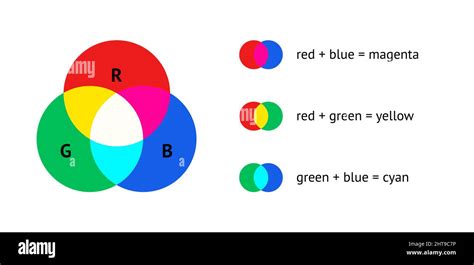
The RGB color mode is the standard for digital displays. This includes everything from computer monitors and televisions to smartphones, tablets, and digital cameras. These devices emit light, and by combining varying intensities of red, green, and blue light, they create the vast spectrum of colors we perceive on screen. In computing, colors are often represented by HEX triplets, which are six-digit hexadecimal numbers. Each pair of digits corresponds to the intensity of red, green, and blue, respectively, ranging from 00 to FF (0 to 255 in decimal). This system allows for a very wide range of colors, often referred to as a larger color gamut.
CMYK (Cyan, Magenta, Yellow, Key/Black)
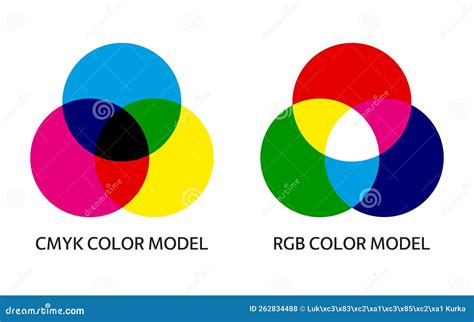
CMYK, on the other hand, is the standard color model for printing. It’s a subtractive color model, meaning that inks absorb certain wavelengths of light and reflect others. Cyan ink absorbs red, magenta absorbs green, and yellow absorbs blue. By layering these inks, along with black (the "Key" plate, often abbreviated as K to avoid confusion with Blue), printers can create a full spectrum of colors. This is also known as the "Four-Color Process" or "Process Color." Because it relies on physical inks absorbing light, the CMYK color gamut is generally smaller than RGB, meaning some of the most vibrant and luminous colors achievable in RGB cannot be perfectly replicated with CMYK inks.
Why Color Mode Matters for Print
The choice of color mode is critical because different devices and mediums have distinct color capabilities. Screens emit light, allowing for highly saturated and bright colors, especially those that fall outside the CMYK gamut. Printing presses, however, apply ink to a substrate, and the way these inks blend and interact with light on paper is fundamentally different. Using the appropriate color mode ensures that colors are displayed or printed accurately, preventing unexpected and often disappointing results. When we layer colors of inks in CMYK printing, they blend differently compared to how layers of colored light combine in the RGB model. Choosing the right color mode is a critical step for your design to look consistent across different platforms and mediums.
The Challenge of Color Conversion: Bridging the Gap
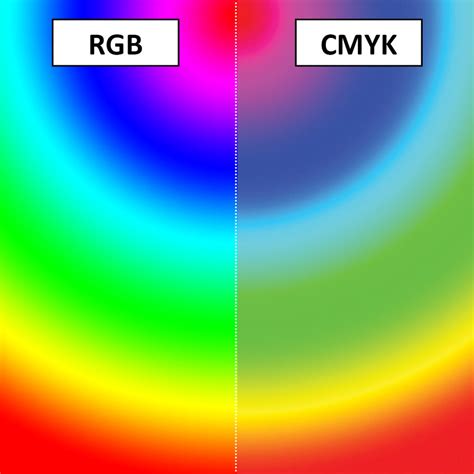
The primary challenge in print design lies in converting files from RGB to CMYK while striving to maintain color accuracy. Because the CMYK color gamut is smaller than RGB, subtle shifts in color can occur during conversion. This is particularly noticeable with very bright, neon, or highly saturated colors, which are often difficult or impossible to reproduce accurately with CMYK inks. These colors are said to be "out of the CMYK color gamut." When these colors are converted, the RGB-to-CMYK translator does its best to approximate the original appearance, but the result may appear duller or less saturated than the RGB version.
Preventing Color Shift and Managing Expectations
To mitigate these shifts, designers have several strategies. For critical color projects, it's highly recommended to work in CMYK from the outset. If you are working with an established brand, they will often provide specific CMYK values for their brand colors. If not, and especially for large print jobs, it's advisable to print a sample sheet of various CMYK values to identify the closest match to your desired colors, and then adjust your design file accordingly.
It's important to be prepared for slightly muted or dulled colors in CMYK mode when compared to the original RGB image. While it's possible to achieve close matches, perfect color accuracy from RGB to CMYK is not always achievable. This is a common challenge in the industry that designers and printers work to manage.
Can You Get the Exact Same Color from RGB to CMYK?
Achieving the exact same color when converting from RGB to CMYK is often challenging due to the inherent differences between these two color models.
- Color Gamut: As mentioned, RGB possesses a wider color gamut than CMYK, enabling the production of more vibrant and diverse colors. When converting to CMYK, some of these colors may appear duller or less saturated because CMYK has a more limited range of colors.
- Color Accuracy: While it's possible to achieve close matches, perfect color accuracy from RGB to CMYK is not always attainable. This is particularly true for very bright or neon colors, which are difficult to replicate with CMYK inks.
- Color Management: Utilizing color management tools and software can help bridge the gap between RGB and CMYK. These tools can offer a more accurate preview of how colors will appear when printed.
- Pantone Colors: For critical color matches where absolute consistency is paramount, consider using Pantone colors. Pantone is a standardized color system widely used in printing, serving as the industry standard for consistent color reproduction.
The Importance of Proofing
Always create a printed proof before commencing the final print job. This provides an invaluable opportunity to see how the colors will look on the actual paper stock and allows for any necessary adjustments to be made. This is a critical step in professional print production and helps maintain the quality of your printed materials.
How to Convert RGB to CMYK in Design Software
Most professional image editors and layout programs come equipped with options for RGB to CMYK conversion. While locating this specific option can sometimes be a challenge, understanding the general process is key.
Adobe InDesign
When preparing files for print in InDesign, it's best to set your document to CMYK from the start. If you specify a print intent when creating a new document, InDesign will default to CMYK color mode and present standard print sizing options. You can verify your document's color mode by going to File > Document Setup and checking the "Intent" at the top (Print, Web, or Mobile).
If you are working with an existing document and need to convert RGB elements to CMYK:
- Open Your Document: Launch Adobe InDesign and open your file.
- Check the Document Color Mode: Open the Swatches panel (Window > Color > Swatches). If you see CMYK values in your color swatches, your document is already in CMYK mode.
- Convert RGB Colors to CMYK:
- Individual Colors: Double-click on a color swatch in the Swatches panel, select CMYK from the Color Mode dropdown, and adjust the CMYK values as needed.
- All Document Colors: Go to Edit > Convert to Profile. Under "Destination Space," choose a CMYK profile that matches your printing conditions. Click OK to apply the conversion.
- Convert RGB Images to CMYK:
- Open the Links panel (Window > Links).
- Right-click on each RGB image and select "Edit With > Adobe Photoshop" to open it in Photoshop.
- In Photoshop, convert the image to CMYK by going to Image > Mode > CMYK Color and save the changes.
- Return to InDesign; the Links panel will indicate the image has been modified. Update the link to reflect these changes.
- Export Your Document: When ready to print, export your document as a PDF with CMYK color settings. Go to File > Export and choose "Adobe PDF (Print)" as the format. In the Export Adobe PDF dialog, select an appropriate PDF preset for your printing requirements. Crucially, ensure the "Output" section is set to convert colors to the CMYK profile you are using for printing.
Converting images from RGB to CMYK in InDesign
Adobe Photoshop
Photoshop is a powerful tool for image manipulation, including RGB to CMYK conversion.
- Open Your Image: Launch Adobe Photoshop and open the image file.
- Check the Current Color Mode: Go to Image > Mode. If it’s already CMYK, you are set. If it’s RGB, proceed.
- Convert to CMYK: Go to Image > Mode > CMYK Color. A dialogue box may appear, warning about potential color shifts. This is normal; click OK to proceed.
- Save Your Image: Save your image using File > Save As. Choose an appropriate format (e.g., PSD, TIFF, or PDF) and ensure you select the "Embed Color Profile" option for optimal color consistency.
To simulate how your colors will look in print, use Photoshop’s soft proofing feature: go to View > Proof Setup > Custom and select a CMYK profile that matches your printing conditions. After converting to CMYK, you may need to make color adjustments to achieve your desired look.
Adobe Illustrator
Illustrator is primarily a vector graphics editor, but it also handles color modes effectively.
- Open Your Document: Launch Adobe Illustrator and open your file.
- Check the Document Color Mode: Go to File > Document Color Mode. If it’s already CMYK, your document is ready for print. If it’s RGB, proceed.
- Convert to CMYK: Go to File > Document Color Mode > CMYK Color. This action converts the entire document, including all objects and elements, to CMYK.
- Adjust Colors if Necessary: After conversion, you may notice color changes due to the smaller CMYK gamut. Use Illustrator’s color tools to adjust any colors that have shifted to align with your desired print output.
- Save Your Document: Save your document using File > Save As. Choose your preferred format (e.g., AI, PDF, or EPS) and ensure you select the "Embed ICC Profiles" option.
Use the Overprint Preview (View > Overprint Preview) to get a more accurate representation of how colors will overlap and mix in the final print.
Canva (Canva Pro)
Canva, while primarily a digital design app operating in RGB, offers CMYK conversion for print in its Pro version.
- Open Your Design: Log in to your Canva Pro account and open the design.
- Convert to CMYK: Click on the ‘File’ menu, select ‘Download’. On the ‘File type’ dropdown, choose ‘PDF Print’. On the ‘Color Profile’ dropdown, select ‘CMYK’.
- Download Your Design: Click the ‘Download’ button. Your design will be downloaded in CMYK color mode.
When you choose the “PDF Print” option, Canva optimizes the file for printing, including automatic color conversion to CMYK. However, you won't be able to manually adjust or view specific CMYK values within Canva. It's a good practice to open the downloaded PDF in a program that can display CMYK colors (like Adobe Acrobat) to verify the conversion. For precise control, consider using professional software.

Converting RGB to CMYK Without Professional Software
For those who do not have access to professional design software like Adobe Photoshop or InDesign, converting RGB to CMYK is still entirely possible using various online tools. These free online converters offer a quick and accessible way to transform your colors for print.
RGB to CMYK Converters Online
Numerous free online tools can help you convert RGB colors to CMYK. These tools typically allow you to input RGB values (either decimal or HEX) and will provide the corresponding CMYK percentages. While these online tools can offer a quick approximation, it's important to reiterate that for precise color matching and professional printing outcomes, using dedicated software and consulting with your printer is always the recommended approach.
A common workflow involves using an online converter to get approximate CMYK values. For example, if you have an RGB color like pure blue (0, 0, 255), an online converter might suggest CMYK values such as 100% Cyan, 65% Magenta, 0% Yellow, and 0% Black. This provides a much more accurate representation for printing than trying to use the RGB blue value directly, which often translates to a purplish hue in CMYK.
Minimizing Color Shifts: Tips for Maintaining Color Accuracy
Changing from RGB to CMYK without altering the appearance of colors is a nuanced process due to the distinct differences between these color spaces. However, several steps can be taken to minimize undesirable color shifts:
- Soft Proofing: Utilize the soft proofing feature in your image editing software. This simulates how your RGB colors will translate to CMYK, allowing you to identify and address potential discrepancies before the actual conversion.
- Color Adjustments: If soft proofing reveals significant shifts, you can fine-tune the hue, saturation, or brightness of your colors to better align them with your original vision within the CMYK space.
- Pantone Matching: For critical colors where precise reproduction is essential, leverage Pantone colors. This standardized system provides a reliable reference point, ensuring consistency across different mediums and printing processes.
- Consult with Your Printer: Engage in open communication with your print provider. Understanding their specific color requirements and press capabilities can offer invaluable insights into how to best maintain color fidelity during the CMYK conversion process. They can often recommend specific CMYK profiles or provide guidance on color expectations.
- Professional Software: While free tools exist, professional software like Adobe Photoshop or Illustrator offers advanced color management features, providing greater precision and control over the conversion process.
It's crucial to acknowledge that some degree of color variation is typical and often unavoidable when transitioning from the light-based RGB model to the ink-based CMYK model.
Is Converting Images from RGB to CMYK Important for Printing?
Yes, it is critically important when working with commercial printers. As highlighted, some vibrant colors in RGB may not be reproducible in CMYK, leading to noticeable color shifts when printed. Converting to CMYK beforehand allows for proactive adjustments so that colors appear as intended in the final printed product.
Furthermore, most commercial printers operate using the CMYK color mode. Providing images in CMYK ensures compatibility with their printing processes and significantly reduces the risk of unexpected color changes. By converting to CMYK and making necessary color adjustments before sending your files, you can achieve more accurate and consistent colors across all your printed materials. This attention to detail is a fundamental aspect of professional print production.
At Thomas Group Printing, we understand the paramount importance of color accuracy in your printed materials. Our team of experts is equipped with the knowledge and tools to help you navigate the complexities of color conversion. We are dedicated to ensuring your final product meets your expectations and accurately reflects your design. If you have any concerns about color matching or require assistance with your printing project, please do not hesitate to reach out to us.
When we receive RGB color files, our advanced systems perform an automatic conversion to CMYK. However, this standard-value conversion may not always align perfectly with your desired outcome. To ensure you are happy with the results, we strongly recommend taking the time to prepare your files properly by converting them to CMYK yourself. We cannot be responsible for sub-par results if you furnish your images in RGB, as the automatic conversion may not perfectly match your expectations.
Many graphics software programs provide the choice to work in either RGB or CMYK, referred to as "color spaces." Scanners, phones, and digital cameras create images using combinations of just three colors: Red, Green, and Blue (RGB). These are the primary colors of light, which computers use to display images on your screen. Printing presses, however, print full-color pictures using a different set of colors: the primary colors of pigment: Cyan, Magenta, Yellow, and Black (CMYK). This is "4-color process" or "full-color" printing, which comprises the majority of magazines and marketing materials you see every day.
You will have more control over the appearance of your printed piece if you convert all of the images from RGB to CMYK before sending them to us. For example, many programs translate 100% Blue in RGB into a somewhat purple-looking color in CMYK. We recommend a CMYK value of 100-65-0-0 to achieve a nice, clean blue. It is more likely to happen if you pick a very rich, vibrant color for a background or some other element of your layout. It probably won’t look bad, it just won’t look exactly the same.
If your print provider does not accept RGB images, and you lack access to professional tools, free online tools can convert images from RGB to CMYK color space using professional ICC profiles. Max file size for upload is typically 25 MB, supporting common image formats like JPG, PNG, JPEG, TIFF, GIF. For printing, TIFF format generally yields the best results. If unsure which CMYK profile to use, selecting a default profile is often sufficient, or you can upload your own.
Specific Software Instructions for CMYK Conversion
Here's a look at how to ensure you're working in the CMYK color space in various common programs:
Microsoft Publisher
Publisher often defaults to RGB. To switch to CMYK:Use the following menu options: Tools > Commercial Printing Tools > Color Printing and select "Process colors (CMYK)."Ensure that all images incorporated into a layout are linked and not embedded to maintain the CMYK color space within the image. This is done via Tools > Commercial Printing Tools > Graphics Manager. Highlight the embedded image, click "Link," and then browse to locate the original file and link to it.
QuarkXPress
Use the following menu options: File Tab > Info > Commercial Print Settings. Select each object you want to convert. Select the Fill tool and click "Fill Color Dialog." Make sure the Color model is CMYK. For each object with an outline: Select the Outline tool and click "Outline Color Dialog."
CorelDRAW
Use the following menu options: Edit > Edit Colors > Show Colors in Use > Highlight Color and click "Edit." Change the model to CMYK and deselect "Spot color."
Adobe PageMaker
Use the following menu options: Window > Swatches and Window > Color. Double-click a color in the Swatches palette, change the color mode to CMYK, and set the color type to "Process." Any colors created in the document that are not in the Swatches palette need to be changed to the CMYK color space. Select each object you want to convert and ensure the Color palette reflects the CMYK percentages. Click the top-right arrow in the palette to change to CMYK if necessary.
Use the following menu options: Window > Show Colors. Double-click "colors" in the palette and select Model to be CMYK and Type to be Process. Please be advised that PageMaker does not successfully represent CMYK color on the monitor.
Programs Lacking CMYK Conversion Capability
It's important to note that some programs do not have the inherent capability to convert to CMYK. In such cases, you will need to export your work from these programs and then use dedicated software or online tools for the conversion process.
By understanding the differences between RGB and CMYK, managing color expectations, and utilizing the appropriate tools and techniques, you can ensure your digital designs translate beautifully and accurately into their printed forms.