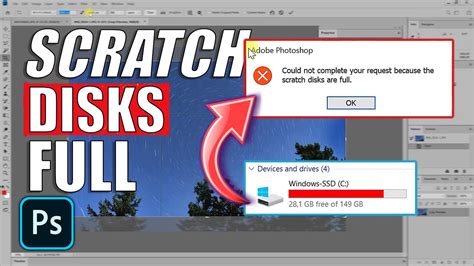
Encountering the "Scratch Disk Full" or "Scratch Disk Low" error in Adobe Photoshop can be a significant impediment, halting your creative process and sometimes even preventing the application from launching. These messages, such as "Could not initialize Photoshop because the scratch disks are full" or "Could not complete your request because the scratch disks are full," manifest as dialog boxes or startup pop-ups, indicating a critical shortage of temporary storage space. The consequences can range from Photoshop freezing or crashing to a complete refusal to launch. Understanding the nature of scratch disks and implementing effective solutions is paramount to maintaining a smooth and productive workflow.
The Crucial Role of Scratch Disks in Photoshop
At its core, a scratch disk is a designated area of your hard drive that acts as temporary memory for applications like Photoshop. When you're actively working on a project, especially with large or high-resolution images, Photoshop utilizes this scratch space to store and access temporary files. This virtual memory allows the program to perform complex operations and manage data efficiently. In essence, Photoshop works faster using a dedicated scratch disk than it would if it were solely reliant on your computer's RAM for scratch space. The "scratch disk full" error usually occurs because of a buildup of temporary files and cache within Photoshop, which then prevents the program from functioning as intended. Another primary reason for this error is a simple lack of available storage space on your hard drive, as your scratch disk directly relies on this physical space. For programs like Photoshop to run effectively, ample storage space is a fundamental requirement.
Common Causes of a Full Scratch Disk
The "scratch disk full" error in Photoshop is typically a symptom of accumulated temporary files and cache. Photoshop creates numerous temporary files during editing sessions, acting as backups for your projects. These files, often referred to as Photoshop Temp files, can accumulate over time, especially if Photoshop doesn't fully clear them upon exiting. The Photoshop cache itself also plays a role; it holds old drafts of your projects and assists in loading high-resolution images more quickly. Although Photoshop is designed to automatically delete its cache when you exit the program, this process isn't always perfect, and some files can remain. Furthermore, the History States feature, which allows you to undo multiple steps, can consume significant scratch disk space during complex operations if not managed carefully.
Temporary Files and Cache Accumulation
Photoshop creates temporary files as backups for your projects. These files, often found in folders named "Photoshop Temp" followed by a string of numbers, can build up. On a Mac, these hidden files may appear as grayed-out folders, requiring you to dig into your system to locate them. Similarly, your Mac's cache can also grow, storing unnecessary files that contribute to overall disk space depletion. Clearing your Mac's cache can help free up temporary files that might be impacting Photoshop's scratch disk performance.
Insufficient Hard Drive Space
Another significant contributor to the "scratch disk full" error is a general lack of available storage space on your hard drive. Your scratch disk relies directly on this physical disk space. When your Mac's storage is nearly full, Photoshop struggles to allocate sufficient scratch disk space, leading to performance issues and errors. Programs like Photoshop require substantial disk space to operate optimally. If your primary drive, often the system drive, is consistently nearing its capacity, Photoshop will inevitably encounter scratch disk problems.
Corrupted Preference Files
In some instances, the Photoshop preference file itself may become corrupted. This corruption can affect how Photoshop handles its scratch disks, leading to errors even when there appears to be sufficient free space available. Corrupted preference files can cause Photoshop to report 'scratch disks are full' erroneously.
Solutions for Clearing Your Photoshop Scratch Disk
Fortunately, there are several effective methods to clear your Photoshop scratch disk and resolve the associated errors. These solutions range from simple file management to adjusting Photoshop's preferences and even considering hardware upgrades.
Freeing Up Disk Space
The most direct approach to resolving a "scratch disk full" error is to free up space on your hard drive. This involves deleting unnecessary files that are consuming storage. Regularly review your files and remove any large items you no longer need. Consider moving large, infrequently accessed files to an external hard drive or cloud storage to free up space on your primary drive.
Clearing System and Application Caches
Beyond Photoshop-specific files, your Mac itself stores unnecessary temporary files. Clearing your Mac's cache can help get rid of these temporary files and contribute to overall disk space availability. You can also search for .tmp files in Finder and delete those that start with "pst". For a more comprehensive cleanup, third-party cleaning applications can assist in identifying and removing system junk.
Managing Photoshop Preferences and Settings
Photoshop offers several preferences that can be adjusted to manage scratch disk usage and improve performance.
Changing Scratch Disk Location
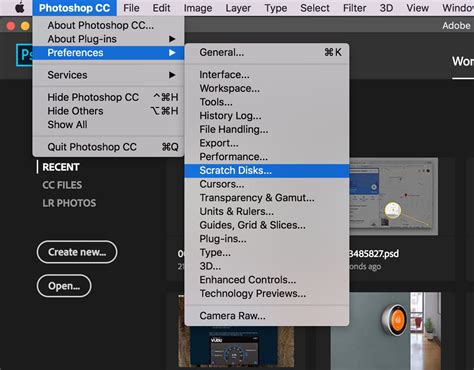
If you have multiple drives on your Mac, you can designate a drive with more available space as your primary scratch disk. To do this, navigate to Photoshop > Preferences > Scratch Disks. From here, you can select a different drive with ample free space. It's crucial to ensure this drive has significantly more free space than your current primary scratch disk. Using a fast Solid State Drive (SSD) as a scratch disk can dramatically improve Photoshop's performance. If possible, select a fast SSD for optimal results. Remember to restart Photoshop after making these changes for them to take effect.
How to Fix "Scratch Disk Full" Error on MacOS
Clearing Photoshop's Cache and Purging Data
You can manually clear Photoshop's cache and temporary data to free up space. Within Photoshop, go to Edit > Purge and select "All" to remove temporary data, history states, and other cached information. This action removes temporary data that Photoshop is no longer actively using. Regularly clearing Photoshop's cache is a recommended practice for maintaining optimal performance.
Limiting History States
The History States feature, which allows for multiple undo steps, can consume a considerable amount of scratch disk space. In Preferences > Performance, you can reduce the number of History States. Limiting undo steps can free up memory and reduce the strain on your scratch disk. While this might reduce the number of undos available, it can be a necessary trade-off when dealing with scratch disk limitations.
Resetting Photoshop Preferences
If you suspect your Photoshop preference file may be corrupted, resetting it can resolve various issues, including scratch disk errors. To do this, hold down Command + Option + Shift while launching Photoshop. You will be prompted to confirm that you want to delete the settings file. It is advisable to back up any custom settings before resetting preferences to avoid losing personalized configurations.
Hardware Considerations and Upgrades
While software solutions are often effective, hardware limitations can also contribute to scratch disk issues.
Upgrading to an SSD
If your Mac is still using a traditional Hard Disk Drive (HDD), upgrading to a Solid State Drive (SSD) can dramatically improve Photoshop's performance, including scratch disk usage. SSDs offer significantly faster read and write speeds, which directly benefits how Photoshop accesses and utilizes its scratch disk. If possible, an SSD dramatically speeds up scratch disk usage.
Increasing RAM
Like all applications, Photoshop uses RAM to perform tasks. If your system has limited RAM, Photoshop will be forced to rely more heavily on its scratch disks. Regularly check your RAM memory status and consider an upgrade if you find your projects are consuming a significant portion of your available RAM. Sufficient RAM ensures that Photoshop can handle more data directly, reducing its reliance on slower scratch disk operations.
Upgrading Your Mac's Storage
When all else fails, or if you consistently face storage limitations, it may be time to upgrade your Mac's internal storage. Programs like Photoshop require substantial disk space to work properly. To ensure the longevity and performance of your Mac, consider upgrading to a larger, faster Solid State Drive (SSD).
Advanced Troubleshooting and Workarounds
For persistent issues or when immediate solutions are needed, there are more advanced troubleshooting steps and temporary workarounds.
Manually Deleting Temporary Files
Sometimes, you may need to manually locate and delete Photoshop's temporary files. Search for any folders named "Photoshop Temp" followed by a string of numbers. These can often be found in your user profile's temporary folders. On a Mac, you might need to enable viewing of hidden files and folders to find them.
Using External Drives as Scratch Disks
Using an external drive, especially a fast SSD, as a dedicated scratch disk can significantly improve performance and alleviate issues with your internal drive. Connect your external SSD and then, within Photoshop's preferences (Edit > Preferences > Scratch Disks), select it as your primary scratch disk. This offloads the intensive scratch disk operations from your system drive.
Temporary Bypass of "Scratch Disk Full" Error
While not a long-term solution, there are ways to temporarily bypass the "scratch disk full" error to open Photoshop and save your work. This might involve clearing some immediate temporary files or performing a quick purge of Photoshop's cache. The goal is to create just enough space to launch the application and then immediately save your project to a safe location.
Maintaining Optimal Performance
Preventing "scratch disk full" errors is as important as resolving them. Consistent maintenance of your system and Photoshop's settings is key.
Regular Disk Cleanup
Make it a habit to regularly clear your Mac's cache and temporary files. Utilize built-in macOS tools like Storage Management to identify and remove unnecessary files. For Photoshop-specific clutter, purge the cache regularly via Edit > Purge > All. Consider using reputable third-party cleaning applications for more thorough maintenance and to prevent system junk from accumulating.
Efficient Storage Management
Efficient storage management is crucial for smooth Photoshop performance. Regularly review and delete large, unnecessary files. Moving Photoshop's scratch disk to a separate, fast drive can significantly improve performance. Consider investing in external storage for less frequently used files.
Backup and Recovery Strategies
Implementing robust backup and recovery strategies is crucial for preventing data loss when dealing with Photoshop's scratch disk issues. Ensure you have automated backups to an external drive or cloud service. Cloud storage offers a reliable way to back up your Photoshop files and prevent data loss due to scratch disk problems, ensuring your files are continuously backed up even if issues occur. Photoshop also includes an auto-recovery feature that can save your work in case of unexpected crashes or scratch disk failures; testing this feature periodically is recommended.
By understanding the causes of "scratch disk full" errors and diligently applying these troubleshooting steps and preventative measures, Photoshop users can ensure their creative workflow remains uninterrupted and their projects are completed efficiently.