The digital world is built on pixels, and understanding how these tiny squares form the images we see is crucial for everything from web design to high-quality printing. A key aspect of this understanding revolves around resolution, often discussed in terms of Dots Per Inch (DPI) and Pixels Per Inch (PPI). For anyone working with digital images, particularly in graphic design and photography, knowing how to manage and change these settings within powerful software like Adobe Photoshop is an essential skill. This article will demystify DPI and PPI, explain their impact on image quality, and provide a step-by-step guide on how to effectively change DPI in Photoshop, along with other valuable tips for optimizing your images.
What is DPI?
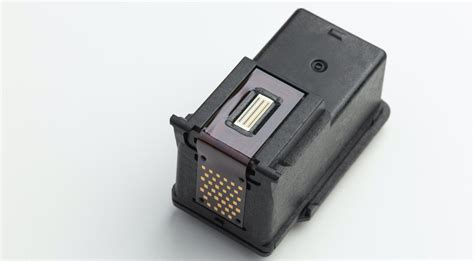
DPI, or Dots Per Inch, is a term primarily associated with printing. It quantifies the number of individual dots of ink that a printer can place within a one-inch line. A higher DPI value indicates that a printer can lay down more ink dots in that same inch, resulting in a more detailed and crisper printed image. For instance, most good-quality home printers will print at a resolution of 300 DPI to achieve high-quality images. This means that for every inch of printed output, the printer is capable of rendering 300 distinct dots of ink. This density of dots is what allows for subtle gradations of color and sharp edges, contributing to the overall visual fidelity of the printed piece.
What is PPI and How Does it Relate to DPI?
While DPI is a printer specification, PPI, or Pixels Per Inch, describes the resolution of a digital image itself. It refers to the number of pixels that make up every inch of a digital image on a screen. PPI is used to describe image resolution on a screen, rather than in print. PPI and DPI do, however, serve very similar purposes, indicating the overall resolution of an asset. The conversion of PPI to DPI is usually 1:1. This means if an image is 10 inches in width by 10 inches in height at 300 DPI, your pixel dimensions need to be 3000px x 3000px. In other words, you need to multiply the print size (width and height in inches) by 300 to find the right pixel dimensions.
Imagine you and a friend each having a bucket full of 5000 seeds to plant in a field. You must use all 5000 of your seeds by planting them in 1-inch squares in a field. Now imagine that you are allowed to plant only 150 of your seeds per inch and your friend is allowed to plant 300 seeds per inch. The friend, planting more seeds per inch, will create a denser, more detailed pattern in their section of the field. This is analogous to PPI: more pixels per inch create a more detailed digital image. When this digital image is then sent to a printer, the printer's DPI capability determines how finely it can render those pixels into ink dots.
What is 300 DPI in Pixels?
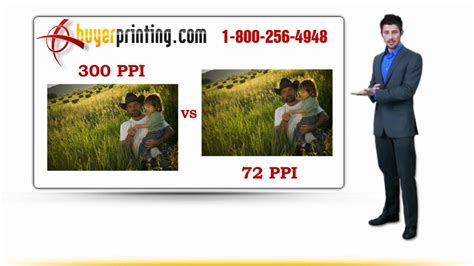
As established, 300 DPI means that for every inch of printed output, the image contains 300 pixels. Therefore, a 300 DPI image that is intended to be printed at a specific physical size will have a corresponding pixel dimension. For example, if you want to print an image at 4 inches by 6 inches at 300 DPI, the image must have a pixel dimension of 1200 pixels wide (4 inches * 300 DPI) by 1800 pixels high (6 inches * 300 DPI). This relationship is fundamental for ensuring that an image retains its clarity and detail when translated from the digital screen to a physical print.
How Does Changing the DPI Affect the Image Resolution?
Changing the DPI of an image without altering its pixel dimensions has a direct impact on its physical print size. When you increase the image resolution (DPI/PPI) without resampling, you are essentially telling Photoshop to condense the same number of pixels into a "tighter" field. Thus, reducing the image size. For example, if you have an image with a resolution of 300 PPI and you want to print it in a professional publication where the image needs to be at least 600 PPI, you can change the resolution to 600 PPI. The Pixel Dimensions will stay the same because you are not adding or subtracting any pixels to the image. However, note that the Document Width and Height will decrease by half when the Resolution doubles. Conversely, if you halve your resolution, your Document Width and Height will double.
This is where the concept of "resampling" becomes critical. When you enlarge an image without resampling, the existing pixels are stretched to accommodate the new size, which often leads to a loss of quality and a "pixelated" appearance. Adding and subtracting pixels is what happens when we resize images (to enlarge or shrink them) with resampling enabled. To change resolution without changing the number of pixels in the photo, you keep "Resample" deselected. This means you are only changing how many of those existing pixels will be displayed per inch.
How to Change DPI in Photoshop
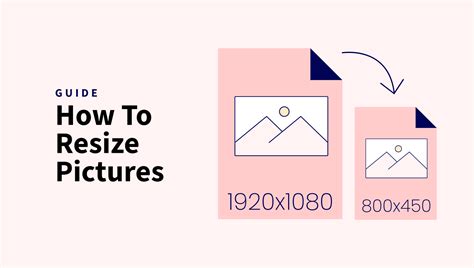
Image editing programs like Adobe Photoshop can give you resolution information and allow you to change the resolution of an image. Here's a detailed step-by-step guide:
Step 1: Open Your Image File
First, you need to open the image you wish to modify in Adobe Photoshop. You can do this by going to "File" > "Open" and navigating to the location of your image file, or by simply dragging and dropping the image file into the Photoshop workspace.
Step 2: Access the Image Size Dialog Box
Once your image is open, navigate to the "Image" menu at the top of the screen. From the dropdown menu, select "Image Size." Alternatively, you can use the keyboard shortcut, which is typically "Alt + Ctrl + I" on Windows or "Option + Command + I" on a Mac.
A dialog box will appear, displaying crucial information about your image, including its Pixel Dimensions, Document Size (width and height), and Resolution (in pixels/inch or pixels/cm).
HOW TO RESIZE IMAGE IN PHOTOSHOP USING IMAGE SIZE DIALOGUE BOX
Step 3: Adjust Resolution Without Resampling
This is the most crucial step for changing DPI without altering the overall number of pixels in your image. You will see a checkbox labeled "Resample." Ensure that this box is UNCHECKED.
When "Resample" is unchecked, changing the value in the "Resolution" field will alter the "Document Size" (the physical dimensions of the image when printed) but will keep the "Pixel Dimensions" the same.
- To Increase DPI: If you need to increase the DPI for a higher-quality print (e.g., from 72 DPI to 300 DPI), enter your desired DPI value into the Resolution field. You will notice that the Document Width and Height decrease proportionally. This means the same number of pixels are now packed into a smaller physical space, resulting in a sharper image.
- To Decrease DPI: Conversely, if you need to decrease the DPI (e.g., for web use where smaller file sizes are preferred), enter a lower DPI value. The Document Width and Height will increase proportionally.
Example: Let's say you have an image with a 300 PPI resolution. You want to print this image in a professional publication, and the image needs to be at least 600 PPI. You would go to Image Size, ensure "Resample" is unchecked, and change the Resolution from 300 PPI to 600 PPI. The Pixel Dimensions will have stayed the same because you did not add or subtract any pixels to the image. However, note that the Document Width and Height decreased by half when the Resolution doubled.
Step 4: Saving Your Image
After adjusting the resolution, you can save your image. If you are saving for print, consider using a lossless format like TIFF. If you are saving for web or general use, JPG is a common choice. When saving as a JPG, a "JPG Options" dialog box will appear, allowing you to set the quality level. Higher quality settings will result in larger file sizes but better image fidelity.
Congratulations! You have successfully changed the DPI of your image in Photoshop without altering its pixel dimensions.
Understanding Resolution Requirements for Different Outputs
The "best" resolution for your project depends entirely on its final purpose. It's a matter of working backward to find the right DPI for your project by considering its final purpose.
Print Resolution
For print resolution, 72 DPI is generally considered too low and may be better suited to small icons that do not need to be high-quality. Photographers and graphic designers typically use 300 DPI as a benchmark for printing high-quality images. Most good-quality home printers will print at a resolution of 300 DPI to achieve high-quality images. If you increase the image resolution to 400 DPI, you will be increasing the dots per inch by a third. For a poster, depending on its size and distance from the viewer, you'll need at least 100 DPI.
Screen Resolution
For digital display (like websites or social media), 72 PPI is often sufficient, as screens typically display images at this resolution or slightly higher. However, with the advent of high-resolution displays (Retina, 4K), using images with higher PPI (like 150 PPI or even 300 PPI) can ensure sharpness even on these advanced screens, though it comes at the cost of larger file sizes.
Factors Influencing Required DPI
Several factors influence the DPI you should aim for:
- The Size of the Image to be Printed: The larger the image that needs to be printed, the higher the 'dot density' it will require to look high-quality. Therefore, if you need to print a large image, youâll need a high DPI to accommodate the size.
- Viewing Distance: How far away the viewer will be standing from the printed image can affect your required resolution. The further away you stand, the less detail you need to see. A billboard viewed from a highway can get away with a much lower DPI than a photograph viewed up close.
- Paper, Printer, and Ink: The quality of the paper, printer, and ink used can also affect the final output. If youâre making a poster, depending on its size and distance from the viewer, youâll need at least 100 DPI. You can also use lower DPIs for smaller images or test images if you like. Taking time to consider the right printer paper and ink type can all affect how premium the final product looks and feels. For example, will you need gloss, matte, or silk-coated paper?
Advanced Techniques and Considerations
While the core process of changing DPI in Photoshop is straightforward, several advanced techniques and considerations can further enhance your workflow.
Understanding Effective PPI
In Adobe InDesign, when you place an image, you can see not only the Actual PPI but also the Effective PPI. The Effective PPI is the resolution of the image after it has been scaled within InDesign. If you enlarge an image in InDesign, the existing pixels are stretched to accommodate the new size, reducing the Effective PPI. Conversely, scaling down an image increases the Effective PPI. This is crucial for print layouts to ensure that the final printed image meets the required resolution standards.
Upscaling Images with Third-Party Tools
While Photoshop's resampling algorithms are sophisticated, there are instances where you might need to significantly increase the resolution of an image that was originally captured at a low resolution. In such cases, specialized AI-powered upscaling software like Topaz Gigapixel AI can yield impressive results. These tools use artificial intelligence to intelligently add detail and sharpness, often producing better outcomes than traditional upscaling methods, especially when dealing with images that have been heavily cropped or shot with lower-resolution cameras. These tools can upscale images to as much as 6x with very good results.
Working with Existing Files and Common Pitfalls
A common scenario is having TIFF files that are 72 DPI, but they need to be 300 DPI for publication. When you go to Photoshop and change the DPI without resampling, the picture's physical size (Document Size) shrinks. This is because you are telling Photoshop to fit the existing pixels into a smaller printed area. If you alter the PPI and use resampling, the application adds extra pixels to maintain the dimensions while achieving the new PPI. The application decides what pixels it should create.
It's important to understand that you can't truly "upscale" the resolution of an image in terms of clarity if the original information isn't there. Photoshop's upscaling extrapolation can smooth things over a bit, but it's not creating new, genuine detail. The best option for you is often to use higher PPI images from the start. Your printer is telling you the images will look horrible unless you use better quality images from the beginning.
Alternative Workflow for Resolution Increase
One method to increase the DPI of an image without drastically shrinking its physical dimensions (if that's the goal) is to create a new, larger canvas at the desired resolution, then copy and paste your lower-resolution image onto it. For example, create a new document blank at 300 DPI. Copy and paste the 72 DPI image into this canvas. Then, you would need to scale up the pasted image to fit the new canvas. While this increases the DPI, it also interpolates pixels, which can lead to a softer image than if the original image was captured at the higher resolution.
The Importance of Starting with High-Quality Images
Ultimately, the best approach to achieving high-quality prints is to start with the highest possible megapixel camera when taking photos. That way, youâll capture as much data as possible, giving you a higher resolution to work with when you come to edit and print them. While Photoshop and other tools offer ways to manipulate resolution, they cannot create detail that was never captured in the first place.
Conclusion
Understanding DPI and PPI is fundamental for anyone working with digital images. Photoshop provides powerful tools to manage image resolution, allowing you to prepare your images for a variety of outputs, from high-quality prints to optimized web graphics. By following the steps outlined above and considering the factors that influence resolution requirements, you can ensure your images look their best, no matter where they are displayed. Remember, the goal is to match the image's resolution to its intended use, leveraging the capabilities of your software and hardware to achieve the desired results.