Adobe Photoshop, a powerhouse in digital art and design, offers a versatile array of tools and techniques for creating precise straight lines. Whether for architectural renderings, graphic design elements, or intricate illustrations, understanding how to draw clean, unwavering lines is fundamental. This guide explores the various methods available within Photoshop, from straightforward tool selection to advanced path manipulation, ensuring clarity and precision in your digital creations.
The Line Tool: Direct and Precise
The Line Tool is purpose-built for drawing straight lines in Photoshop and is often the most intuitive starting point. To access this essential tool, locate the toolbar, typically on the left side of your workspace. The Line Tool is usually grouped with shape tools like the Rectangle Tool. You may need to click and hold the icon for the Rectangle Tool to reveal a flyout menu, from which you can then select the Line Tool. Alternatively, you can activate it by pressing the keyboard shortcut "U".
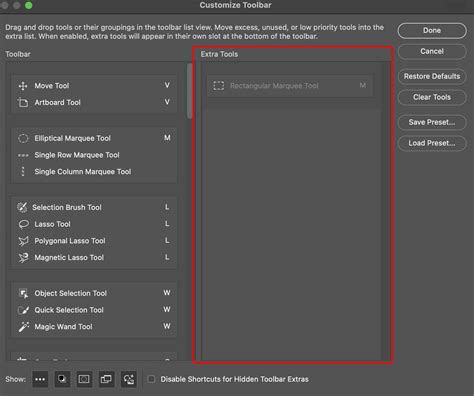
When using the Line Tool, it's highly recommended to set its mode to "Shape" in the Options bar at the top of the screen. This "Shape mode" ensures that the line is created as a vector shape, making it infinitely scalable and easily editable without loss of quality. This is crucial for maintaining sharp, clean lines regardless of how much you zoom in or resize your artwork.
To draw a line, simply click on the canvas where you want the line to begin. Then, without releasing the mouse button, drag to your desired endpoint and release. The line will be rendered according to the settings in the Options bar.
Customizing Line Properties
After drawing a line with the Line Tool in Shape mode, its properties can be readily adjusted. The Properties panel, accessible via the "Window" menu, provides comprehensive controls. Here, you can modify the stroke width, choose from a vast spectrum of stroke colors using the color swatch, and select different stroke styles. For more advanced stroke options, such as creating dashed or dotted lines, you can access these by double-clicking the line layer in the Layers panel or by looking for stroke options directly in the Options bar. This allows for the creation of custom dashed line presets by clicking "More Options" and defining dash lengths and gap sizes, perfect for technical drawings or flowcharts.
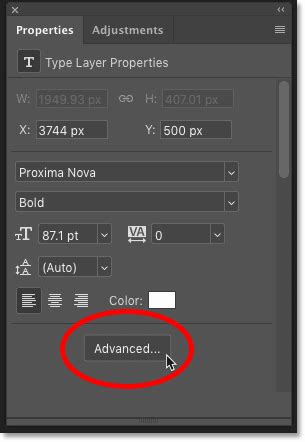
Furthermore, the Line Tool offers the capability to add arrowheads. This feature is particularly useful for diagrams, flowcharts, and technical illustrations where directional indicators are necessary. These arrowhead settings can be found within the stroke options.
The Brush Tool: Versatility with a Shift Key
While primarily designed for freehand drawing and painting, the Brush Tool can also be an effective instrument for creating remarkably straight lines. This method offers a degree of flexibility, especially when combined with other brush settings.
To draw a straight line using the Brush Tool, begin by selecting the Brush Tool from the toolbar (or by pressing "B"). In the Options bar at the top of the screen, you can adjust crucial brush settings such as Brush Size (which controls line thickness), Opacity (for transparency), and Stroke Color. Smaller brush sizes yield thinner lines, while larger sizes produce thicker ones. For solid, opaque lines, ensure the Opacity is set to 100%.
The key to drawing a straight line with the Brush Tool lies in the Shift key. First, click once on the canvas where you want the line to start. Then, hold down the Shift key. While holding Shift, click on the canvas again at the point where you want the line to end. Photoshop will automatically draw a perfectly straight line connecting these two points. This technique works for horizontal, vertical, and diagonal lines at various angles.
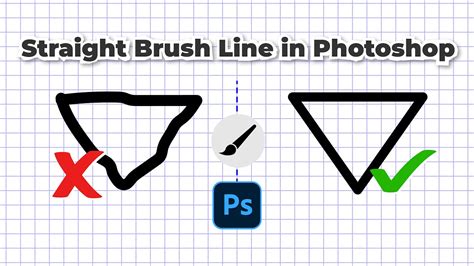
This Shift-key method can be used repeatedly to create a series of connected straight lines, forming geometric shapes or polygonal structures freehand. You can also adjust brush settings between strokes to vary line thickness or color within the same design, adding dynamic visual elements.
Enhancing Brush Stability
For those seeking to reduce natural hand tremor and create more stable, consistent lines without necessarily aiming for perfect straightness, Photoshop offers a "Smoothing" option for the Brush Tool. By selecting the Brush Tool and adjusting the Smoothing percentage in the Options bar, you can achieve smoother, more fluid brushstrokes, which can indirectly contribute to more controlled and stable-looking lines.
The Pen Tool: Precision for Paths and Shapes
The Pen Tool is renowned for its ability to create precise paths and complex vector shapes. While it excels at drawing curves, it is equally adept at generating perfectly straight lines, offering unparalleled control.
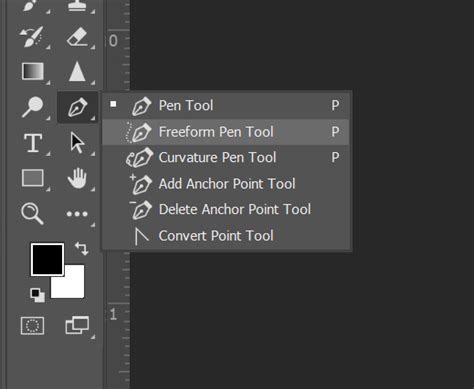
To draw a straight line with the Pen Tool, select it from the toolbar (or press "P"). Instead of clicking and dragging to create curves, you will simply click on the canvas to set anchor points. Click once to establish the starting anchor point for your line. Then, click again at the desired endpoint. Photoshop will draw a straight line segment connecting these two anchor points.
You can continue clicking to create multiple connected straight line segments, forming a polygonal path. To complete an open path, press Enter or Return on your keyboard.
Converting Paths to Shapes and Strokes
Once a path is created with the Pen Tool, it can be converted into a defined shape with fill and stroke properties. In the Options bar, select the "Shape" option. This transforms your path into a Shape layer, allowing for easy editing of its properties later. For more intricate designs, you can combine multiple paths by using the Path Selection Tool to select the paths you wish to merge.
Alternatively, paths can be "stroked" with color. After creating your path, you can select the Stroke Path option from the Paths panel or the Options bar. This will apply the currently selected brush's properties to the path, effectively drawing a line along it. This method allows you to use custom brushes to create unique straight-line patterns.
The Pen Tool's ability to create editable vector paths means that your straight lines and shapes can be modified at any time by simply selecting the anchor points and manipulating them. The "Curvature Pen Tool," a variation found under the Pen Tool menu, simplifies the process of drawing curves by automatically creating smooth transitions, but it can also be used for straight lines by simply clicking without dragging.
Marquee Tools: Selections for Straight Edges
While not directly for drawing lines, Photoshop's Marquee Tools can be used to create selections that define straight-edged areas. These selections can then be used as guides or filled with color to create straight lines. The Rectangular Marquee Tool, for instance, allows you to click and drag to define a rectangular selection. Holding Shift while dragging constrains the selection to a perfect square.
Once a selection is made, you can use the "Edit > Stroke" command to fill the selection's border with color, effectively creating a straight line along the edge of your selection. You can also use these selections as boundaries for painting with the Brush Tool.
Workflow and Workspace Optimization
To streamline the process of drawing straight lines and other design tasks in Photoshop, optimizing your workspace is key. The "Essentials" workspace, accessible from the "Window > Workspace" menu, is a good starting point for general design tasks. You can further customize your workspace by dragging and docking panels to arrange them according to your preferences. The "Window" menu is your central hub for showing or hiding specific panels, such as the Layers, Properties, and Paths panels, ensuring you have the tools you need readily available.
BEST Photoshop Workspace For Architecture Drawings
For collaborative projects or when sharing files, consider using Photoshop's native .psd format for editable files. To maintain transparency, saving as a .png file is often the best choice. For broader compatibility, .pdf files can be effective. Employing descriptive filenames and organizing your saved files in clearly labeled folders will enhance workflow efficiency.
Advanced Techniques and Considerations
Creating Dashed and Dotted Lines
Achieving dashed or dotted lines can be accomplished in several ways. The Line Tool, when set to Shape mode, offers options in the Options bar to define dash length and gap size. For custom patterns, clicking "More Options" allows you to create bespoke dashed line presets. Another method involves using the Pen Tool to create a path and then stroking that path with a brush that has been configured with a specific spacing to mimic dashes or dots.
Utilizing Third-Party Tools
For those who find themselves frequently drawing precise lines and performing repetitive tasks, specialized hardware like the TourBox can offer a customizable interface that places essential tools and functions at your fingertips, potentially enhancing workflow efficiency and precision.
File Optimization for Different Media
When preparing your artwork for output, consider the intended medium. For web use, the "Save for Web" feature allows for effective image compression, where adjusting compression levels balances file size and visual quality. For print, maintaining a higher resolution, typically 300 PPI, is crucial. It is often advisable to create separate versions of your file optimized for each specific medium rather than relying on a single file for all purposes.
Deleting and Modifying Lines
If you make a mistake, undoing a line is straightforward. For lines drawn with the Brush Tool, pressing Ctrl+Z (Cmd+Z on Mac) once will remove the line, and a second press will undo the initial click. For vector shapes created with the Line Tool or Pen Tool, you can select the shape layer and press Delete, or use the Direct Selection Tool to modify anchor points. You can also use the Marquee Tool to select a line and then use Ctrl+T (Cmd+T on Mac) to move, resize, or adjust its properties.
Mastering the creation of straight lines in Photoshop is a foundational skill that empowers artists and designers to produce clean, precise, and impactful digital artwork. By leveraging the dedicated Line Tool, the versatile Brush Tool with the Shift key, and the precision of the Pen Tool, users can achieve a wide range of results, from simple outlines to complex vector graphics. Understanding these tools and optimizing your workflow will undoubtedly enhance your creative capabilities within Adobe Photoshop.