Keeping your Adobe Photoshop installation up-to-date is crucial for accessing the latest features, performance enhancements, and critical bug fixes. As an Adobe Creative Cloud subscriber, you are entitled to the latest and greatest version of Photoshop, with Adobe frequently releasing major updates approximately every six months, and minor updates and bug fixes in between. This guide will walk you through the straightforward process of updating Photoshop, address common update issues, and provide essential tips for managing your presets and workspaces.
The Central Hub for Updates: Creative Cloud Desktop App
All updates for Photoshop, and indeed all Adobe Creative Cloud applications, are managed through the Creative Cloud desktop app. If you have downloaded and installed Photoshop CC, this application is likely already running in the background on your computer.
Accessing the Creative Cloud App
- On a Windows PC: The Creative Cloud app icon is typically found in the system tray, located in the bottom right corner of your screen.
- On a Mac: The Creative Cloud app icon resides in the upper right corner of your screen, within the Menu Bar.
If you cannot locate the icon, you can also initiate the update process directly from within Photoshop itself. Navigate to the Help menu in the Menu Bar at the top of the Photoshop window and select Updates….
Navigating the Apps Section
Once the Creative Cloud desktop app is open, you will need to access the Apps section. This is usually a menu option located along the top of the application window.
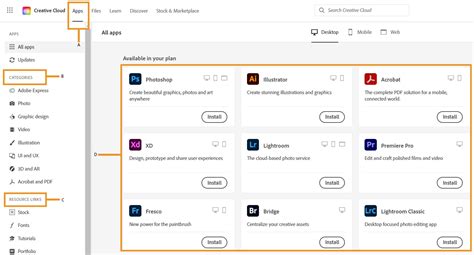
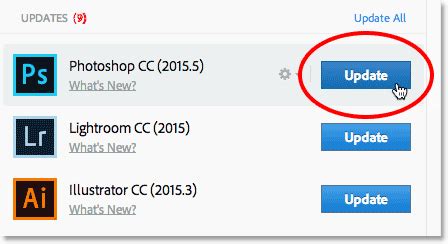
Within the Apps section, you will find a list of all the Creative Cloud applications currently installed on your system. The specific applications displayed will depend on your Creative Cloud subscription. Any application that has an available update will be prominently displayed in an UPDATES section at the top of this list. Each of these applications will feature a distinct, large blue Update button positioned to its right.
Understanding What's New
Before proceeding with an update, it's often beneficial to understand what changes it brings. Directly below an app's name, you will usually find a What's New? link. Clicking this link will reveal a description of the new features, improvements, or bug fixes included in the update. For Photoshop, this might include new creative tools, enhancements to existing features, support for new camera models in Camera Raw, or important security patches. Once you have reviewed the information, click the Close link to hide the description.
Initiating the Photoshop Update
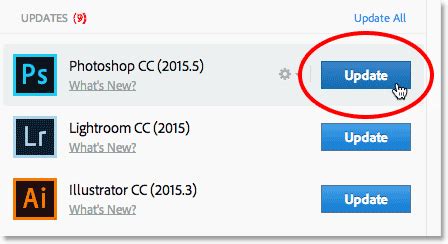
To update Photoshop, simply click the Update button next to its name in the UPDATES section. If you have multiple Adobe applications that require updating, you can expedite the process by clicking the Update All link, which will download and install all available updates simultaneously.
Monitoring the Update Progress
As soon as you click the Update button, Photoshop will move from the UPDATES section to an INSTALLED section further down the list. You might need to scroll down the dialog box to find this section. A progress bar will appear, allowing you to monitor the download and installation process. The time it takes for the update to complete will vary depending on the size of the update and the speed of your internet connection.

Completing the Update
Once the update process is finished, the Update button will be replaced by an Open button next to Photoshop's name. You can now click this Open button to launch Photoshop CC. By doing so, you can be confident that you are running the most current version of the software, equipped with all the latest advancements.
Troubleshooting Common Update Issues
While the update process through Creative Cloud is generally seamless, some users encounter difficulties. A common problem is the download getting stuck at a certain percentage, sometimes for extended periods, without any error messages. This can be frustrating, especially when you're eager to utilize new features.
Addressing Download Stalls
If you find that the download for Photoshop is repeatedly getting stuck, even after ensuring no other unnecessary programs are running, consider the following steps:
- Restart Creative Cloud: Close the Creative Cloud desktop app completely and then relaunch it. Sometimes a simple restart can resolve temporary glitches.
- Check Internet Connection: Ensure your internet connection is stable and robust. A poor connection can lead to interrupted downloads.
- Clear Creative Cloud Cache: Corrupted cache files can interfere with downloads. The process for clearing the cache can vary slightly by operating system, but generally involves locating and deleting specific cache folders associated with Creative Cloud. Adobe's support documentation provides detailed instructions for this.
- Antivirus/Firewall Interference: Occasionally, security software can mistakenly flag the update process as a threat, blocking the download. Temporarily disabling your antivirus or firewall (with caution) and attempting the update again can help diagnose if this is the cause. Remember to re-enable your security software afterward.
- Manual Update (Advanced): If all else fails, you can explore the option of manually updating Photoshop. This typically involves downloading the update package directly from Adobe's website. However, finding the correct, most recent standalone update installer can be challenging and is generally not recommended unless you are comfortable with advanced troubleshooting. Adobe's official support channels are the best resource for obtaining these installers if necessary.
Missing Tools After Update
A peculiar issue some users report after an update is the disappearance of tools from the Photoshop toolbar. This can be disorienting, as essential tools might seem to vanish.
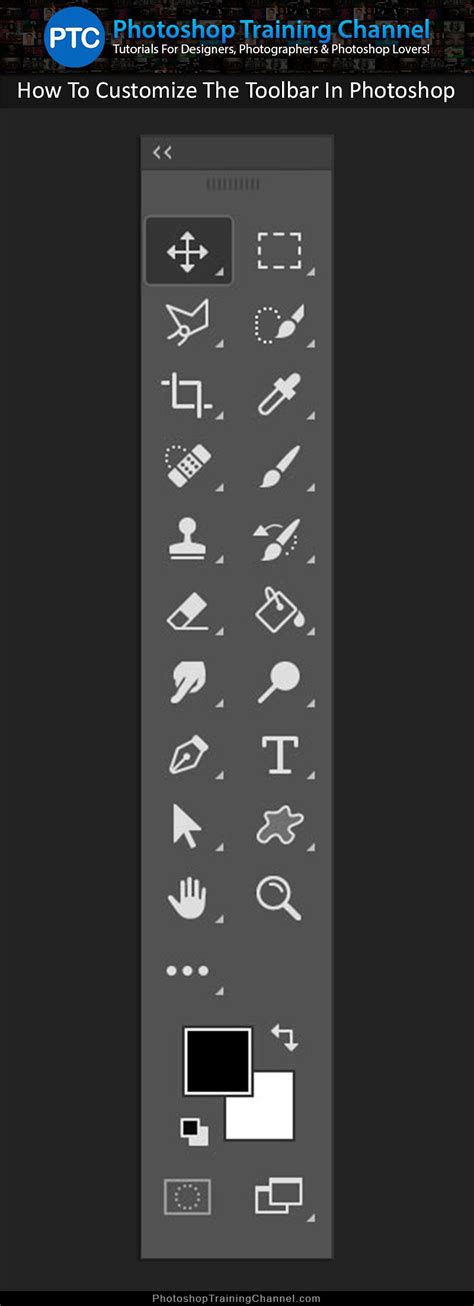
- Customizing the Toolbar: Photoshop's toolbar is highly customizable. To check if tools are simply hidden or have been moved, click and hold the three ellipses (…) located at the bottom of the toolbar. This action will reveal a menu of all available tools. You can then drag and drop tools to rearrange them or ensure they are visible.
- Resetting Preferences: Often, the most effective solution for a wide range of Photoshop issues, including missing tools or unexpected behavior after an update, is to reset your Photoshop preferences. This process reverts all settings back to their default state. To do this, close Photoshop, then hold down Ctrl+Alt+Shift (Windows) or Cmd+Option+Shift (Mac) immediately after clicking the Photoshop icon to launch the application. You will be prompted to confirm that you want to delete the settings file.
- Saving Custom Workspaces: To prevent losing your preferred tool arrangement and panel layouts, it's a good practice to save your custom workspace. Go to Window > Workspace > New Workspace… and give it a descriptive name. To ensure your workspace is preserved after future updates, update your custom workspace with the same name after making any necessary adjustments.
Preserving Your Creative Assets: Managing Presets
When updating Photoshop, it's vital to safeguard your custom presets, such as layer styles, gradients, brushes, patterns, and workspaces. These elements are the building blocks of your creative workflow, and losing them can be a significant setback.
Exporting and Importing Presets
The Creative Cloud desktop app provides a streamlined way to manage and transfer your presets.
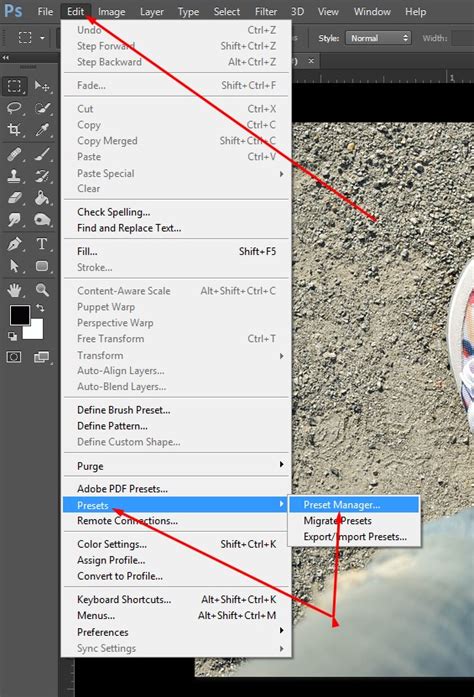
- Accessing Preset Management: Within Photoshop, navigate to Edit > Presets > Presets Manager….
- Selecting Presets for Export: In the Presets Manager dialog box, you will find various categories of presets, including Brushes, Swatches, Gradients, Styles, Patterns, and more. Highlight the specific presets you wish to save.
- Exporting: Click the Export… button. You will then be prompted to choose a location to save your presets.
- Organizing Saved Presets: It is highly recommended to create a dedicated folder for your exported presets. Consider saving copies in multiple locations for redundancy, such as a folder within your Creative Cloud account and another on a cloud storage service like Dropbox. This ensures you have backups readily accessible, even if one service experiences an issue.
- Copying to New Versions: If you have multiple versions of Photoshop installed on your system, this method allows you to easily copy your customized presets over into your newly updated version.
Brushes Panel Specifics
The Brushes panel is where you manage your custom brush presets. Similar to the Presets Manager, you can export individual brushes or sets of brushes. Ensure you save these in your designated backup folders.
Beyond Basic Updates: Advanced Photoshop Workflows
While keeping Photoshop updated is primarily about accessing new features and stability, understanding related workflows can enhance your overall experience.
Seamless Photo Blending
One of the most common and powerful uses of Photoshop is combining multiple photographs to create a cohesive and realistic composite image. Techniques for blending photos seamlessly often involve:
- Layer Masks: Non-destructive editing is key. Layer masks allow you to selectively hide or reveal parts of a layer without permanently erasing pixels.
- Adjustment Layers: Use adjustment layers (e.g., Curves, Levels, Hue/Saturation) to match the color, tone, and lighting of the different images you are combining.
- Blending Modes: Experiment with various layer blending modes (e.g., Multiply, Screen, Overlay) to achieve different interactions between layers.
- Advanced Selection Tools: Tools like the Pen Tool, Quick Selection Tool, and Object Selection Tool are crucial for creating clean and accurate selections of objects to be blended.
How to merge two image with Photoshop
Exploring Generative AI with Firefly
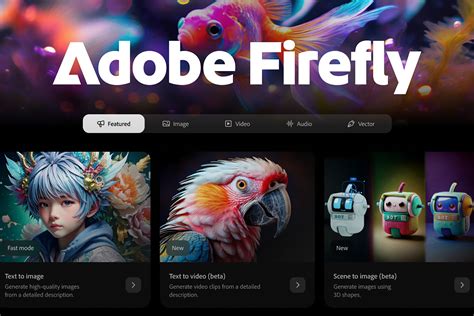
Adobe's integration of Artificial Intelligence, particularly with Firefly, is revolutionizing creative workflows. Firefly's generative AI capabilities can be utilized within Photoshop and other Adobe applications. For instance, you can explore generating 3D models using Firefly AI within the free Adobe Substance 3D viewer. This opens up new avenues for 3D design and asset creation, allowing users to quickly prototype and visualize concepts.
Embracing the Future of Photoshop
Regularly updating Photoshop ensures you are not only benefiting from a more stable and performant application but also staying at the forefront of digital imaging technology. By understanding the update process, troubleshooting common issues, and managing your valuable presets, you can maintain a smooth and productive creative workflow. The continuous evolution of Photoshop, driven by user feedback and technological advancements like AI, means that staying updated is an investment in your creative potential.