Microsoft Clipchamp offers powerful tools for visual content creation, and understanding its background removal capabilities is key to producing polished videos and images. While the term "background removal" might evoke a singular function, Clipchamp's approach differs significantly between static images and dynamic video content. This guide will delve into the specifics of how to remove backgrounds in Microsoft Clipchamp, addressing both its image-centric capabilities and its video-specific functionalities.
Understanding Clipchamp's Background Removal for Images
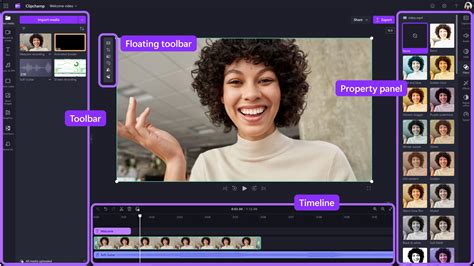
It is important to clarify that Clipchamp currently only supports background removal for images, not videos. This distinction is crucial for users to manage their expectations and utilize the tool effectively. When working with still images, Clipchamp employs an advanced, AI-powered process to isolate and remove backgrounds.
The core of this functionality lies in Clipchamp's background removal feature being based on AI calculations of color differences in the pixels of an image to remove the background. This intelligent system analyzes the visual data within an image, identifying distinct color variations that typically delineate a subject from its surroundings. By calculating these differences, the AI can precisely "cut out" the background, leaving the primary subject isolated. This process is remarkably effective for images with clear contrast between the subject and the background, enabling users to create transparent backgrounds or replace them with entirely new visuals.
To utilize this feature, users typically import an image into the Clipchamp editor. Once the image is on the timeline, a dedicated "Effects" or "Background Removal" option can be accessed. Clicking this option initiates the AI processing. The duration of this process can vary depending on the complexity of the image and the server load, but Clipchamp generally provides a swift and efficient experience. The result is an image with a transparent background, ready for further editing, compositing, or export.
Advanced Video Techniques: Green Screen and Beyond

While direct, AI-driven background removal for all video footage is not a current feature in Clipchamp, the platform does offer robust support for a widely adopted technique: for videos, Clipchamp only supports background removal for footage shot against a green, blue, or red screen. This method, commonly known as chroma keying, is a staple in video production for its effectiveness in isolating subjects.
To achieve background removal on video using this method, the footage must be recorded with a solid, monochromatic background. The most common colors are green and blue due to their distinct separation from typical human skin tones and clothing colors. Red screens are also supported. Once such footage is imported into Clipchamp, the user can apply a "Green Screen" or "Chroma Key" effect. This effect allows the user to select the specific color of the background (e.g., the green from the screen) that they wish to make transparent. The AI then intelligently removes all pixels of that chosen color, allowing the subject to appear as if they are in a new environment.
This chroma keying functionality is incredibly powerful for creating professional-looking videos without the need for complex studio setups. It enables users to place subjects in virtually any digital background, from exotic locations to abstract graphic elements, all within the Clipchamp editor. The effectiveness of chroma keying relies heavily on the quality of the initial recording - a well-lit, evenly colored screen with minimal shadows will yield the best results.
Easy Green Screen Tutorial for Beginners
Exploring Related Functionalities in Microsoft Ecosystem
The user's initial inquiry touched upon functionalities present in other Microsoft applications, which are worth exploring to provide a complete picture of the broader ecosystem's capabilities.
Blurred Backgrounds in Presentations: The user noted, "if you want to achieve a blurred background while recording a video, PowerPoint application already includes this feature internally." This is an accurate observation. PowerPoint, particularly in its newer versions, offers an integrated feature to blur the background of a video being recorded directly within the application. This is achieved through a process that locks onto the person using facial recognition from the webcam and does not require AI assistance in the same way Clipchamp's image background removal does. Instead, it focuses on identifying the presenter and applying a depth-of-field effect to their surroundings, creating a professional, focused look without the need for external tools or a green screen. This is ideal for quick video messages, presentations, or online meetings where a clean, professional appearance is desired without extensive editing.
Changing Presentation Video Backgrounds in Teams: Furthermore, the user mentioned, "If you wish to change the background of your presentation video, that functionality should be available within Teams." This refers to Microsoft Teams' virtual background feature. While Teams is primarily a communication platform, it has incorporated advanced video processing capabilities. The virtual background feature in Teams allows users to replace their real background with an image or video during a live call or meeting. This functionality also often relies on background detection, sometimes using AI or simpler heuristics, to separate the user from their surroundings. While not a direct video editing tool like Clipchamp, it serves a similar purpose of altering the video background in real-time for specific communication contexts.
The Underlying Technology: AI and Color Analysis

To reiterate and expand on the technical underpinnings, Clipchamp's AI-driven background removal for images operates by meticulously analyzing the color spectrum of each pixel. The algorithm is trained on vast datasets of images and understands common patterns associated with subjects and backgrounds. When presented with an image, it identifies areas that are likely to be the background based on these learned patterns and color distinctions.
For instance, if a person is wearing a blue shirt and standing against a white wall, the AI will recognize the distinct color difference between the blue pixels of the shirt and the white pixels of the wall. It then flags the white pixels as belonging to the background and processes them for removal. The sophistication of the AI allows it to handle subtle variations in lighting, slight overlaps between the subject and background, and even semi-transparent elements like hair to a certain degree.
This is fundamentally different from the simpler approach used in some real-time applications like PowerPoint's webcam blur. While PowerPoint's feature is effective for its intended purpose, it's primarily a visual effect applied live, not a precise pixel-level extraction for further compositing. Clipchamp's image background removal, on the other hand, creates a truly transparent layer, offering greater flexibility for subsequent editing steps.
Practical Applications and Workflow Integration
The ability to efficiently remove backgrounds in Clipchamp opens up a wide range of creative possibilities and streamlines workflows for content creators.
For social media marketing, businesses can use Clipchamp to isolate product images from their original backgrounds and place them onto branded templates or lifestyle imagery. This ensures brand consistency and a professional aesthetic across all visual content.
Educational content creators can leverage this feature to create engaging explainer videos. For example, a teacher explaining a historical artifact could remove the background of a photo of the artifact and overlay it onto a map or a historical timeline, making the lesson more dynamic and visually informative.
Personal projects, such as creating digital art, custom avatars, or even personalized greeting cards, also benefit greatly. Users can take photos of themselves or objects and seamlessly integrate them into entirely new digital scenes.
The workflow integration is straightforward:
- Import Media: Upload your image or green-screen video footage into Clipchamp.
- Apply Effect: Select the image and access the "Effects" tab, or select the video and apply the "Green Screen" effect.
- Adjust Settings: For images, the AI typically works automatically. For green screen footage, use the color picker to select the background color and fine-tune the tolerance and edge settings for a clean cut-out.
- Composite: Once the background is removed, you can drag and drop other images, videos, or text onto the timeline below your subject layer to create your desired composite.
- Export: Render your final project in the desired format.
Limitations and Best Practices
While Clipchamp's background removal is powerful, understanding its limitations and adhering to best practices will ensure optimal results.
For Images:
- Contrast is Key: The success of AI background removal heavily relies on the contrast between the subject and the background. Images with busy, similarly colored, or very detailed backgrounds may pose challenges for the AI.
- Fine Details: Extremely fine details, such as wisps of hair, translucent objects, or intricate lace, can sometimes be difficult for the AI to perfectly isolate. Manual refinement using layering and masking techniques in more advanced editors might be necessary for professional-level perfection in such cases.
- Lighting: Even lighting on the subject and background generally leads to better results. Harsh shadows or overexposed areas can confuse the AI.
For Videos (Green Screen):
- Even Lighting on Screen: The green, blue, or red screen background must be lit as evenly as possible. Shadows or hotspots can create inconsistencies that the chroma key effect will struggle to remove cleanly.
- Subject Spill: Ensure that the green or blue light from the screen does not "spill" onto the subject, particularly around the edges of their hair or clothing. This can be mitigated by lighting the screen separately from the subject and by placing the subject a reasonable distance from the screen.
- Subject's Attire: Avoid clothing that matches the green, blue, or red screen color. If a subject is wearing a green shirt, attempting to chroma key a green screen will result in parts of their clothing being removed.
By keeping these points in mind and utilizing Clipchamp's features thoughtfully, users can effectively remove backgrounds and elevate the quality of their visual content. The distinction between image background removal and green screen video processing is fundamental to mastering these tools within the Microsoft Clipchamp ecosystem.