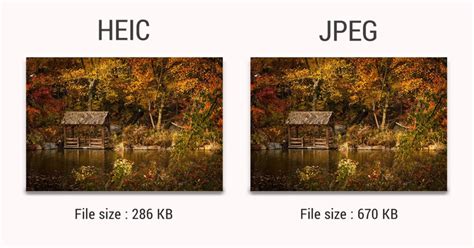
The proliferation of high-efficiency image formats, particularly HEIC (High Efficiency Image File Format), has brought about significant advancements in image storage and quality, especially within the Apple ecosystem. Introduced with iOS 11, HEIC offers the advantage of storing images at approximately half the size of traditional JPEGs without a discernible compromise in quality. This efficiency allows users to store a greater number of high-quality images while optimizing precious storage space. Features such as Live Photos are also made possible by the HEIC format. However, this advanced compression comes with a significant compatibility hurdle: HEIC files are not universally supported across all devices and software, most notably on Windows operating systems. This incompatibility often surfaces when users attempt to share photos, upload them to online forms, or simply open them on non-Apple platforms. For Windows 11 users, navigating the conversion of multiple HEIC files to the widely compatible JPEG format without sacrificing image quality presents a common challenge.
Understanding the HEIC Format and its Limitations
HEIC, which stands for High Efficiency Image Compression, is a modern image container format. It is built upon the High Efficiency Image File Format (HEIF) and utilizes advanced compression techniques, often leveraging HEVC (High Efficiency Video Coding), the same codec used in modern video compression. This allows HEIC files to achieve superior compression ratios compared to JPEG, meaning they can store more visual information in a smaller file size. This efficiency is particularly beneficial for mobile devices where storage is often limited.
However, the very nature of HEIC's advanced compression means it relies on specific software and hardware to decode and display properly. While iOS devices, iPads, and Macs offer native support for HEIC, many other platforms, including Windows, do not. This lack of native support is the primary reason why converting HEIC to JPEG becomes a necessity for seamless sharing and editing across different systems. JPEG, on the other hand, is an open standard and a long-standing, universally recognized image format. Its widespread compatibility makes it the go-to choice for sharing images online, using them in documents, or opening them with any image viewing software.
[A Comprehensive & Informative Guide] HEIF vs. HEIC
Batch Conversion Strategies for Windows 11
For users facing a large collection of HEIC files on Windows 11, the need for efficient batch conversion is paramount. Fortunately, several methods can address this requirement, ranging from built-in Windows features to dedicated software and online tools. The key is to find a solution that balances ease of use, speed, and crucially, the preservation of original image quality.
Leveraging Windows 11's Built-in Capabilities
Windows 11 offers a pathway to handling HEIC files, though it requires a small initial setup. To open HEIC files natively within the Photos app, users need to install specific extensions from the Microsoft Store.
- Install HEIF Image Extensions: This free extension allows Windows to recognize and display HEIC files.
- Install HEVC Video Extensions (Optional but Recommended): While not strictly necessary for image conversion, this paid extension ($0.99) is often required for full HEVC support and can improve the overall experience with HEIC files.
Once these extensions are installed, HEIC files can be opened in the Windows Photos app. From there, a conversion process is possible:
- Open the HEIC file in the Photos app.
- Navigate to the "Three dots" menu (usually located in the top-right corner).
- Select "Save as."
- In the "Save as type" dropdown menu, choose "JPG."
- Click "Save."
While this method allows for individual file conversion, it is not inherently a batch solution. To convert multiple files using this approach, one would need to repeat the process for each image, which is impractical for large collections.
Dedicated Software Solutions for Batch Conversion
For a more streamlined and efficient batch conversion experience on Windows 11, several software applications are specifically designed to handle HEIC to JPG conversions with minimal fuss and high fidelity.
TuneBro HEIC Converter
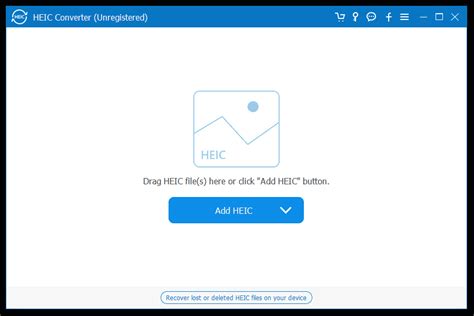
One highly recommended solution for batch conversion is TuneBro HEIC Converter. This software is praised for its speed and ability to convert a significant number of photos in a matter of minutes. A key advantage highlighted by users is its effectiveness in maintaining original image quality, a common concern with other methods. The process typically involves simply dragging and dropping the HEIC files or folders into the application, and the software handles the rest, providing converted JPG files without noticeable degradation.
CopyTrans for Windows
CopyTrans is another popular application that offers a user-friendly approach to HEIC to JPG conversion on Windows. It integrates directly into File Explorer, allowing for a more intuitive workflow. This app is generally free for personal use. The integration means users can often perform conversions with a simple right-click on HEIC files or folders, making batch processing straightforward.
Adobe Photoshop Elements
For users who already have Adobe Photoshop Elements (version 2025 or earlier), a powerful built-in batch processing tool can be utilized. This method offers a high degree of control over the conversion process, including specifying JPG quality.
- Open Photoshop Elements and ensure you are in "Advanced" operating mode.
- Navigate to "File" > "Process Multiple Files."
- In the dialog box, specify the "Source" folder containing your HEIC files.
- Choose a "Destination" folder for the converted JPGs.
- Check the "Convert Files To" box and select "JPG" as the output format, along with your desired quality level.
- Click "OK."
Photoshop Elements will then process all HEIC files in the specified folder, converting them to JPGs at a considerable speed, often around one photo per second. It is advisable to place HEIC files in a dedicated folder for this process to avoid unintended conversions. The full Adobe Photoshop Creative Cloud suite also offers similar batch processing capabilities.
DocuFreezer
For those seeking an offline solution with extensive customization options, DocuFreezer is a recommended program. It allows users to adjust various parameters of the output JPEGs, such as color mode (CMYK, RGB, etc.), watermarking, and compression levels. Batch processing is supported by simply selecting and dropping HEIC files or folders onto the application window. DocuFreezer also emphasizes privacy, stating that uploaded files are deleted from their servers after a set period.
Online Converters: Convenience with Caveats
Numerous online tools offer the convenience of converting HEIC to JPG directly through a web browser, eliminating the need for software installation. Canva is frequently mentioned as a user-friendly option.
Canva's Online Converter
Canva provides a simple drag-and-drop interface for converting HEIC images to JPG. Users can upload their HEIC files, and Canva automatically converts them into an editable file ready for download as a JPG. This process is designed to maintain the original image quality. Canva also offers a suite of photo editing tools that can be used to enhance images before or after conversion, all within the same platform. This makes it a versatile tool for transforming images from good to great for various creative projects, from business posters to web portfolios.
- Access the free converter on any web browser.
- Select your HEIC image from your device or drag and drop it onto the converter.
- The HEIC image will be uploaded and ready for download as a JPG.
- Optional: Use Canva's photo editing tools to enhance the image before downloading.
The process is described as seamless, allowing users to quickly convert HEIC files to JPG for easy sharing and use in all creative projects.
Other Online Options (e.g., Cloud Convert, Online Image Converter)
Other reliable online converters include Cloud Convert and a service found at online-image-converter.com. These platforms generally allow users to upload their HEIC files, select JPG as the output format, and download the converted files. Many of these services also offer options to adjust image quality, resolution, resizing, and cropping.
Important considerations for online converters:
- Privacy and Security: While many online converters assure data deletion after a short period (e.g., one hour or 24 hours), users should exercise caution when uploading sensitive images. Always review the service's privacy policy.
- File Size Limits: Some free online converters may impose limits on the number of files or the total size of files that can be converted at once.
- Internet Connection: A stable internet connection is essential for uploading HEIC files and downloading the converted JPGs.
Maintaining Image Quality During Conversion
A primary concern for many users is preserving the original image quality during the HEIC to JPG conversion. HEIC's advanced compression is designed to be visually lossless, meaning it retains a high degree of detail. When converting to JPG, which is a lossy compression format, some degree of information loss is inevitable, especially if high compression levels are used. However, the goal is to minimize this loss.
- Choose High-Quality Settings: When using software or online converters that offer quality settings, always opt for the highest available quality or a setting that balances file size with minimal visual degradation. For JPG, this often means selecting a quality level of 90% or higher.
- Avoid Multiple Conversions: Converting a HEIC file to JPG, and then converting that JPG to another format, or re-compressing it, will lead to cumulative quality loss. Aim to convert directly from HEIC to JPG in a single step.
- Understand JPG Limitations: Remember that JPG does not support transparency. If your HEIC images contain transparent backgrounds, these will be converted to a solid background (usually white) in JPG format. For lossless conversion with transparency, PNG is a better alternative, though it results in larger file sizes.
- Use Trusted Tools: As noted in user discussions, some online tools can noticeably degrade image quality. Sticking to reputable software like TuneBro HEIC Converter, CopyTrans, or well-regarded online services like Canva generally ensures better results.
Converting HEIC to JPG on iPhone/iOS for Easier Sharing
While the focus is on Windows 11, it's worth noting that users can also manage HEIC to JPG conversion directly on their iOS devices, which can simplify the process before even transferring files to a computer.
Adjusting Camera Settings
The most proactive approach is to change the iPhone's default camera format:
- Go to
Settings>Camera>Formats. - Select the "Most Compatible" option. This will ensure that all new photos are captured in JPG format, eliminating the need for conversion later.
Automatic Conversion on Transfer
iOS also offers a setting that automatically converts photos to JPG when transferring them to a Windows PC or Mac, while keeping them in HEIC format on the iPhone to save storage space. This can be found within the Settings > Photos > Transfer to Mac or PC section, where you can choose "Automatic."
Using the Files App for Conversion
For existing HEIC photos on an iPhone, the Files app can be used for batch conversion:
- Open the
Photosapp and select the HEIC images you wish to convert. - Tap the share icon and choose "Save to Files." Select a location within the Files app to save them.
- Open the
Filesapp, locate the saved HEIC images. - Press and hold on an image (or select multiple images), then navigate to
Quick Actions>Convert Image. - Choose
JPEGas the file format and select the desired image size (Original size is recommended for best quality). The image will be converted to JPEG. This method works for both single and multiple images.
Conclusion: Finding the Right Tool for Your Needs
The transition to HEIC has brought efficiency to image storage, but its compatibility issues necessitate straightforward conversion methods for users on platforms like Windows 11. Whether you opt for the convenience of online tools like Canva, the robust features of dedicated software such as TuneBro HEIC Converter or CopyTrans, or the advanced controls offered by Adobe Photoshop Elements, the key is to select a method that prioritizes image quality and batch processing capabilities. By understanding the nature of HEIC and employing the right conversion strategy, users can ensure their cherished photos are easily shareable and usable across all their devices and applications, without compromising on visual fidelity.