Embarking on a journey to master Adobe Photoshop can seem daunting, given its vast array of tools and complex functionalities. However, a structured and progressive approach can transform this challenge into an engaging and rewarding learning experience. This article delves into the core principles and essential techniques covered within a comprehensive 30-day Photoshop training program, designed to guide users from foundational understanding to advanced application. The aim is to demystify the software, making its powerful features accessible and enjoyable for learners of all levels.
The Foundation: Understanding the Photoshop Interface and Core Concepts
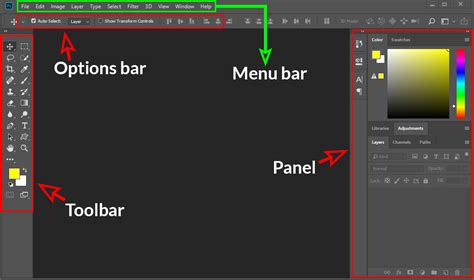
The initial phase of any effective Photoshop training focuses on familiarizing the learner with the software's architecture. This includes understanding the layout of the workspace, the purpose of various panels (like Layers, Adjustments, History, and Tools), and the fundamental concepts that underpin image manipulation. Key among these are:
- Layers: The cornerstone of non-destructive editing in Photoshop. Understanding how layers work - stacking, blending, opacity, and masks - is crucial. This allows for isolated edits, experimentation, and easy revisions without permanently altering the original image data. Imagine layers as transparent sheets stacked on top of each other, each containing a different element or adjustment.
- Selections: The ability to isolate specific parts of an image is fundamental for targeted editing. Training will cover various selection tools, from the Marquee and Lasso tools for basic selections to more advanced techniques like the Magic Wand, Quick Selection, and the Pen Tool for intricate paths. Precision in subject selection is a recurring theme throughout effective training.
- Resolution and Image Size: Understanding the difference between pixels, inches, and resolution (PPI/DPI) is vital for producing output suitable for various mediums, whether it’s for web display or high-quality print. Learning how to resize images without significant quality degradation is a key skill.
- Color Modes: Grasping the differences between RGB (for screens) and CMYK (for print) ensures that images are prepared correctly for their intended destination.
Essential Tools and Techniques for Everyday Editing
Once the foundational elements are understood, training progresses to the tools and techniques that form the backbone of most photo editing workflows. This segment is designed to equip learners with the practical skills needed to enhance and correct images effectively.
- Cropping and Straightening: Essential for improving composition and removing unwanted distractions. Learning to crop thoughtfully not only improves aesthetics but can also draw the viewer's eye to the main subject.
- Basic Adjustments: This includes mastering tools like Brightness/Contrast, Levels, and Curves to correct exposure issues, enhance tonal range, and improve the overall look of an image. The goal is to achieve a balanced and visually appealing image.
- Color Correction and Enhancement: Beyond basic exposure, training delves into adjusting white balance, saturation, and hue to create accurate or artistically intended colors. This is where understanding color theory begins to play a significant role.
- Sharpening and Noise Reduction: Learning to enhance detail and clarity while mitigating unwanted digital noise is critical for professional-looking results. This often involves understanding the subtle balance required to achieve optimal sharpness without introducing artifacts.
Advanced Selections and Masking: The Art of Precision
The power of Photoshop truly shines when users can precisely isolate elements and apply edits non-destructively. This section of training focuses on mastering advanced selection and masking techniques, enabling complex manipulations.
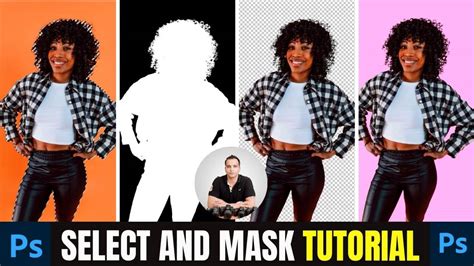
- Refine Edge/Select and Mask: These powerful tools allow for incredibly accurate selections, especially around challenging areas like hair, fur, or transparent objects. Learning to fine-tune these selections is a game-changer for compositing and detailed retouching.
- Layer Masks: As mentioned earlier, layer masks are indispensable. Training emphasizes using them to selectively reveal or hide parts of a layer, enabling seamless blending of images, applying adjustments to specific areas, and creating sophisticated visual effects. The ability to nail precise subject selections is paramount here.
- Clipping Masks: A related technique that confines the effect of a layer to the content of the layer directly below it. This is particularly useful for applying textures or color grades to specific objects.
Color Grading and Creative Adjustments: Telling a Visual Story
Color is a powerful tool for conveying emotion and narrative. This part of the training moves beyond simple color correction to explore the art of color grading, transforming the mood and style of an image.
- Adjustment Layers for Color: Deep dives into using Hue/Saturation, Color Balance, Selective Color, and Photo Filter adjustment layers to achieve specific color palettes. This is where learners begin to understand how to apply professional color grades that actually tell a story.
- Gradient Maps: A versatile tool for creating dramatic color effects and stylized looks.
- Exploring Color Theory: Understanding complementary colors, analogous colors, and color harmonies helps in making informed decisions about color application, leading to more impactful and cohesive imagery.
- Matching Color: Learning to sample and apply the color characteristics from one image to another, a crucial skill for compositing and maintaining consistency.
Retouching and Restoration: Perfecting the Image
Photoshop is indispensable for retouching portraits, removing blemishes, and even restoring old photographs. This module focuses on the delicate art of improving images without making them look artificial.
- Healing Brush, Spot Healing Brush, and Patch Tool: These tools are designed to seamlessly remove imperfections by sampling surrounding pixels. Mastering their application ensures that edits are virtually undetectable.
- Clone Stamp Tool: A more manual but powerful tool for duplicating areas of an image, essential for complex retouching and rebuilding damaged areas of photos.
- Frequency Separation: An advanced technique that separates an image into texture and color/tone layers, allowing for retouching of skin or other surfaces without affecting the underlying detail. This is a key method for achieving professional-level skin retouching.
- Dodge and Burn: Traditional darkroom techniques adapted for digital, used to subtly lighten and darken specific areas to enhance form, depth, and dimensionality.
The best Mixer brush Settings For Skin retouching - Adobe Photoshop
Working with Text and Shapes: Design Elements
While Photoshop is primarily known for image manipulation, it also possesses robust tools for incorporating text and vector shapes, making it a versatile tool for graphic design elements within photographic compositions.
- Type Tool: Learning to add, format, and style text, including character and paragraph panels for fine control over typography.
- Layer Styles: Applying effects like drop shadows, strokes, bevels, and glows to text and shapes to add depth and visual interest.
- Shape Tools: Creating vector shapes that can be scaled without loss of quality, useful for adding graphic elements, backgrounds, or placeholders.
- Vector Masks: Similar to layer masks but based on vector paths, offering sharp, scalable edges.
Compositing and Special Effects: Unleashing Creativity
This advanced stage of training encourages learners to push the boundaries of what's possible by combining multiple images and applying creative effects.
- Advanced Compositing: Techniques for seamlessly blending multiple images, matching lighting, color, and perspective to create believable scenes. This involves mastering selections, masks, and adjustment layers in conjunction with understanding light and shadow.
- Filters and Effects: Exploring Photoshop's extensive filter gallery, including blur, stylize, and artistic filters, and learning how to use them effectively, often in conjunction with smart filters for non-destructive application.
- Creating Textures and Patterns: Developing custom textures and patterns to add depth and visual interest to images or designs.
- Lightroom Integration: Understanding how to leverage Lightroom for initial image management and basic adjustments, then seamlessly transition to Photoshop for more intensive retouching and compositing. Discovering the power of Masking & Coloring across all Lightroom apps is a crucial aspect of this integration.
Workflow Optimization and Efficiency
Beyond mastering individual tools, effective training emphasizes developing efficient workflows. This includes understanding shortcuts, organizing files, and utilizing features that streamline the editing process.
- Keyboard Shortcuts: Memorizing and utilizing common shortcuts significantly speeds up repetitive tasks.
- Actions: Recording sequences of commands to automate repetitive processes, saving immense amounts of time.
- Smart Objects: Working with smart objects allows for non-destructive scaling, rotation, and application of filters, ensuring maximum flexibility throughout the editing process.
- Batch Processing: Applying edits to multiple images simultaneously, a vital skill for photographers dealing with large volumes of work.
The journey through a comprehensive 30-day Photoshop training program is designed to be an immersive and empowering experience. By systematically building skills from fundamental concepts to advanced creative applications, learners can unlock the full potential of this industry-standard software. In this course, we’re pulling back the curtain on the logic behind the tools. You’ll learn how to nail precise subject selections, balance complex light, and apply professional color grades that actually tell a story. As one enthusiastic learner put it, “This course is beyond amazing. Trust me.” Another echoed the sentiment, stating, “Absolutely brilliant.” This structured approach ensures that mastering Photoshop becomes not just achievable, but an exciting exploration of digital artistry.