Adding realistic texture to digital artwork can profoundly elevate its visual appeal, imbuing designs with depth and a tactile quality that resonates with viewers. Among the myriad of textures available, the linen and knit fabric textures have emerged as particularly popular choices for designers seeking to lend an authentic, handcrafted feel to their projects. This guide will walk you through the process of creating these versatile textures from scratch within Adobe Photoshop, enabling you to seamlessly integrate them into patterns, backgrounds, and various design elements. Whether you're working on graphics for craft, sewing, DIY themes, fashion, or home décor, these fabric textures provide an excellent foundation for a wide range of applications.
Crafting a Realistic Linen Texture
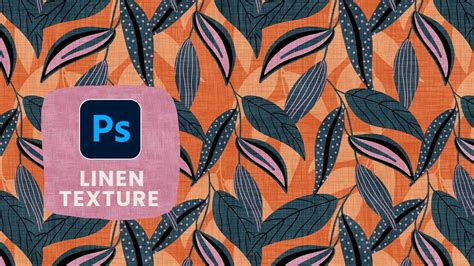
The linen fabric texture is characterized by its simple yet effective crosshatch pattern, which masterfully mimics the natural weave of linen. This texture is not only visually appealing but also serves as a superb background for text, making it pop with understated elegance.
To begin creating your linen texture, start by opening Adobe Photoshop and creating a new document. For optimal flexibility, it is recommended to set the document dimensions to 3000 pixels by 3000 pixels with a resolution of 72 dpi, in RGB mode and an eight-bit color depth. Ensure your document is set to eight bits for this process.
Once your new document is set up, unlock the background layer by clicking on the small lock icon. Next, select a base color for your linen texture. A suitable starting point is the hex code #F5D294. Press the 'X' key on your keyboard to make this color your foreground color, and then use the shortcut Command + Delete (or Control + Backspace on a PC) to fill the background layer with this chosen color.
The next crucial step involves applying a motion blur to create the foundational lines of the weave. Navigate to the 'Filter' menu at the top of the screen, select 'Blur,' and then choose 'Motion Blur.' For the initial layer, set the 'Distance' to 90 pixels. This value can be adjusted to make the texture stronger or less pronounced; a higher pixel count will result in longer, more distinct lines.
After applying the motion blur, duplicate this layer. With the top layer selected, go to 'Edit' > 'Transform' > 'Rotate 90°.' This rotation will create the perpendicular lines necessary for the crosshatch effect. To see the interplay between the horizontal and vertical lines and to achieve a more organic look, reduce the opacity of the top layer to approximately 50%. This blending of the two layers creates the characteristic woven appearance of linen fabric.
For added realism and to prevent a too-perfect, digital look, it is beneficial to introduce a subtle amount of noise. Navigate to 'Filter' > 'Noise' > 'Add Noise.' A small amount, such as 1-2%, is usually sufficient. Ensure the 'Monochromatic' option is selected to maintain the texture's color consistency.
The variation in the crosshatching can be further controlled by adjusting the length of the motion blur applied to one or both layers. For a stronger, more pronounced texture, you can increase the noise level.
Developing a Versatile Knit/Tweed Texture
Moving beyond the simplicity of linen, the creation of a knit or tweed fabric texture offers a different kind of depth and versatility. This texture can be adjusted to mimic anything from a fine jersey knit to a coarser tweed, making it exceptionally adaptable for various design needs.
To start this texture, create a new layer above your background. Set the background color to a red hue (e.g., hex code #FF0000) or any color that suits your project. For the top color, choose a dark shade that is not pure black; this will act as a subtle shadow or darker area, adding depth to the fabric. Fill this layer with the chosen background color using Command + Delete (or Control + Backspace on a PC).
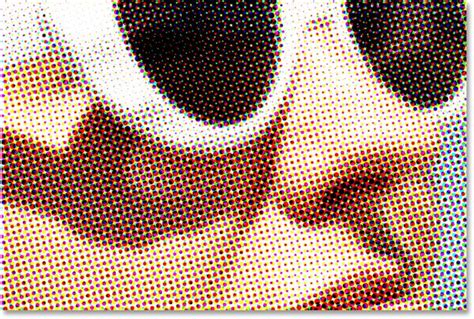
Now, we will utilize the 'Half Tone Pattern' filter to create the knit effect. Go to 'Filter' > 'Sketch' > 'Half Tone Pattern.' For a fine jersey knit, a 'Size' of one or two pixels is recommended. However, for a thicker knit or a tweed-like appearance, increasing the 'Size' to around four is effective. Keep the 'Contrast' at five and ensure the 'Pattern Type' is set to 'Line.' Click 'OK' to apply the filter.
This application will create a grid-like pattern. To achieve the woven effect, you'll need two copies of this layer, one for the horizontal and one for the vertical weave. Apply the 'Half Tone Pattern' filter to both layers.
For the first layer, which will represent the horizontal lines, go to 'Edit' > 'Transform' > 'Rotate 90°.' This will orient the lines horizontally. For the second layer, which will represent the vertical lines, you can leave it as is or apply a motion blur with a small 'Distance,' such as five pixels, to give it a more fibrous look, akin to yarn. If you desire a more pronounced yarn effect, you can increase this distance up to 10 pixels, ensuring you don't lose the distinct fiber appearance.
Once you have your horizontal and vertical textured layers, turn off the visibility of one of them temporarily. Select the remaining layer and apply a motion blur. For the horizontal layer, a 'Distance' of around 90 pixels will create elongated lines. For the vertical layer, a similar 'Distance' can be used.
After setting up both layers, turn the visibility of the second layer back on. Select the top layer (either horizontal or vertical, depending on which you want to appear more dominant) and reduce its opacity to around 50%. This blending of the two distinct patterns creates the convincing knit or tweed texture. The darker color used for the half-tone pattern will provide the fabric with a subtle sense of depth.
Applying and Refining Your Fabric Textures
Once you have created your desired fabric textures, the next step is to integrate them into your design workflow. The textures can be saved as pattern presets in Photoshop for easy access and application.
To save a texture as a pattern, create a new document that matches the dimensions of your desired pattern repeat. Activate the 'Pattern Preview' mode in Photoshop (available under the 'View' menu). Create a new layer above the background and, using your custom brushes or the texture creation methods described above, paint your texture across the canvas. Be mindful of maintaining some inconsistencies to enhance the natural feel. Once you are satisfied with the texture, navigate to 'Edit' > 'Define Pattern' and give your pattern a descriptive name.
When applying these textures to your existing designs or patterns, experiment with different blending modes in the Layers panel. 'Soft Light' and 'Overlay' are excellent choices for subtly integrating fabric textures without overpowering your artwork. The 'Opacity' slider is your key tool for controlling the intensity of the texture, allowing you to fine-tune its presence.
Remember that for seamless integration into patterns, your texture should ideally repeat without visible seams. The pattern preview mode in Photoshop is invaluable for visualizing and ensuring this seamless repetition. By adjusting the dimensions of your texture document and the placement of elements, you can create repeating units that tile flawlessly.
Blending Modes - Photoshop for Beginners | Lesson 5
The ability to create custom fabric textures like linen and knit opens up a world of creative possibilities. These techniques not only add a layer of sophistication and realism to your digital creations but also provide a unique, tactile quality that can make your designs truly stand out. By mastering these methods, you can significantly enhance your design asset collection and your overall skill within Photoshop, leading to more compelling and professional-looking artwork.
Did you find this fabric texture Photoshop tutorial helpful? If you're interested in exploring more design techniques, consider checking out tutorials on creating stitched fabric type styles or other background texture creation methods. Subscribing to newsletters and following design channels can provide a steady stream of inspiration and bonus assets, helping you build your design capabilities and create stunning marketing materials for your business.