The WebP image format, a creation of Google, has gained traction for its ability to deliver comparable image quality to traditional formats like JPG and PNG while significantly reducing file sizes. However, the widespread adoption of WebP is still catching up, meaning you might encounter situations where you need to convert these files to the more universally compatible JPG format. This guide will walk you through various methods to convert WebP images to JPG on a Mac, catering to both single file conversions and batch processing needs.
Understanding the Need for Conversion
WebP's efficiency stems from its advanced compression techniques, offering superior performance in terms of file size and loading speed, especially for web use. Despite these advantages, many older devices, software applications, and even some web platforms may not natively support WebP images. This lack of universal support necessitates conversion to formats like JPG, which have been the standard for digital photography and web imagery for decades. Whether you've downloaded a WebP file from the internet and need it in JPG format, or you have existing WebP files on your Mac that you wish to convert, several straightforward methods are available.
Leveraging Mac's Built-in Tools: Preview App
For users who need to convert a few WebP images to JPG, macOS provides a convenient and readily available solution: the Preview application. This default image viewer and editor on Mac is capable of handling the conversion process with ease.
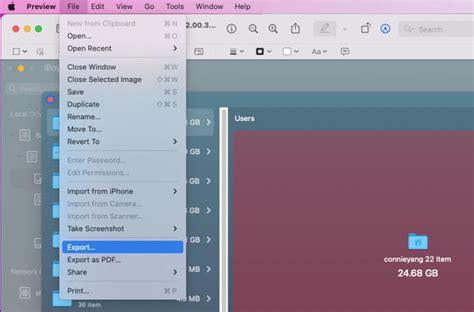
Here are the steps to convert WebP images to JPG images on a Mac using Preview:
- Open the Finder on your Mac and navigate to the location of your WebP file.
- Double-click the image file to open it. By default, it will open in the Preview app.
- Once the image is open in Preview, go to the menu bar at the top of your screen.
- Select File > Export.
- In the export menu that appears, locate the Format option.
- From the dropdown menu, choose JPEG.
- You can then select the desired location to save your newly converted JPG image and give it a name. Click Save.
While Preview is excellent for one-off conversions, it's important to note that it does not offer a batch conversion feature. If you have many WebP files to convert, this method can become time-consuming.
Efficient Batch Conversion with Online Tools
When you have a significant number of WebP files that need to be converted to JPG, relying on manual, one-by-one conversion can be inefficient. Online converters offer a powerful and often free solution for batch processing. These platforms allow you to upload multiple files simultaneously and convert them all to your desired format with a single click.
One such convenient tool is the free TinyIMG WebP converter. This online service is designed for ease of use and efficiency. You can typically add up to 10 images at once, and the converter will automatically transform them into JPG format. Once the conversion is complete, you can download all the converted files collectively. A significant advantage of using online converters like TinyIMG is that they generally preserve the image quality, ensuring your JPG files are just as good as the original WebP ones. However, it's worth remembering that JPG files are inherently larger than WebP files, so if file size is a critical concern, you might want to explore guides on how to reduce JPG file size after conversion.
To use such a tool:
- Navigate to the online converter's website.
- You will usually find an option to "Upload files" or a drag-and-drop interface.
- Select your WebP files from your Mac or drag them into the designated area.
- The tool will automatically begin the conversion process to JPG.
- Once completed, you can download the converted JPG files.
How to Convert WEBP to JPG
Browser Extensions for Seamless Downloading
If your primary need is to download WebP images directly from the web as JPGs, browser extensions provide a highly convenient workflow. Instead of downloading a WebP file and then converting it, these extensions allow you to specify the desired output format at the point of download.
Several extensions are available for popular browsers like Chrome and Firefox. For instance, on Firefox, you might find extensions like "Save webP as PNG or JPEG," and on Chrome, tools such as "Image downloader - Imageye" can offer similar functionality. These extensions typically work by detecting image files on a webpage and providing you with options to save them in various formats, including JPG, directly. This method is particularly useful for web researchers, designers, or anyone frequently saving images from online sources.
Utilizing Desktop Image Converters
For users who frequently handle a large volume of image format conversions, installing a dedicated desktop image converter application can be a worthwhile investment. These applications are designed for efficiency and often offer advanced features beyond simple format conversion.
Desktop converters provide a stable and reliable way to manage your image files without being dependent on an internet connection or website limitations. Many of these applications also come with additional image editing functionalities, such as resizing, cropping, and applying filters, making them a comprehensive solution for your image management needs. If you often find yourself needing to convert loads of images, a desktop converter can significantly streamline your workflow.
Exploring Other Conversion Methods
Beyond the primary methods, a few less conventional but still functional approaches exist for converting WebP to JPG. These methods are often cross-platform and can be useful in specific scenarios.
Taking a Screenshot
One of the most basic, albeit less ideal, methods is to take a screenshot of the WebP image. While this approach works, it's important to be aware of its limitations. The resolution of the image might be impacted, and the resulting file may not be as crisp as a direct conversion. However, for purposes where high fidelity isn't paramount, such as using the image for reference or as a quick visual aid, taking a screenshot can suffice. You can use your Mac's built-in screenshot tools (Command + Shift + 3 for the entire screen, or Command + Shift + 4 for a selected area) or dedicated screenshot applications.
Mobile Conversion Apps
If you find yourself needing to convert WebP images on your mobile device, both Android and iOS platforms offer a variety of applications designed for this purpose. You can search the Google Play Store or the Apple App Store for "WebP to JPG converter" apps. These mobile apps often provide a simple interface for uploading your WebP files and converting them to JPG, allowing you to manage your images on the go.
Using Graphic Design Software
Professional graphic design software like Adobe Photoshop offers robust capabilities for handling various image formats. If you have Photoshop installed, you can easily open WebP files within the application and then use the "Save As" or "Export As" functions to save them in JPG format, along with other common formats like PNG, BMP, and TIFF. This method is ideal for users who are already familiar with these powerful tools and require precise control over the conversion process and image quality.
Canva for Conversion
Canva, a popular online graphic design platform, also provides a straightforward way to convert WebP images. You can upload your WebP files directly to Canva. Once uploaded, you can then proceed to download them, choosing JPG as the desired output format during the download process. This method is particularly useful for users who are already using Canva for design projects and want to integrate WebP-to-JPG conversions into their existing workflow.
Conclusion: Choosing the Right Method for You
The best method for converting WebP to JPG on a Mac depends on your specific needs. For occasional conversions of a few files, the built-in Preview app is an excellent, no-fuss solution. If you frequently need to convert multiple files, online batch converters like TinyIMG or dedicated desktop applications offer greater efficiency. For those who often download images from the web, browser extensions can streamline the process significantly. And for users who already work with professional design software, tools like Photoshop provide advanced control. By understanding these various options, you can confidently convert your WebP images to the widely compatible JPG format whenever the need arises.