When working with digital art and design software like Adobe Photoshop, it's common to accumulate a number of projects over time. While this can be a testament to your creative output, it can also lead to a cluttered workspace and difficulty in locating specific files. This guide will walk you through the various methods of managing and, crucially, deleting your Photoshop projects, ensuring a streamlined and efficient workflow. We will explore how to remove unwanted files, manage recent file lists, and customize the Photoshop interface to suit your preferences.
Understanding Photoshop's Welcome and Home Screens
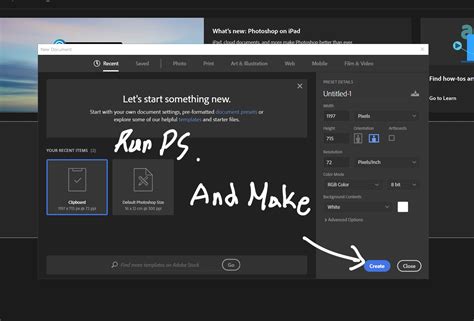
Photoshop features a welcome screen that often displays recent projects as thumbnails. This can be convenient for quickly accessing frequently used files. However, there are situations, such as when working with sensitive client information, where you might want to hide these previews. The user in our scenario encountered this when preparing for a livestream, not wanting to expose client images.
To manage the visibility of these thumbnails, you can adjust a simple setting. By default, when you start Photoshop or close all open documents, a full-screen home page with these thumbnails appears. To disable this, locate the checkbox that says "Auto Show Home Screen" and uncheck it. This will cause Photoshop to bypass the home screen and take you directly to the workspace. If you later decide you want to see the thumbnails again, you can easily re-enable this option by checking the box. This setting offers a straightforward way to customize your initial Photoshop experience, whether you prefer immediate access to your tools or a visually organized overview of your recent work.
Managing the "Open Recent" File List
Beyond the welcome screen, Photoshop keeps a record of recently opened files accessible through the "File > Open Recent" menu. By default, this list typically displays 25 files. For users who work on numerous projects or need to revisit older work, this default number might be insufficient. The provided information highlights a scenario where a user wanted to see more files, increasing the limit to 100. This expansion of the "Open Recent" list makes it significantly easier to locate and access older documents without having to manually search through file directories. Adjusting this setting can greatly enhance productivity for those who juggle many ongoing or past projects.
The Challenge of Deleting Unwanted Projects
A common frustration for users, as illustrated by the user's experience, is the inability to easily delete old projects that are no longer needed. The user expressed a desire to "get rid of these old projects" and noted that they "can't find a delete tab!!!" This sentiment is echoed by many who find that standard methods of file deletion don't seem to apply directly within the Photoshop interface for managing project history or recent files. The core issue is that Photoshop itself doesn't typically host a direct "delete project" button within its menus for files saved externally. Instead, the management of these files occurs at the operating system level or through specific management tools within the software.
Effective Methods for Deleting Photoshop Projects
To effectively delete Photoshop projects, you need to understand where these files are stored and how to access them for removal. There are two primary methods:
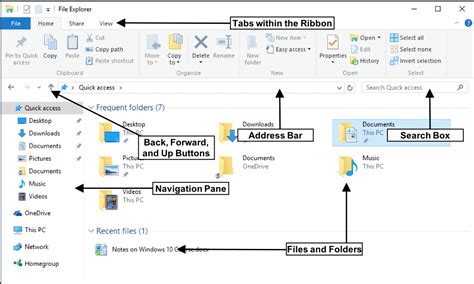
Direct File Deletion via File Explorer: The most direct and universally applicable method is to locate the saved file on your computer's file system and delete it using your operating system's file management tools.
- Finding the File Location: If you know where you saved your Photoshop project (e.g., a specific folder on your desktop, in your documents, or an external drive), navigate to that location using File Explorer (on Windows) or Finder (on macOS).
- Deleting the File: Once you have located the
.psdfile (or any associated project files), you can right-click on it and select "Delete" or drag it to the Recycle Bin/Trash. This action removes the file from your system.
Using Photoshop's "Manage Works" Feature (if applicable): Some versions or related software, like Clip Studio Paint (CSP) as hinted at in the user's description ("cluttering up my CSP program"), might offer an integrated "Manage Works" or similar panel. This panel often provides a visual interface to view and manage your projects.
- Accessing "Manage Works": In such systems, you would typically find a tab or menu option labeled something like "Manage Works," "Project Manager," or "Gallery."
- Identifying the Delete Option: Within this management interface, you should look for a way to select the project you wish to delete. Often, there is a trashcan icon or a "Delete" button associated with each project listing. The user's experience of finding a "works tab" and then a "trashcan icon" strongly suggests this type of integrated management system.
This Simple File Management System Changed My Life!
It's important to note that "Replies sent from Celsys are only for individual customers’ use" and the mention of "Moderators are official CELSYS staff members" suggests that the user's initial problem might have been related to a Celsys product (like Clip Studio Paint) rather than solely Adobe Photoshop. However, the principles of file management and deletion remain largely consistent across creative software. The key takeaway is that if Photoshop itself doesn't offer an in-app delete function for saved files, you must resort to your operating system's file management capabilities.
Why Direct Deletion is Often Necessary
The reason Photoshop itself doesn't typically have a prominent "delete project" button within its main menus is that it primarily functions as an editing tool. The files you create are saved to your computer's storage. Therefore, their management and deletion are handled by the operating system. The "Open Recent" list, for instance, is a convenience feature that stores file paths, not the files themselves. Deleting an entry from this list only removes the shortcut; the actual file remains on your drive until you delete it separately.
Considerations for Avoiding Clutter
To prevent your system from becoming cluttered with old projects, consider adopting a proactive file management strategy:
- Regularly Review and Delete: Set aside time periodically to go through your project folders and delete files that are no longer needed.
- Use Clear Naming Conventions: Employ descriptive file names for your projects so you can easily identify them later.
- Organize into Folders: Create a logical folder structure for your projects (e.g., by client, by date, by project type) to keep things tidy.
- Utilize Cloud Storage for Archiving: For projects you might need to keep for historical or backup purposes but don't actively work on, consider storing them in cloud storage services. This keeps your local drive clear while ensuring accessibility.
By understanding these methods and implementing good organizational habits, you can effectively manage and delete your Photoshop projects, ensuring a clean and efficient digital workspace.