Ibis Paint X stands as a powerful and versatile drawing application, having captured the admiration of artists across all skill levels, from burgeoning beginners to seasoned professionals. Its remarkable features and intuitive interface consistently solidify its position as a favorite among creatives. This guide delves into the intricacies of using Ibis Paint X, offering a step-by-step approach to drawing, with a particular focus on creating a realistic woman's face, making it an excellent starting point for intermediate to advanced artists.
Understanding Ibis Paint X: Your Digital Canvas
Before embarking on the artistic journey within Ibis Paint X, it's essential to understand its core identity. IbisPaint X is a sophisticated digital painting and drawing application designed for phones and tablets, readily compatible with Windows, Android, and iOS devices. The app is replete with diverse features and tools specifically engineered for the creation of electronic artworks, illustrations, manga, and comics. Beyond its creative capabilities, the application also incorporates a social networking element, enabling users to share their drawings, process videos, and engage with a vibrant community of fellow artists, fostering a collaborative and inspiring environment.
The concept behind ibisPaint is rooted in "Sharing the Fun of Drawing." It was meticulously developed with the explicit purpose of facilitating communication, enhancing the enjoyment of drawing, and nurturing the development of one's artistic abilities. This drawing lecture is specifically tailored for newcomers to the realm of digital drawing. The fundamental tenets for improvement in drawing lie in two crucial aspects: genuinely enjoying the process and drawing prolifically. Many professional illustrators nurtured their passion for drawing to an obsessive degree during their formative years. Furthermore, even experienced adult illustrators understand the necessity of daily practice to consistently hone their skills. Mastery is not achieved overnight; it is a product of years of dedication, and even then, continuous drawing is paramount for further refinement. The field of drawing encompasses a wide array of career paths, including roles such as manga artist, animator, book illustrator, painter, and game illustrator, among others. The potential within young aspiring artists is immense, and for those young at heart, engaging in a few sketches in a park or during a leisurely walk can be an incredibly rewarding way to spend one's time.
Getting Started: Navigating the Canvas and Tools
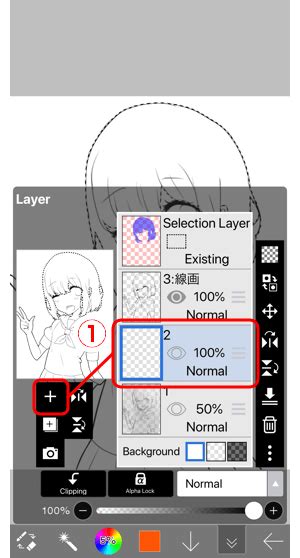
To begin your artistic endeavor, the first crucial step involves opening the Layer window. Within this window, it is imperative to confirm that the layer you intend to draw on is designated as the Current Layer. For instance, if Layer 2, which typically displays a light blue background, is the target, ensure it is selected. Should it not be the active layer, simply tap on "Layer 2" to designate it as the current layer. Following this, tap the button to close the Layer window.
Next, navigate to the Tool Selection window and select the Brush tool. Once the Brush tool is active, open the Brush Setting window. Here, you will find various parameters to customize your brush. Tap the ">" button associated with the "Dip Pen (Hard)" to access its specific settings. Within this menu, you can adjust parameters such as "Thickness of Start," "Thickness of End," "Opacity of Start," "Opacity of End," the overall "Thickness," and the general "Opacity." It is highly recommended to drag these sliders to gain an intuitive understanding of their impact on the brush stroke. To revert to the original settings or the previous pane, utilize the "Pane Switch" button. Once you are satisfied with your brush settings, close the Brush Setting window.
The Art of Tracing and Line Work
With your brush tool and settings prepared, you are now ready to trace over your sketch using the Dip Pen. This phase of digital art creation involves a series of intuitive gestures on your canvas:
- Drawing: To create a line, simply draw with the pen (stroke) using a one-fingered swipe across the canvas.
- Zooming: To zoom in and out of the canvas, employ a two-fingered pinch gesture.
- Panning: To move around the canvas, use a two-fingered drag.
For intricate details, zooming in is essential. Be mindful of your drawing speed; swiping too slowly can result in wobbly lines. For clean, consistent lines, it is advisable to work at a steady pace. When using the Dip Pen, moving your finger slowly at the start and end of a stroke will result in finer points. If you desire even lines throughout your stroke, move your finger with confidence and at a consistent speed.
While the size and opacity of your brush can be adjusted within the Brush Properties window, Ibis Paint X also offers a "Quick slider" as a convenient shortcut for on-the-fly adjustments.
BEST IBISPAINT BRUSH EVER (and how to use it)
Crafting a Realistic Woman's Face: A Step-by-Step Tutorial
Creating a portrait of a woman's face is an exceptionally rewarding, albeit challenging, artistic endeavor. Ibis Paint X empowers you to literally bring your visions to life. This section will guide you through the process of digital portraiture, demonstrating how to harness the full potential of Ibis Paint X's features.
Step 1: The Foundation - Skull Structure
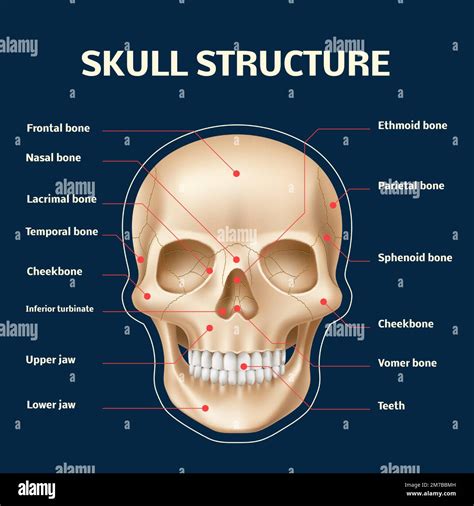
The bedrock of any compelling portrait lies in the accurate depiction of the underlying skeletal structure. To commence, sketch a basic skull utilizing only simple geometric forms. This initial framework will serve as the fundamental basis for your artwork, ensuring accurate proportions as you progress to the rest of the facial anatomy.
Step 2: Shaping the Face and Hair Layout
With the skull structure established, the next step involves refining the overall shape of the face. Introduce trapezoidal lines to the skull to sculpt a more realistic and feminine facial contour. Subsequently, turn your attention to the hair. Sketch the general layout, making decisions about the desired cut, length, and the degree of waviness in the locks. This stage is crucial for establishing the overall silhouette of your portrait.
Step 3: Defining Facial Features
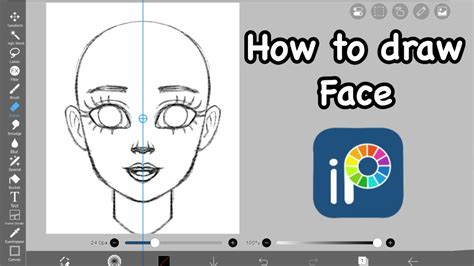
Now, the most engaging part of the process begins: bringing your portrait to life by adding the facial features. Primarily, carefully mark the positions of the eyes, as they are the focal point of any face. When drawing a female figure, employing large, expressive eyes is key to conveying the desired feminine essence. Draw the eyebrows accordingly, adhering to the "three-court and five-eye rule" to maintain proportional balance.
Next, position the nose centrally between the eyebrow arch and the chin. The lips should be placed between the chin and the nose. These meticulously placed facial features will further define the character and expression of your subject. Finally, trace the ears horizontally on either side of the nose to complete the five major features of the face.
Step 4: Refinement and Polishing
As you approach the culmination of how to use Ibis Paint X to draw a woman’s face, with the fundamental structure and features in place, it is time to add depth and polish to your portrait. Begin by making your rough sketch layer transparent. This allows the refined lines to take center stage and guides your subsequent detailing.
Carefully refine the lines of each facial feature, paying meticulous attention to detail. To imbue the eyes with depth and expression, thicken the eyelash lines and draw a subtle line around the eye corners. For the lips, employ thicker lines on the sides and a lighter, more delicate line in the center to achieve a natural and realistic appearance.
When rendering the hair, visualize it as cascading elements, akin to tree leaves or flowing ribbons descending from the crown of the head towards the sides and front (bangs), thereby imparting volume and a sense of natural movement. Envision the hair expanding outward from the head, with the tips converging towards a focal point to create a flowing, organic effect.
Throughout this entire refinement process, leverage Ibis Paint X's extensive brush library and its powerful customization options to achieve the desired textures and artistic effects. Experiment with different brush types, explore the nuances of pressure sensitivity, and utilize blending modes to truly bring your creation to life.
Optimizing Your Ibis Paint X Experience
To truly maximize your potential with Ibis Paint X, consider integrating it with a high-quality drawing tablet. The XPPen Magic Drawing Pad is a prime example, lauded as a top choice for digital artists. This innovative 2-in-1 tablet seamlessly merges the power of a traditional drawing tablet with the portability of an Android device, delivering an immersive creative experience optimized for Ibis Paint X and other drawing applications.
The XPPen Magic Drawing Pad boasts an AG Etching Display that artfully mimics the resistance and tactile feel of drawing on paper. Its impressive 16,384 pressure levels and tilt support, coupled with a battery-free EMR pen, allow for precise pressure sensitivity and uninterrupted creativity, anytime and anywhere.
Furthermore, equipped with a robust Octa Core processor and a high-resolution 2160x1440 display, drawing on this tablet is an exceptionally smooth experience, where every line flows precisely as intended. A significant advantage of purchasing the XPPen Magic Drawing Pad is the inclusion of a free license for Ibis Paint X, offering a specialized drawing solution to further enhance your artistic output.
Frequently Asked Questions About Ibis Paint X
Q1: How can I download Ibis Paint X for free?
Ibis Paint X is available in a free version, which can be downloaded from various app stores for different devices. However, it's important to note that the free version contains advertisements, which can be a source of distraction during the creative process. If you prefer an ad-free drawing experience, you can opt to purchase the paid version or acquire the "Remove Ads" add-on. Alternatively, a highly recommended method to obtain Ibis Paint X is by purchasing the XPPen Magic Drawing Pad, which offers access to an incredible device alongside the full Ibis Paint X experience.
Q2: What is the best tablet to use with Ibis Paint X?
While Ibis Paint X is compatible with a wide array of devices, the XPPen Magic Drawing Pad is widely recognized as a premier choice for digital artists seeking to practice and refine their skills, particularly when learning how to use Ibis Paint X to draw a woman's face. This groundbreaking 2-in-1 tablet represents a convergence of traditional drawing tablet functionality and Android device mobility, providing an immersive creative environment meticulously optimized for Ibis Paint X and other drawing applications. The tablet features an AG Etching Display that accurately simulates the feel and resistance of drawing on paper. Its extensive 16,384 pressure levels and tilt support, along with a battery-free EMR pen, grant users the freedom to enjoy precise pressure sensitivity and uninterrupted creativity, irrespective of their location. The powerful Octa Core processor and the crisp 2160x1440 resolution display ensure that drawing on the tablet is a fluid and responsive experience, with every stroke rendered as intended. By acquiring the XPPen Magic Drawing Pad, users also receive a complimentary license for Ibis Paint X, a valuable asset for enhancing their digital drawing capabilities.
Q3: Why does Ibis Paint X request your age?
Upon initial launch, Ibis Paint X may prompt you to enter your age. This is a common practice across many applications and serves to comply with local regulations and to ensure that appropriate content and features are presented to the user based on their age. Ibis Paint X utilizes this information to personalize the app's content and features, thereby fostering a safe and accessible environment for all users. For younger users, certain features or content may be disabled or limited to adhere to age-appropriate guidelines, maintaining a family-friendly atmosphere and safeguarding younger individuals from potentially unsuitable or mature material. Adult users can simply enter their age accurately to gain full access to all app features and content.
Exploring the Canvas Creation Process
To initiate the creation of a new artwork, begin by tapping the "My Gallery" button on the Title screen. This action will lead you to the "My Gallery" screen. Initially, this screen will be empty, but as you create more artworks, they will be systematically arranged here. To create a new canvas, tap the "Create New Canvas" button. You will then be presented with options to select a canvas size. "Any Size" allows for custom dimensions, while "SD size" refers to a smaller canvas, and "HD size" denotes a larger canvas.
Once your canvas is created, you will be directed to the Canvas screen. From here, select the "Brush tool" via the "Tool Select" button. When you are ready to stop drawing and return to your gallery, tap the "Back button" and then select "Back to My Gallery."