The .PSD file extension is synonymous with Adobe Photoshop, the industry-standard software for digital image manipulation and editing. Developed by Adobe Systems Incorporated, Photoshop first graced the public with its presence in 1990, and its native file format, PSD, quickly became integral to the workflows of designers, photographers, and illustrators worldwide. PSD files are designed to store a wealth of image data, including multiple layers of distinct images or graphical elements, allowing for complex and editable compositions. For those who have previously worked with Photoshop, particularly in educational settings or for past online classes, encountering these old PSD files can bring back a flood of memories and a desire to revisit those creative endeavors. However, accessing these files can present a challenge if you no longer have access to the specific version of Photoshop used to create them, or if you're looking for more accessible or cost-effective solutions.
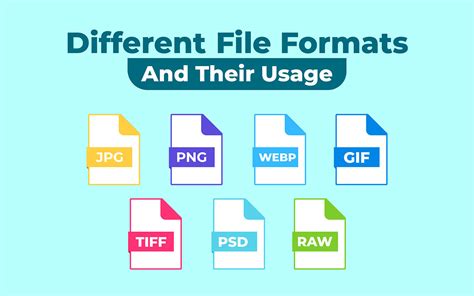
This guide aims to demystify the process of opening and working with Photoshop (PSD) files, offering a range of solutions from official Adobe tools to robust open-source alternatives, and even mobile applications. Whether you're looking to simply view your old artwork or make further edits, understanding the options available will empower you to unlock your past projects.
The Native Solution: Adobe Photoshop and Its Trial Period
The most straightforward, albeit often temporary, method to open PSD files is by using Adobe Photoshop itself. As the native format for Photoshop, PSD files are fully supported, preserving all layers, effects, and editable elements. If you have an older version of Photoshop installed, it might still function, but it's crucial to exercise caution when running older software alongside newer versions, as it can potentially lead to system instability. A proper system backup is always recommended in such scenarios.
Adobe offers a free trial period for its current Photoshop versions, typically lasting seven days. This trial is an excellent opportunity to open your old PSD files and, importantly, save them in a more universally compatible format if needed. When saving within Photoshop, there's a "Save As" dialog that has historically included a long-term compatibility option. The exact behavior of this option depends on how the original files were saved, but it's worth exploring if you're using Photoshop to re-save them.
To open a file in Photoshop, you generally use the "File > Open" command, or the "Open Recent" command if you've recently worked with the file. Photoshop is also equipped with plug-in modules that enable it to open and import a wide array of file formats, though its native PSD format is where it truly excels.
Exploring Open-Source and Free Alternatives
For users seeking free and open-source software to open PSD files, several excellent options exist, each with varying degrees of compatibility and functionality.
GIMP: A Powerful Open-Source Contender
GIMP (GNU Image Manipulation Program) is a widely respected free and open-source image editor that offers significant capabilities for working with PSD files. While it may not perfectly replicate every single advanced feature or effect found in Photoshop, GIMP does an admirable job of reading PSDs. Crucially, the bitmap data from the layers in a PSD file is transferred to GIMP's own layers. This means that even if some complex layer styles or adjustment layers are not fully interpreted, the core image content on each layer will be preserved, allowing for substantial editing. For many users, this level of compatibility is more than sufficient to access and work with their old PSD projects.
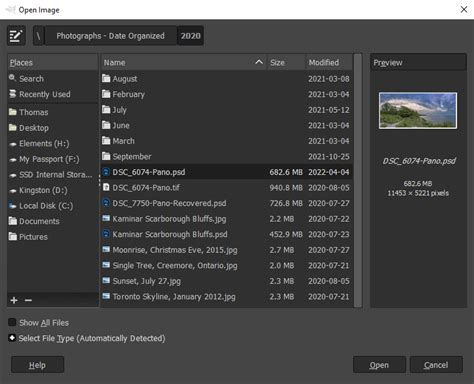
When opening a PSD in GIMP, you might notice that certain "flashy features" are left out or misunderstood. However, the fundamental structure of layers is maintained, making it a viable and cost-effective solution. You can typically find GIMP available for download on its official website, supporting Windows, macOS, and Linux.
Other Software with PSD Compatibility
Beyond GIMP, other software packages are known to read PSD files, offering users more choices depending on their specific needs and existing software ecosystem.
- ON1 Perfect Layers: This software is designed to work with layers and has demonstrated the ability to read PSD files. It can be a good option for those who need robust layer-based editing capabilities without the full Adobe Creative Cloud subscription.
- Serif Affinity Photo: Affinity Photo is a professional-grade photo editing software that is often hailed as a strong competitor to Photoshop. It boasts excellent compatibility with PSD files, including support for layers, masks, and other common Photoshop features. While not free, it is typically offered as a one-time purchase, making it a more budget-friendly alternative to Adobe's subscription model.
When considering these alternatives, it's always advisable to check their latest compatibility lists and user reviews to ensure they meet your specific requirements for handling PSD files.
Leveraging the Free Trial of Specialized Software
Sometimes, the most efficient solution for a one-time or infrequent need is to utilize the trial versions of professional software.
Adobe Photoshop Free Trial: A Direct Approach
As mentioned earlier, Adobe's free trial for Photoshop is a direct and highly effective way to open your PSD files. This trial grants you full access to Photoshop's capabilities for a limited period, usually seven days. This is ample time to open your old files, assess their content, and, if necessary, export them into more accessible formats like JPEG, PNG, or TIFF. This approach ensures maximum fidelity, as you're using the software that created the files.
The process is simple: download the trial from Adobe's website, install it, and then use the "File > Open" command to select your PSD files. Remember to plan your workflow within the trial period to accomplish your goals before it expires.
Photoshop Express: Mobile Editing on the Go
For those who need to make minor edits or simply view PSD files on their mobile devices, Adobe Photoshop Express offers a convenient solution. This free app, available for both Android and iOS, is a streamlined version of Photoshop designed for quick photo adjustments. While it doesn't possess all the advanced tools of its desktop counterpart, Photoshop Express can open PSD files and allow for basic edits.
To use it, you would typically transfer the PSD file to your Android phone or tablet (e.g., by saving it to your Creative Cloud storage or DCIM folder). Then, open the Photoshop Express app, navigate to the file, and it should display the PSD. You can then use the app's features for minor touch-ups. The app has a distinctive blue icon with a white "Ps" in the middle. After editing, you can export the file, potentially back as a PSD for further desktop editing.
Understanding PDF as a Bridge Format
While PSD is Photoshop's native format, Portable Document Format (PDF) is a versatile document format developed by Adobe, primarily for Adobe Illustrator and Adobe Acrobat. In some contexts, PSD files might be converted to PDF for easier sharing or viewing, especially if the recipient doesn't have Photoshop.
When opening PDF files in Photoshop, you'll encounter a PDF import dialog. This dialog allows you to select which pages or images within the PDF you wish to open and to specify rasterization options. Rasterization is the process of converting vector or object-based graphics into pixels, essentially turning them into bitmap images. You can set the resolution, color mode, and bit depth for the new document. Options like "Crop to" can be set to "Art" (crops to the original page size) or "Trim" (crops to the smallest rectangular region that includes all text and graphics), and you can also specify Width and Height values, with the "Constrain Proportions" option to maintain aspect ratio.
It's important to note that opening a PDF in Photoshop will rasterize its content. If the PDF contains vector elements from programs like Adobe Illustrator, these will be converted into pixels. Therefore, while Photoshop can open PDFs, it's not always the ideal format for preserving the full editability of vector artwork.
Advanced Considerations and File Handling
When working with PSD files, especially older ones, several factors can influence how they open and are interpreted.
File Compatibility and Versioning
The specific version of Photoshop used to save a PSD file can sometimes impact its compatibility with older or newer versions of the software, or with third-party applications. While Adobe strives for backward and forward compatibility, subtle differences can occur. If you're encountering issues, trying the file in the exact version it was created in, if possible, or in the latest Photoshop version via the trial, is often the best diagnostic step.
System Limitations and Memory
Photoshop, especially when dealing with large PSD files containing numerous layers and high-resolution images, can be quite demanding on system resources. The software has mechanisms to handle complex files, including the ability to open files and channels into available memory without necessarily saving them directly to disk. However, insufficient RAM or processing power can lead to slow performance or even application crashes. Ensuring your system meets Photoshop's recommended specifications is crucial for a smooth experience.
Mobile File Management
For mobile users, managing PSD files involves transferring them to the device. This can be done via cloud storage services like Adobe Creative Cloud, or by directly transferring files from a computer to the device's storage. On Android, using file explorer apps like "My Files" (often pre-installed on Samsung devices) allows you to navigate to where the PSD is saved and tap it to open it with a compatible application. On iOS, the "Files" app provides similar functionality.
Viewing PSDs Without Photoshop on Windows
For users who wish to preview PSD files directly in Windows File Explorer without launching Photoshop, there are solutions. While Photoshop itself might not offer this natively without being installed, third-party tools and plugins can enable thumbnail previews. Some file viewers and management applications are designed to interpret and display common image formats, including PSDs, directly within their interfaces or as thumbnails in File Explorer. This avoids the need to install the full Photoshop application if viewing is the primary goal.
Specialized Mobile Apps for PSD Files
The Google Play Store and Apple App Store offer a variety of third-party applications that cater to opening and sometimes editing PSD files on mobile devices.
- PSD Viewer: As the name suggests, this is a free app designed purely for viewing PSD files. It allows you to open and see the content of your PSDs but does not offer editing capabilities. It's a simple and effective tool if your only need is to quickly check the contents of a PSD file. It typically has a blue icon with "PSD" in light blue letters.
- Autodesk Sketchbook: This is a paid drawing application that offers more advanced functionality. It is capable of opening and editing PSD files, crucially allowing users to work with multiple layers and utilize a range of art tools for drawing, erasing, and modifying the image. While it comes at a cost, its robust layer support makes it a powerful option for mobile PSD editing. It features an orange icon with a pencil tip.
When choosing a mobile app, consider whether you need simple viewing or full editing capabilities. Free viewers are abundant, while more advanced editors may come with a price tag.
Online Tools for Quick Access
For users who need to open a PSD file quickly without installing any software, online tools can be a lifesaver.
Aspose.PSD Online App
Aspose.PSD offers a free online application that allows you to upload your PSD file and view it within seconds. This service provides a pixel-perfect preview of your file. It supports PSD files with 8, 16, and 32 bits per color. If you need to edit the file online, Aspose also offers a PSD Editor. This is an excellent solution for users who have occasional needs to access PSD files and prefer not to install software. The Aspose.PSD library itself is also available for developers to integrate into their own applications, with versions for .NET, Java, and Python.
Want to View PSD Files Easily in Windows? Try SageThumbs Now
These online tools are particularly useful for users who might have encountered an old PSD file and need immediate access to its visual content. They bypass the complexities of software installation and system compatibility, offering a direct route to viewing your artwork.
Conclusion: Navigating Your PSD Files with Confidence
Whether you're a seasoned designer revisiting past work or a user encountering PSD files for the first time, a variety of accessible methods exist to open and interact with them. From the comprehensive capabilities of Adobe Photoshop's trial period to the open-source power of GIMP, and the convenience of mobile and online viewers, the barrier to accessing your PSD files has never been lower. By understanding the strengths of each option, you can confidently choose the best approach to unlock, view, and potentially edit your valuable digital creations.