Achieving the effect of text appearing behind objects or people in a video can dramatically enhance its visual appeal, creating a sense of depth and immersion that feels almost three-dimensional. DaVinci Resolve, a powerful video editing software, offers several robust methods to accomplish this, catering to various levels of complexity. This guide will explore two primary techniques within DaVinci Resolve 17, detailing how to place text behind subjects, from simple static elements to more dynamic and intricate scenarios.
The Illusion of Depth: Understanding the Core Concept
The fundamental principle behind placing text behind an object or person involves creating a "hole" or "mask" in the foreground footage that precisely matches the shape of the object. This mask then reveals the underlying text layer, making it appear as though the text is positioned behind the object. The challenge often lies in accurately creating and maintaining this mask, especially when the object or person is moving or the background is visually complex.
Method 1: Utilizing the Color Page for Simple Objects and Minimal Movement
This method is ideal for situations where the object you want to place text behind is relatively simple in outline and exhibits minimal movement within the frame. Think of shots with stationary buildings against a clear sky, or a slowly panning shot of a distinct landmark. The Color page in DaVinci Resolve provides tools that can efficiently isolate such elements.
Step-by-Step Guide to Color Page Text Placement
Prepare Your Timeline and Text: Begin by adding your video clip to the DaVinci Resolve timeline. Subsequently, add a text element on a track positioned directly above your video clip. Use the Inspector panel to meticulously adjust the text's appearance, font, size, color, and position until you achieve your desired aesthetic. It is crucial to finalize the text's look and placement before proceeding with the masking process, as any changes later can necessitate re-adjustments.
Duplicate and Isolate the Foreground: Duplicate your original video clip and place this duplicate on a track directly above the text layer. With this duplicated clip selected, navigate to the Color page.
Introduce the Alpha Output Node: Within the Node editor on the Color page, right-click in an empty area and select "Add Alpha Output." This node is essential for generating a matte that will define the area to be masked. Connect the output of your main video node (usually labelled "MediaIn") to the newly created Alpha Output node.
Create the Initial Mask: Now, you will create a mask using a window. This mask will define the shape of the object you want to hide the text behind. It's important to be mindful of the number of points you use to create your mask. While it may seem intuitive to add many points for precision, each point adds complexity to the tracking process. Aim for simplicity, especially on the first frame. Draw your mask to precisely outline the object, ensuring that the text below is revealed only where the object was. This initial mask should be created on the very first frame of your clip.
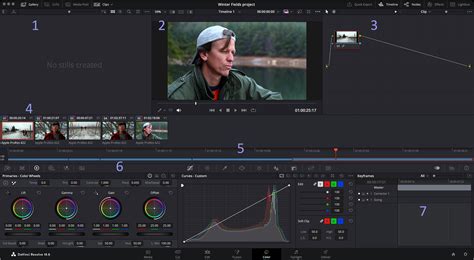
Track the Mask for Movement: At this stage, your text will appear behind the object on the first frame. However, as soon as there is any movement, the mask will no longer align, and the effect will break. To counteract this, you need to track the mask. In the Tracking window, change the tracking mode from "Clip" to "Frame." Then, initiate the "Track Forward" function. This "Frame" setting is critical; it allows you to make frame-by-frame adjustments to the mask without affecting the entire tracked motion, providing greater control for intricate movements.
Refine Mask Adjustments: After the initial track, you will likely need to adjust the mask for frames where it has drifted or no longer perfectly aligns with the object. A strategic approach is to start your adjustments from the end of the clip and work backward. This backward adjustment method often requires fewer modifications, as the software can intelligently interpolate changes between keyframes, making the process more efficient. Carefully adjust the mask's points on each relevant frame to ensure it continuously follows the object.
Method 2: Leveraging Fusion for Complex Objects and Dynamic Scenes
When dealing with more intricate objects, such as a car driving through a busy environment, or subjects with significant movement and complex shapes, the Color page's tracking capabilities might not suffice. In such scenarios, Fusion, DaVinci Resolve's powerful node-based compositing environment, becomes indispensable. Fusion excels at complex masking work, commonly referred to as rotoscoping.
Step-by-Step Guide to Fusion Text Placement
Set Up Your Scene in Fusion: Add your video clip to the timeline and then switch to the Fusion page. Your clip will appear as a "MediaIn" node.
Add and Style Your Text: Add a "Text1" node and connect it to your "MediaIn" node. Adjust the text's position, size, and overall appearance within the Inspector until you are satisfied. Similar to the Color page method, finalize your text's design before commencing the masking process.
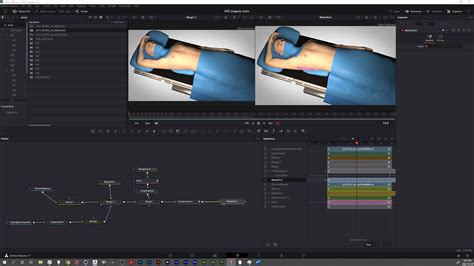
Create the Masking Polygon: Add a "Polygon" node and connect it to your "Text1" node. This polygon will serve as your mask. Crucially, you need to invert this mask by ticking the corresponding checkbox in the Inspector. This ensures that the polygon defines the area you want to see, rather than the area you want to hide.
Initiate Frame-by-Frame Masking: Navigate to the first frame where your object begins to overlap with your text. In the Inspector, add a keyframe to the "Center" position of your polygon mask. This action anchors the mask's starting point.
Perform the Rotoscoping: Begin drawing your mask. The key here is to keep the mask as simple as possible. Avoid adding unnecessary points. Focus only on the areas where the object and the text intersect. Each additional point increases the manual effort required for tracking and refinement.
How VFX Artists Rotoscope Anything | DaVinci Resolve 20
Manually Track and Refine: Once your initial mask is complete on the first frame, you will need to manually adjust it for every subsequent frame. Start by tracking the "Center" point of the mask to follow the overall movement of the object throughout the clip. Once the general movement is established, proceed frame by frame, meticulously adjusting each point on the mask to ensure it perfectly adheres to the object's evolving shape and position.
Addressing Complexities: It's important to acknowledge that highly complex scenarios, such as text appearing through transparent car windows or gaps in roof racks, introduce significant challenges. Achieving a photorealistic result in these cases would necessitate additional, intricate masking and compositing steps, often involving multiple masks and layers. This is where the difficulty of placing text behind complex objects becomes most apparent.
Conclusion: Choosing the Right Tool for the Job
Placing text behind an object or person in DaVinci Resolve 17 is a versatile technique that can be executed effectively through both the Color page and the Fusion page. The Color page is the more straightforward and efficient option for simpler objects with minimal motion, leveraging its built-in tracking tools. Conversely, for complex objects, dynamic movements, and highly detailed scenes, Fusion's node-based compositing and advanced rotoscoping capabilities provide the necessary power and flexibility. By understanding the strengths of each method, editors can choose the most appropriate approach to achieve professional and immersive visual effects.