Reflections, especially those captured in photographs taken through glass surfaces, can often detract from the intended subject of an image. Whether it's your own silhouette on a car door or an unwanted scene reflected in a window, these visual interruptions can be a significant frustration for photographers. Fortunately, Adobe Lightroom has evolved to offer powerful tools that can elegantly address these challenges, allowing your subject to shine without the clutter of unwanted reflections. This tutorial will guide you through the process of effectively removing reflections using Lightroom's advanced features, ensuring your images are as polished as you envision them.

Understanding the Challenge of Reflections
A photograph featuring a reflection is, in essence, a composite of two distinct visual elements: the primary scene you intended to capture and a secondary, often fainter, reflection of the environment behind the camera. This reflection is essentially a weaker, hazier overlay of what was present in the space opposite the camera lens. The challenge lies in separating these two layers and selectively diminishing or eliminating the unwanted reflection without compromising the integrity of the main subject. Historically, this task often required extensive work in applications like Photoshop, involving intricate cloning and healing techniques. However, modern versions of Lightroom introduce AI-powered capabilities that streamline this process significantly.
The Evolution of Reflection Removal in Lightroom
For a considerable time, photographers relied on tools like the Clone Stamp tool within Lightroom to manually address reflections. This method involves sampling pixels from a non-reflective area of the image and painting them over the reflective portion. While this technique can yield good results, it is often time-consuming and requires a keen eye for detail to ensure a seamless blend.
The landscape of reflection removal in Lightroom has been dramatically reshaped with the introduction of AI-powered tools. These advanced features are designed to intelligently analyze an image, identify reflections, and then "detangle" the layered visual information. The primary tool for this purpose is now integrated within the "Remove Tool Group" in Lightroom, often referred to as the "Distraction Removal Panel" or specifically, the "Reflection Removal" tool. This AI-driven approach significantly simplifies the process, allowing for the elimination of large and prominent window reflections in just a few steps.
New Photoshop AI Removes IMPOSSIBLE Glare!
Utilizing Lightroom's AI Reflection Removal Tool
The AI-powered Reflection Removal tool is a groundbreaking addition, particularly for images captured through glass windows. Its ability to efficiently eliminate unwanted reflections allows the primary subject of your photograph to stand out with clarity.
Locating the Tool
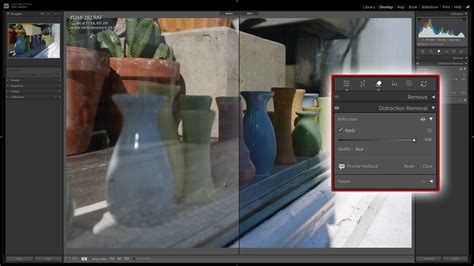
You will find the new Distraction Removal Panel tucked inside Lightroom’s Remove Tool Group. This group also houses other powerful AI-driven tools like the Generative Remove Tool and the Content-Aware Healing Brush.
The AI's Thought Process
One of the most fascinating aspects of this new feature is how Adobe provides insight into the AI's analytical process. The AI essentially works to untangle the two superimposed images-the desired scene and the superimposed reflection. Some versions of Lightroom even offer an "Amount" slider, which allows you to blend between the original image, the reflection-free image, or even isolate just the reflection itself, offering remarkable control over the outcome.
Workflow and Settings
- Select the Remove Tool: Access the Remove Tool in Lightroom.
- Choose Reflection Removal: Within the Remove Tool group, select the AI-powered Reflection Removal option.
- Apply to the Reflection: Lightroom will begin analyzing and removing reflections in the photo. You may need to brush over the area where the reflection is most prominent.
- Quality Settings: A critical aspect of this tool involves the "Quality" settings. These settings determine the resolution and detail of the resulting reflection removal. You will typically find options such as:
- Preview: This is the lowest resolution setting. It's the fastest to process and is ideal for making initial assessments or when preparing images for social media where extreme detail might not be paramount.
- Standard: This offers an intermediate resolution, suitable for viewing photos at normal screen resolutions and general editing.
- Best: This provides the highest resolution and "edge crispness," ensuring maximum detail and sharpness in the final output. Selecting the desired Quality option from the drop-down menu will influence the time taken to render the results.
It's important to note that sometimes, even with the highest settings, a subtle remnant of the reflection might persist. In such cases, the Clone tool can be used as a complementary tool for fine-tuning any remaining imperfections.
Workflow with Other AI Tools
Lightroom's AI Status Indicator is a valuable feature that helps you avoid potential issues when combining Reflection Removal with other AI tools, such as the Generative Remove Tool. This ensures a smoother and more predictable editing workflow.
Limitations and Future Developments
While the AI Reflection Removal tool is remarkably powerful, it's essential to be aware of its current limitations. The AI model has not yet been trained on night shots, meaning results can be mixed or less effective in low-light conditions. Similarly, while it excels with glass surfaces, results on other highly reflective materials like water (e.g., tide pools) might be less consistent.
Perhaps the most exciting aspect of this technology is its nascent stage. The AI model is continuously learning and improving, promising even more sophisticated and accurate reflection removal capabilities in future updates. The developers are actively refining this technology, and it's expected to become even more robust over time.
Advanced Workflow: Using Photoshop with Raw Files
For users who require the utmost precision or are working with specific workflows, integrating Photoshop with Lightroom can offer additional control. A common point of confusion arises when using the "Edit In Photoshop" command.
The Raw File Requirement
A crucial detail to understand is that Lightroom's Reflection Removal functionality, particularly when accessed via Camera Raw, works best with raw files. When you use the "Edit In Photoshop" command from Lightroom, the way the file is handled can impact the availability of certain Camera Raw features.
If you send an image to Photoshop via "Edit In Photoshop," it gets rendered. When it opens in Photoshop, it is no longer treated as a raw file but rather as an RGB file. Consequently, the Camera Raw filter within Photoshop might not offer the reflection removal option because it's not operating on the original raw data.
The Smart Object Solution
To overcome this limitation and ensure you are working with raw data, the recommended workflow involves opening the image as a Smart Object in Photoshop:
- In Lightroom Classic: Navigate to
Photo > Edit In > Open as Smart Object in Photoshop. - In Photoshop: Once the image opens as a Smart Object, you can then access the full Camera Raw processor. To do this, double-click the raw smart object layer in Photoshop's Layers panel. This is a shortcut for
Layer > Smart Objects > Edit Contents. - Access Camera Raw: With the image opened in the full Camera Raw interface, you should now have access to the Reflection Removal tool (or its equivalent within the ACR interface, which is the same engine as Lightroom's).
This method preserves your Lightroom edits while allowing Photoshop's Camera Raw to process the original raw data, unlocking the full potential of the reflection removal features. It's important to distinguish between the "Camera Raw Filter" (a limited version accessible via Filter > Camera Raw Filter) and the full "Camera Raw processor" that opens when you edit a raw file or a Smart Object containing raw data. The filter version has limitations and does not always access the full raw data, even with a raw smart object, treating it as a rendered layer.
Comparison with Other Photo Editing Software
Many photographers wonder how Lightroom's distraction removal capabilities stack up against those in other popular photo editing software, most notably Photoshop. While Photoshop's Content-Aware Fill and Generative Fill remain exceptionally powerful tools for a wide range of retouching tasks, Lightroom's dedicated Distraction Removal and Reflection Removal tools have significantly closed the gap for specific use cases.
The advantages of using Lightroom's integrated tools include:
- No need to switch applications: This maintains a streamlined workflow, especially for photographers who primarily edit in Lightroom.
- Faster workflow: For reflection and distraction removal, the AI-powered tools in Lightroom can often achieve excellent results much faster than manual cloning or filling in Photoshop.
- Non-destructive editing: Lightroom's editing process is inherently non-destructive, meaning your original image data remains intact.
- AI trained specifically for reflections and people: The AI models are fine-tuned for these particular types of distractions, leading to more accurate and natural-looking results.
For everyday distraction removal, particularly reflections in windows and similar surfaces, Lightroom's approach is frequently more than sufficient and offers a more efficient editing experience.
Why Distraction Removal Matters
It is important to clarify that distraction removal in photography is not about "faking" reality or creating an inauthentic image. Instead, it is a technique used to direct attention. By removing elements that pull the viewer's eye away from the intended subject, photographers can enhance the narrative and impact of their images. Reflections, unwanted people in the background, or extraneous objects can all dilute the power of a photograph. Effectively managing these distractions ensures that the viewer's focus remains on what truly matters within the frame.
The Reflection Removal tool in Adobe Camera Raw, and by extension in Lightroom, simplifies the process of removing reflections from photos taken through glass windows. This tool effectively eliminates large and prominent window reflections in just a few steps, allowing your image's subject to stand out clearly.
Conclusion: A Powerful Addition to Your Editing Toolkit
Lightroom’s Distraction Removal and AI-powered Reflection Removal tools represent a significant advancement in photo editing software. They offer a powerful, efficient, and often more accessible way to tackle common photographic challenges. While traditional methods like cloning remain valuable for specific situations, these AI-driven features democratize advanced retouching, making it easier for photographers of all levels to achieve polished and impactful images. As this technology continues to evolve, we can expect even more sophisticated capabilities, further solidifying Lightroom's position as an indispensable tool in the modern photographer's arsenal.