The allure of Linux as a stable, customizable, and often more privacy-respecting alternative to Windows is growing. For digital artists, however, the transition can present a significant hurdle, particularly when their preferred creation tool, Clip Studio Paint (CSP), lacks a native Linux version. This guide aims to demystify the process of running CSP on Linux, offering a reliable, user-friendly, and stable approach that minimizes command-line interaction, making it accessible even for newcomers to the Linux ecosystem. The journey from Windows to Linux is often prompted by dissatisfaction with the former's direction, with features like "Recall" - which captures screenshots at regular intervals - serving as a breaking point for many. For artists, the absence of official CSP support on Linux can feel like a major roadblock, but viable solutions exist.

Understanding the Foundation: Why Special Steps Are Needed
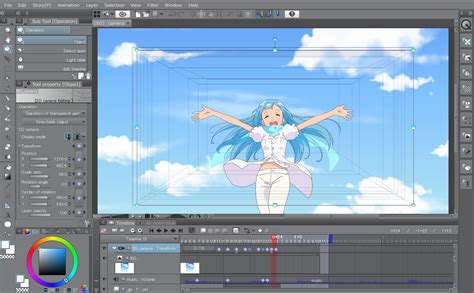
Clip Studio Paint, developed by Celsys, has historically focused its development on Windows and macOS. This means that without direct support, running it on Linux requires a compatibility layer. This layer essentially tricks the Windows application into believing it's running on a Windows operating system. The most common and effective tool for this on Linux is WINE (Wine Is Not an Emulator), or its more user-friendly front-ends. WINE allows Windows applications to run on Unix-like operating systems. However, configuring WINE for complex applications like CSP can sometimes be intricate.
The approach detailed here leverages a modern, streamlined method that simplifies the process significantly, aiming to avoid the complexities of manual WINE configurations. This method relies on containerization technologies and user-friendly graphical interfaces, making it suitable for those who prefer not to delve deep into terminal commands.
Pre-Installation Checks and Essential Tools
Before diving into the installation of Clip Studio Paint, it's crucial to ensure your Linux system is prepared. Most modern Linux distributions come with Flatpak pre-installed. Flatpak is a universal package system for Linux that allows applications to be installed in an isolated environment, ensuring they don't interfere with the system or other applications.
To check if Flatpak is installed, you can open your terminal and type:
flatpak --versionIf this command returns a version number, Flatpak is up and running, and you can proceed. If not, you will need to install Flatpak. The exact method for installation varies slightly depending on your Linux distribution, but generally, you can find instructions on the official Flatpak website or through your distribution's software center.
Once Flatpak is confirmed or installed, the next step involves acquiring two key applications from your desktop environment's "App Store" (which might be called Software Center, Discover, or similar):
- Bottles: This is a graphical front-end for WINE that simplifies managing different WINE environments, known as "Bottles." Think of a Bottle as a self-contained mini-installation of Windows, tailored for a specific application.
- Flatseal: This utility is essential if you plan to store your Clip Studio Paint files on a secondary drive or partition. Flatpak applications, by default, run in sandboxed environments and don't have access to your entire file system. Flatseal allows you to grant these applications specific permissions to access external storage.

Setting Up Your "Bottle" for Clip Studio Paint
With Flatpak, Bottles, and potentially Flatseal installed, you're ready to create a dedicated environment for Clip Studio Paint.
- Launch Bottles: Open the Bottles application. You'll likely be greeted with a brief introductory tour; you can skip through this.
- Access Preferences: In the Bottles interface, locate the three dots in the upper right corner and navigate to Preferences.
- Configure Runners: Within Preferences, select the Runners tab. Here, you'll find different versions of WINE and other compatibility layers. Locate the section named Caffe and download caffe-9.2. Caffe is a specific WINE build known for its stability and compatibility with various applications.
- Create a New Bottle: Now, click the option to create a new Bottle.
- Name: Give your Bottle a descriptive name, such as "Clip Studio," so you can easily identify its purpose.
- Environment Type: Select Custom.
- Runner: From the dropdown menu, choose the caffe-9.2 runner you just downloaded.
- Click Create and wait for the Bottle to be generated. This process sets up a clean WINE environment.

Configuring the Bottle's Settings
Once the Bottle is created, you'll be presented with its management interface. Here, you need to configure a few key settings to optimize it for Clip Studio Paint.
- Windows Version: Click on Settings within your new Bottle. Scroll down to the Compatibility section and select Windows 8.1 from the "Windows version" dropdown menu. While newer Windows versions might seem logical, Windows 8.1 often provides excellent compatibility for older or specific applications like CSP 1.x.
- Install Dependencies: Just below the Settings section, click on Dependencies. This is where you'll install essential components that Clip Studio Paint requires to run correctly. Bottles will present a list of available dependencies that can be installed with a click. Install all recommended or necessary components for graphics and application functionality. Common dependencies might include
.NETruntimes, specific visual C++ redistributables, and DirectX components.
Installing Clip Studio Paint Within the Bottle
With the Bottle prepared and dependencies installed, it's time to install Clip Studio Paint itself.
- Run the Installer: Back in the main Bottle interface, click on Run Executable. Navigate to and select the Clip Studio Paint installer file you previously downloaded from the official Celsys website.
- Follow the Installation Prompts: The installer should launch just as it would on a Windows machine. Proceed through the installation wizard. It's generally recommended not to change the default installation directory within the Bottle to avoid potential pathing issues. Allow the installation process to complete.
Launching Clip Studio Paint and Creating Shortcuts
After a successful installation, you'll notice a new entry in your Bottle's menu, typically labeled "CLIPStudio."
- Initial Launcher: Clicking the play button next to "CLIPStudio" will launch the Clip Studio Paint launcher. This is the initial entry point. If you have an existing license, you can activate it through this launcher. However, launching the main CSP application directly from this launcher might not work reliably.
- Direct CSP Shortcut: To bypass potential issues with the launcher, you need to create a direct shortcut to the main executable.
- Close the CSP launcher if it's open.
- Below the launcher entry in Bottles, click on Add Shortcuts.
- A file manager window will appear, showing the virtual file system of your Bottle. Navigate through the folders:
drive_c>Program Files>CELSYS>CLIP STUDIO 1.5(or the version number relevant to your installation) >CLIPSTUDIOPAINT. - Select the
CLIPSTUDIOPAINT.exefile. - This action adds a direct shortcut to Clip Studio Paint within your Bottle's menu. Now, click the play button next to this new shortcut. Clip Studio Paint should launch directly.
Desktop Integration and Further Customization
To make accessing Clip Studio Paint even more convenient, you can integrate it with your Linux desktop environment's application launcher or start menu.
- Create Desktop Shortcut: Next to the play button of your direct CSP shortcut within Bottles, click the three dots. Select Create Desktop Shortcut. This will place an icon on your desktop that you can then move to your preferred application menu.
Addressing Tablet and File Access Issues
Two common hurdles when running art software on Linux are tablet input (specifically pressure sensitivity) and accessing files on secondary drives.
Tablet Pressure Sensitivity
If your drawing tablet's pressure sensitivity isn't working within Clip Studio Paint:
- Enable Mouse Mode: Open Clip Studio Paint, go to
File>Preferences. Under theTabletsection, enable the checkbox labeled "Use mouse mode in tablet driver settings." This setting can sometimes resolve pressure input issues by harmonizing how CSP interprets tablet input.
Accessing External Drives and Folders
As mentioned earlier, Flatpak applications are sandboxed. If you need to save or load your CSP projects from external hard drives or specific folders outside the Bottle's default environment, you'll need to grant permissions using Flatseal.
- Open Flatseal: Launch Flatseal.
- Select Bottles: In the list of applications on the left, select Bottles.
- Grant Folder Permissions: Scroll down to the "Other Files" section. Click the folder icon on the right. This will open a file browser. Navigate to and select the directory on your secondary drive or partition where you want to store your CSP files. You can add multiple locations if needed.
- Alternative: Drive Mapping in Bottles: Alternatively, you can map specific drives or folders directly within Bottles:
- Open Bottles and select your CSP Bottle.
- Go back into Settings.
- Scroll down to the Compatibility section and click on Manage Drives.
- In the popup window, you can assign a drive letter (e.g.,
D:). Click the checkmark next to it. - Below, in the list, find the drive letter you just assigned and click on it. Then, click the folder icon to browse and select the specific drive or folder on your Linux system that you want to map to that drive letter within the Bottle. This makes the selected location appear as a drive within CSP's file dialogs.
Important Considerations and Potential Issues
While the Bottles method offers a robust solution, it's essential to acknowledge that running Windows software on Linux via compatibility layers is not always seamless.
Version Compatibility and "Works For Me" Scenarios
The success of this method can be highly dependent on the specific version of Clip Studio Paint you are using. The experience shared in user guides often relates to CSP 1.x versions. Newer versions, especially CSP 3.0 and beyond, which incorporate web components for features like the launcher and asset store, may present new challenges. These newer versions might not function correctly or might have specific features, such as downloading assets from the material store, rendered non-functional.
It's crucial to understand that this is often a "Works For Me" situation. What works perfectly for one user might require different settings or might not work at all for another. Factors such as the Linux distribution, desktop environment, specific WINE build, graphics drivers, and even the hardware can influence compatibility.
Manual WINE Prefix Configuration
For users who encounter persistent issues or wish for more granular control, a more advanced method involves manually configuring a WINE prefix. This entails using the command line to set up a dedicated WINE environment for CSP and installing necessary components like d3dcompiler_47 and winetricks directly. This approach offers greater flexibility but demands a deeper understanding of WINE and the command line.
A manual WINE prefix setup might look something like this (this is a conceptual example and requires specific commands):
# Create a new WINE prefixWINEPREFIX=~/.wine_csp WINEARCH=win64 winecfg# Install necessary components using winetricksWINEPREFIX=~/.wine_csp WINEARCH=win64 winetricks d3dcompiler_47 vcrun2019 # Example components# Run the installer within the prefixWINEPREFIX=~/.wine_csp WINEARCH=win64 wine /path/to/csp_installer.exeThis manual method allows for fine-tuning WINE settings on a per-application basis, preventing conflicts with other Windows applications that might be running in different WINE prefixes.
Tablet Drivers and Input Systems
Native Linux tablet drivers are crucial. Before attempting to run CSP, ensure your drawing tablet is functioning correctly in your Linux environment. Installing the native drivers provided by the tablet manufacturer (e.g., XP-Pen, Wacom) is often necessary. Krita, a powerful open-source drawing application, can serve as an excellent testing ground to confirm that your tablet's pressure sensitivity, tilt, and other features are recognized by the Linux system.
Some users have reported success by disabling features like FSR (FidelityFX Super Resolution) within WINE configurations if using front-ends like Lutris, as these can sometimes interfere with tablet input. The Linux input system for tablets may not have a direct equivalent to certain Windows-specific "Pan/Scroll" modes, which can sometimes lead to unexpected behavior.
Licensing and Older Versions
The user experience with licensing can also differ. Users who have older serial keys for CSP (dating back to its "Manga Studio" days) might find activation straightforward without needing a Celsys account. However, users with newer licenses requiring online activation or involving purchases from the asset store might face additional complications, as these functionalities rely on network communication that can be more challenging to get working perfectly within a WINE environment.
There's a strong sentiment among some users to stick with CSP 1.x versions. These older versions are often considered more stable under WINE and avoid the complexities introduced by newer web-based features. The monetization model of newer CSP versions, shifting towards subscriptions and rentals of updates rather than perpetual licenses, is also a significant deterrent for some users considering alternatives like Krita.

Alternatives and the Future of CSP on Linux
While running CSP on Linux is achievable, it's worth considering native Linux alternatives. Krita is a feature-rich, open-source digital painting application that is highly regarded within the Linux art community. It offers robust brush engines, layer management, and extensive customization options. Inkscape, another powerful open-source tool, excels at vector graphics.
The desire for a native Linux version of Clip Studio Paint is frequently expressed. The existence of an Android version suggests that porting to other platforms, including Linux, might be technically feasible for Celsys. Should a native Linux port ever become available, it would undoubtedly simplify the process for countless artists and potentially encourage more users to fully embrace Linux for their creative workflows.
The "enshittification" of software models, where features and user experience degrade over time due to monetization strategies, is a concern for many. CSP's shift from a "buy once forever" model to a subscription-based system for updates and asset store access has alienated some long-time users. This, coupled with the lack of native Linux support, makes exploring alternatives and workarounds a necessary step for artists committed to the Linux ecosystem.
clip studio paint install using wine 10 and bottles on arch linux (check desc)
Conclusion
Transitioning to Linux as an artist and continuing to use Clip Studio Paint is a journey that requires a degree of technical exploration. The method outlined using Bottles provides a user-friendly and generally stable pathway to achieving this. By carefully following the steps for setting up a Bottle, configuring dependencies, and managing file access and tablet input, artists can successfully integrate CSP into their Linux workflow. While challenges may arise, particularly with newer versions of CSP or specific hardware configurations, the growing community and ongoing development of compatibility tools offer hope for continued improvement and a more seamless experience in the future. The exploration of native Linux alternatives like Krita also remains a valuable option for those seeking a fully integrated and open-source creative environment.