Adobe Lightroom Classic is a powerful tool for photographers, offering robust features for organizing, editing, and managing large photo libraries. To ensure you have access to the latest enhancements, performance improvements, and crucial bug fixes, keeping your Lightroom Classic software updated is essential. This guide will walk you through the process, addressing compatibility concerns and best practices to maintain a seamless workflow.
Understanding Lightroom Classic Updates and Adobe's Support Cycle
Adobe periodically releases updates for Lightroom Classic, with significant version number changes often coinciding with their annual Adobe MAX event. These releases introduce new features, improve existing ones, and provide support for the latest camera and lens models. For instance, recent updates have included new masking capabilities like Landscape Masking, improvements to Album Sharing across the Cloud Ecosystem, and adaptive profiles. The release of Lightroom Classic 15.2, Lightroom Desktop 9.2, and Lightroom Mobile 11.2, along with earlier versions like 15.1, 15.0, 14.5, and 14.3, exemplify this ongoing development cycle.
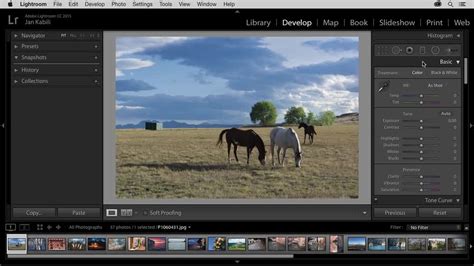
It's important to note that Adobe's software, including Lightroom Classic, is designed to work optimally with specific operating system versions. As new macOS versions are released, Adobe typically updates its compatibility list. For example, Adobe currently supports macOS 14 Sonoma, macOS 15 Sequoia, and macOS 26 Tahoe. This means that to ensure full compatibility and access to the latest features, you may need to update your operating system.
Checking Your Mac's Compatibility for OS Upgrades
Before embarking on an operating system upgrade to ensure compatibility with the latest Lightroom Classic, it's crucial to verify if your Mac model supports the newer macOS versions. You can find this information by clicking the Apple menu () in the top-left corner of your screen and selecting "About This Mac." This will display details about your Mac, including its model and year.
For instance, macOS 14 Sonoma is compatible with a specific range of Mac computers, as is macOS 15 Sequoia, and the newer macOS 26 Tahoe. Adobe provides detailed compatibility lists for each of these operating system versions on their website. Checking these lists against your Mac's specifications will help you determine if an OS upgrade is feasible.
The Update Process for Lightroom Classic
Updating Lightroom Classic is generally a straightforward process, especially if you are using the Adobe Creative Cloud subscription model. The Adobe Creative Cloud desktop app is the primary tool for managing your Adobe software installations and updates.
Using the Creative Cloud Desktop App
- Launch the Creative Cloud Desktop App: Open the Creative Cloud desktop application on your Mac.
- Navigate to "Apps": Within the Creative Cloud app, go to the "Apps" tab.
- Check for Updates: Scroll down to the "Updates" section. Lightroom Classic updates will typically appear here when they are available.
- Install the Update: Click the "Update" button next to Lightroom Classic. The Creative Cloud app will then download and install the latest version of the software.
If you don't see an update listed, it's possible you already have the latest version installed, or the update hasn't been rolled out to your region yet.
Downloading Directly from the App Store (for OS upgrades)
In some cases, particularly when upgrading your operating system, you might need to download macOS installers directly from the App Store.
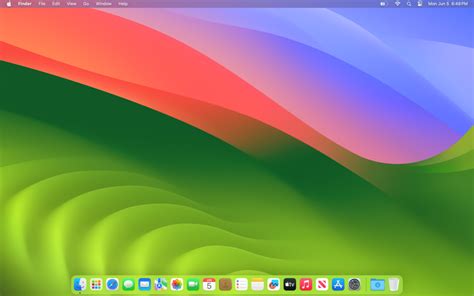
- Access System Settings: Click on the Apple menu () > System Settings…
- Select "Software Update": In System Settings, navigate to "Software Update."
- Check for macOS Upgrades: If your Mac does not offer an OS upgrade directly through System Settings, you may need to download the installer from the App Store.
- Download macOS Sonoma or Sequoia: You can search for and download the macOS 14 Sonoma installer or the macOS 15 Sequoia installer from the App Store.
- Follow Installation Prompts: Once downloaded, the installer application (e.g., "Install macOS Sonoma") will appear in your Applications folder. Double-click it to begin the installation process and follow the on-screen instructions.
Remember that installing a new operating system is a significant change. It's always recommended to have a complete backup of your system before proceeding.
Important Preparations Before Updating
Before you initiate any software update, especially for a critical application like Lightroom Classic, certain preparatory steps are crucial to prevent data loss and ensure a smooth transition.
Backups are Crucial
The most important step before starting any upgrade is to create a COMPLETE BACKUP of your Lightroom Catalog and all your photographs. Your Lightroom Catalog is a database that stores all your edits, metadata, and organizational information. If something goes wrong during the update process, a backup can save you from losing your work.
- Catalog Backup: In Lightroom Classic, go to File > Optimize Catalog. After optimization, go to File > Backup Catalog. Choose to back up to a different location than your primary catalog.
- Photo Backup: Ensure all your original image files are backed up to an external hard drive or cloud storage.
Checking System Requirements
Adobe publishes system requirements for each version of Lightroom Classic. Before updating, confirm that your Mac meets the new minimum system requirements for the version you are about to install. This includes checking your processor, RAM, graphics card, and available hard drive space. If your Mac is older, it might not be able to run the latest versions of Lightroom Classic or macOS, requiring you to consider hardware upgrades or alternative workflows.
Managing Your Lightroom Classic Catalog
Lightroom Classic's catalog is central to its functionality. Understanding how it works, especially in relation to updates and cloud services, is important.
Storing Your Lightroom Classic Catalog
A common question is about storing the Lightroom Classic catalog. You cannot store Lightroom Classic catalogs in the storage space provided by your Creative Cloud membership. Similarly, you cannot save a Lightroom Classic catalog on a networked drive. The catalog must reside on a local drive on your computer or an directly attached external drive.
Photo Storage and Creative Cloud
While Lightroom Classic syncs Smart Previews between your desktop and mobile devices, your original, full-resolution photos must be stored locally. This means they need to be on your computer, an external drive, or a networked drive. You cannot store your original Lightroom photos directly in Creative Cloud.
Discontinuing Creative Cloud Membership
If you decide to discontinue your Creative Cloud membership, you will not lose any of your photos. Lightroom Classic does not change the location of your photos; it only manages them. You will, however, lose access to the software itself and any cloud-based syncing features.
Troubleshooting and Advanced Considerations
While the update process is generally smooth, occasional issues can arise.
Trial to Paid Version Transition
If you have been using a trial version of Lightroom Classic and decide to purchase a Creative Cloud subscription, your edits will transfer. You do not need to uninstall the trial version. You can install the full version through the Creative Cloud desktop app or the Creative Cloud Download Center. However, you cannot use a serial number from previously purchased versions of Lightroom to license a Creative Cloud version; Creative Cloud products are licensed using your Adobe ID.
Renaming Your Catalog (Optional)
For organizational clarity, you might consider renaming your upgraded catalog. This can be helpful if you maintain multiple catalogs or want to distinguish between different versions or stages of your catalog.
How to Backup Your LRC Catalogs
Compatibility with New macOS Versions
When a new macOS version, such as macOS 15 Sequoia or macOS 26 Tahoe, is released, it's wise to check Adobe's official documentation to confirm that Lightroom Classic and other Adobe applications are fully compatible before upgrading your operating system. While Adobe aims for prompt compatibility, there might be a slight delay for full support of bleeding-edge OS releases. This is why the question of "will Lightroom and Lightroom Classic work on it?" is so important after a new OS launch. It’s a good question, as the last thing anyone wants is to update their Operating System only to find critical apps don't function correctly.
By following these guidelines and staying informed about Adobe's release cycles and compatibility notes, you can ensure your Lightroom Classic experience remains robust, efficient, and up-to-date.