The ICO file format, a cornerstone of digital interface design, has demonstrated remarkable longevity. Despite its age and infrequent updates, it remains a ubiquitous element across both web and desktop applications. The unassuming icon gracing your browser tab, known as a favicon, is a prime example of an ICO file in action. Given its widespread use, it's somewhat surprising that neither Adobe Photoshop nor Adobe Illustrator offers native support for direct ICO export. This guide aims to demystize the process, providing a clear path for creating high-quality ICO files, particularly for those who prefer working within Photoshop. We will focus on generating ICO files containing a range of essential sizes: 16, 24, 32, 48, 64, and 96 pixels.
The Photoshop Approach: Precision and Control
For those who prefer the robust pixel-editing capabilities of Photoshop, this method offers unparalleled control over each individual icon size. This is especially beneficial when designing for different resolutions, allowing for enhanced detail in larger icon variants.
Step 1: Establishing a Template for Precision
To ensure pixel-perfect results at every size, creating a template file is a crucial first step. While artboards in Photoshop can serve a similar purpose, this method, predating the widespread adoption of artboards, has proven to be a preferred workflow for its directness and control. The template file, which can be downloaded, provides a structured layout with frames designated for each icon size. Users are encouraged to customize the sizes and arrangement to suit their specific needs, but the provided layout serves as a solid starting point. Once the template is set up, it's advisable to save and lock the file to prevent accidental modifications.
Step 2: Automating the Export Process with Photoshop Actions
The efficiency of the Photoshop workflow is significantly enhanced by creating a custom Photoshop Action. This action automates the repetitive tasks of cropping to the frame's interior, saving the image as a PNG, undoing the crop, and then repeating this process for all designated icon sizes. A concise video demonstration is available to illustrate the creation and functionality of this custom action, providing a visual guide to setting up this time-saving automation.
How to Add a Logo to multiple Photos automatically using Photoshop tutorial - Easy and quick
Step 3: Crafting Your Icon Masterpiece
With the template and action in place, the creative process of icon design can commence. While a detailed guide on icon creation techniques is forthcoming in a separate post, users can proceed to the conversion stage once their designs are finalized. This Photoshop-centric approach ensures that each pixel is meticulously placed, resulting in sharp and professional-looking icons across all required resolutions.
The Illustrator Method: A Different Perspective
While Photoshop excels in pixel-level control, many designers opt for Adobe Illustrator, especially for its strengths in vector graphics and its potential for future SVG icon workflows. The Illustrator method, while yielding good results, differs in its approach to handling multiple resolutions.
Step 1: Setting Up Illustrator Artboards
For the Illustrator method, the recommendation is to create two artboards, specifically sized at 16x16 pixels and 24x24 pixels. This deliberate choice aims to minimize sub-pixelation issues when scaling up to larger icon dimensions. A downloadable AI template file is available to assist in this setup.
Step 2: Designing Your Icon in Illustrator
Similar to the Photoshop guide, a dedicated post detailing icon creation within Illustrator will be available soon. Users can proceed with their design work, leveraging Illustrator's vector tools to craft their icons.
Step 3: Exporting for Scalability
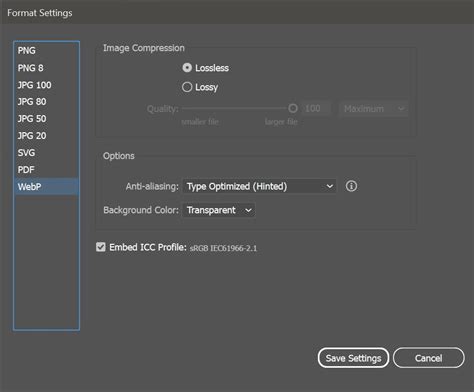
The key to the Illustrator method lies in its export process. Navigating to File > Export > For Screens (or using the shortcut ⌥+⌘+E) brings up the export dialog. Here, the crucial step is to export both artboards as PNGs at multiple scales: 1x, 2x, 3x, and 4x. This multi-scale export ensures that a range of resolutions is available for the subsequent conversion step.
Addressing Illustrator Export Quirks
A common issue encountered when exporting from Illustrator is the potential for display discrepancies in the final ICO files. To mitigate this, a helpful tip is to run the exported Illustrator PNGs through an image optimization tool like ImageOptim. This step can help clean up and refine the exported assets, leading to more accurate rendering in the ICO format.
The Conversion Stage: Bringing It All Together
Once the individual icon assets are prepared in either Photoshop or Illustrator, the next critical phase is converting them into the ICO format. This is where the various sizes are compiled into a single, multi-resolution file.
Web-Based Conversion: ICOConvert.com
For a straightforward and universally accessible solution, ICOConvert.com offers a free online tool for converting multiple PNG files into an ICO. While it has certain limitations, it effectively serves the needs of most users. This method requires only a web browser and the availability of Adobe Flash, making it a convenient option across different operating systems.
Desktop Application Conversion: ImageMagick (Mac)
For Mac users seeking a more powerful and scriptable solution, the ImageMagick suite of command-line tools provides a robust option. While it involves a steeper learning curve, particularly for those less familiar with the Terminal, it offers a high degree of control.
Step 1: Installing ImageMagick
The initial step involves installing ImageMagick. Users who encounter difficulties during this process are encouraged to seek assistance in the comments section, where help may be available.
Step 2: Automating Conversion with a Shell Script
Once ImageMagick is installed, the next step is to create an Automator script. This script will execute a custom Shell Script designed to convert a specified number of PNGs into a single ICO file. The provided custom Shell Script requires users to replace placeholder paths with their own desktop locations and to ensure the correct path to their ImageMagick installation is specified. The script is designed to handle up to 10 PNGs, but it can be easily modified to accommodate a larger number by adding additional parameters.
Understanding the ICO File Format and Photoshop Plugins
The ICO file format, a venerable standard, is fundamental to how operating systems and web browsers display icons. It's a container format capable of holding multiple images at varying resolutions and color depths within a single file. This allows an operating system to select the most appropriate image for a given display context, ensuring clarity and scalability.
The Need for a Photoshop ICO Plugin
Despite Photoshop's powerful image editing capabilities, its native export options do not include the ICO format. This necessitates the use of a specialized plugin to enable direct saving of ICO files. These plugins bridge the gap, integrating seamlessly with Photoshop's file management system to allow for the import, editing, and export of icon and cursor files.
The Toby Thain ICO File Format (64-bit) Plugin
A notable plugin that extends Photoshop's functionality is the "ICO file format (64-bit)" plugin developed by Toby Thain. This plugin empowers Adobe Photoshop to directly open and save desktop icons (.ICO) and cursors (.CUR) files. It boasts support for 32-bit icons with 8-bit alpha transparency, while also preserving the traditional 1-bit AND mask transparency.
Key Features of the Toby Thain Plugin:
- Direct Import and Export: Enables Photoshop to open and save .ICO and .CUR files directly.
- Transparency Handling: Manages alpha channels for smoother transparency and accurate icon rendering, supporting both 8-bit alpha and 1-bit AND masks.
- Multi-Resolution Support: Opens and saves files containing multiple resolutions, allowing for editing of individual frames.
- Preservation of Color Depth: Maintains the original color depth and channels of imported icon files.
- Integration with Photoshop: Seamlessly integrates with Photoshop's file menu for intuitive file management.
- Open Source Licensing: Licensed under the GNU GPL, allowing for modification and redistribution.
The ICO File Format Plugin (V3.0) by an Independent Developer
Another significant contribution to Photoshop's ICO capabilities comes from an independent developer who has released version 3.0 of a dedicated ICO file format plugin. This plugin, after extensive development over 13 years, offers a robust set of features designed to streamline icon creation within Photoshop.
Enhancements in Version 3.0:
- x64 Version Support: A new 64-bit version has been introduced, catering to users of 64-bit Photoshop installations.
- PNG Format Image Support: Added support for icons containing PNG format images, which utilize zlib compression for reduced file sizes. This feature, introduced and supported by Windows Vista, may not be compatible with some older software.
- Enhanced User Interface: A more user-friendly interface for read/write options, including real-time previews of generated images of different sizes and qualities during the saving process. Users can actively select which images to include in the final ICO file.
- Improved Image Reduction Algorithm: A custom-written, higher-quality full-pixel interpolation algorithm for image resizing.
- Oct-Tree Algorithm: Continues to use the oct-tree algorithm for generating indexed-color images.
- Multi-Language Support: Built-in support for Chinese and English, with the ability for users to easily add third-party language support through template files or by overriding built-in resources.
- BPP16 R5G6B5 Format Support: Added support for inserting BPP16 R5G6B5 format images, important for reducing file size on older devices or in historical contexts.
- Handling of PE Files: The x86 (32-bit) version is tested with Photoshop CS (8.0.1) and supports opening PE files containing icons and cursor files. Users may need to change the file suffix to .DLL to open EXE files. This allows for importing resources from system files like shell32.dll for editing.
- Intuitive Transparency Management: Inverted the AND MASK channel to align with user intuition (white for transparent, black for opaque). Offers preview of composite effects and alpha channel information.
- "Highlight Hotspot" Option: For cursor files, this dialog box includes an option to highlight the hotspot, which can be set by mouse clicks or direct value input.
- "Alpha Threshold" Control: A critical feature for managing transparency when downgrading from 32 BPP to lower bit depths. This slider allows users to control which pixels are considered transparent or opaque, crucial for managing anti-aliasing and shadow edges. Real-time previewing of the generated image as the slider is adjusted significantly aids in achieving desired results.
- Main Image Selection: Users can designate a "main image" from which other images are generated. Settings applied to the main image (like alpha threshold and hotspot) can be propagated to sub-images, simplifying the workflow.
- Transparent Color Setting: For images without transparency, a simplified function to set a transparent color is provided.
- PNG Encoding Option for 32 BPP Images: Users can choose to use PNG encoding for 32 BPP images, especially recommended for sizes larger than 48 pixels, to reduce file size. However, compatibility with older software should be considered.
- Language String Case Setting: For English language settings, options for None, LowerCase, UpperCase, and TitleCase are available, configurable via the About Plug-In dialog.
Plugin Installation and Uninstallation
Installing the ICO plugin typically involves placing the appropriate .8BI or .ICO64.8BI file into Photoshop's plugins directory. For uninstallation, simply delete these files from the installation directory.
Limitations and Considerations
- Maximum Image Size: The ICO file format has a maximum size limitation of 256x256 pixels. If a Photoshop document exceeds these dimensions, the ICO save option will be automatically hidden by Photoshop. Users must scale their documents to be within this limit before attempting to save as ICO.
- Bitmap Mode: The plugin does not support saving from Photoshop's "bitmap" mode (monochrome images with only two colors) due to inherent transparency limitations in that mode.
- Finder File Size Display (Mac): On macOS, the Finder may display an unexpectedly large file size for ICO files saved from Photoshop. This is a known behavior related to how the Finder interprets data forks and does not reflect the actual, optimized size of the ICO data itself.
Conclusion: Empowering Icon Creation
The ICO file format, while seemingly simple, plays a vital role in the visual identity of digital products. The absence of native support in major design software like Photoshop and Illustrator has historically presented a challenge. However, with the advent of powerful plugins and external conversion tools, creating professional-grade ICO files has become an accessible and manageable process. Whether opting for the pixel-perfect control of Photoshop with a dedicated plugin, or leveraging the vector capabilities of Illustrator followed by a conversion step, designers now have a comprehensive toolkit at their disposal. Understanding the nuances of the ICO format, the functionalities of various plugins, and the available conversion methods empowers creators to produce icons that are not only visually appealing but also technically sound and universally compatible. The continued evolution of these tools promises even more streamlined and efficient workflows for icon design in the future.