Creating art on your iPad is an immersive experience, and to truly unlock your creative potential, the right tools are paramount. Much like finding the perfect Procreate brushes or a shortcut keyboard that streamlines your workflow, selecting the best Procreate stylus is essential. It's not as simple as picking up any iPad stylus; Procreate has specific compatibility requirements, especially after the Procreate 5.3 software update, which has notably limited third-party stylus support.
Understanding Apple Pencil Technology and Its Importance in Procreate
When a stylus features "Apple Pencil technology," it signifies that it offers functionalities mirroring those found in the official Apple Pencil. These crucial features include tilt recognition, pressure sensitivity, and palm rejection. In the context of Procreate, this translates to strokes on your digital canvas that accurately reflect your physical movements. This level of precision is vital for any digital artist aiming for their artwork to manifest exactly as intended, while crucially maintaining the intuitiveness and precision associated with traditional art tools. The specific features you prioritize in a stylus might align with your unique creative style. For instance, an artist who frequently uses a Drawing Glove might find pressure sensitivity to be a more critical feature than robust palm rejection.
Key Stylus Features for Procreate Artists:
- Pressure Sensitivity: This feature directly influences the thickness and opacity of your strokes based on the amount of pressure you apply with the stylus. A lighter touch yields thinner, more transparent lines, while a firmer press results in thicker, more opaque marks.
- Tilt Recognition: Mimicking the effect of tilting a traditional graphite pencil, this function allows for varied stroke widths. Tilting the stylus horizontally enables broader strokes, ideal for shading and filling areas, while a more vertical orientation produces sharper, finer lines for detailed work and outlines.
- Palm Rejection: This is an indispensable feature for avoiding unintended marks on your canvas. It allows you to rest your hand naturally on the iPad screen while drawing without creating stray lines, a common frustration that can lead to discovering unwanted strokes on obscure layers.
- Battery Life and Charging: For artists who create on the go, a stylus with extended battery life and convenient magnetic charging is a significant advantage. Conversely, for desk-based artists, these features might be less of a priority.
- Ergonomics: Comfort is key, especially during prolonged drawing sessions. A stylus that fits comfortably in your hand and doesn't cause fatigue is crucial. If your chosen stylus lacks ideal ergonomic features, consider augmenting it with an Ergonomic Grip for enhanced comfort.
Procreate's Evolving Stylus Support: The Shift Towards Apple Pencil
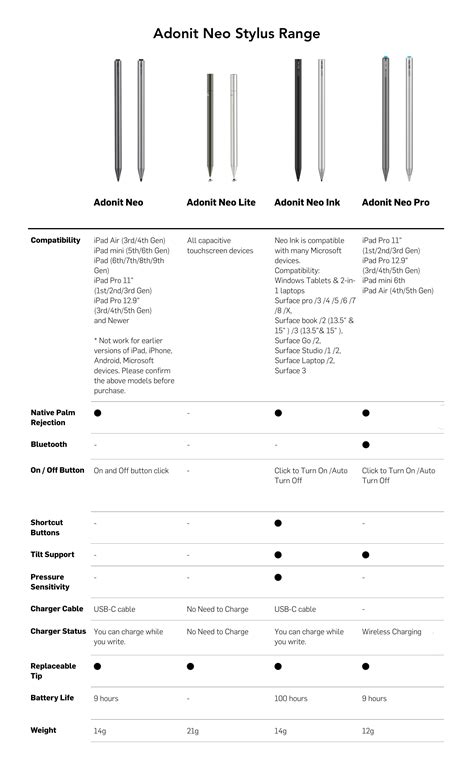
Beyond these functional considerations, Procreate compatibility is an essential factor to consider. While many third-party styluses might initially appear impressive with features like palm rejection and tilt sensitivity, coupled with long battery life, they may not function optimally within Procreate. Examples of such styluses include the JamJake Stylus Pen, the Zagg Pro Stylus 2, and several Adonit styluses. Despite their advertised capabilities, these pens often fall short when it comes to full Procreate functionality.
The fundamental reason for this limitation is that Procreate is meticulously designed with the Apple Pencil in mind. Consequently, the Apple Pencil stands out as the ideal choice for digital artists who aim to maximize their creative output within the Procreate ecosystem. This deep integration ensures that all the advanced features of the Apple Pencil are fully leveraged by the software, providing a seamless and highly responsive drawing experience.
The Apple Pencil Lineup: Your Primary Choices for Procreate
Since Procreate version 5.3, the app's support for third-party styluses has become significantly more restricted. The "Connect Third-Party Stylus" option, previously available in the app's preferences for pairing devices from brands like Adonit or Wacom, has been removed. This change signifies Procreate's definitive shift towards exclusively supporting styluses that utilize Apple Pencil technology.
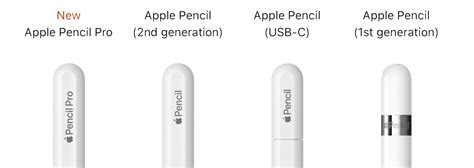
1. Apple Pencil Pro: As the newest and most feature-rich addition to the Apple Pencil catalog, the Apple Pencil Pro is engineered to fully cater to your creative freedom in Procreate. It introduces advanced functionalities such as squeeze and barrel roll detection, alongside haptic feedback, offering new ways to interact with your digital canvas.
2. Apple Pencil (2nd Generation): If you have an iPad Pro released between 2018 and 2023 (any pre-M4 model) or an iPad Air 4 or 5, the Apple Pencil (2nd generation) is the stylus that provides full support for your tablet’s capabilities. It offers a fantastic drawing experience with pressure sensitivity and tilt tracking, seamless connection to your iPad, and convenient magnetic charging.
3. Apple Pencil (1st Generation): For those with older iPad models that are compatible with the first generation Apple Pencil, this remains a viable option. While it lacks the magnetic charging and double-tap feature of the 2nd generation, it still provides essential pressure sensitivity and tilt recognition crucial for drawing in Procreate. The 1st-gen Apple Pencil charges via a Lightning cable.
4. Apple Pencil USB-C: This is the latest addition to the Apple Pencil family and offers a unique position in the lineup. It is compatible with a wider range of iPads, including models that do not support the 1st or 2nd generation Apple Pencils. However, it's important to note that the Apple Pencil USB-C lacks pressure sensitivity, making it less ideal for detailed drawing and painting in Procreate compared to its pressure-sensitive counterparts. It is a more budget-friendly option for note-taking and basic sketching.
The Sole Third-Party Contender: Logitech Crayon
For artists operating on a smaller budget but still requiring essential digital art features, the Apple Pencil USB-C can be a functional choice, providing basic functionalities. However, if your priority is pressure sensitivity over features like hover, the Apple Pencil (1st generation) remains a strong contender.
Currently, the Logitech Crayon stands as the only third-party stylus that retains full functioning within Procreate, thanks to its adherence to Apple Pencil technology. Priced slightly below the Apple Pencil USB-C, the Logitech Crayon introduces users to tilt sensitivity and palm rejection, making it a beginner-friendly option. It's important to note, however, that the Logitech Crayon does not fully support pressure sensitivity. For artists whose primary focus is drawing, the Logitech Crayon may indeed be a suitable tool. An artist from Seismic Studios has showcased their experience using the Logitech Crayon to create Harry Potter-inspired doodle art, demonstrating its capabilities for drawing.
USB C Apple Pencil VS Logitech Crayon | Artist Review
Enhancing Your Apple Pencil Experience
Even with the best stylus, certain accessories can further refine your digital art experience.
- Nib Replacements: Replacing the standard hard plastic Apple Pencil tip with a lightly textured option, such as PenTips 2+, can transform the feel of your Apple Pencil, making it more akin to drawing with a soft graphite pencil. The Traditional Artist Bundle, for instance, aims to provide an authentic pen-on-paper experience, which is particularly beneficial for sketching, detailed work, and line art.
- Ergonomic Grips: For improved comfort during extended creative sessions, consider adding an Ergonomic Grip to your Apple Pencil. This can significantly enhance the feel and reduce fatigue.
Troubleshooting Common Apple Pencil Issues in Procreate
While the iPad and Procreate are finely tuned to work seamlessly with the Apple Pencil, occasional issues can arise. Fortunately, these are typically resolvable with simple troubleshooting steps.
Common Issues and Solutions:
- Stylus Not Making Proper Lines:
- Ensure your Apple Pencil and iPad are adequately charged and properly connected.
- Verify that you have selected a brush tool and not the eraser in Procreate.
- If your Apple Pencil is experiencing lag, it might be an indicator of your iPad's storage being nearly full. Freeing up storage space can often resolve this.
- Try detaching and reattaching the Apple Pencil to the iPad.
- For charging issues, remove the Apple Pencil from the charging port for a moment, then reinsert it.
- If lines are still not registering correctly, recalibrating your Apple Pencil can restore perfect precision. This often involves restarting your iPad and ensuring all software updates are installed.
Maximizing Your Creative Potential with Procreate and Your Stylus
Mastering all the settings within Procreate can be a more intricate process than using traditional art tools, whether you're a seasoned Procreate user or just beginning your digital art journey.
- Familiarization: If you are new to Procreate, take the time to explore its interface and basic functionalities. Many tutorials are available online to guide beginners.
- Advanced Features: For those looking to leverage the full capabilities of newer Apple Pencil models, such as the Pro's Squeeze and Barrel Roll features, dedicated tutorials can help you integrate these into your Procreate workflow.
- Customization: Tailor how your Apple Pencil interacts with Procreate’s brushes and tools to perfectly match your unique drawing style. This personalization can significantly enhance your efficiency and artistic expression.
- Community Resources: Procreate offers a community forum where digital artists can share their questions, suggestions, and insights about the app. This is an invaluable resource for learning and problem-solving.
By understanding the nuances of stylus compatibility, exploring available options, and utilizing the features of your chosen stylus and Procreate to their fullest, you are well on your way to unlocking your complete potential as a digital artist. Tools like the PenPad, which bring Procreate's best features directly to your fingertips, can further enhance your creative process. The journey of optimizing your creative freedom is ongoing, and with the right tools and knowledge, your artistic endeavors on the iPad will continue to flourish.