In the realm of digital typography and document design, Adobe InDesign stands as a powerful cornerstone. Within its extensive feature set, GREP styles represent a particularly sophisticated tool for achieving typographic precision and aesthetic refinement. For those who delve into the intricacies of running body copy, applying GREP styles can elevate the visual harmony and readability of a document to new heights. This article explores the fundamental concepts and practical applications of InDesign's GREP styles, drawing upon established typographic principles and providing a collection of commonly used and highly effective GREP expressions.
Understanding GREP Styles: Beyond Basic Formatting
Before diving into specific expressions, it's crucial to grasp what GREP styles are and how they differ from other paragraph formatting options within InDesign. While nested styles and nested line styles are powerful for applying character styles from the beginning of a paragraph, they have limitations. Nested styles apply formatting from the start of a paragraph up to a specific character or defined endpoint, and nested line styles extend this to the end of the first line. GREP styles, however, operate on a fundamentally different principle: pattern recognition.
GREP (Global Regular Expression Print) is a powerful text-searching technology that allows users to define complex patterns within text. GREP styles leverage this technology within InDesign's paragraph styles, enabling the automatic application of character styles to any text that matches a defined GREP pattern, regardless of its position within the paragraph. This means GREP styles can identify and format text anywhere-at the beginning, middle, or end of a paragraph.
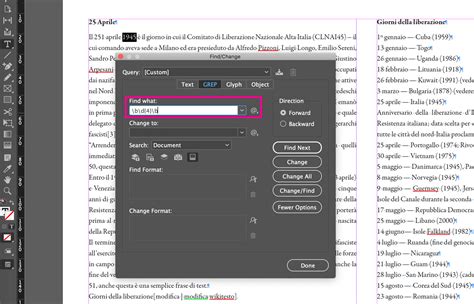
The core difference lies in their matching capabilities. Nested and line styles are somewhat limited in what they can match, often requiring a specific character or line boundary. GREP, on the other hand, can identify intricate alphanumeric strings and patterns. For instance, while a nested style might format text up to the first colon, a GREP style can be designed to find all colons that appear after a specific sequence of characters or within a particular context. This flexibility makes GREP styles indispensable for automating complex typographic adjustments that would otherwise be labor-intensive and prone to error.
It's important to note that GREP styles are primarily for applying formatting, not for changing the actual characters themselves. You cannot use GREP styles to find multiple spaces and change them to a single space; that task still requires the traditional Find/Change dialog. However, for tasks like applying specific character styles to acronyms, oldstyle figures, or to alter the spacing around punctuation, GREP styles are unparalleled.
Essential GREP Styles for Body Text Refinement
The following GREP expressions are designed to enhance the typographic quality of running body copy. They address common typographic challenges and can be incorporated directly into your paragraph style definitions within InDesign's "GREP Styles" tab.
Adjusting Em Dashes for Optimal Width
In many fonts, the em dash (-) occupies the full em square, which can appear disproportionately wide in running text. To counteract this, a GREP style can be used to apply horizontal scaling to the em dash.
- Expression:
-~_ - Apply: Some percentage of horizontal scaling (e.g., 80%)
- Result: This expression targets the em dash character. By applying a horizontal scaling of, say, 80%, the em dash is effectively shortened to a more visually pleasing width, integrating better with the surrounding text. This is particularly useful for fonts where the default em dash feels too dominant.
Refining Ellipsis Spacing
Ellipses (…) can also present spacing challenges. When an ellipsis is composed of non-breaking spaces between periods, these spaces can sometimes appear too wide.
- Expression:
(?<=\.)~S(?=\.) - Apply: 50% horizontal scaling
- Result: This GREP expression targets the non-breaking space (
~S) that appears between two periods (.). By applying a reduced horizontal scaling, such as 50%, the spacing within the ellipsis is condensed, creating a more harmonious visual unit. The specific percentage can be adjusted to taste, allowing for precise control over the visual density of ellipses.
Automating Small Caps for Acronyms and Initialisms
Acronyms and initialisms, such as NASA or FBI, often look best set in small caps rather than full uppercase. GREP styles can automate this conversion.
- Expression:
\u\u+ - Apply: OpenType “all small caps” case
- Result: This expression matches any sequence of two or more uppercase letters. By applying the "all small caps" OpenType feature, these sequences will be automatically rendered in small caps, providing a more refined and less visually jarring appearance in body text.
Strategic Letterspacing for Emphasis and Readability
In certain contexts, particularly with small-cap terms or specific abbreviations, subtle letterspacing can improve readability or create a desired typographic effect.
- Expression:
\u+(?=\u) - Apply: Some amount of letterspacing (tracking)
- Result: This expression targets sequences of uppercase letters (
\u+) but only when they are followed by another uppercase letter ((?=\u)). This is designed to apply letterspacing to terms that are intended to be all caps or small caps, while avoiding adding extra space after the very last letter of such a term.
A more nuanced application involves adding letterspacing to the last letter of a small-caps acronym, but only when it's followed by punctuation like a period or comma, preventing the punctuation from appearing too tightly spaced against the small caps.
- Expression:
(?<=\u)\u(?=[.,]) - Apply: Same amount of letterspacing as above
- Result: This targets the last uppercase letter (
\u) preceded by another uppercase letter ((?<=\u)) and followed by a comma or period ((?=[.,])). Applying letterspacing here ensures that punctuation doesn't feel cramped against the end of a small-caps word.
Preserving Full Caps for Geographic Abbreviations
While small caps are often preferred for acronyms, certain abbreviations, like postal codes or country abbreviations (USA, UK), are traditionally set in full caps without extra letterspacing.
- Expression:
(?<!\u)(USSR|USA|UAE|US|UK|AL|AK|AZ|AR|CA|CO|CT|DE|DC|FL|GA|HI|ID|IL|IN|IA|KS|KY|LA|ME|MD|MA|MI|MN|MS|MO|MT|NE|NV|NH|NJ|NM|NY|NC|ND|OH|OK|OR|PA|PR|RI|SC|SD|TN|TX|UT|VT|VA|WA|WV|WI|WY)(?!\u) - Apply: Full caps, no letterspacing
- Result: This expression uses a negative lookbehind
(?<!\u)and a negative lookahead(?!\u)to ensure that the matched abbreviations are not part of a larger word. It then matches a specific list of common abbreviations. By applying "full caps" formatting with no letterspacing, it overrides any automatic small caps applied elsewhere, ensuring these abbreviations appear correctly.
Maintaining Roman Type for Delimiters
In classical typography, punctuation marks like parentheses (), brackets [], and braces {} are often kept in an upright (roman) style, even when the surrounding text is italic.
- Expression:
[()[\]{}] - Apply: Roman (not italic)
- Result: This simple expression targets any of the specified delimiter characters. Applying a "roman" character style ensures they remain upright, preserving a traditional typographic convention.
Strategic Spacing Around Punctuation
Adding a touch of extra space before certain punctuation marks can improve their visual separation from the preceding text, a convention found in classical typography. This is often achieved with small amounts of letterspacing.
Before Colons and Semicolons:
- Expression:
.(?=[:;]) - Apply: A small amount of letterspacing (tracking)
- Result: Adds a subtle space before colons and semicolons.
- Expression:
Before Question Marks:
- Expression:
.(?=\?) - Apply: A small amount of letterspacing (tracking)
- Result: Adds a subtle space before question marks.
- Expression:
Before Exclamation Points:
- Expression:
.(?=!) - Apply: A small amount of letterspacing (tracking)
- Result: Adds a subtle space before exclamation points.
- Expression:
Similarly, adding space after opening delimiters and before closing delimiters can create a more balanced appearance.
After Opening Delimiters:
- Expression:
[([{] - Apply: A small amount of letterspacing (tracking)
- Result: Adds a subtle space after opening brackets, parentheses, or braces.
- Expression:
Before Closing Delimiters:
- Expression:
.(?=[)\]}]) - Apply: Same amount of letterspacing as above
- Result: Adds a subtle space before closing parentheses, brackets, or braces.
- Expression:
Spacing After Quotation Marks and Superscripts
When a superscript note marker immediately follows a closing quotation mark, a small amount of space can prevent them from colliding visually.
- Expression:
~}(?=\d) - Apply: A little bit of letterspacing
- Result: This expression targets a closing quotation mark (
~}) followed by a digit ((?=\d)), which often indicates a superscript footnote or endnote reference. Applying a small amount of letterspacing creates a buffer, improving clarity.
Italicizing Ampersands
Following typographic authorities like Robert Bringhurst, ampersands are sometimes preferred in an italic form to distinguish them typographically.
- Expression:
\x{0026} - Apply: Italic
- Result: This expression targets the ampersand character (
\x{0026}). Applying an italic style ensures that all ampersands in the body text are rendered in italics, regardless of their context.
Preventing Space Between Consecutive Em Dashes
In certain contexts, such as bibliographies, consecutive em dashes might appear with unwanted spacing if the font doesn't render them seamlessly.
- Expression:
~_(?=~_) - Apply: A little bit of negative tracking (depending on font)
- Result: This expression looks for an em dash (
~_) followed immediately by another em dash ((?=~_)). Applying negative tracking pulls these dashes closer together, creating a continuous line where intended. The amount of negative tracking may need to be adjusted based on the specific font.
Enforcing Hyphenation Points
To prevent unwanted hyphenation of already hyphenated words (e.g., "self-esteem") or to ensure breaks occur only at existing hyphens, GREP styles can be employed in conjunction with InDesign's language settings.
Expression:
\w\w+(?=-)Apply: InDesign’s “no language” option in character settings
Result: This expression targets a word character (
\w) followed by one or more word characters (\w+) that are immediately followed by a hyphen ((?=-)). Applying the "no language" setting to this pattern effectively locks the hyphenation point.Expression:
(?<=-)\w\w+Apply: InDesign’s “no language” option in character settings
Result: This expression targets word characters (
\w\w+) that are preceded by a hyphen ((?<=-)). Applying the "no language" setting here also enforces the hyphenation point.
Together, these two expressions ensure that words like "self-esteem" will only break at the hyphen, preventing awkward splits like "self-es-" or "-teem."
Spacing in Bibliographic Citations
When citing works from specific years with letter suffixes (e.g., "1996a," "2024b"), a subtle space before the letter can improve clarity, especially in dense bibliographic entries.
- Expression:
(?<=\d\d\d)\d(?=\l[,;)\]]) - Apply: A little bit of letterspacing
- Result: This targets a digit (
\d) that is preceded by three digits ((?<=\d\d\d)) and followed by a lowercase letter and punctuation ((?=\l[,;)\]])). Adding a small letterspace here separates the year from the suffix.
Furthermore, automatically italicizing these suffixes can enhance their distinction.
- Expression:
(?<=\d\d\d\d)\l(?=[,;)\]]) - Apply: Italic
- Result: This targets a lowercase letter (
\l) that is preceded by four digits ((?<=\d\d\d\d)) and followed by punctuation ((?=[,;)\]])). Applying italics to these suffixes improves their visibility.
Preventing Line Breaks in Key Phrases
Certain phrases, like "chapter 4" or "pp. 21-22," should ideally remain on a single line to avoid disrupting the flow of information. GREP styles can enforce this.
- Expression:
(page|pages|p\.|pp\.|figure|figures|fig\.|figs\.|table|tables|chapter|chapters)\K\x{20}(?=\d) - Apply: InDesign’s “no break” option in character settings
- Result: This expression targets common abbreviations for page numbers, figures, tables, and chapters (
page|pages|p\.|pp\.|figure|figures|fig\.|figs\.|table|tables|chapter|chapters), followed by a space (\K\x{20}), and then a digit ((?=\d)). Applying the "no break" character setting prevents line breaks within these essential phrases.
Vertical Alignment of Copyright Symbols
The copyright symbol (©) can sometimes appear misaligned with oldstyle figures (OSF). A GREP style can help center it.
- Expression:
~2 - Apply: A small amount of negative baseline shift
- Result: The character code
~2represents the copyright symbol. Applying a negative baseline shift pulls the symbol down, visually centering it with the x-height of oldstyle figures, creating a more harmonious integration with numeric data.
Creating Ornamental Section Breaks
A simple yet effective way to create decorative section breaks is by using a sequence of em quads, which can then be styled.
- Expression:
~m~m~m~m - Apply: Some decorative “strikethrough” style, e.g., a double rule
- Result: Typing four em quads (
~m~m~m~m) creates a visual space. By applying a character style with a decorative rule (like a double strikethrough), this space can be transformed into an ornamental divider. The length and style can be adjusted as needed.
Centering Punctuation with Grades
When assigning grades with plus or minus signs (e.g., A+, B-), ensuring the punctuation aligns well with the capital letters is important.
- Expression:
(?<!\w)[ABCDF][+~=](?!\w) - Apply: OpenType “full caps” case (case-sensitive forms)
- Result: This expression targets uppercase letters from A to F (
[ABCDF]) followed by a plus, tilde, or equals sign ([+~=]), ensuring these are not part of a larger word using negative lookarounds. Applying "full caps" formatting can help vertically center these signs with the capitals, creating a cleaner visual.
Styling Alphanumeric Designations
Terms like "3-D," "AK-47," or "221B" often benefit from having their letter components set in small caps.
Expression:
\b\u+-?\d+\bApply: OpenType “all small caps”
Result: This expression matches sequences that start with one or more uppercase letters, optionally followed by a hyphen and digits, ensuring they are treated as a whole word (
\b). Applying "all small caps" formats the letters appropriately.Expression:
\b\d+-?\u+\bApply: OpenType “all small caps”
Result: This expression is the inverse, matching terms that start with digits, optionally followed by a hyphen and uppercase letters. Applying "all small caps" to the letters achieves the desired typographic effect.
Formatting Extended All-Caps Phrases
When a passage is intentionally in all caps, such as for emphasis or to represent shouting, GREP can ensure consistent formatting and spacing.
- Expression:
\<[-\u\x{20}'!?,:;][-\u\x{20}'!?,:;]+\> - Apply: OpenType “all small caps”
- Result: This complex expression targets sequences of characters that begin and end with word boundaries (
\<and\>), and contain uppercase letters, spaces, and common punctuation. Applying "all small caps" ensures these phrases are rendered consistently.
To prevent excessive spacing after such phrases, a follow-up GREP style can be applied.
- Expression:
\<[-\u\x{20}'!?,:;][-\u\x{20}'!?,:;]+(?=[-\u\x{20}'!?,:;]\>) - Apply: Some amount of letterspacing (tracking)
- Result: This expression is similar to the above but applies letterspacing only to the matched phrase, excluding the very last character (as indicated by the lookahead
(?=[-\u\x{20}'!?,:;]\>)), thereby preventing unwanted trailing space.
Standardizing Oldstyle Figures
For documents where oldstyle figures (OSF) are preferred throughout, a GREP style can ensure all digits are rendered as OSF, even in contexts where they might otherwise default to lining figures.
- Expression:
\d - Apply: “normal” case and OpenType proportional oldstyle figures
- Result: This simple expression targets all digits. By applying a character style that uses the "proportional oldstyle figures" feature of an OpenType font, all numbers will be rendered in OSF. This is particularly useful when a font offers both "small cap figures" and OSF, and the latter is desired even within small-cap contexts. However, this should not be included in styles for full-caps headings where lining figures might be more appropriate.
Italicizing Bracketed Text
In scripts or interview transcripts, bracketed text often denotes stage directions or parenthetical remarks. GREP can automatically italicize these.
- Expression:
(?<=\[).+?(?=\]) - Apply: Italic
- Result: This expression targets any characters (
.+?) that are enclosed within square brackets ((?<=\[)and(?=\])). Applying an italic style to this text ensures that such annotations are visually distinct from the main narrative.
Adobe InDesign Course - Class 17 (GREP Styles)
The Power of Pattern-Based Formatting
The examples above demonstrate the immense power and versatility of GREP styles in InDesign. They are not merely shortcuts but essential tools for typographers and designers seeking to achieve a high level of typographic control and consistency. By automating complex formatting rules, GREP styles free up valuable time, reduce manual errors, and allow for the consistent application of sophisticated typographic treatments across entire documents.
Whether you are designing a book, a journal, a brochure, or any document where typography plays a critical role, exploring and implementing GREP styles can significantly enhance the final output. The ability to define precise patterns and automatically apply formatting based on those patterns opens up a world of possibilities for typographic refinement, ensuring that every character, word, and phrase contributes optimally to the overall design and readability of the text. As your GREP engineering skills grow, you may find yourself developing even more specialized and ingenious applications, further pushing the boundaries of what is possible in digital typography.