Inkscape, a powerful and free open-source vector graphics editor, is an indispensable tool for creating professional-quality illustrations, diagrams, and figures. While its capabilities extend to intricate design work, a common need for users, particularly those in scientific and academic fields, is the seamless integration of Greek letters. These symbols are frequently employed to denote mathematical concepts, scientific variables, and specific notations within drawings. This guide delves into the various methods for incorporating Greek letters into your Inkscape projects, ensuring clarity and precision in your visual communication.
Understanding the Need for Greek Letters in Visualizations
Vector graphics editors like Inkscape are exceptionally useful when creating figures for documentation. Many users opt for Inkscape due to its free and open-source nature, often as an alternative to proprietary software such as Adobe Illustrator. This accessibility makes it a popular choice for students and professionals alike. In academic and technical fields, the precise use of symbols is paramount. Greek letters, such as alpha ($\alpha$), beta ($\beta$), gamma ($\gamma$), and omega ($\omega$), are fundamental to expressing a wide range of concepts in physics, mathematics, chemistry, and engineering. Whether indicating an angle, a coefficient, a wave function, or a specific component, the ability to accurately represent these symbols directly within the graphic is essential. Relying on external images or approximations can lead to a loss of scalability and editing flexibility.
Incorporating Greek Letters via Unicode Character Input
One of the most direct and versatile methods for inserting Greek letters into Inkscape is by utilizing the software's built-in Unicode character support. This approach leverages the underlying character encoding system to represent a vast array of symbols.
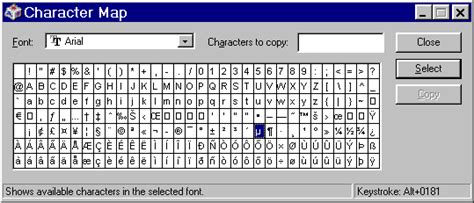
Method 1: Using the Character Map (Windows)
For Windows users, the Character Map utility provides a convenient way to find and copy Greek letters.
- Accessing the Character Map: Navigate to the Windows Start Menu, then select "All Programs" > "Accessories" > "System Tools" > "Character Map."
- Font Selection: At the top of the Character Map window, you will find a "Font" dropdown menu. Crucially, selecting a font that contains Greek characters is key. Fonts like "Arial," "Arial Black," "Times New Roman," "Palatino Linotype," "Verdana," or "Tahoma" are known to include Greek letters. The "Symbol" font, while containing symbols, often does not render correctly within Inkscape due to encoding issues.
- Locating Greek Letters: Scroll through the displayed characters to find the desired Greek letter, noting both uppercase and lowercase forms.
- Selecting and Copying: Double-click on the chosen Greek letter. It will appear in the "Characters to copy" text box. Click the "Copy" button to place the character onto your clipboard.
- Pasting into Inkscape:
- Open your Inkscape document.
- Select the "Create and edit text objects" tool from the tool panel (or press the 'T' key).
- Click on your desired location on the canvas to create a text cursor.
- Paste the copied Greek letter using
Ctrl + V(orCmd + Von Mac).
It's important to verify if your preferred font supports Greek letters. If a font is not listed in the Character Map, it likely does not contain the necessary glyphs.
Method 2: Using Inkscape's Built-in Unicode Dialog
Inkscape itself offers a way to access and insert Unicode characters.
- Activate Text Tool: Select the "Create and edit text objects" tool (
T). - Create Text Object: Click on your document area. A blinking cursor will appear.
- Access Text Menu: Go to the menu bar and click on "Text."
- Unicode Input (Indirect): While there isn't a direct "Unicode Dialog" readily available in the primary Text menu for inserting arbitrary Unicode characters in the same way as a dedicated dialog, the process described in the provided text implies an alternative method. The user mentions a "Unicode dialog box" where a selected letter comes into a text box, and then can be copied. This suggests that certain actions or extensions might reveal such a dialog. A common way to achieve this indirectly is through the "Glyphs" panel, which can be accessed via
Text > Glyphs.... This panel allows you to browse and insert characters from your selected font.- With the text tool active and a cursor in place, open the Glyphs panel.
- Select your desired font from the dropdown at the top of the Glyphs panel.
- Scroll to find the Greek letter.
- Double-click the letter, or select it and click an "Insert" button if available. The character will be inserted at the cursor's position.
Method 3: Direct Unicode Entry (Keyboard Input)
For those who know the specific Unicode hex codes for Greek letters, direct input is possible.
- Find Unicode Codes: You can find these codes in the Character Map (they are often displayed in the status bar when a character is selected) or through online Unicode reference tables. For example, the Greek capital letter Alpha ($\mathrm{A}$) is U+0391, and the lowercase alpha ($\alpha$) is U+03B1.
- Activate Text Tool: Select the "Create and edit text objects" tool (
T). - Create Text Object: Click on your document area.
- Input Unicode:
- On Windows: Press and hold the
Altkey, then type the Unicode code using the numeric keypad (e.g.,Alt + 0913for $\mathrm{A}$). Ensure Num Lock is on. Some systems may requireAlt + Xfollowed by the hex code. - On macOS: Use the Option key in combination with other keys, or access the "Show Emoji & Symbols" viewer (
Cmd + Ctrl + Space) and search for the character. - In Inkscape, a more reliable method for direct Unicode entry is often available through specific input methods or extensions. If you press
Ctrl + Shift + U(orCmd + Shift + Uon Mac) while the text tool is active, a small dialog or input field might appear where you can type the hexadecimal Unicode. For instance, typing03B1and pressing Enter will insertα.
- On Windows: Press and hold the
Write Greek Letters/ Alphabet or Glyphs in Inkscape
Leveraging Fonts with Greek Glyphs
The availability of Greek letters within Inkscape is heavily dependent on the fonts installed on your system and selected within the software. As mentioned, many common fonts include these characters.
Font Family Selection
When using the text tool, the "Font Family" dropdown in the tool's control bar allows you to choose from installed fonts. By cycling through these options, you can often find fonts that contain the Greek alphabet. The user's experience with "Symbol" font highlights a common pitfall: not all fonts that display symbols are encoded in a manner that Inkscape can interpret correctly for direct copy-pasting. Prioritizing standard fonts like Arial, Times New Roman, or specialized scientific fonts is generally more reliable.
Font Consistency and Licensing
When creating documents for publication or sharing, ensure that the fonts used are either freely distributable or properly licensed. If a recipient does not have the specific font installed, the Greek letters may not render correctly on their system, leading to display issues. This is where exporting to a fixed format like PDF or PNG becomes important, as these formats embed font information or rasterize the text, preserving the intended appearance.
Using the Textext Extension for LaTeX Formulas
For users who are familiar with LaTeX, a powerful typesetting system widely used in academia, the textext extension for Inkscape offers a sophisticated way to incorporate complex mathematical formulas, including Greek letters, directly into your vector graphics.
Installation of Textext
The textext extension needs to be installed separately. The process typically involves downloading the extension and placing its files into Inkscape's user extensions directory. Detailed installation instructions can usually be found on the textext project's page or repository.
Workflow with Textext
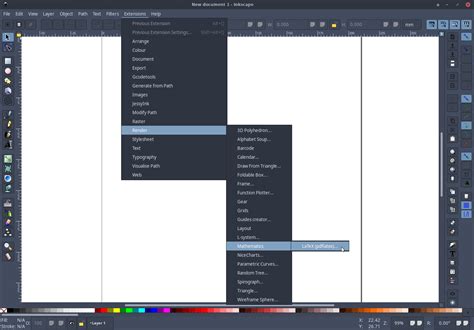
- Activate Textext: Once installed, you can usually find
textextunder the "Extensions" menu in Inkscape. - Create Formula: Select the
textexttool. A dialog box will appear, prompting you to enter your LaTeX code. - Input LaTeX: Here, you can type standard LaTeX commands. For Greek letters, you would use commands like
\alpha,\beta,\gamma,\Omega, etc. For example, to insert $\alpha$ and $\beta$, you would enter$\alpha, \beta$. For more complex equations, you would use the full LaTeX math environment. - Render and Insert: Click "Apply" or "OK." The
textextextension will process your LaTeX code using a local LaTeX installation (which also needs to be installed on your system) and render the resulting formula as a vector graphic object within Inkscape. - Editing: When you need to edit the formula, select the rendered object and reopen the
textextdialog. Your original LaTeX code will be pre-filled, allowing for modifications.
The advantage of textext is its ability to handle intricate mathematical expressions with perfect typesetting, ensuring professional and accurate representation of scientific content.
Advanced Techniques and Considerations
Beyond basic insertion, Inkscape offers features that enhance the use of Greek letters and other symbols in your artwork.
Adjusting Text Properties
Once Greek letters are inserted as text objects, they can be manipulated like any other text in Inkscape:
- Size and Spacing: Use the text control bar (when the text tool is active) to change font size, line spacing, and character spacing. This is crucial for ensuring readability and aesthetic appeal.
- Kerning: For precise control over the spacing between specific pairs of characters, Inkscape offers kerning adjustments. This can be particularly useful when Greek letters are placed adjacent to other characters.
- Color and Stroke: Modify the fill color, stroke color, and stroke width of the text objects to match your design.
Grouping and Alignment
When integrating Greek letters into larger diagrams or figures, grouping and alignment become important.
- Grouping: Select the text object containing the Greek letter along with other related elements and group them (
Object > GrouporCmd + G). This allows you to move, scale, and transform the entire group as a single unit. - Alignment: Use the "Align and Distribute" panel (
Object > Align and DistributeorShift + Ctrl + A) to precisely align text objects with other elements based on their edges, centers, or other reference points. This is vital for creating organized and visually pleasing layouts.
Importing and Modifying Existing Graphics
Often, you might import existing vector graphics (e.g., from R or other plotting software) into Inkscape. While these might contain Greek letters, they can sometimes be imported as paths or with altered spacing.
- Text Replacement: If imported text is problematic, a common workaround is to delete the original text object and replace it with new text created directly in Inkscape using the methods described above. This ensures full editability and correct rendering.
- Ungrouping: Imported complex graphics may require ungrouping (
Object > UngrouporCmd + U) multiple times to access individual text elements or paths.
Exporting for Publication
When preparing figures for manuscripts or presentations, exporting from Inkscape is a critical step.
- Vector Formats (SVG, PDF): Saving as an SVG (Scalable Vector Graphics) or PDF preserves the vector nature of your artwork, meaning text and symbols remain sharp at any zoom level. This is ideal for further editing or for publications that support vector formats.
- Raster Formats (PNG, TIFF): For platforms that require raster images, Inkscape allows exporting to formats like PNG or TIFF. Use
File > Export PNG Image...and select the "Page" export area for the full canvas. Setting a high DPI (e.g., 300 DPI or higher) ensures good image quality for print.
By mastering these techniques, you can confidently incorporate Greek letters and other essential symbols into your Inkscape projects, enhancing the clarity, accuracy, and professionalism of your visual communications.