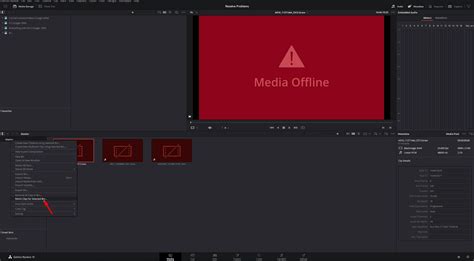
The dreaded "offline media" notification in DaVinci Resolve can strike fear into the heart of any editor. Those stark red exclamation marks, appearing in the Media Pool and on the timeline, signal a severed connection between your project and its vital source files. Whether you've reorganized your hard drive, renamed a crucial asset, or accidentally deleted a file, the result is the same: a project frozen in time, unable to play or render. Fortunately, DaVinci Resolve offers robust tools to swiftly and efficiently re-establish these lost links, ensuring your creative flow remains uninterrupted. This guide will delve into the various methods for relinking offline media, transforming a potential crisis into a minor inconvenience.
Understanding Why Media Goes Offline
Before diving into the solutions, it's beneficial to understand the common culprits behind offline media. The most frequent cause is a change in the location of your source files. When you import media into DaVinci Resolve, the software creates a link to the original file on your storage. If this original file is moved from its initial location - perhaps into a new folder structure on your computer or an external hard drive - DaVinci Resolve can no longer find it. Similarly, renaming a file or deleting it entirely will break this crucial link. Even external factors like a disconnected drive can render your media offline. Recognizing these scenarios is the first step in proactively managing your project's media integrity.
The "Relink Media" Icon: Your First Line of Defense
DaVinci Resolve is designed to automatically maintain the relationship between your project clips and their source media. However, when this link breaks, the software provides a clear visual cue. On the Cut and Edit pages, you'll notice the "Relink Media" icon in the Media Pool will turn from its usual gray to a prominent orange. This is your signal that there are missing clips.
Clicking this orange icon opens a dedicated "Relink Media" dialog box. This window is incredibly useful as it displays the volumes or drives where the missing files were originally located. This information can be instrumental in tracking down your media. For instance, if you know you moved files from your "Project Archive" drive, this dialog can confirm which drive DaVinci Resolve is expecting them on.
Within this dialog, you'll find a "Locate" button. This is where the magic happens. Clicking "Locate" allows you to manually navigate your file system and direct DaVinci Resolve to the new location of your missing files. You can then choose a specific folder. DaVinci Resolve is intelligent enough to scan this chosen folder and its subfolders for matching files, effectively re-establishing the link.
Disk Search: A Deeper Dive When Needed
While the primary "Relink Media" function is efficient for known file locations, DaVinci Resolve offers a more exhaustive option for those times when you're unsure exactly where your files have ended up: "Disk Search." This feature can be accessed from the same "Relink Media" dialog box.
The "Disk Search" function initiates a comprehensive scan across an entire selected disk or drive. This can be a powerful tool if you know a file exists somewhere on a particular hard drive but have lost track of its precise location. However, it's important to be aware that this process can be time-consuming, especially on large drives. It's generally recommended to use "Disk Search" only when the more targeted "Relink Media" approach hasn't yielded results, or when you have a general idea of the drive but not the specific folder.
Relinking Selected Clips or Bins: Precision and Control
For editors who prefer a more granular approach, DaVinci Resolve offers methods to relink specific clips or entire bins of media. This is particularly useful when only a subset of your project's media has gone offline, or when you want to maintain strict organizational control.
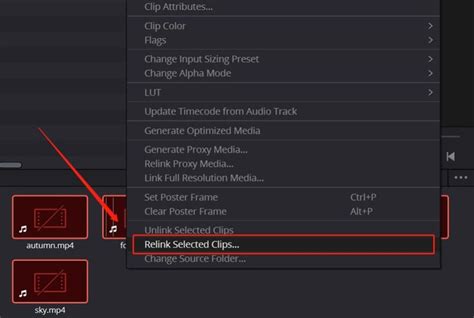
To relink selected clips, you can navigate to the Media Pool, select one or more clips that are showing as offline, and then right-click. In the contextual menu that appears, you'll find options like "Relink Selected Clips" or "Relink Clips from Selected Bin."
Choosing these options will again open a dialog box, prompting you to specify a directory where DaVinci Resolve should search for the missing files. You can then initiate a "fast search" within the selected directory and its subfolders. If the files aren't found immediately, you'll often have the option to perform a more "comprehensive search," which, as discussed earlier, will delve deeper into the selected directory structure. This method allows you to pinpoint the exact location of your media without resorting to a full disk scan, saving valuable time.
The "Change Source Folder" Method: Preserving Hierarchy
For editors who meticulously organize their Media Pool with bins and sub-bins, a particularly elegant solution exists: the "Change Source Folder" command. This method is invaluable for preserving your established organizational structure when relinking.
When you have multiple bins and clips that have gone offline, you can select an entire group of bins or a specific bin containing the offline media. Then, right-click on one of the clips within that selection and choose the "Change Source Folder" command. This command presents you with the previously saved path for your files. Crucially, it allows you to select a new top-level enclosing folder for all the media within that selection. DaVinci Resolve will then intelligently drill down into the subfolders of the new path you provide, relinking all associated clips while maintaining the original hierarchy of your bins. This is a highly efficient way to relink an entire project's worth of media without disrupting your carefully crafted organizational system.
How To Fix MEDIA OFFLINE In Davinci Resolve
Pro Tip: Avoiding Offline Media from the Start
While relinking is an essential skill, prevention is always better than cure. A common trigger for offline media, especially for newer editors, is editing directly from camera cards. If the connection to the camera card is interrupted for any reason - be it a loose cable, a computer glitch, or simply removing the card too soon - DaVinci Resolve can lose access to the media files. This often leads to those frustrating offline notifications.
To circumvent this issue entirely, adopt the practice of always copying or moving your footage from camera cards to a dedicated editing drive before you begin your project in DaVinci Resolve. This could be an internal SSD, a fast external hard drive, or a network-attached storage (NAS) device. By working from these stable, dedicated locations, you significantly reduce the risk of encountering offline media due to connection issues. This proactive approach not only prevents headaches but also contributes to a smoother and more efficient editing workflow.
The Importance of Media Organization
The ability to effectively relink offline media is more than just a technical trick; it's a cornerstone of professional video editing. Regardless of the method employed - whether it's the intuitive "Relink Media" icon, the exhaustive "Disk Search," the precise "Relink Selected Clips," or the organizational savior "Change Source Folder" - mastering these tools ensures that your creative vision is never derailed by technical hiccups. Staying organized with your media files is paramount for efficient and seamless work on video projects. For those interested in learning more about maintaining an efficient file structure within DaVinci Resolve, further resources and tutorials are often available, and many creators release weekly filmmaking tutorials that cover these essential aspects of the editing process. Subscribing to channels that offer such content can keep you informed and ahead of the curve in the dynamic world of video creation.