In the fast-paced world of digital photography, efficiency is paramount. Photographers often capture a large number of photos during their shoots, and the challenge lies in quickly selecting the desired images and making necessary adjustments. Adobe Lightroom Classic stands as a cornerstone for many in photo processing, and understanding its keyboard shortcuts can dramatically reduce the time spent editing. While the sheer volume of available shortcuts might seem daunting, focusing on a curated set can cut significant friction out of everyday editing, transforming a time-consuming process into a streamlined experience. This article delves into the practical application of these shortcuts, moving from fundamental operations to more nuanced controls, empowering users of all levels to work faster and more effectively.
Navigating and Culling with Speed
The initial stages of photo management often involve sorting through a large volume of images, a process known as culling. Terry Vander Heiden's approach highlights how simple flagging shortcuts can accelerate this considerably. Using the P key to mark keepers, X to reject, and U to clear a flag allows editors to move rapidly through a big shoot without ever needing to reach for the mouse. This method is the very essence of efficiency, enabling a focused review of images.
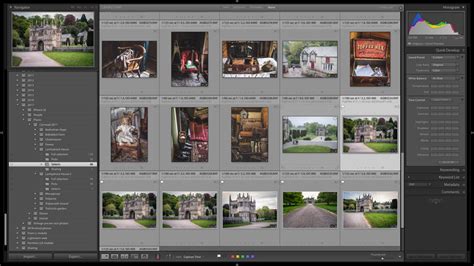
Color labels also become powerful tools when integrated into a shortcut-driven workflow. Instead of navigating through menus, hitting 6, 7, 8, or 9 instantly assigns a corresponding color label (red, yellow, green, or blue, respectively). This real-time application of color coding aids in visual organization, allowing for quick identification of images based on their assigned categories, whether for client review, specific editing stages, or thematic grouping.
Beyond flagging and labeling, managing the Lightroom Classic interface itself is crucial for maximizing screen real estate and maintaining focus. The Tab key is a simple yet incredibly effective shortcut that hides both side panels, instantly providing more space to view a single image. For an even more immersive experience, Shift + Tab hides everything, including the top module bar and the filmstrip, allowing the photograph to fill the entire window without distractions. This is particularly useful when meticulously inspecting an image for detail or making fine-tuned adjustments.
The toolbar, often located beneath the image, can sometimes disappear unexpectedly. The T key serves as a reliable way to bring it back, a small but significant shortcut that prevents confusion when an interface element "mysteriously" vanishes.
Function key tricks further enhance navigation and management. F6 provides quick access to the filmstrip, while F2 allows for renaming a file without the need to delve into the Library menu. These shortcuts, though seemingly minor, contribute to a smoother, less interrupted editing flow.
Mastering Viewing Modes for Detailed Inspection
Viewing modes are a critical area where many users lose valuable time. Efficiently switching between different views allows for a comprehensive assessment of images. The G key is a universal jump to Grid view from almost anywhere within Lightroom Classic, providing an overview of multiple images. Conversely, E takes you directly into Loupe view, essential for inspecting a single frame in detail. When ready to begin making adjustments, D drops you straight into the Develop module, streamlining the transition from selection to editing.
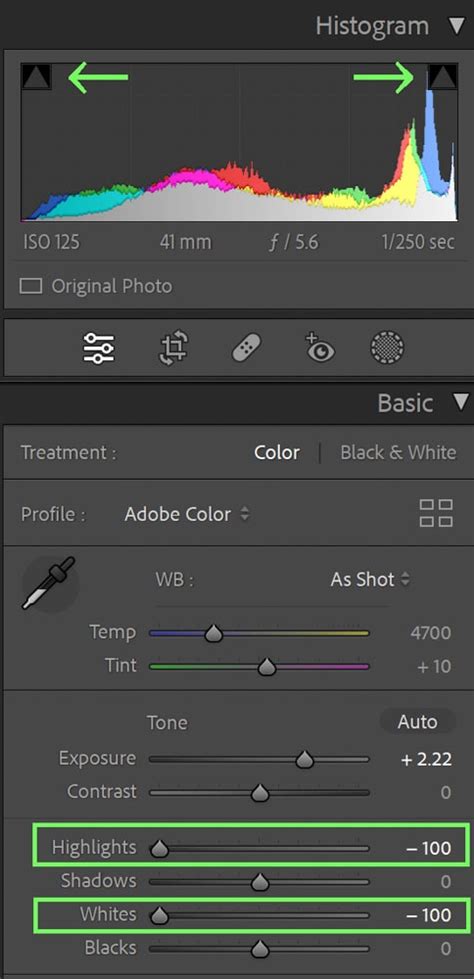
For comparative analysis, especially when dealing with multiple similar shots, specific shortcuts prove invaluable. With two images selected, C brings up a side-by-side comparison, allowing for direct visual assessment of differences. The N key activates Survey mode, displaying a series of selected images simultaneously. This is incredibly helpful when judging a whole group together to pick the best one. Terry Vander Heiden demonstrates a clever combination of N with the Tab key, which clears away panels and transforms the screen into a clean contact sheet for focused comparative review.
Advanced Techniques for Enhanced Productivity
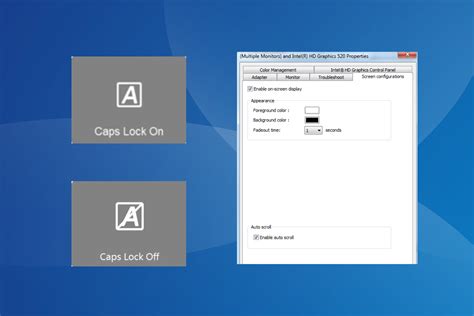
One of the more ingenious tricks highlighted involves using Caps Lock as an "auto-advance" switch. With Caps Lock engaged, each time you apply a flag (e.g., P for keepers or X for rejects) while culling, Lightroom Classic automatically moves to the next image. This eliminates the need to use the arrow keys or the mouse, significantly speeding up the selection process. This feature can be powerfully combined with zoom shortcuts like the Spacebar or Z to quickly magnify and inspect focus at high magnification before making a decision.
Handling variations of an edit is made effortless with the shortcut for virtual copies. Command + ' (apostrophe) on a Mac or Control + ' on a PC creates a virtual copy of the current image. This is a fast way to generate alternate edits without creating duplicate files that bloat the catalog, offering flexibility in exploring different creative directions for a single photograph.
The fundamental actions of undoing and redoing edits are also streamlined. Command + Z (Mac) or Control + Z (PC) performs a standard undo, while Command + Shift + Z (Mac) or Control + Shift + Z (PC) allows for redo. For fine-tuning adjustments, the arrow keys enable precise nudging of slider values. Furthermore, double-clicking on a slider's name or its nub will instantly reset that specific slider to its default value, a quick way to revert an individual adjustment.
Customization and Deeper Interface Control
While many shortcuts are pre-programmed, Lightroom Classic offers a degree of customization. Key combinations can be found under the Help menu, and it's important to note that the absence of a specific shortcut doesn't mean it can't be implemented. Users have the ability to create new shortcuts or remap existing ones, and this can even be done on an application-by-application basis. This level of personalization allows users to tailor Lightroom Classic to their unique workflow and most frequently used commands, further enhancing efficiency. The process involves navigating to the relevant menu titles, typing the desired new combination, and assigning it to a command. This capability has been a feature since Lightroom 1.0, providing a consistent method for users to optimize their experience.
Essential Shortcuts for Daily Editing
Beyond the advanced techniques, a core set of shortcuts forms the backbone of an efficient Lightroom Classic workflow. These are the commands that users find themselves relying on repeatedly, and mastering them can lead to substantial time savings.
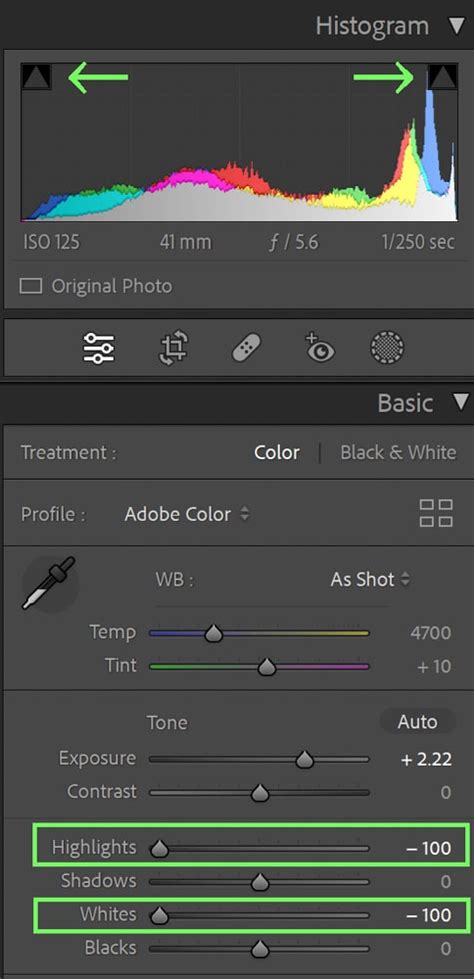
G: Jump to Grid View in the Library module. This is arguably one of the most frequently used shortcuts, providing immediate access to an overview of your images.B: Add the current image or selection to your Target Collection. By default, this is the Quick Collection, but it can be reassigned to any collection by right-clicking and selecting "Set as Target Collection."Shift + Tab: Hide all side panels and toolbars, offering a larger view of the current image. This is often preferred over full-screen mode (F) because it still allows for interaction with editing tools.J: Toggle black and white point clipping on and off. This is a more efficient alternative to clicking the triangle shapes in the histogram, providing an instant visual cue for areas where detail is lost in highlights or shadows.
- Solo Mode: While not a single key shortcut, right-clicking on the title bar of any panel and choosing "Solo Mode" allows only one panel to be open at a time. This prevents constant scrolling through numerous options in the Develop module. The first time a shortcut is used to collapse panels, it enters Solo Mode, automatically collapsing the previous panel when a new one is opened. Performing the shortcut again exits Solo Mode.
V: Toggle Black and White conversion. This shortcut provides a quick preview of how an image might look in monochrome, and it can be used in both the Library and Develop modules. PressingVagain reverts the image to color. Lightroom's B&W conversion uses sophisticated algorithms, not just simple desaturation.Ctrl + Shift + V(PC) /Cmd + Shift + V(Mac): Paste settings from the previous photo. This is incredibly useful for rapidly applying similar edits to a series of photos shot under consistent conditions, a boon for wedding, sports, and event photographers.Shift + M: Access the Radial Filter. This is a frequently used selective adjustment tool, and having a quick shortcut to it streamlines targeted edits.R: Enter Crop mode. Once in crop mode,Ctrl(PC) orâ(Command) on a Mac, when combined with the mouse, activates the straighten tool for correcting horizons.\(Backslash): View the Before/After state of an image. This simple key allows you to quickly compare your adjustments against the original import.L: Activate Lights Out mode. This dims the surrounding interface to focus attention on the image. The degree of dimming and background color can be controlled in preferences, but the defaults are often sufficient. Lights Out mode functions across all panels and viewing modes.Caps Lock+ Flagging/Rating: As mentioned earlier, withCaps Lockon, applying a flag or rating automatically advances to the next image, creating a highly efficient culling workflow.N: Enter Survey Mode for comparative viewing of multiple selected images. Clicking the 'X' in the corner of an image in Survey Mode removes it from the view.P: Flag images as Pick. This is often used in conjunction with theCaps Lockauto-advance feature for rapid selection of preferred images.- Color Labels (
6-9) and Star Ratings (1-5): These provide distinct visual cues for organization. Color labels, in particular, are displayed prominently around the thumbnail in Grid view, offering at-a-glance categorization. Star ratings offer a more universally understood system across different platforms. Q: Access the Spot Removal tool. A lesser-known but valuable tip related to this tool is pressing the/key after applying a spot removal to force Lightroom to resample a new area for the correction, which can be crucial in challenging high-contrast situations. The bracket keys[and]adjust the brush size, whileShift + [andShift + ]control feathering.Ctrl + U(PC) /Cmd + U(Mac): Apply Auto settings in the Basic panel.Ctrl + Shift + U(PC) /Cmd + Shift + U(Mac): Apply Auto White Balance.Ctrl + Shift + C(PC) /Cmd + Shift + C(Mac): Copy Develop settings. This opens a dialog box where you can select specific settings to copy.Ctrl + Shift + V(PC) /Cmd + Shift + V(Mac): Paste Develop settings.Ctrl + Alt + V(PC) /Cmd + Alt/Option + V(Mac): Paste all settings from the previous photo.Shift + R: Go to Reference View, allowing you to drag another photo from the filmstrip into an empty reference panel for direct comparison.[and]: Adjust the Healing tool brush size.- Double-click a slider name/nub: Reset a specific slider.
- Double-click "Effects": Reset all Adjustment Brush sliders.
+and-: Increase and decrease thumbnail size in the Library Module.Shift + Tab: Hide all panels.F: Enter Full-Screen mode.- Double-click "Temp" and then "Tint": Auto set White Balance.
\(Backslash): Show/hide the Library Search Bar.- Exclamation point warning: Click to find a missing original photo.
Y: View a side-by-side before/after of your edited image.O: Cycle through different crop guides in crop mode.
TOP 10 LIGHTROOM Shortcuts All GREAT Photographers Use!
By integrating these keyboard shortcuts into your daily editing routine, you can significantly enhance your productivity and enjoy a more fluid and intuitive experience with Lightroom Classic. The investment in learning these commands will undoubtedly pay dividends in time saved and a more focused approach to photo post-processing.