In the ever-evolving landscape of digital photography, selecting the right software tools can feel like navigating a labyrinth. Adobe, a titan in creative software, offers a suite of powerful applications for photographers, but their subscription plans are often a source of confusion. This guide aims to demystify the Adobe Photography Plans, break down the core components, and help you pinpoint the ideal subscription to elevate your photographic workflow, whether you're a hobbyist or a seasoned professional.
Understanding the Core Adobe Photography Applications
Before diving into the plans themselves, it's crucial to understand the primary software that forms the backbone of Adobe's photographic offerings. Adobe manufactures the most widely recognized editing applications for photographers: Lightroom, Lightroom Classic, and Photoshop. While Adobe produces other software for designers and creatives, these three are the essential tools for anyone serious about photography.
Lightroom Classic: The Feature-Rich Desktop Hub
Lightroom Classic is an application designed to be the central hub for your post-production workflow. It provides a comprehensive solution for managing, organizing, editing, and sharing your images all within a single application. A key characteristic of Lightroom Classic, particularly relevant to understanding the different plans, is that all your images are stored locally on your computer's hard drive or an external drive. This offers a high degree of control and immediate access to your entire library without reliance on an internet connection for basic file management and editing. It's the original version of Lightroom, and many photographers still refer to it simply as "Lightroom," which can lead to confusion when newer cloud-centric versions are introduced.
Lightroom: The Cloud-Centric, Streamlined Companion
Lightroom, often referred to as "Lightroom CC" or the "cloud-based Lightroom," is a more streamlined version of Lightroom Classic. Its defining feature is that all your images are stored in the cloud on Adobe's servers. This cloud-based approach enables seamless synchronization across multiple devices - desktop, mobile, and web - allowing you to access, view, and edit your photos from anywhere. However, this convenience comes with a trade-off: you need to pay for the cloud storage space. Lightroom also offers a more pared-down feature set compared to Lightroom Classic, making it a less comprehensive end-to-end solution but an excellent choice for those who prioritize accessibility and cross-device workflow.
Photoshop: The Ultimate Image Manipulation Tool
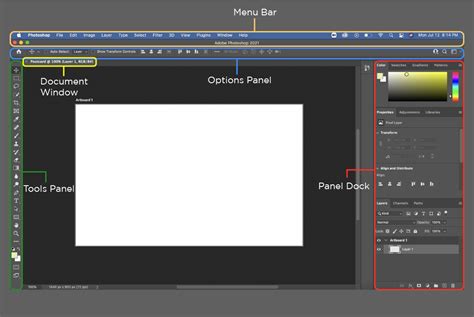
Photoshop is the undisputed king of image manipulation software. It's the go-to application for more advanced adjustments and creative edits that go beyond standard photographic adjustments. This includes tasks such as seamlessly swapping out skies, merging multiple images to achieve perfect focus (focus stacking), intricate color toning, compositing, and a vast array of other sophisticated image editing techniques. While you might not need its full power immediately, having Photoshop in your toolkit is practically essential for serious photographers who envision pushing the boundaries of their imagery in the future.
Mobile Applications: Editing on the Go
Most Adobe photography plans also include Photoshop Mobile and Lightroom Mobile. These are app versions of their desktop counterparts, designed for use on your iPad or mobile devices. They allow you to view, edit, and manage your photos while on the go, offering a convenient way to work with your images away from your primary workstation. Lightroom Mobile even includes a camera mode, allowing you to capture photos directly into your cloud library.
Deconstructing the Adobe Photography Plans
Adobe offers several subscription plans tailored for photographers, which bundle these applications with varying amounts of cloud storage. Understanding these plans is key to making an informed decision.
Photography Plan with 20GB Storage (Legacy Plan)
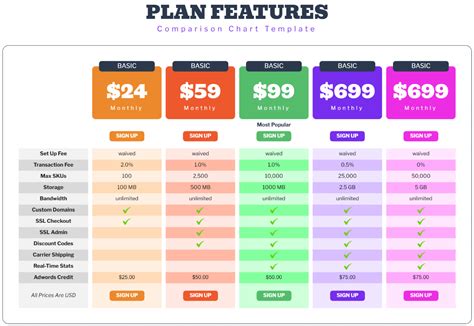
This plan, historically priced at $9.99 per month, was the most popular choice for a vast majority of photographers. It bundles Lightroom, Lightroom Classic, and Photoshop into a single package, along with 20GB of cloud photo storage and Adobe Portfolio. The typical workflow for users of this plan involves using Lightroom Classic as the primary hub for managing and organizing photos, leveraging its robust local storage capabilities. For everyday editing and organization, Lightroom Classic serves as the workhorse. When more advanced image manipulation or specialized color tools are required, photographers would then take their images into Photoshop. The included Lightroom service, with its 20GB of cloud storage, could be used in conjunction with Lightroom Classic, for example, for editing photos while on holiday and then syncing them back to Lightroom Classic upon returning home.
Important Note: As of January 15, 2025, Adobe has withdrawn the Photography Plan with 20GB storage for new subscribers. Existing users can continue with this plan, but new users must consider other options.
Photography Plan with 1TB Storage
Priced at $19.99 per month, this plan is essentially the successor to the 20GB plan for new users, offering the same excellent software bundle - Lightroom, Lightroom Classic, and Photoshop - but with a significantly increased 1TB of cloud photo storage. This plan is ideal for photographers who prefer to store all their photos in the cloud, using Lightroom as their primary hub. The 1TB of storage allows for a substantial library of images to be managed and accessed across devices without filling up local hard drive space. While Lightroom Classic is still accessible, the focus would typically shift to Lightroom as the main organizational tool.
This plan is a strong contender for those who:
- Wish to store their entire photo library in the cloud.
- Prefer to use Lightroom as their primary management and editing application.
- Still require access to the advanced capabilities of Photoshop.
It's important to remember that with a cloud-centric approach, ongoing storage costs are a factor. If you exceed the included 1TB, additional storage incurs extra monthly charges (currently around $9.98 per TB per month in the US). A rough estimate suggests that 1TB can hold approximately 13,000 RAW image files from a 22MP camera, or about 6,500 RAW files from a 45MP camera. Over the lifespan of a photography career, these numbers can quickly accumulate, and the prospect of downloading years of photos should you decide to switch providers in the future is a significant consideration. For high-volume shooters or professional photographers, storing images locally with a plan that includes less cloud storage might still be a more practical and cost-effective long-term solution.
Lightroom Plan with 1TB Storage
This plan, priced at $9.99 per month, offers a different approach. It only provides access to Lightroom and Lightroom Mobile, along with 1TB of cloud photo storage. Crucially, it does not include Photoshop or Lightroom Classic. This plan is best suited for users who are very modest in their editing needs and are confident they will never require the advanced capabilities of Photoshop or the full feature set of Lightroom Classic.
This plan is a consideration if:
- You primarily use Lightroom for editing and organizing.
- You do not anticipate needing Photoshop for advanced manipulation.
- You are comfortable paying for cloud storage for your photos.
However, for serious photographers, especially those running a business, this plan might be too limiting. The inability to access Photoshop can be a bottleneck for creative expression, and the storage costs can add up quickly for extensive libraries. It's generally not recommended for professionals or those who foresee needing more robust editing tools.
Understanding Related Adobe Offerings
Beyond the core photography plans, it's useful to be aware of other Adobe offerings and why they might not be the best fit for most photographers.
Photoshop Single App (and why it's generally not recommended for photographers)
It's possible to subscribe to Photoshop as a standalone application. This plan typically includes 100GB of cloud storage and additional features like Adobe Express. However, for most photographers, this option makes little sense. Since the Photography Plan, which includes both Lightroom and Photoshop, is often priced competitively or even more affordably, purchasing Photoshop on its own is usually not the most economical choice for a photographer. This standalone option is more relevant for designers who need Photoshop but have no use for Lightroom.
Creative Cloud All Apps
The Creative Cloud All Apps subscription grants access to every single application created by Adobe, including Illustrator, Premiere Pro, After Effects, and many more, in addition to Photoshop and Lightroom. While this is the ultimate package for multi-disciplinary creatives, it is almost certainly overkill for the vast majority of photographers. Unless you are also a graphic designer, video editor, or web developer who relies heavily on Adobe's broader creative suite, there is no compelling reason to opt for this comprehensive and significantly more expensive plan.
All 60+ Adobe apps explained in 9 minutes
Value Proposition: Are the Photography Plans Worth It?
For individuals who prefer not to subscribe to software, the Adobe Photography Plans might initially seem unappealing. However, a closer look reveals that they offer exceptional value, especially when compared to the historical costs of purchasing perpetual software licenses.
Consider the past: in 2015, Photoshop alone cost $699, and Lightroom Classic was $199. That's a combined cost of nearly $900 for the software, without any updates. With the subscription plans, you gain access to all updates immediately, ensuring you always have the latest version of the software. This is a significant advantage over the old model, where you would typically need to purchase upgrades every few years, incurring substantial costs. The subscription model wraps all these benefits - access to cutting-edge software, continuous updates, and essential editing tools - into a manageable monthly fee. For example, the $9.99 plan, which includes Lightroom, Lightroom Classic, and Photoshop, offers access to software that would have cost well over $900 to purchase outright just a few years ago.
Understanding Subscription Terms and Cancellation
A crucial aspect of Adobe's photography plans is the nature of the subscription. While you can often pay monthly, these are typically annual plans paid monthly. This means you are committing to a full year of service, even if you pay on a month-to-month basis. Cancelling early will usually incur a cancellation fee. Generally, you have a grace period of a few months before the end of your annual contract to cancel without penalty.
What Happens When You Cancel?
- Lightroom Classic: If you cancel your subscription, your photos remain stored on your local hard drive. You will still be able to organize and export them, but you will lose the ability to edit them within Lightroom Classic.
- Lightroom: Since your photos are stored in the cloud, you will need to download them. Adobe typically provides up to 12 months after cancellation to allow you to retrieve your images. After this period, your photos may be deleted from their servers.
- Photoshop: As Photoshop is solely an editing application without cloud storage for your core library, you will lose access to it immediately upon cancellation.
Making the Final Decision: Which Plan is Right for You?
For the vast majority of photographers, the Photography Plan with 1TB Storage at $19.99 per month represents the most balanced and future-proof option. It provides access to the full suite of essential tools - Lightroom, Lightroom Classic, and Photoshop - along with ample cloud storage for a seamless cross-device workflow.
If you are primarily a Lightroom Classic user and prioritize local storage, and perhaps only need occasional access to Photoshop, the Photography Plan with 20GB Storage (if still available to you as a legacy user) or a similar plan with minimal cloud storage might suffice. However, for new users, the 1TB Photography Plan offers superior value and flexibility.
The Lightroom Plan with 1TB Storage at $9.99 per month is a niche option for those who are absolutely certain they will never need Photoshop or Lightroom Classic and are comfortable with a cloud-based-only workflow.
Getting Started with Your Chosen Plan
Once you've decided on the best plan for your needs, the process of signing up and getting started is relatively straightforward, though Adobe's website can sometimes be a bit complex to navigate.
- Visit the Adobe Subscription Page: Navigate to the official Adobe website and find the section for Creative Cloud photography plans.
- Select Your Plan: Choose the plan that best suits your requirements (e.g., Creative Cloud Photography Plan with 1TB).
- Choose Payment Option: You'll typically have the choice between paying monthly or a prepaid annual option. Select your preference.
- Download the Creative Cloud App: After purchase, you'll be guided to download and install the Adobe Creative Cloud desktop application. This app acts as your central hub for managing and downloading all the software included in your subscription.
- Install Your Applications: Use the Creative Cloud app to download and install Lightroom, Lightroom Classic, Photoshop, and any other included applications. You can then launch them and begin your editing journey.
Mastering Your New Workflow
Having the right tools is only the first step; learning to use them effectively is paramount. Adobe offers extensive resources, and dedicated tutorials can significantly accelerate your learning curve. For instance, resources focusing on "Get Organized in Lightroom Classic" can establish a strong foundation for managing your image files, ensuring you can always find what you need. Subsequently, learning an "Edit Like A Pro in Lightroom Classic" workflow can help you develop a systematic approach to editing, moving beyond random slider adjustments to a more consistent and professional output. Many platforms also offer free starter kits or guides to help you import, edit, and export your photos efficiently.
By understanding the nuances of each Adobe Photography Plan and the core applications they offer, you can confidently select the subscription that aligns with your photographic workflow, empowering you to create stunning images with the most effective tools available.
tags: #lightroom #photography #plan