Lightroom offers a powerful suite of tools that allow photographers to create multiple, distinct edits of a single photograph without the need to duplicate the original file or consume excessive hard drive space. However, the presence of features like Virtual Copies, Versions, and Snapshots can lead to confusion regarding their purpose and application. This article aims to demystify these tools, explaining their functionalities, differences, and optimal use cases, drawing upon the insights of photography experts and practical user experiences.
The Foundation: Lightroom as a Metadata Editor
Before delving into the specifics of Virtual Copies, Versions, and Snapshots, it's crucial to understand a fundamental aspect of Lightroom's operation: it is primarily a metadata editor. When you make adjustments to a photo within the Develop module, you are not altering the original image file itself. Instead, Lightroom records these changes as metadata, essentially a set of instructions or a "recipe," associated with that image within its catalog. This non-destructive workflow is a cornerstone of Lightroom's power, ensuring your original capture remains pristine and allowing for unparalleled editing flexibility. You can revisit and re-edit an image years later with the confidence that your original data is preserved.
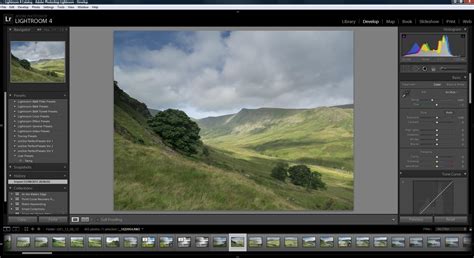
When you export an image from Lightroom, it's at this stage that these recorded adjustments are applied to a copy of the original file, creating a new, processed image. Think of "Export" as a sophisticated "Save As" function, where Lightroom renders your edits into a tangible file ready for sharing or printing.
Virtual Copies: Unlimited Creative Paths from a Single File (Lightroom Classic)
For users of Lightroom Classic, Virtual Copies are the go-to solution when the goal is to generate multiple, distinct interpretations of the same photograph.
What they are: Virtual Copies are lightweight duplicates of your original photo. While they appear as separate images within your Lightroom catalog, they are essentially pointers to the original file, each with its own independent set of editing instructions. This means you can apply drastically different edits-such as a color version, a black-and-white rendition, a dramatic high-contrast look, or a different crop-to each Virtual Copy without affecting the original or other copies.
Where to find them: Creating a Virtual Copy is straightforward. In the Library or Develop module, simply right-click on the desired photo and select "Create Virtual Copy" from the contextual menu. Alternatively, you can use the keyboard shortcut, or select the image and go to Photo > Create Virtual Copy.
Why use them: The primary benefit of Virtual Copies lies in their ability to facilitate experimentation and comparison. You can try out numerous stylistic approaches, from subtle color grading to radical transformations, and then easily compare them side-by-side. This is particularly useful for photographers who want to explore different creative directions for a single image, such as creating both a vibrant color version and a moody black-and-white interpretation, or testing various cropping strategies for optimal composition.
Terry White, a renowned Adobe expert, highlights how Virtual Copies enable targeted adjustments, including facial retouching and lighting modifications, all while safeguarding the integrity of the original image. This feature allows for a multitude of creative explorations without the burden of managing numerous duplicate files.
Exporting Virtual Copies: A significant advantage of Virtual Copies is the ability to export all of them simultaneously. When exported, each Virtual Copy will be rendered as an individual image file, despite originating from a single source file. This streamlines the workflow for photographers who need to produce multiple output-ready variations of an image quickly. As Terry explains, "This is why I use Virtual Copies so much… I can get all my variations out quickly without creating a bunch of duplicate files in my Library."
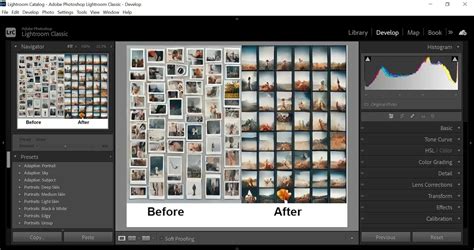
Understanding the "Master" and Copy Names: In Lightroom Classic, one of the original images is designated as the "Master" copy, which typically has no specific name assigned in the "Copy Name" field. Virtual Copies, on the other hand, are automatically assigned sequential names like "Copy 1," "Copy 2," and so forth. However, these names can be customized to reflect the specific edits, such as "Black and White," "Vintage Look," or "Cropped for Instagram." Furthermore, any Virtual Copy can be promoted to become the new Master copy if desired, using the Photo > Set Copy as Original option in the Library menu.
Locating and Removing Virtual Copies: To find all Virtual Copies within your Lightroom catalog, navigate to the Library module, enter Grid View (press 'G'), and then activate the Filter menu (press '\'). Select the "Attribute" option, and then click the middle icon of the three box-shaped icons on the far right. This will display all your Virtual Copies. You can limit this search to a specific folder or extend it across your entire catalog. To remove Virtual Copies, select them (using Ctrl+A on Windows or Cmd+A on Mac after filtering for them) and press the Delete key. A confirmation dialog will appear, allowing you to proceed with the removal.
Versions: Saving Edit States within a Single File (Lightroom Cloud-Based)
For users working with the cloud-based version of Lightroom (often referred to as Lightroom CC), the concept of Virtual Copies does not exist. Instead, Adobe provides the "Versions" feature.
What they are: Versions are saved states of your edits that are contained within the same original file. They function as checkpoints or saved bookmarks of your editing progress, allowing you to revert to or compare different stages of your work without creating new files.
Where to find them: The Versions panel is accessible within the Develop module. In recent updates, this panel's location has been refined, often found in the right-hand sidebar. You can also use the keyboard shortcut Shift+V.
Why use them: Versions are ideal for exploring different editing looks and saving significant milestones in your workflow. For instance, you might save a "Color Grading" version, a "Black & White" version, or a "Vibrant" version. Each saved Version stores your slider positions and mask settings at that specific point in time. This allows you to seamlessly toggle between these different looks, offering a fluid way to experiment without cluttering your library with duplicate files.
All 5 Versions of Lightroom EXPLAINED
Exporting Versions: The key limitation of Versions is that you can only export one version at a time. If you require multiple exported outputs, you must manually switch to each desired Version and export it individually. This is why, as noted by Terry White, Virtual Copies in Lightroom Classic are often preferred when the need arises to output numerous variations rapidly.
Versions vs. Snapshots: It's worth noting that Lightroom Versions are functionally very similar to Snapshots in Lightroom Classic. Both allow you to save distinct editing states. The primary difference lies in their presentation: Versions are not displayed as separate images in the Lightroom library, which will always show a single image representation regardless of how many Versions have been created. Versions are effectively saved history states, and selecting a different Version will override your current edits.
Snapshots: Bookmarks for Your Edits (Lightroom Classic)
Snapshots are another valuable, albeit often overlooked, feature within Lightroom Classic. They serve as bookmarks for specific editing stages, enabling quick navigation back to earlier states without cluttering the Filmstrip.
What they are: Snapshots are saved markers of your photo at particular points in your editing workflow. They capture the complete set of adjustments made up to that moment.
Where to find them: The Snapshots panel is located on the left side of the Develop module.
Why use them: Snapshots are excellent for preserving editing milestones or for quickly toggling between different creative ideas. You might save a "Clean" snapshot for a basic edit, a "B&W" snapshot for a monochrome conversion, and another snapshot with heavy grain and vignetting. This allows you to instantly jump between these saved states as you refine your vision for the image.
Key Distinction: Unlike Virtual Copies, Snapshots do not create duplicate entries in your Lightroom catalog. They reside within the editing history of the original photo, contributing to a cleaner workflow.
Which Tool Should You Use? A Comparative Overview
The choice between Virtual Copies, Versions, and Snapshots largely depends on your specific needs and the version of Lightroom you are using.
| Feature | Lightroom Version | Creates a Visible Copy? | Exports Multiple Versions? | Best For |
|---|---|---|---|---|
| Virtual Copies | Classic only | Yes | Yes | Creating multiple export-ready edits of the same photo. |
| Versions | Cloud-based Lightroom | No | No | Saving multiple edit looks within a single file for comparison. |
| Snapshots | Classic only | No | N/A | Quickly reverting to or comparing specific edit milestones. |
Terry White's advice is to leverage the tool that best aligns with your personal workflow, while being fully aware of the unique benefits and limitations of each.
Advanced Considerations and Workflows
Metadata Storage and XMP: It's important to understand how Lightroom manages metadata. By default, adjustments are stored within the Lightroom catalog. However, you can configure Lightroom to automatically write changes to XMP sidecar files (for RAW files) or embed them within DNG files. When you create a Virtual Copy, its associated metadata is stored within the Lightroom catalog. It is not saved as a separate XMP file on disk unless that Virtual Copy is exported. If you choose to save XMP data to disk, only the metadata associated with the Master image is saved by default.
The Metadata Conflict Scenario: A nuanced point arises when you designate a Virtual Copy as the new Master and have been saving XMP data to disk. In such cases, Lightroom might flag a "Metadata Conflict," indicating that the file has been changed by both Lightroom and another application. This occurs because the XMP file on disk still contains the metadata for the old Master, which now conflicts with the catalog's designation of the new Master. When this dialog appears, it's crucial to select "Overwrite with Lightroom settings" to ensure the catalog's metadata is correctly applied. While this can seem counterintuitive, it's a mechanism to manage the discrepancy between the catalog's understanding of the Master and the on-disk XMP data.
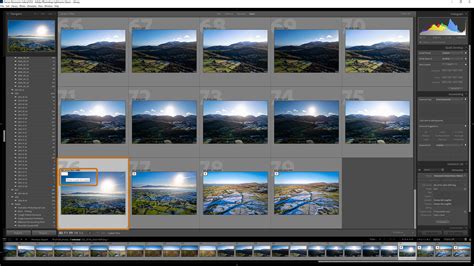
Stacking for Organization: To manage the visual clutter that can arise from numerous Virtual Copies in Lightroom Classic, the "Stacking" feature is invaluable. You can group related images, including a Master and its Virtual Copies, into a stack. This consolidates them into a single thumbnail in the Grid View, indicated by a small number in the corner. Clicking the stack icon expands it, revealing all the individual images within. This significantly tidies up your library.
Smart Collections: For more advanced organization, you can create Smart Collections that automatically gather all Virtual Copies based on specific criteria. This can be a powerful tool for managing large projects or identifying all variations of a particular image.
Video Editing with Virtual Copies: An interesting, though less common, application of Virtual Copies is in basic video editing within Lightroom. By creating Virtual Copies of video clips and setting new In and Out points for each copy, you can effectively "cut out" portions of the video for different editing purposes.
Conclusion
Lightroom's Virtual Copies, Versions, and Snapshots are indispensable tools for any photographer seeking to explore creative possibilities without compromising their original files or cluttering their hard drives. Understanding the distinct roles and functionalities of each feature empowers users to adopt more efficient and versatile editing workflows, ultimately leading to more compelling photographic results. Whether you're a Lightroom Classic power user or prefer the cloud-based ecosystem, mastering these features will undoubtedly elevate your image editing capabilities.
To further enhance your understanding and explore advanced techniques, consider attending workshops or online courses like the KelbyOne Lightroom Conference, where industry professionals share their expertise and cutting-edge workflows.