The quest for the perfect desktop computer for photo editing, particularly for demanding software like Photoshop, can feel like navigating a labyrinth of specifications and jargon. For creative professionals and enthusiastic hobbyists alike, the right machine is not merely a tool; it's the linchpin of a smooth, efficient, and inspiring workflow. While laptops offer portability, desktop computers stand as the undisputed champions of raw power, upgradeability, and the ability to support expansive, color-accurate displays. This guide delves into the essential components and top-tier desktop options that will elevate your photo editing experience from satisfactory to sublime.
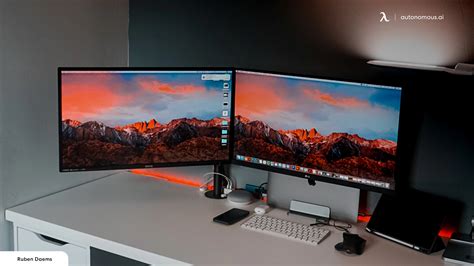
Desktop vs. Laptop for Photo Editing: A Matter of Workflow and Workspace
The perennial question for photographers and digital artists is: desktop or laptop for photo editing? Your lifestyle and working environment play the most crucial role in this decision. For those with a nomadic workstyle, frequently editing in cafes or on the road, a laptop for photo editing presents a compelling case. It offers the flexibility to edit on the fly, albeit with inherent trade-offs in terms of upgradeability and, potentially, screen size.
Conversely, desktops are the stalwarts of home or studio settings, where their superior upgrade paths and compatibility with the best computer screens for photo editing can truly shine. Building your own PC or having one custom-built for you allows for complete customization based on your specific photo editing needs. You can select the exact processor, amount of RAM, type and size of storage, and graphics card to tailor your system for optimal performance. The ability to upgrade components down the line makes desktops far more future-proof than a typical laptop, offering a more sustainable investment.
Screen size is another critical consideration. The adage “bigger is better” holds particularly true when editing images, where a larger display can significantly enhance your editing precision. For those leaning towards a laptop, coupling it with a high-quality external monitor can offer the best of both worlds-portability and expansive screen real estate. Many professionals opt for a dual setup: a laptop for on-the-go edits and a robust desktop for intensive editing sessions back in the studio. It’s advisable to steer clear of All-in-One PCs due to their limited upgradeability, which may not align with the evolving storage and performance needs of serious photographers, though some exceptions offer compelling value.
The Mac Ecosystem: Elegance Meets Power
Apple's Mac computers have long been favored by creatives, a bias that historically stemmed from Photoshop being exclusively available on macOS. While PCs are now equally capable, Macs continue to offer a streamlined, user-friendly experience with powerful hardware.
The Mac Mini M4 Pro (2024): Compact Powerhouse
The Mac mini M4 Pro (2024) stands as Apple's most impressive desktop computer to date, impressively shrinking an already compact design while maintaining excellent performance and value. The base model offers ample power for photo editing, handling everything from web browsing to video editing with ease. Its near-silent operation and tiny footprint make it perfect for quiet working environments.
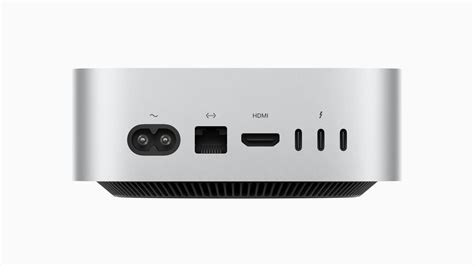
Specifications:
- CPU: Apple M4/M4 Pro
- Graphics: Up to 16-core integrated GPU
- RAM: Up to 64GB
- Storage: Up to 8TB SSD
- Connectivity: 2x front USB-C, 3x Thunderbolt 4/5 (USB-C), 1x HDMI, headphone socket, Ethernet, WiFi 6e, Bluetooth 5.3
- Dimensions (WxDxH): 127 x 127 x 50mm
Reasons to Buy:
- 16GB RAM as standard on many configurations.
- Beautiful design and construction.
- Plenty of ports, despite the size.
- Affordable entry point into the Mac ecosystem, starting at $599 / £599 for the base model.
Reasons to Avoid:
- Base-level 256GB SSD probably needs upgrading for serious photo editing.
- No memory card slot.
- Requires the purchase of a separate keyboard, mouse, and monitor.
- Like most Apple products, components cannot be upgraded after purchase.
Buy it if: You want an affordable Mac or if space is at a premium, as its new smaller design makes it Apple's most compact computer ever.
Don't buy it if: You want an all-in-one solution, as you only get the computer, not a monitor and keyboard, or if you desire any form of upgradability.
The addition of front USB-C ports adds convenience, though note that they run at slower speeds than the rear Thunderbolt ports. While the M4 chip brings notable performance improvements, especially for AI tasks, the integrated GPU still means this isn't the ideal computer for gaming.
The Apple iMac M4 (2024): The Quintessential All-in-One
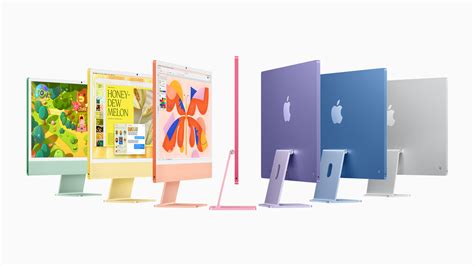
If you desire a computer that comes with a keyboard and monitor, the latest model of Apple's iMac, featuring the M4 chip, is our top pick for an all-in-one solution. The M4 chip delivers excellent performance for both everyday tasks and demanding photo editing. The new 16GB RAM baseline addresses a common criticism of previous models, ensuring a smoother experience. What's more, the stunning 4.5K Retina display, available with an optional nano-texture finish, provides an excellent viewing experience, though some may wish for a higher refresh rate than 60Hz.
Specifications:
- CPU: Apple M4 (8-core or 10-core)
- Graphics: 8-core or 10-core integrated GPU
- RAM: Up to 32GB
- Storage: Up to 2TB SSD
- Connectivity: Up to 4x Thunderbolt 4/USB-C ports, headphone jack, WiFi 6E, Bluetooth 5.3
- Dimensions (WxDxH): 54.7 x 46.1 x 14.7cm
Reasons to Buy:
- Beautiful all-in-one design.
- Available in fun, vibrant colors.
- Powerful processing capabilities.
- Great integrated screen.
Reasons to Avoid:
- Cannot be upgraded down the line.
- Limited stand positions.
- Still awaiting the full integration of promised Apple Intelligence features.
Buy it if: You want the best all-in-one computer where everything is included in the box, or if you desire a stylish desktop with attractive aesthetics due to its thin design and vibrant color options.
Don't buy it if: You need a larger display, as the single 24-inch screen may limit your screen real estate.
It's very attractive to look at, too: the redesigned colorful aesthetic introduced with the M1 model remains, but with refreshed, more vibrant color options that better match Apple's broader product line. While the single 24-inch screen size may limit its appeal for some users, the thin profile and small footprint make it an ideal choice for most home and office environments.
The Apple Mac Studio with M4 Max: Uncompromising Power in a Compact Form
The Apple Mac Studio with the M4 Max chip is arguably the most powerful computer you can buy in the smallest footprint. The small and compact size is completely deceptive of the immense power hidden inside. This machine absolutely flew through photo editing in Adobe Lightroom and Photoshop and easily handled video editing with multiple tracks and effects in Apple Final Cut Pro. Even the quality-of-life improvements, like opening files and programs faster, made the Studio just more enjoyable to use.
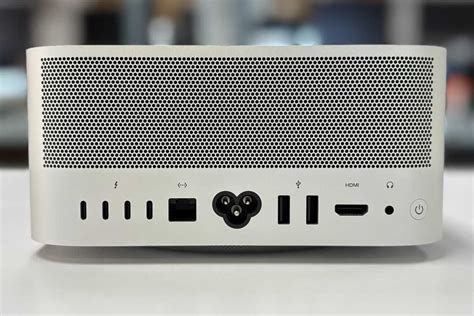
Specifications:
- CPU: Apple M4 Max
- Graphics: Up to 40-core integrated GPU
- RAM: Up to 128GB
- Storage: Up to 8TB SSD
- Connectivity: 4x Thunderbolt 5, 2x USB-A, 1x HDMI, headphone socket, Ethernet, WiFi, Bluetooth (Front: 2x USB-C, SDXC slot)
- Dimensions (WxDxH): 197 x 197 x 95mm
Reasons to Buy:
- Small and compact profile.
- Immense power, even in the base model.
- Abundant ports, including a front SDXC card slot.
Reasons to Avoid:
- Speccing up gets very expensive, very fast.
- No parts upgradability.
Buy it if: You want the most power in the smallest package. There's enough performance in this compact, svelte machine to shame many hulking computer towers.
Don't buy it if: You want any form of upgradability. No part of the Mac Studio is upgradable, so you'll need to spec it carefully at the point of purchase to stay future-proofed.
The Mac Studio starts at a relatively affordable price for a freelancer or small studio, with the base model being powerful enough for most users' needs. However, when upping the specs on the Mac Studio, things can get very expensive very quickly.
The Mac Mini M2/M2 Pro (2023): A Value-Oriented Mac Option
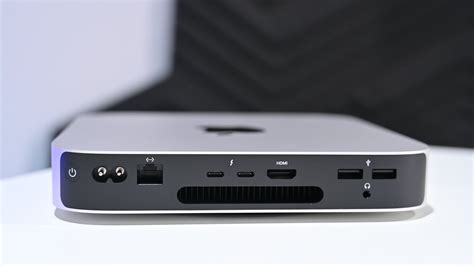
The Mac Mini M2 or M2 Pro, though a year older, remains a great desktop computer and is often cheaper than the latest 2024 versions. You'll still need to add your own monitor, but the computer itself is wonderfully compact at 197 x 197 x 36mm, so it should fit on any desk. This model differs from previous generations by using Apple's own processors designed for computers, similar in construction to an iPhone/iPad processor but beefed up for desktop computing.
Specifications:
- CPU: Apple M2 or M2 Pro, 8-core or 10-core
- Graphics: Up to 16-core integrated GPU
- RAM: 8-32GB
- Storage: 256GB-8TB SSD
- Connectivity: 2x USB 4/Thunderbolt/DP, HDMI, headphone socket, Ethernet, WiFi, Bluetooth
- Dimensions (WxDxH): 197 x 197 x 36mm
Reasons to Buy:
- Blisteringly fast performance.
- Excellent value for a Mac.
- Extra Thunderbolt ports compared to some other compact options.
Reasons to Avoid:
- Only configurable to 32GB of RAM.
- Same design as previous generations.
- Ports can be in short supply, making a dongle almost essential if connecting many peripherals.
- The base 8GB configuration isn't really enough; aim for 16GB for peace of mind.
Buy it if: Minimalism is a must, as the Mac mini is wonderfully compact and will fit almost anywhere, or if you don't want to sacrifice speed, as the M2 chip packs a serious punch.
Don't buy it if: You'll be connecting lots of peripherals, as ports are in short supply, or if you can't stretch to a memory upgrade beyond the base 8GB.
Windows Alternatives: Style and Performance Without the Apple Premium
While Macs offer a compelling ecosystem, Windows-based PCs provide a vast array of choices, often at more competitive price points and with greater potential for user upgrades.
Lenovo IdeaCentre AIO (27"): Budget-Friendly All-in-One
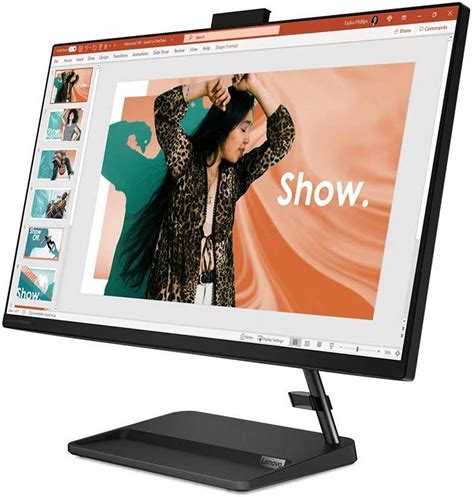
Lenovo's IdeaCentre AIO (all-in-one) PCs offer a stylish and powerful alternative to Apple's iMac if you're looking for an all-in-one desktop computer for photo editing. While it may not feature the absolute cutting-edge components, it still provides more than enough power for running Adobe Photoshop and other photo editing applications.
Specifications:
- CPU: Up to AMD Ryzen 7 7735HS
- Graphics: Integrated
- RAM: Up to 32GB
- Storage: Up to 1TB SSD
- Display: 27" IPS Full HD (1920 x 1080)
Reasons to Buy:
- Competitive price point.
- Decent IPS touchscreen with good color accuracy for its class.
Reasons to Avoid:
- Limited RAM and storage configurations.
- CPU is not the fastest available.
Buy it if: You want an iMac on a budget. While it may not rival an iMac on raw speed, the IdeaCentre AIO looks the part and is well-priced.
Don't buy it if: You'll be pushing things to the max, as there's enough power for most situations, but really intensive workloads could prove too taxing.
It's a particularly good PC for photo editing thanks to its screen, which, though only 1080p resolution, uses IPS display technology for consistent contrast accuracy and viewing angles. Best of all, it's significantly more affordable than Apple's iMac machines.
Geekom A6 Mini PC: The Mac Mini Competitor
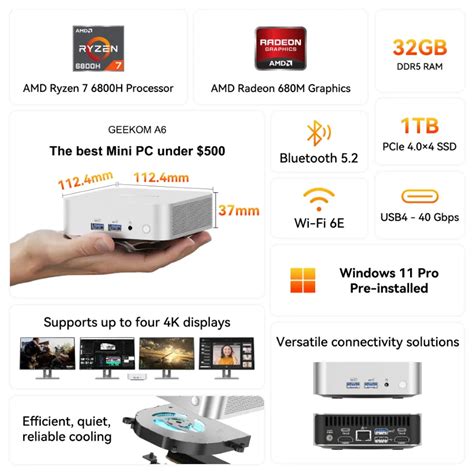
For those who fancy a desktop PC but don't want the traditional, dominating computer tower, a mini PC like the Geekom A6 could be ideal. Small enough to fit in a jacket pocket, yet powerful enough for serious image editing, and with a better port selection than a typical laptop, there's a lot to like here. At its heart is an 8-core AMD Ryzen 6800H processor, teamed with a generous 32GB of RAM. Storage is provided by a fast NVMe 1TB SSD, with space for an additional 2.5" SATA drive. Physical connectivity is excellent, with plenty of ports, and build quality is first-class.
Specifications:
- CPU: AMD Ryzen 7 6800H
- Graphics: Radeon 680M (integrated)
- RAM: 32GB
- Storage: 1TB NVMe SSD (with space for an additional 2.5" SATA drive)
- Connectivity: Numerous USB-A and USB-C ports, HDMI, Ethernet, SD card slot.
Reasons to Buy:
- Lots of ports, including an SD card slot.
- Flexible specification options.
- Easy to upgrade internal storage.
- A compact alternative to a Mac Mini on a budget, often offering more RAM and storage for less money.
Reasons to Avoid:
- May require self-installation of the operating system.
- Integrated graphics offer limited power compared to dedicated GPUs.
Buy it if: You want a Mac Mini on a budget but need more ports, or if you need plenty of ports. Unlike a Mac Mini, the A6 sports plenty of USB-A and Type-C ports, plus HDMI, Ethernet, and even an SD card slot.
Don't buy it if: You're a power user who needs extreme graphics performance. This is a machine designed to be inconspicuous; if you want a real speed demon, a bigger PC is a better bet.
During testing, the A6 performed well in general use. The 32GB of RAM is a healthy amount for image editing, making the A6 easily able to handle high-resolution RAW images in Photoshop.
Watch BEFORE Buying a Video Editing Computer | 2026 Buyers Guide
Key Components for Your Photoshop Rig: A Deeper Dive
Beyond the specific models, understanding the core components is crucial for making an informed decision.
Processor (CPU): The Brains of the Operation
The Central Processing Unit (CPU) is the heart of any computer, handling all tasks thrown at it by you or any software. Lightroom's performance, especially when applying filters or adjusting sliders, heavily relies on the CPU's capabilities. While Adobe's software traditionally worked better with Intel products, AMD's Ryzen series CPUs have been catching up with impressive performance.
For Macs, Apple's own M-series chips (M4, M4 Pro, M4 Max) are proving to be very capable, especially in tasks like photo editing. If you're not considering a Mac with an M-series CPU, your best options are either an Intel "Core" or an AMD "Ryzen" CPU. Avoid purchasing CPUs marked as "Pentium" or "Celeron," as these are entry-level processors not designed for strenuous tasks.
Tests have found that Lightroom prefers CPUs with faster internal clock speeds (higher GHz). The "Brand Modifier" (e.g., i3, i5, i7, i9 for Intel; Ryzen 3, 5, 7, 9 for AMD) determines the performance level, with higher numbers generally offering higher performance. Within these individual product lines, consider the number of processing cores-four is a minimum, and more is always better for faster performance.
Memory (RAM): Multitasking Mastery
RAM (Random Access Memory) is what stores the images or video you're currently editing, as well as any applications you have open. The more RAM you have, the better. Applications like Chrome are renowned for devouring RAM, and the same is true when editing high-resolution images with multiple layers in Photoshop.
Opening Lightroom or Photoshop already uses about 1GB of RAM each. When you start working on a file in Photoshop or scrolling through your pictures in Lightroom, that amount can easily shoot up to 4GB or more each. Considering that the operating system uses at least 2GB of RAM, you still need to have some RAM left over for other background software running on your system.
Therefore, we recommend having at least 16GB of RAM installed. Anything less can cause your system to perform significantly worse and may even freeze, especially when performing strenuous tasks like creating HDR or panoramic images. For professional workflows involving very large files or extensive layering, 32GB or even 64GB is highly recommended. A significant benefit of a desktop PC tower over a laptop is that RAM is often expandable/upgradable. This is no longer possible with modern Apple iMac or Mac mini/Studio products.
Storage Drives: Speed and Capacity
The storage drive is often one of the most overlooked yet vital components that can significantly save you time. It plays a pivotal role in determining how quickly your computer can access the data stored on the drive. Therefore, it's essential to have hard drives with fast read/write speeds.
The Hard Disk Drive (HDD) has been the traditional choice for storage, but the new standard today is the Solid State Drive (SSD). The primary distinction is that an HDD contains rotating disks, while an SSD is entirely solid with no moving parts. This design enables an SSD to access data at lightning-fast speeds, while an HDD must wait for its rotating disks to spin up before accessing files. HDDs are also larger, bulkier, and more susceptible to data corruption, especially when used as external drives that are frequently plugged in and out. As a result, HDDs are typically used for backups and storing large files that aren’t accessed regularly.
In contrast, Solid State Drives (SSD) are incredibly fast and compact. There are currently two main types of SSDs relevant here: the 2.5” SSD, which resembles the traditional HDD in size and form, and the M.2 NVMe SSD, which looks like a stick of RAM and connects directly to the motherboard. These M.2 NVMe SSDs are even faster than their 2.5” counterparts and are the preferred choice for installing the operating system and frequently accessed applications.
An SSD (solid state drive) is a must in any desktop computer, but don’t get stuck with a small capacity. 512GB is a bare minimum if you’re working with large files, while 1 terabyte (TB) or more is preferable for your primary drive, which should house your operating system, software, and Lightroom catalog/cache. We recommend adding a second or even third storage drive with a capacity of 2-4TB or more to store all your photos and data. Additionally, you will need external hard drive(s) for backing up your photos and Lightroom catalog, unless you have a fast internet connection to utilize cloud backup services.
Graphics Card (GPU): Accelerating Your Workflow
Lightroom Classic and Photoshop both benefit from having a fast, dedicated graphics card. A dedicated graphics card refers to a physical, standalone graphics card placed in your computer, distinct from the integrated graphics built into the CPU.
While Photoshop has supported graphics hardware acceleration for a long time, previous versions of Lightroom Classic underperformed when making use of the GPU. That all changed when Lightroom Classic introduced AI-powered editing tools. The graphics card is now integral in achieving excellent results with these tools. If Lightroom determines that your graphics card is not robust enough for hardware acceleration, it will only partially support it and disable full hardware acceleration.
Since Lightroom Classic version 11, Adobe revamped many of the tools in the Develop Module to take advantage of Artificial Intelligence (AI). The masking feature can automatically fine-tune your mask by detecting the sky or a subject of your choice. These features consume a significant amount of graphical processing power, and the results can vary depending on the graphics card used.
With that in mind, get yourself a dedicated graphics card with at least 6GB of VRAM. If you’re using large, high-resolution QHD or UHD monitors, we recommend investing in one of NVIDIA’s RTX series or the equivalent AMD Radeon RX graphics cards to meet the high demands that such monitors require.
NVIDIA GPUs come with special graphics drivers known as “Studio Drivers.” These drivers are designed to enhance the performance of professional photo and video editing software. They are available for all NVIDIA 10 series and newer graphics cards. If you own or plan on buying an NVIDIA graphics card, make sure to activate the Studio Drivers using the GeForce Experience Software. NVIDIA Quadro series graphics cards offer exceptional performance but are extremely expensive and often overkill for standard photo editing tasks, being primarily designed for high-end video and graphics rendering.
AMD’s Radeon RX 6000 series GPUs and Ryzen 5000 series CPUs come with a unique feature called “Smart Access Memory.” This feature enables Ryzen 5000 series CPUs to access the full VRAM capacity of RX 6000 series GPUs, eliminating bottlenecks and enhancing overall performance. If your budget and system configuration allows, consider purchasing AMD’s latest GPUs or CPUs to leverage this feature effectively.
When it comes to recommending a specific graphics card, it’s tricky due to frequent releases of new cards. However, we recommend buying a mid-range to high-end NVIDIA GeForce or AMD Radeon RX card that supports DirectX 12 or OpenGL 3.3 or later. Examples include NVIDIA GeForce RTX 2060, 3060, 4060 or higher.
Monitors: Your Window to the Image
Investing in a high-resolution display with accurate color representation is essential for photo editing tasks. The emergence of Quad-HD (QHD) and Ultra-HD (UHD) monitors allows us to examine photos with clear, precise details. QHD and UHD resolutions typically vary from 2560 x 1440 to 3840 x 2160. While these monitors may be pricey, investing in one now ensures you are future-proofed. If you’re working within a tight budget, consider a Full HD screen (1920 x 1080) at a minimum. When selecting Windows-based laptops, ensure you avoid models with resolutions such as 1366 x 768, which are lower than Full HD, to prevent compromising on display quality.
A vital aspect to consider is screen size. In photo editing, size does matter! We suggest choosing a minimum size of 27 inches for your monitor. Alternatively, you can explore the option of using two 24-inch screens, which offer excellent multitasking capabilities for editing tasks. If your budget allows, investing in a 32-inch ultra-wide, curved monitor is worth considering, especially if it supports UHD resolution. While it may be a costly investment, the expansive screen real estate offers an immersive editing experience.
The next thing to consider is the screen technology and what panel it uses, as it significantly impacts image quality, color accuracy, and viewing angles. Go for a backlit LED screen featuring IPS (In-Plane Switching) technology, or comparable technologies like PLS (Samsung) and VA (Vertical Alignment). Avoid TN (Twisted Nematic) screens, as they typically fall short in meeting the requirements for editing tasks.
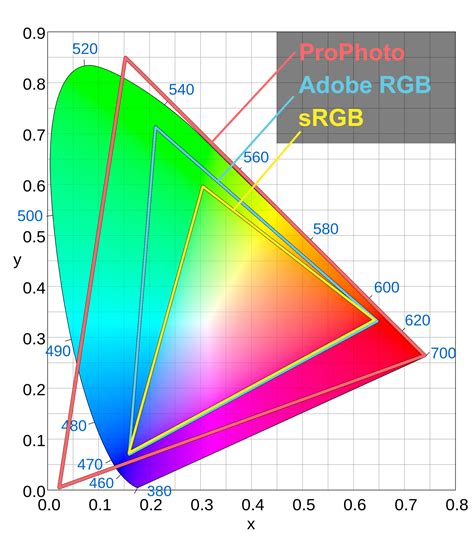
Choosing a screen with precise color accuracy and an extensive color range (gamut) is paramount. The primary color spaces offered in screens are sRGB and Adobe RGB. sRGB, widely used for the internet and most software applications, offers a limited color range compared to Adobe RGB. Adobe RGB, designed to represent the full spectrum of colors achievable on CMYK printers, covers a broader range. However, using Adobe RGB may lead to color inaccuracies in Windows and other software applications. Photoshop accurately displays the Adobe RGB color space, while Lightroom utilizes an even larger color space, ProPhoto RGB, which is not yet fully supported by most monitors. If you primarily use Lightroom, the distinction between an sRGB and an Adobe RGB monitor is less significant. Certain high-end professional monitors boast Adobe RGB support and built-in hardware calibration for unparalleled color fidelity.
The All-in-One Dilemma: Convenience vs. Compromise
As well as traditional tower desktop computers, all-in-one computers are available. These have all the components built into a screen - the Apple iMac being a prime example - and there are a number of advantages to this. First of all, they are stylish and space-saving, as you do not need to have a big box sitting on your desk - just the screen, a mouse, and a keyboard. As the computer is built into the screen, it means you don’t need to buy a monitor separately either, which can save you money.
There are a few downsides you need to consider with all-in-ones, however. All-in-one computers can’t be easily upgraded like traditional PCs, as the components are usually specially designed to be fitted behind the screen - much like a laptop. They can also be more expensive to repair if something goes wrong, as the integrated nature of the components means that a single faulty part can necessitate replacing the entire unit. For serious photo editing, where performance and the ability to upgrade are paramount, a traditional tower PC or a compact desktop like the Mac Mini or Mac Studio often presents a more future-proof and adaptable solution.
Conclusion: Finding Your Perfect Photoshop Partner
Desktop computers for photo editing provide the power and reliability creative professionals need to bring their visions to life. Whether you’re retouching images, managing large files, or working with high-resolution graphics, the right desktop can help streamline your workflow and enhance productivity. Choosing the best computer for photo editing is about more than just picking the latest model-it's about finding a desktop that fits seamlessly into your creative process. The demands of modern photo editing require a desktop computer that’s built for both speed and reliability. Processors with multiple cores, generous RAM (16GB or more, with many preferring 32GB or 64GB for larger projects), and fast SSD storage are essential for smooth multitasking and rapid file access. A dedicated graphics card can further accelerate rendering and effects, especially as more editing tools incorporate AI-driven features. For those who value a streamlined workspace, an all-in-one PC for photo editing can be an excellent choice, especially if you value a clean workspace and integrated design. Color accuracy ensures that the colors you see on your screen match the final output, whether you're printing photos or sharing them online. Photo files, especially high-resolution RAW images, can quickly consume storage space. Absolutely. A well-equipped desktop computer for photo editing is also suitable for graphic design, video editing, and other creative applications. When selecting your next desktop for photo editing, consider how your workflow might evolve. Ample storage is crucial for archiving large libraries of images, while multiple monitor support can expand your digital canvas for side-by-side comparisons and detailed adjustments. Ergonomic accessories, such as adjustable stands and high-precision mice, further enhance comfort during long editing sessions. Prioritize a fast multi-core processor, at least 16GB of RAM (32GB or more for advanced workflows), a dedicated graphics card, and a high-resolution, color-accurate display.